0 Followers · 68 Posts

A comma-separated values (CSV) file is a delimited text file that uses a comma to separate values. Each line of the file is a data record. Each record consists of one or more fields, separated by commas. The use of the comma as a field separator is the source of the name for this file format. A CSV file typically stores tabular data (numbers and text) in plain text, in which case each line will have the same number of fields.

Question Colin Brough · Oct 3, 2025

Is there any way of saving a representation of the results of a query created in the Message Viewer to a file - most obviously CSV.

We are reasonably adept at creating queries. We'd like to be able to send the output to a file, rather than resorting to cut'n'pasting from the message viewer window...

Is this possible? (on any version of Ensemble/Iris?)

Desired output to file something like:

ID,TimeCreated,Session,Status,Error,Source,Target,Body_MSH_MessageControlId,.....
1,8888888,2025-08-20 05:03:14.324,8438123,Completed,OK,ICE ADT Validator,ICE ADT TCP,1z123456,20220822......
13
0 130
Article Kate Lau · Oct 9, 2025 6m read

Hi,

It's me again😁, recently I am working on generating some fake patient data for testing purpose with the help of Chat-GPT by using Python. And, at the same time I would like to share my learning curve.😑

1st of all for building a custom REST api service is easy by extending the %CSP.REST

Creating a REST Service Manually

Let's Start !😂

1. Create a class datagen.restservice which extends  %CSP.REST 

Class datagen.restservice Extends%CSP.REST
{
Parameter CONTENTTYPE = "application/json";
}


2. Add a function genpatientcsv() to generate the patient data, and package it into csv string

3
1 76
Article Kurro Lopez · Sep 29, 2025 13m read

I am truly excited to continue my "InterSystems for Dummies" series of articles, and today, we want to tell you everything about one of the most powerful features we have for interoperability.

Hey, even if you have already had a go, we plan to take a really close look at how to get the most out of them and make our production even better.

What Is Record Mapper?

In essence, a Record Mapper is a tool that lets you map data from text files to production messages and vice versa. The Management Portal interface, on the other hand, allows you to create a visual representation of a text file and a valid object model of that data to map them to a single persistent production message object.

Therefore, if you wish to import data from a CSV file into your persistent class, you can play with a couple of inbound classes to do it (by FTP or File directory... ). Do not rush, though! We will get to each of those points in due course.


TIP: All the examples and classes described in this article can be downloaded from the following link: https://github.com/KurroLopez/iris-recordmap-fordummies.git


How to Start?

Let's get to the point and specify our scenario!.

We need to import information from our customers, including their name, date of birth, national identification number, address, city, and country.

Open your IRIS portal and select Interoperability – Build – Record Maps: image

Create a new Record Map with the package and class name. image

In our example, the package name is Demo.Data, whereas the class name is PersonalInfo.

The first step is to configure the CSV file. What I mean by that is to determine the separator character if the string fields have double quotes, etc.. image

If you use Windows OS, the common record terminator is CRLF (Char(10) Char(12)).

Since my CSV file is a standard one, separated by a semicolon (;), I must define the character of the field separator.

Now, I am going to declare the fields of the customer profile (name, surname, date of birth, national identification number, address, city, and country). image

This is a basic definition, but you can set more conditions regarding your CSV file if you wish. image

Remember that by default, a %String field has a maximum length of 50 characters. Therefore, I will update this value to allow more characters in the address field (a maximum of 100).

I will also define the date format using the ISO layout (yyyy-mm-dd), which corresponds to the number 3.

In addition, I will make the first name, surname, and date of birth fields mandatory. image

Everything is ready! Let’s go and press the “Generate” button to create the persistent class! image

Let's take a look at the generated class:
/// THIS IS GENERATED CODE. DO NOT EDIT.<br/>
/// RECORDMAP: Generated from RecordMap 'Demo.Data.PersonalInfo'
/// on 2025-07-14 at 08:37:00.646 [2025-07-14 08:37:00.646 UTC]
/// by user SuperUser
Class Demo.Data.PersonalInfo.Record Extends (%Persistent, %XML.Adaptor, Ens.Request, EnsLib.RecordMap.Base) [ Inheritance = right, ProcedureBlock ]
{

Parameter INCLUDETOPFIELDS = 1;

Property Name As %String [ Required ];

Property Surname As %String [ Required ];

Property DateOfBirth As %Date(FORMAT = 3) [ Required ];

Property NationalId As %String;

Property Address As %String(MAXLEN = 100);

Property City As %String;

Property Country As %String;

Parameter RECORDMAPGENERATED = 1;

Storage Default
{
<Data name="RecordDefaultData">
<Value name="1">
<Value>%%CLASSNAME</Value>
</Value>
<Value name="2">
<Value>Name</Value>
</Value>
<Value name="3">
<Value>%Source</Value>
</Value>
<Value name="4">
<Value>DateOfBirth</Value>
</Value>
<Value name="5">
<Value>NationalId</Value>
</Value>
<Value name="6">
<Value>Address</Value>
</Value>
<Value name="7">
<Value>City</Value>
</Value>
<Value name="8">
<Value>Country</Value>
</Value>
<Value name="9">
<Value>Surname</Value>
</Value>
</Data>
<DataLocation>^Demo.Data.PersonalInfo.RecordD</DataLocation>
<DefaultData>RecordDefaultData</DefaultData>
<ExtentSize>2000000</ExtentSize>
<IdLocation>^Demo.Data.PersonalInfo.RecordD</IdLocation>
<IndexLocation>^Demo.Data.PersonalInfo.RecordI</IndexLocation>
<StreamLocation>^Demo.Data.PersonalInfo.RecordS</StreamLocation>
<Type>%Storage.Persistent</Type>
}

}

As you can see, each property has the name of the fields in our CSV file.

At this point, we will create a CSV file with the structure below to test our Record Mapper:

Name;Surname;DateOfBirth;NationalId;Address;City;Country Matthew O.;Wellington;1964-31-07;208-36-1552;1485 Stiles Street;Pittsburgh;USA Deena C.;Nixon;1997-03-03;495-26-8850;1868 Mandan Road;Columbia;USA Florence L.;Guyton;2005-04-10;21 069 835 790;Invalidenstrasse 82;Contwig;Germany Maximilian;Hahn;1945-10-17;92 871 402 258;Boxhagener Str. 97;Hamburg;Germany Amelio;Toledo Zavala;1976-06-07;93789292F;Plaza Mayor, 71;Carbajosa de la Sagrada;Spain

You can use it as a test now.

Click “Select sample file”, pick the sampling in /irisrun/repo/Samples, and choose PersonalInfo-Test.csvimage

At this moment, you can observe how your data is being imported: image

The Problems Grow

Just as you think everything is ready, you receive a new specification from your boss:

"We need the data to be able to load the client's phone number and store more than one of them (landline, cell phone, etc.)"

Ops… I need to upgrade my Record Map and add a phone number. However, it should have more than one of them… How can I do it?


Note: You can do it directly in the same class. Yet, I will create a new one for explanation purposes and store it in the examples. This way, you can review and run the code, following all the steps in this article.


Okay, it is time to reopen the Record Map we have just created.

Add the new field “Phone”, but remember to indicate that this field is “Repeating” this time. image

Since we have appointed this field as "Repeating", we must define the separator character for replicated data. This indicator is in the same place where we typically specify the field separator. image

Perfect! Let's load the example CSV file with phone numbers separated by #. image

If we take a look at the persistent class we produced, we can notice that the "Phone" field is of a type List of %String:

Property Phone As list Of %String(MAXLEN = 20);

Ok Kurro, but How Can We Upload This File?

It is a really nice question, my dear reader.

Intersystems IRIS provides us with two inbound classes: EnsLib.RecordMap.Service.FileServiceEnsLib.RecordMap.Service.FTPService

I will not go in depth with these classes because it would be too long. Yet, we can check out their main functions.

In summary, the service monitors processes in a defined folder, captures files stored in that directory, loads them, reads them line by line, and sends that record to the designated business process.

It happens in both the server and FTP directories.

Let's get to the point…


Note: I will present my examples using the EnsLib.RecordMap.Service.FileService class. However, EnsLib.RecordMap.Service.FTPService class has the same operations.


If you have downloaded the sample code, you should notice that a production has been built with two components:

A service class (EnsLib.RecordMap.Service.FileService), which will load the files, and a business class (Demo.BP.ProcessData), which will process each of the records read from the file. The latter, in this case, we will use ONLY to view communication traces.

It is important to configure some parameters in the business service class. image

File Path: It is a trail for the class to monitor whether any files are pending processing. When a file is placed in this directory, the upload process automatically triggers and sends each record to the class defined as Business Process.

File Spec: It is a file pattern to search for (by default, it is *, but we can define some files we wish to differentiate from other processes). For instance, we can have two inbound listening classes in the same directory, with each using a different RecordMap class. We can assign the extension .pi1 for the files to be processed by the PersonalInfo class, whereas .pi2 will flag files to be processed by the PersonalInfoPhone class.

Archive Path: It is a directory where files are moved after being processed.

Work Path: It is a trackway where the adapter should place the input file while processing the data in it. This setting is beneficial when the same filename is used for repeated file submissions. If WorkPath is not specified, the adapter will not move the file during processing.

Call Interval: It is the frequency (calculated in seconds) of the adapter checkups for input files in the specified locations.

RecordMap: It is the name of the RecordMap class, containing the definition of the data in the file.

Target Config Name: It is the name of the Business Process that handles the data stored in the file. image

Subdirectory Levels: It is a space where the process searches for a new file. For instance, if we have a process that adds a file every day (Monday, Tuesday, Wednesday, Thursday, and Friday), it will search all subdirectories starting from the root directory, provided that we specify level 1. By default, level 0 means that it will only search in the root directory.

Delete From Server: This function indicates that if the directory of processed files is not specified, the file will be deleted from the root directory.

File Access Timeout: It is a defined time (calculated in seconds) set to access the file. If the file is read-only or there is another problem obstructing access to the directory, it will display an error.

Header Count: It is an important feature indicating the number of headers to ignore. For example, if the file has a header specifying the fields it contains, you must reveal how many header lines it consists of, so that they can be ignored and only the data lines can be read.

Uploading a File

As I previously mentioned, the upload process is triggered when a file is placed in the process directory. Note: The following instructions are based on the sample code. In the “samples” folder, you can find the file PersonalInfoPhone-Test.csv. You should copy this file to the process folder, and it will be handled automatically.


NOTE: If you are working with a Docker sample, use the following command:

docker cp .\PersonalInfoPhone-Test.csv containerId:/opt/irisbuild/process/

containerId is the id of your container, ex: docker cp .\PersonalInfoPhone-Test.csv 66f96b825d43398ba6a1edcb2f02942dc799d09f1b906627e0563b1392a58da1:/opt/irisbuild/process/` image


For each record, it throws a call to the business process with all the data. image

Amazing job! With just a few steps, you managed to create a process that can read files from a directory and manage that data quickly and easily. What else could you possibly ask for in your Interoperability processes?

Complex Record Map

Nobody wants to have a complex life, but I promise you will fall in love with complex Record Maps!.

Complex Record Maps are precisely what their name indicates. It is a combination of several Record Maps that provides us with more complete and structured information.

Let's imagine that our boss came to us and gave us the following requirements:

“We need customer information with more phone numbers, including country codes and prefixes. We also need more contact addresses, including postal codes, countries, and state names.

One customer can have one phone number, two, or none.”

If we require more information about phone numbers and addresses, as we have previously seen, including this information in a single line would be too complicated. Let's separate the different parts we need:

  • Customer information that is required.
  • Phone numbers, which can be from 0 to 5.
  • Mailing address information, which can be from 0 to 2.

For each section, we will create an alias to differentiate what type of information it includes.

Let's build each of the sections:

Step 1 Design a new Record Map for customer information (First Name, Last Name, Date of Birth, and National Identity Document), and include an identifier to indicate that it is the USER section. image

The section name must be unique for "User" data types, since they are responsible for setting the columns and positions for each piece of information. The content should look like the following: USER|Matthew O.;Wellington;1964-07-31;208-36-1552 In BOLD, the section name, in ITALIC, the content.

Step 2 Create PHONE and ADDR sections for phone numbers and postal addresses.

Remember to specify the section name and activate the Complex Record Map option. imageimage

Now, we should have three classes:

  • Demo.Data.ComplexUser
  • Demo.Data.ComplexPhone
  • Demo.Data.ComplexAddress

Step 3 Complete the Complex Record Map.

Open the “Complex Record Maps” option: image

The first thing we can see here is a structure with a header and a footer. The header can be another Record Map to hold information from the data packet (e.g., user department information, etc).

Since these sections are optional, we will ignore them in our example. image

Set the name of this record (e.g., PersonalInfo), and add new records for each section. image

If we wish one of the sections to have repetitions, we must indicate the minimum and maximum repetition values. image

According to the specifications above, the file with the information will look like the following:

USER|Matthew O.;Wellington;1964-07-31;208-36-1552
PHONE|1;305;2089160
PHONE|1;805;9473136
ADDR|1485 Stiles Street;Pittsburgh;15286;PA;USA

If we want to upload a file, we require a service that can read these kinds of files, and Intersystems IRIS provides us with two inbound classes for that:

EnsLib.RecordMap.Service.ComplexBatchFileServiceEnsLib.RecordMap.Service.ComplexBatchFTPService As I mentioned earlier, we will use the EnsLib.RecordMap.Service.ComplexBatchFileService class as an example. However, the process for FTP is identical.

It uses the same configuration as the Record Map, except for the Header line number, because this kind of file does not need one: image

As I stated before, the upload process is triggered when a file is placed in the process directory.

Note: The following instructions are based on the sample code.

In the “samples” folder, you can find the file PersonalInfoComplex.txt. You should copy this file to the process folder, and it will handle things automatically.


NOTE: If you work with the Docker sample, use the following command:

docker cp .\ PersonalInfoComplex.txt containerId:/opt/irisbuild/process/

containerId is the id of your container, ex: docker cp .\ PersonalInfoComplex.txt 66f96b825d43398ba6a1edcb2f02942dc799d09f1b906627e0563b1392a58da1:/opt/irisbuild/process/


Here, we can see each row calling the Business Service: imageimageimage

As you must have realized by now, Record Maps are a powerful tool for importing data in a complex and structured way. It allows us to save information in related tables or process each piece of data independently.

Thanks to this tool, you can quickly create batch data loading processes and store them without having to perform complex data reading, field separation, data type validation, and so on.

I hope you find this article helpfull.

See you in the next “InterSystems for Dummies.”

2
5 211
Question Kurro Lopez · Sep 5, 2025

Hello community.

I have a request from a client who wants to do the following.
Currently, they have a data upload process via FTP in which they have implemented a RecordMap to store the information of the CSV files that are uploaded to the FTP directory.
Now they want to have another directory so that it is ONLY executed through an external instruction, not when the file is uploaded to the directory.

3
0 68
Article Evgeny Shvarov · Aug 27, 2025 3m read

Hi folks!

It is very easy to import CSV data into IRIS. But what if we want to preserve the original IDs in CSV?

Recently I came across with the situation when I needed to import two csv's into IRIS which were linked by one column referencing  to another csv's col: a typical Foreign Key and Primary Key situation, where csv1 contains this column as Primary Key, and csv2 as Foreign key with id's related to csv1.

The image is generated by ChatGPT so don't blame it - it tried its best to generate countries as primary keys with countries.csv-cities.csv relationship :)

0
1 78
Question David Saunders · Aug 12, 2025

I am trying to use upload.csp as a template for choosing a CDV file to process. I am calling it from a zen page using this:
<button caption="Import Client Consultation Extract" 
       controlStyle="width:500px; height:100px; font-size:1.5em;"
         onclick="zenPage.importExtract();"/>

ClientMethod importExtract() [ Language = javascript ]
{
    // Open CSP popup to upload the CSV
    //alert('importExtract called.');
    zenPage.launchPopupWindow(zenLink('Upload.CSP'),'Upload Client Consultation extract',
                              'status,scrollbars,resizable,width=750,height=250');
}

8
0 95
Article Raj Singh · Mar 27, 2024 2m read

In recent versions of IRIS, a powerful new data loading command has been introduced to SQL: LOAD DATA. This feature has been highly optimized to import data into IRIS extremely fast, allowing hundreds of gigabytes of data to be inserted in seconds instead of hours or days. 

This is a very exciting improvement. However, a big problem in the data loading experience still exists. Namely, the time and hassle it takes to:

  1. Define the schema for the table in which you want to load data.
  2. Figure out the syntax for the LOAD DATA command.
7
1 981
Article wisitsak sangiamsak · Jul 31, 2025 1m read

Here's a practical example of how to import data from a CSV file into InterSystems CACHÉ using ObjectScript
Assuming your CSV file is simple (e.g., comma-separated, with headers), you can use %Stream.FileCharacter to read it line by line and parse the data.
 

ClassMethod ImportCSV(filePath As %String) As %Status {
    Set stream = ##class(%Stream.FileCharacter).%New()
    Set sc = stream.LinkToFile(filePath)
    If 'sc Quit sc

0
0 74
Article Muhammad Waseem · May 28, 2025 4m read


Hi Community,
In this article, I will introduce my application iris-fhir-bridge 
IRIS-FHIR-Bridge is a robust interoperability engine built on InterSystems IRIS for Health, designed to transform healthcare data across multiple formats into FHIR and vice versa. It leverages the InterSystems FHIR Object Model (HS.FHIRModel.R4.*) to enable smooth data standardization and exchange across modern and legacy healthcare systems.

2
1 155
Question Dmitrij Vladimirov · Feb 10, 2025

For example we have a docker app that receives a .csv file from windows environment and then do some processing on it in docker linux environment.
 
Windows encode new line in CRLF format, but linux can understand only LF and throw an unexpected errors like
 

ERROR #7207: Datatype value '100 ' is not a valid number > ERROR #5802: Datatype validation failed on property 'esh.i14y.csv.CelciusCSV.Record:Temperature', with value equal to "100 "


Is there a way to convert new line logic inside iris container in cases when .csv file (and other possible files) comes from windows environment ?

4
0 143
Article Alberto Fuentes · Jan 29, 2024 12m read

We have a yummy dataset with recipes written by multiple Reddit users, however most of the information is free text as the title or description of a post. Let's find out how we can very easily load the dataset, extract some features and analyze it using features from OpenAI large language model within Embedded Python and the Langchain framework.

Loading the dataset

First things first, we need to load the dataset or can we just connect to it?

There are different ways you can achieve this: for instance CSV Record Mapper you can use in an interoperability production or even nice OpenExchange applications like csvgen.

We will use Foreign Tables. A very useful capability to project data physically stored elsewhere to IRIS SQL. We can use that to have a very first view of the dataset files.

We create a Foreign Server:

CREATE FOREIGN SERVER dataset FOREIGN DATA WRAPPER CSV HOST '/app/data/'

And then a Foreign Table that connects to the CSV file:

CREATE FOREIGN TABLE dataset.Recipes (
  CREATEDDATE DATE,
  NUMCOMMENTS INTEGER,
  TITLE VARCHAR,
  USERNAME VARCHAR,
  COMMENT VARCHAR,
  NUMCHAR INTEGER
) SERVER dataset FILE 'Recipes.csv' USING
{
  "from": {
    "file": {
       "skip": 1
    }
  }
}

And that's it, immediately we can run SQL queries on dataset.Recipes: image

## What data do we need? The dataset is interesting and we are hungry. However if we want to decide a recipe to cook we will need some more information that we can use to analyze.

We are going to work with two persistent classes (tables):

  • yummy.data.Recipe: a class containing the title and description of the recipe and some other properties that we want to extract and analyze (e.g. Score, Difficulty, Ingredients, CuisineType, PreparationTime)
  • yummy.data.RecipeHistory: a simple class for logging what are we doing with the recipe

We can now load our yummy.data* tables with the contents from the dataset:

do ##class(yummy.Utils).LoadDataset()

It looks good but still we need to find out how are going to generate data for the Score, Difficulty, Ingredients, PreparationTime and CuisineType fields.

## Analyze the recipes We want to process each recipe title and description and:

  • Extract information like Difficulty, Ingredients, CuisineType, etc.
  • Build our own score based on our criteria so we can decide what we want to cook.

We are going to use the following:

LLM (large language models) are really a great tool to process natural language.

LangChain is ready to work in Python, so we can use it directly in InterSystems IRIS using Embedded Python.

The full SimpleOpenAI class looks like this:

/// Simple OpenAI analysis for recipes
Class yummy.analysis.SimpleOpenAI Extends Analysis
{

Property CuisineType As %String;

Property PreparationTime As %Integer;

Property Difficulty As %String;

Property Ingredients As %String;

/// Run
/// You can try this from a terminal:
/// set a = ##class(yummy.analysis.SimpleOpenAI).%New(##class(yummy.data.Recipe).%OpenId(8))
/// do a.Run()
/// zwrite a
Method Run()
{
    try {
        do ..RunPythonAnalysis()

        set reasons = ""

        // my favourite cuisine types
        if "spanish,french,portuguese,italian,korean,japanese"[..CuisineType {
            set ..Score = ..Score + 2
            set reasons = reasons_$lb("It seems to be a "_..CuisineType_" recipe!")
        }

        // don't want to spend whole day cooking :)
        if (+..PreparationTime < 120) {
            set ..Score = ..Score + 1
            set reasons = reasons_$lb("You don't need too much time to prepare it") 
        }
        
        // bonus for fav ingredients!
        set favIngredients = $listbuild("kimchi", "truffle", "squid")
        for i=1:1:$listlength(favIngredients) {
            set favIngred = $listget(favIngredients, i)
            if ..Ingredients[favIngred {
                set ..Score = ..Score + 1
                set reasons = reasons_$lb("Favourite ingredient found: "_favIngred)
            }
        }

        set ..Reason = $listtostring(reasons, ". ")

    } catch ex {
        throw ex
    }
}

/// Update recipe with analysis results
Method UpdateRecipe()
{
    try {
        // call parent class implementation first
        do ##super()

        // add specific OpenAI analysis results
        set ..Recipe.Ingredients = ..Ingredients
        set ..Recipe.PreparationTime = ..PreparationTime
        set ..Recipe.Difficulty = ..Difficulty
        set ..Recipe.CuisineType = ..CuisineType

    } catch ex {
        throw ex
    }
}

/// Run analysis using embedded Python + Langchain
/// do ##class(yummy.analysis.SimpleOpenAI).%New(##class(yummy.data.Recipe).%OpenId(8)).RunPythonAnalysis(1)
Method RunPythonAnalysis(debug As %Boolean = 0) [ Language = python ]
{
    # load OpenAI APIKEY from env
    import os
    from dotenv import load_dotenv, find_dotenv
    _ = load_dotenv('/app/.env')

    # account for deprecation of LLM model
    import datetime
    current_date = datetime.datetime.now().date()
    # date after which the model should be set to "gpt-3.5-turbo"
    target_date = datetime.date(2024, 6, 12)
    # set the model depending on the current date
    if current_date > target_date:
        llm_model = "gpt-3.5-turbo"
    else:
        llm_model = "gpt-3.5-turbo-0301"

    from langchain.chat_models import ChatOpenAI
    from langchain.prompts import ChatPromptTemplate
    from langchain.chains import LLMChain

    from langchain.output_parsers import ResponseSchema
    from langchain.output_parsers import StructuredOutputParser

    # init llm model
    llm = ChatOpenAI(temperature=0.0, model=llm_model)

    # prepare the responses we need
    cuisine_type_schema = ResponseSchema(
        name="cuisine_type",
        description="What is the cuisine type for the recipe? \
                     Answer in 1 word max in lowercase"
    )
    preparation_time_schema = ResponseSchema(
        name="preparation_time",
        description="How much time in minutes do I need to prepare the recipe?\
                     Anwer with an integer number, or null if unknown",
        type="integer",
    )
    difficulty_schema = ResponseSchema(
        name="difficulty",
        description="How difficult is this recipe?\
                     Answer with one of these values: easy, normal, hard, very-hard"
    )
    ingredients_schema = ResponseSchema(
        name="ingredients",
        description="Give me a comma separated list of ingredients in lowercase or empty if unknown"
    )
    response_schemas = [cuisine_type_schema, preparation_time_schema, difficulty_schema, ingredients_schema]

    # get format instructions from responses
    output_parser = StructuredOutputParser.from_response_schemas(response_schemas)
    format_instructions = output_parser.get_format_instructions()
    
    analysis_template = """\
    Interprete and evaluate a recipe which title is: {title}
    and the description is: {description}
    
    {format_instructions}
    """
    prompt = ChatPromptTemplate.from_template(template=analysis_template)

    messages = prompt.format_messages(title=self.Recipe.Title, description=self.Recipe.Description, format_instructions=format_instructions)
    response = llm(messages)

    if debug:
        print("======ACTUAL PROMPT")
        print(messages[0].content)
        print("======RESPONSE")
        print(response.content)

    # populate analysis with results
    output_dict = output_parser.parse(response.content)
    self.CuisineType = output_dict['cuisine_type']
    self.Difficulty = output_dict['difficulty']
    self.Ingredients = output_dict['ingredients']
    if type(output_dict['preparation_time']) == int:
        self.PreparationTime = output_dict['preparation_time']

    return 1
}

}

The RunPythonAnalysis method is where the OpenAI stuff happens :). You can run it directly from your terminal for a given recipe:

do ##class(yummy.analysis.SimpleOpenAI).%New(##class(yummy.data.Recipe).%OpenId(12)).RunPythonAnalysis(1)

We will get an output like this:

USER>do ##class(yummy.analysis.SimpleOpenAI).%New(##class(yummy.data.Recipe).%OpenId(12)).RunPythonAnalysis(1)
======ACTUAL PROMPT
                    Interprete and evaluate a recipe which title is: Folded Sushi - Alaska Roll
                    and the description is: Craving for some sushi but don't have a sushi roller? Try this easy version instead. It's super easy yet equally delicious!
[Video Recipe](https://www.youtube.com/watch?v=1LJPS1lOHSM)
# Ingredients
Serving Size:  \~5 sandwiches      
* 1 cup of sushi rice
* 3/4 cups + 2 1/2 tbsp of water
* A small piece of konbu (kelp)
* 2 tbsp of rice vinegar
* 1 tbsp of sugar
* 1 tsp of salt
* 2 avocado
* 6 imitation crab sticks
* 2 tbsp of Japanese mayo
* 1/2 lb of salmon  
# Recipe     
* Place 1 cup of sushi rice into a mixing bowl and wash the rice at least 2 times or until the water becomes clear. Then transfer the rice into the rice cooker and add a small piece of kelp along with 3/4 cups plus 2 1/2 tbsp of water. Cook according to your rice cookers instruction.
* Combine 2 tbsp rice vinegar, 1 tbsp sugar, and 1 tsp salt in a medium bowl. Mix until everything is well combined.
* After the rice is cooked, remove the kelp and immediately scoop all the rice into the medium bowl with the vinegar and mix it well using the rice spatula. Make sure to use the cut motion to mix the rice to avoid mashing them. After thats done, cover it with a kitchen towel and let it cool down to room temperature.
* Cut the top of 1 avocado, then slice into the center of the avocado and rotate it along your knife. Then take each half of the avocado and twist. Afterward, take the side with the pit and carefully chop into the pit and twist to remove it. Then, using your hand, remove the peel. Repeat these steps with the other avocado. Dont forget to clean up your work station to give yourself more space. Then, place each half of the avocado facing down and thinly slice them. Once theyre sliced, slowly spread them out. Once thats done, set it aside.
* Remove the wrapper from each crab stick. Then, using your hand, peel the crab sticks vertically to get strings of crab sticks. Once all the crab sticks are peeled, rotate them sideways and chop them into small pieces, then place them in a bowl along with 2 tbsp of Japanese mayo and mix until everything is well mixed.
* Place a sharp knife at an angle and thinly slice against the grain. The thickness of the cut depends on your preference. Just make sure that all the pieces are similar in thickness.
* Grab a piece of seaweed wrap. Using a kitchen scissor, start cutting at the halfway point of seaweed wrap and cut until youre a little bit past the center of the piece. Rotate the piece vertically and start building. Dip your hand in some water to help with the sushi rice. Take a handful of sushi rice and spread it around the upper left hand quadrant of the seaweed wrap. Then carefully place a couple slices of salmon on the top right quadrant. Then place a couple slices of avocado on the bottom right quadrant. And finish it off with a couple of tsp of crab salad on the bottom left quadrant. Then, fold the top right quadrant into the bottom right quadrant, then continue by folding it into the bottom left quadrant. Well finish off the folding by folding the top left quadrant onto the rest of the sandwich. Afterward, place a piece of plastic wrap on top, cut it half, add a couple pieces of ginger and wasabi, and there you have it.
                    
                    The output should be a markdown code snippet formatted in the following schema, including the leading and trailing "```json" and "```":
json
{
        "cuisine_type": string  // What is the cuisine type for the recipe?                                  Answer in 1 word max in lowercase
        "preparation_time": integer  // How much time in minutes do I need to prepare the recipe?                                    Anwer with an integer number, or null if unknown
        "difficulty": string  // How difficult is this recipe?                               Answer with one of these values: easy, normal, hard, very-hard
        "ingredients": string  // Give me a comma separated list of ingredients in lowercase or empty if unknown
}

                    
======RESPONSE
json
{
        "cuisine_type": "japanese",
        "preparation_time": 30,
        "difficulty": "easy",
        "ingredients": "sushi rice, water, konbu, rice vinegar, sugar, salt, avocado, imitation crab sticks, japanese mayo, salmon"
}

That looks good. It seems that our OpenAI prompt is capable of returning some useful information. Let's run the whole analysis class from the terminal:

set a = ##class(yummy.analysis.SimpleOpenAI).%New(##class(yummy.data.Recipe).%OpenId(12))
do a.Run()
zwrite a
USER>zwrite a
a=37@yummy.analysis.SimpleOpenAI  ; <OREF>
+----------------- general information ---------------
|      oref value: 37
|      class name: yummy.analysis.SimpleOpenAI
| reference count: 2
+----------------- attribute values ------------------
|        CuisineType = "japanese"
|         Difficulty = "easy"
|        Ingredients = "sushi rice, water, konbu, rice vinegar, sugar, salt, avocado, imitation crab sticks, japanese mayo, salmon"
|    PreparationTime = 30
|             Reason = "It seems to be a japanese recipe!. You don't need too much time to prepare it"
|              Score = 3
+----------------- swizzled references ---------------
|           i%Recipe = ""
|           r%Recipe = "30@yummy.data.Recipe"
+-----------------------------------------------------

## Analyzing all the recipes! Naturally, you would like to run the analysis on all the recipes we have loaded.

You can analyze a range of recipes IDs this way:

USER>do ##class(yummy.Utils).AnalyzeRange(1,10)
> Recipe 1 (1.755185s)
> Recipe 2 (2.559526s)
> Recipe 3 (1.556895s)
> Recipe 4 (1.720246s)
> Recipe 5 (1.689123s)
> Recipe 6 (2.404745s)
> Recipe 7 (1.538208s)
> Recipe 8 (1.33001s)
> Recipe 9 (1.49972s)
> Recipe 10 (1.425612s)

After that, have a look again at your recipe table and check the results

select * from yummy_data.Recipe

image

I think I could give a try to Acorn Squash Pizza or Korean Tofu Kimchi with Pork :). I will have to double check at home anyway :)

Final notes

You can find the full example in https://github.com/isc-afuentes/recipe-inspector

With this simple example we've learned how to use LLM techniques to add features or to analyze some parts of your data in InterSystems IRIS.

With this starting point, you could think about:

  • Using InterSystems BI to explore and navigate your data using cubes and dashboards.
  • Create a webapp and provide some UI (e.g. Angular) for this, you could leverage packages like RESTForms2 to automatically generate REST APIs to your persistent classes.
  • What about storing whether you like or not a recipe, and then try to determine if a new recipe will like you? You could try an IntegratedML approach, or even an LLM approach providing some example data and building a RAG (Retrieval Augmented Generation) use case.

What other things could you try? Let me know what you think!

3
2 410
Question Carl (booz Allen) Deitrich · Mar 5, 2024

We have JSON type data in a Dynamic Object.  Is there a simple way to export / dump that data to a delimited string or file?

e.g.

Results={"ClassA":{"ClassName":"ClassA","ACount":367191880,"BCount":367191880,"CurrentDiff":0,"PreviousDiff":0,"ReportDate":"2024-03-02 00:00:00"}
"ClassB":{"ClassName":"ClassB","ACount":5352149227,"BCount":5352149227,"CurrentDiff":0,"PreviousDiff":0,"ReportDate":"2024-03-02 00:00:00"}}

6
0 454
Article Anton Umnikov · Dec 4, 2020 7m read

IRIS External Table is an InterSystems Community Open Source Project, that allows you to use files, stored in the local file system and cloud object storage such as AWS S3 as SQL Tables. IRIS External Table

It can be found on Github https://github.com/intersystems-community/IRIS-ExternalTable Open Exchange https://openexchange.intersystems.com/package/IRIS-External-Table and is included in InterSystems Package Manager ZPM.

To instal External Table from GitHub use:

git clone https://github.com/antonum/IRIS-ExternalTable.git
iris session iris
USER>set sc = ##class(%SYSTEM.OBJ).LoadDir("<path-to>/IRIS-ExternalTable/src", "ck",,1)

To install with ZPM Package Manager use:

USER>zpm "install external-table"

Working with local files

Let’s create a simple file that looks like this:

a1,b1
a2,b2

Open your favorite editor and create the file or just use a command line in linux/mac:

echo $'a1,b1\na2,b2' > /tmp/test.txt

In IRIS SQL Create table to represent this file:

create table test (col1 char(10),col2 char(10))

Convert table to use external storage:

CALL EXT.ConvertToExternal(
    'test',
    '{
        "adapter":"EXT.LocalFile",
        "location":"/tmp/test.txt",
        "delimiter": ","
    }')

And finally – query the table:

select * from test

If everything works out as expected you should see output like:

col1	col2
a1	b1
a2	b2

Now get back to the editor, change the content of the file and rerun the SQL query. Ta-Da!!! You are reading new values from your local file in SQL.

col1	col2
a1	b1
a2	b99

Reading data from S3

At <https://covid19-lake.s3.amazonaws.com/index.html >you can get access to constantly updating data on COVID, stored by AWS in the public data lake.

Let’s try to access one of the data sources in this data lake: s3://covid19-lake/rearc-covid-19-nyt-data-in-usa/csv/us-states

If you have AWS command line tool installed – you can repeat the steps below. If not – skip straight to SQL part. You don’t need anything AWS – specific to be installed on your machine to follow along with SQL part.

$ aws s3 ls s3://covid19-lake/rearc-covid-19-nyt-data-in-usa/csv/us-states/
2020-12-04 17:19:10     510572 us-states.csv

$ aws s3 cp s3://covid19-lake/rearc-covid-19-nyt-data-in-usa/csv/us-states/us-states.csv .
download: s3://covid19-lake/rearc-covid-19-nyt-data-in-usa/csv/us-states/us-states.csv to ./us-states.csv

$ head us-states.csv 
date,state,fips,cases,deaths
2020-01-21,Washington,53,1,0
2020-01-22,Washington,53,1,0
2020-01-23,Washington,53,1,0
2020-01-24,Illinois,17,1,0
2020-01-24,Washington,53,1,0
2020-01-25,California,06,1,0
2020-01-25,Illinois,17,1,0
2020-01-25,Washington,53,1,0
2020-01-26,Arizona,04,1,0

So we have a file with a fairly simple structure. Five delimited fields.

To expose this S3 folder as the External Table – first, we need to create a "regular" table with the desired structure:

-- create external table
create table covid_by_state (
    "date" DATE, 
    "state" VARCHAR(20),
    fips INT,
    cases INT,
    deaths INT
)

Note that some field names like “Date” are reserved words in IRIS SQL and need to be surrounded by double quotes. Then – we need to convert this “regular” table to the “external” table, based on AWS S3 bucket and CSV type.

 -- convert table to external storage
call EXT.ConvertToExternal(
    'covid_by_state',
    '{
    "adapter":"EXT.AWSS3",
    "location":"s3://covid19-lake/rearc-covid-19-nyt-data-in-usa/csv/us-states/",
    "type": "csv",
    "delimiter": ",",
    "skipHeaders": 1
    }' 
)

If you'll look closely - EXT.ExternalTable procedures arguments are table name and then JSON string, containing multiple parameters, such as location to look for files, adapter to use, delimiter etc. Besides AWS S3 External Table supports Azure BLOB storage, Google Cloud Buckets and the local filesystem. GitHub Repo contains references for the syntax and options supported for all the formats.

And finally – query the table:

-- query the table
select top 10 * from covid_by_state order by "date" desc

[SQL]USER>>select top 10 * from covid_by_state order by "date" desc
2.	select top 10 * from covid_by_state order by "date" desc

date	state	fips	cases	deaths
2020-12-06	Alabama	01	269877	3889
2020-12-06	Alaska	02	36847	136
2020-12-06	Arizona	04	364276	6950
2020-12-06	Arkansas	05	170924	2660
2020-12-06	California	06	1371940	19937
2020-12-06	Colorado	08	262460	3437
2020-12-06	Connecticut	09	127715	5146
2020-12-06	Delaware	10	39912	793
2020-12-06	District of Columbia	11	23136	697
2020-12-06	Florida	12	1058066	19176

It takes understandably more time to query data from the remote table, then it is for the “IRIS native” or global based table, but it is completely stored and updated on the cloud and being pulled into IRIS behind the scenes.

Let’s explore a couple of more features of the External Table.

%PATH and tables, based on multiple files

In our example folder in the bucket contains just one file. More often then not it would have multiple files of the same structure where filename identifies either timestamp or deviceid of some other attribute that we’ll want to use in our queries.

%PATH field is automatically added to every External Table and contains full path to the file where row was retrieved from.

select top 5 %PATH,* from covid_by_state

%PATH	date	state	fips	cases	deaths
s3://covid19-lake/rearc-covid-19-nyt-data-in-usa/csv/us-states/us-states.csv	2020-01-21	Washington	53	1	0
s3://covid19-lake/rearc-covid-19-nyt-data-in-usa/csv/us-states/us-states.csv	2020-01-22	Washington	53	1	0
s3://covid19-lake/rearc-covid-19-nyt-data-in-usa/csv/us-states/us-states.csv	2020-01-23	Washington	53	1	0
s3://covid19-lake/rearc-covid-19-nyt-data-in-usa/csv/us-states/us-states.csv	2020-01-24	Illinois	17	1	0
s3://covid19-lake/rearc-covid-19-nyt-data-in-usa/csv/us-states/us-states.csv	2020-01-24	Washington	53	1	0

You can use this %PATH field in your SQL queries as any other field.

ETL data to “Regular Tables”

If your task is to load data from S3 into an IRIS table – you can use the External Table as an ETL tool. Just do:

INSERT INTO internal_table SELECT * FROM external_table

In our case, if we want to copy COVID data from S3 into the local table:

--create local table
create table covid_by_state_local (
    "date" DATE, 
    "state" VARCHAR(100),
    fips INT,
    cases INT,
    deaths INT
)
--ETL from External to Local table
INSERT INTO covid_by_state_local SELECT TO_DATE("date",'YYYY-MM-DD'),state,fips,cases,deaths FROM covid_by_state

JOIN between IRIS – native and External table. Federated queries

External Table is an SQL table. It can be joined with other tables, used in subselects and UNIONs. You can even combine the “Regular” IRIS table and two or more external tables from different sources in the same SQL query.

Try creating a regular table such as matching state names to state codes like Washington – WA. And Join it with our S3-Based table.

create table state_codes (name varchar(100), code char(2))
insert into state_codes values ('Washington','WA')
insert into state_codes values ('Illinois','IL')

select top 10 "date", state, code, cases from covid_by_state join state_codes on state=name

Change ‘join’ to ‘left join’ to include rows for which state code is not defined. As you can see - the result is a combination of data from S3 and your native IRIS table.

Secure access to data

AWS Covid Data Lake is public. Anyone can read data from it without any authentication or authorization. In real life you want access your data in secure way that would prevent strangers from peeking at your files. Full details of AWS Identity and Access Management (IAM) is outside of the scope of this article. But the minimum, you need to know is that you need at least AWS Account Access Key and Secret in order to access private data in your account. <https://docs.aws.amazon.com/general/latest/gr/aws-sec-cred-types.html#access-keys-and-secret-access-keys >

AWS Uses Account Key/Secret authentication to sign requests. https://docs.aws.amazon.com/general/latest/gr/aws-sec-cred-types.html#access-keys-and-secret-access-keys

If you are running IRIS External Table on EC2 instance, the recommended way of dealing with authentication is using EC2 Instance Roles https://docs.aws.amazon.com/AWSEC2/latest/UserGuide/iam-roles-for-amazon-ec2.html IRIS External Table would be able to use permissions of that role. No extra setup required.

On a local/non EC2 instance you need to specify AWS_ACCESS_KEY_ID and AWS_SECRET_ACCESS_KEY by either specifying environment variables or installing and configuring AWS CLI client.

export AWS_ACCESS_KEY_ID=AKIAEXAMPLEKEY
export AWS_SECRET_ACCESS_KEY=111222333abcdefghigklmnopqrst

Make sure that the environment variable is visible within your IRIS process. You can verify it by running:

USER>write $system.Util.GetEnviron("AWS_ACCESS_KEY_ID")

It should output the value of the key.

or install AWS CLI, following instruction here https://docs.aws.amazon.com/cli/latest/userguide/install-cliv2-linux.html and run:

aws configure

External Table then will be able to read the credentials from aws cli config files. Your interactive shell and IRIS process might be running under different accounts - make sure you run aws configure under the same account as your IRIS process.

4
2 1248
Question isabella Barnes · Nov 16, 2023

Can someone share some details for creating a  pipeline for converting CCDA (XML) document into Flatfile or CSV File using IRIS.

@Marc Mundt 
@David.M 
@Paul Lomayesva

Could you please help me out identifying the inbound and outbound adapters along with the DTL process for converting CCDA into CSV Files.


Thanks in  advance!!
Isabella

3
0 497
Article Luis Angel Pérez Ramos · Sep 27, 2023 6m read

Recently @Anastasia Dyubaylo published a post (this one) showing a new IntegratedML functionality for time series predictions that @Thomas Dyar already presented to us at the Global Summit 2023 so, let's go to set up a small workshop to test it!

Introduction

For this workshop we have chosen as the topic the prediction of monthly users of the Valencia Metro line by line. To do this, we have monthly data broken down by lines since 2022 as well as annual data by lines since 2017 that we will extrapolate monthly.

1
2 484
Article Evgeny Shvarov · May 16, 2023 1m read

Hi folks!

Just want to introduce you a new util to import CSV into IRIS - csvgenpy!

Install

USER>zpm "install csvgenpy"

Use:

do ##class(shvarov.csvgenpy.csv).Generate("file or url","table","schema")

Example:

USER>do ##class(shvarov.csvgenpy.csv).Generate("https://raw.githubusercontent.com/datasciencedojo/datasets/master/titanic.csv","titanic","data")

This will create table and class data.titanic in IRIS and will load the data.  you can proof it with:

0
1 305
Article Muhammad Waseem · Apr 17, 2023 4m read

Hi Community,
In this article, I will introduce my application iris-mlm-explainer

This web application connects to InterSystems Cloud SQL to create, train, validate, and predict ML models, make Predictions and display a dashboard of all the trained models with an explanation of the workings of a fitted machine learning model. The dashboard provides interactive plots on model performance, feature importances, feature contributions to individual predictions, partial dependence plots, SHAP (interaction) values, visualization of individual decision trees, etc.

Prerequisites

6
1 431
Question Evgeny Shvarov · Jan 15, 2023

Hi folks!

Have a question for those who are masters of interoperability.

I have a basic task of having one CSV with some data. I need to transform one column in the initial dataset and get the new csv with the same form.

What's the best approach with Interoperability?

Should I user record mapper?

Should I use streams, objects?

What is the best practice?

12
0 736
Article Andreas Schneider · Jan 2, 2022 3m read

The last days I've work with the great new feature: LOAD DATA With this post I would like to share my first experiences with you. The following points do not contain any order or other evaluation. These are only things that I noticed when using the LOAD DATA command. It should also be noted that these points are based on the IRIS Version 2021.2.0.617 which is a preview release. So it may be that my observations do not apply to newer IRIS versions. But maybe they are helpful for others.

1) The file path is on server side

5
2 1199
Article Lucas Enard · Aug 17, 2022 8m read

In this GitHub we gather information from a csv, use a DataTransformation to make it into a FHIR object and then, save that information to a FHIR server all that using only Python.

The objective is to show how easy it is to manipulate data into the output we want, here a FHIR Bundle, in the IRIS full Python framework.

1. Fhir-orga-dt

2. Prerequisites

Make sure you have git and Docker desktop installed.

If you work inside the container, as seen in 3.3., you don't need to install fhirpy and fhir.resources.

If you are not inside the container, you can use pip to install fhirpy and fhir.resources.
Check fhirpy and fhir.resources for morte information.

3. Installation

3.1. Installation for development

Clone/git pull the repo into any local directory e.g. like it is shown below:

git clone https://github.com/LucasEnard/fhir-client-python.git

Open the terminal in this directory and run:

docker build .

3.2. Management Portal and VSCode

This repository is ready for VS Code.

Open the locally-cloned fhir-client-python folder in VS Code.

If prompted (bottom right corner), install the recommended extensions.

3.3. Having the folder open inside the container

You can be inside the container before coding if you wish.
For this, docker must be on before opening VSCode.
Then, inside VSCode, when prompted (in the right bottom corner), reopen the folder inside the container so you will be able to use the python components within it.
The first time you do this it may take several minutes while the container is readied.

If you don't have this option, you can click in the bottom left corner and press reopen in container then select From Dockerfile

More information here

Architecture


By opening the folder remote you enable VS Code and any terminals you open within it to use the python components within the container.

4. FHIR server

To complete this walktrough we will use a fhir server.
This fhir server was already build-in when you cloned and build the container.

The url is localhost:52773/fhir/r4

5. Walkthrough

Complete walkthrough of the Python IRIS production.

5.1. Messages and objects

Objects and messages will hold the information between our services,processes and opeartions.

In the obj.py file we have to create a dataclass that match the csv, this will be used to hold the information before doing the DataTransformation.
In our example the organization.csv csv looks like this,

active;name;city;country;system;value
true;Name1;city1;country1;phone;050678504
false;Name2;city2;country2;phone;123456789

Therefore, the object will look like this,

@dataclass
# > This class represents a simple organization
class BaseOrganization:
    active:bool = None
    name:str = None
    city:str = None
    country:str = None
    system:str = None
    value:str = None

In the msg.py file, we will have two type of request, the first one hold information of an organization before the DataTransformation and the second one can hold the information of the organization after the DataTransformation.

5.2. Business Service

In the bs.py file we have the code that allows us to read the csv and for each row of the csv ( so for each organization ), map it into an object we created earlier. Then, for each of those row ( organization ) we create a request and send it to our process to do the DataTransformation.

# We open the file
with open(self.path + self.filename,encoding="utf-8") as csv:
    # We read it and map it using the object BaseOrganization from earlier
    reader = DataclassReader(csv, self.fhir_type ,delimiter=";")
    # For each of those organization, we can create a request and send it to the process
    for row in reader:
        msg = OrgaRequest()
        msg.organization = row
        self.send_request_sync('Python.ProcessCSV',msg)

5.3. Business Process

In the bp.py file we have the DataTransformation, converting a simple python object holding little information to a FHIR R4 object.

Here are the steps to do a DataTransformation using embedded python on our simple organization,

# Creation of the object Organization
organization = Organization()

# Mapping of the information from the request to the Organization object
organization.name = base_orga.name

organization.active = base_orga.active

## Creation of the Address object and mapping of the information 
## from the request to the Address object
adress = Address()
adress.country = base_orga.country
adress.city = base_orga.city

### Setting the adress of our organization to the one we created
organization.address = [adress]

## Creation of the ContactPoint object and mapping of the
## information from the request to the ContactPoint object
telecom = ContactPoint()
telecom.value = base_orga.value
telecom.system = base_orga.system

### Setting the telecom of our organization to the one we created
organization.telecom = [telecom]

# Now, our DT is done, we have an object organization that is a 
# FHIR R4 object and holds all of our csv information.

After that, our mapping is done and our DT is working.
Now, we can send this newly created FHIR R4 resource to our FhirClient that is our operation.

5.4. Business Operation

In the bo.py file we have the FhirClient, this client creates a connection to a fhir server that will hold the information gathered through the csv.

In this example, we use a local fhir server who doesn't need an api key to connect.
To connect to it we have to use in the on_init function,

if not hasattr(self,'url'):
    self.url = 'localhost:52773/fhir/r4'

self.client = SyncFHIRClient(url=self.url)

Now, when we receive a message/request, we can, by finding the resource type of the resource we send with our request to the client, create an object readable by the client, and then save it to the fhir server.

# Get the resource type from the request ( here "Organization" )
resource_type = request.resource["resource_type"]

# Create a resource of this type using the request's data
resource = construct_fhir_element(resource_type, request.resource)

# Save the resource to the FHIR server using the client
self.client.resource(resource_type,**json.loads(resource.json())).save()

It is to be noted that the fhir client works with any resource from FHIR R4 and to use and change our example, we only need to change the DataTransformation and the object the holds the csv information.

5.5. Conclusion of the walkthrough

If you have followed this walkthrough you now know exactly how to read a csv of a represetation of a FHIR R4 resource, use a DataTransformation to make it into a real FHIR R4 object and save it to a server.

6. Creation of a new DataTransformation

This repository is ready to code in VSCode with InterSystems plugins. Open /src/python to start coding or using the autocompletion.

Steps to create a new transformation
To add a new transformation and use it, the only things you need to do is add your csv named Patient.csv ( for example ) in the src/python/csv folder.
Then, create an object in src/python/obj.py called BasePatient that map your csv.
Now create a request in src/python/msg.py called PatientRequest that has a variable resource typed BasePatient.
The final step is the DataTransformation, for this, go to src/python/bp.py and add your DT. First add if isinstance(request, PatientRequest): and then map your request resource to a fhir.resource Patient.
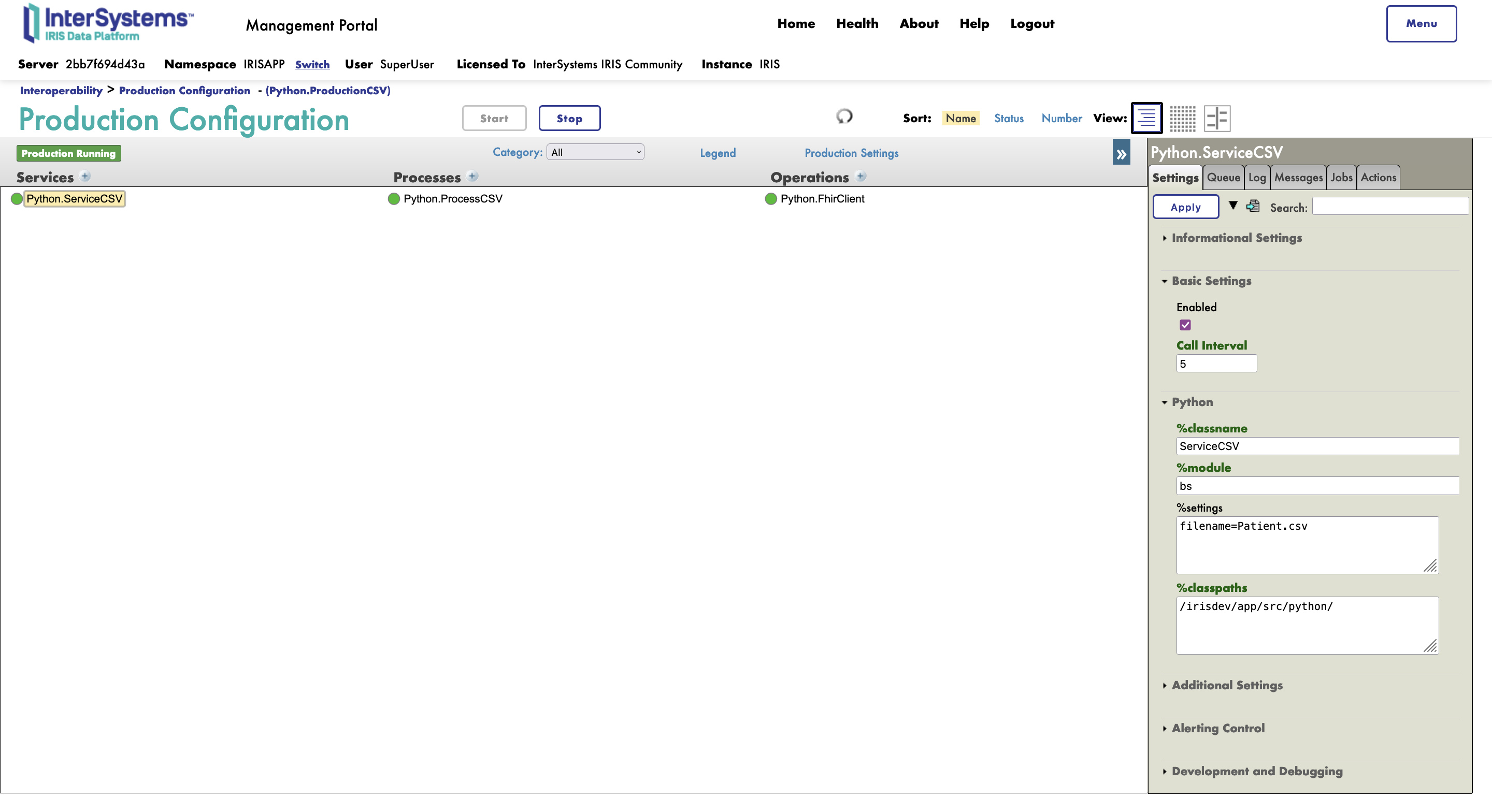
Now if you go into the management portal and change the setting of the ServiceCSV to add filename=Patient.csv you can just start the production and see your transformation unfold and you client send the information to the server.

Detailled steps to create a new transformation
If you are unsure of what to do or how to do it here is a step by step creation of a new transformation :

Create the file Patient.csv n the src/python/csv folder and fill it with:

family;given;system;value
FamilyName1;GivenName1;phone;555789675
FamilyName2;GivenName2;phone;023020202

Our CSV hold a family name, a given name and a phone number for two patients.


In src/python/obj.py write :

@dataclass
class BasePatient:
    family:str = None
    given:str = None
    system:str = None
    value:str = None


In src/python/msg.py write:

from obj import BasePatient
@dataclass
class PatientRequest(Message):
    resource:BasePatient = None


In src/python/bp.py write:

from msg import PatientRequest
from fhir.resources.patient import Patient
from fhir.resources.humanname import HumanName

In src/python/bp.py in the on_request function write:

if isinstance(request,PatientRequest):
    base_patient = request.resource

    patient = Patient()

    name = HumanName()
    name.family = base_patient.family
    name.given = [base_patient.given]
    patient.name = [name]

    telecom = ContactPoint()
    telecom.value = base_patient.value
    telecom.system = base_patient.system
    patient.telecom = [telecom]

    msg = FhirRequest()
    msg.resource = patient

    self.send_request_sync("Python.FhirClient", msg)


Now if you go into the management portal and change the setting of the ServiceCSV to add filename=Patient.csv you can just stop and restart the production and see your transformation unfold and you client send the information to the server.

Settings

7. What's inside the repo

7.1. Dockerfile

The simplest dockerfile to start a Python container.
Use docker-compose up to build and reopen your file in the container to work inside of it.

7.2. .vscode/settings.json

Settings file.

7.3. .vscode/launch.json

Config file if you want to debug.

3
0 615
Article Evgeny Shvarov · May 30, 2020 2m read

Hi Developers!

Sometimes we need to import CSV data programmatically to InterSystems IRIS either from CSV or from URL. And we expect the class with proper datatypes to be created and the data to be imported.

I published a module csvgen on Open Exchange which does exactly that.

If you just need the CSV file be imported into IRIS you can do the following:

USER>do ##class(community.csvgen).Generate("/usr/data/titanic.csv",,"Data.Titanic")

Class name: Data.Titanic
Header: PassengerId INTEGER,Survived INTEGER,Pclass INTEGER,Name VARCHAR(250),Sex VARCHAR(250),Age INTEGER,SibSp INTEGER,Parch INTEGER,Ticket VARCHAR(250),Fare MONEY,Cabin VARCHAR(250),Embarked VARCHAR(250)
Records imported: 891
USER>

Or if you have the CSV on the internet, e.g. COVID-19 Data on Github you can get the data in the following way:

USER>d ##class(community.csvgen).GenerateFromURL("https://raw.githubusercontent.com/CSSEGISandData/COVID-19/master/csse_covid_19_data/csse_covid_19_daily_reports/05-29-2020.csv",",","Data.Covid19")

Class name: Data.Covid19
Header: FIPS INTEGER,Admin2 VARCHAR(250),Province_State VARCHAR(250),Country_Region VARCHAR(250),Last_Update DATE,Lat MONEY,Long_ DOUBLE,Confirmed INTEGER,Deaths INTEGER,Recovered INTEGER,Active INTEGER,Combined_Key VARCHAR(250),Incidence_Rate DOUBLE,Case-Fatality_Ratio DOUBLE
Records imported: 3522
USER>
16
1 1428
Article Evgeny Shvarov · Sep 20, 2021 3m read

Hi folks!

Sometimes we need to import data into InterSystems IRIS from CSV. It can be done e.g. via csvgen tool that generates a class and imports all the data into it.

But what if you already have your own class and want to import data from CSV into your existing table?

There are numerous ways to do that but you can use csvgen (or csvgen-ui) again! I prepared and and example and happy to share. Here we go!

2
0 1202