#Google Cloud Platform (GCP)

0 Followers · 30 Posts

Google Cloud Platform (GCP) is a suite of public cloud computing services offered by Google. The platform includes a range of hosted services for compute, storage and application development that run on Google hardware. GCP services can be accessed by software developers, cloud administrators and other enterprise IT professionals over the public internet or through a dedicated network connection.

Learn more.

InterSystems staff + admins Hide everywhere
Hidden post for admin
Article sween · May 14, 2025 7m read

Real Time FHIR® to OMOP Transformation

This part of the OMOP Journey,  we reflect before attempting to challenge Scylla on how fortunate we are that InterSystems OMOP transform is built on the Bulk FHIR Export as the source payload.  This opens up hands off interoperability with the InterSystems OMOP transform across several FHIR® vendors, this time with the Google Cloud Healthcare API.

Google Cloud Healthcare API FHIR® Export

1
2 111
Article sween · Sep 10, 2025 6m read

A step by step implementation path to a cross regional stretched IrisCluster with Mirroring using the Intersystems Kubernetes Operator (IKO), Google Cloud Platform, and Tailscale.

I am giving this distraction the code name "Compliment Sandwich" for a reason yet to be realized, but I'd rather the community go right for the jugular shooting holes in a solution that implements wireguard based connectivity for our workloads in general, as I would like to refine it as a fall project leading up to KubeCon in Atlanta and if I miss the mark, Ill get it done before Amsterdam. 


1
1 101
Question Eugene.Forde · Aug 31, 2025

I’ve been exploring options for connecting Google Cloud Pub/Sub with InterSystems IRIS/HealthShare, but I noticed that IRIS doesn’t seem to ship with any native inbound/outbound adapters for Pub/Sub. Out of the box, IRIS offers adapters for technologies like Kafka, HTTP, FTP, and JDBC, which are great for many use cases, but Pub/Sub appears to be missing from the list.

Has anyone here implemented such an integration successfully?

For example:

2
1 75
Article sween · Sep 30, 2025 4m read

Another step in this implementation path, adding cross cloud, cross regional stretched IrisCluster with Mirroring + Disaster Recovery using the Intersystems Kubernetes Operator (IKO) and Tailscale

Though trivial, Id like to go multi-cloud with the stretched IrisCluster for a couple of reasons to socialize the power of Wireguard when it supplies the network for a properly zoned IrisCluster by adding another mirror role to Amazon Web Services in the Western United States based datacenter in Oregon.

0
1 66
Article Steve Lubars · Sep 9, 2025 8m read

Background

For a variety of reasons, users may wish to mount a persistent volume on two or more pods spanning multiple availability zones. One such use case is to make data stored outside of IRIS available to both mirror members in case of failover.

Unfortunately the built-in storage classes in most Kubernetes implementations (whether cloud or on-prem) do not provide this capability:

  • Does not support access mode "ReadWriteMany"
  • Does not support being mounted on more than one pod at a time
  • Does not support access across availability zones
1
4 233
Question Muehleder Helmut · Jul 24, 2025

Hi,

I tried to create a client for Google Cloud Storage using a private endpoint.

like this:

S client=##class(%Net.Cloud.Storage.Client).%New()

S sc=client.CreateClient("",2,credentialsFile,"",.out,privateEndpoint)

But privateEndpoint seems not to be used when trying to send blob from a file:

D sc.UploadBlobFromFile(bucketname,blobname,filename)

We can see at the firewall that the client still tries to use the public endpoint for GCS.  

Even if the private endpoint is definitely reachable.

When we allow the public endpoint in the firewall then it is working as expected.

0
0 32
Article Yuri Marx · May 29, 2025 8m read

Google Forms is the most popular solution on the market for collecting data, answering questionnaires and quizzes. So, it is the ideal solution for collecting patient data and responses in a practical way, without the need to expand or develop systems. In this article, I will detail how to create an account on Google Cloud, register the application that will consume the Google Forms API, generate the service user necessary to consume the API and finally perform actions to create new forms and collect data filled in them in an automated way in embedded Python and IRIS.

2
2 125
Article sween · Mar 4, 2024 8m read

If you are a customer of the new InterSystems IRIS® Cloud SQL and InterSystems IRIS® Cloud IntegratedML® cloud offerings and want access to the metrics of your deployments and send them to your own Observability platform, here is a quick and dirty way to get it done by sending the metrics to Google Cloud Platform Monitoring (formerly StackDriver).

1
2 338
Article Eduard Lebedyuk · May 24, 2024 15m read

If you're running IRIS in a mirrored configuration for HA in GCP, the question of providing a Mirror VIP (Virtual IP) becomes relevant. Virtual IP offers a way for downstream systems to interact with IRIS using one IP address. Even when a failover happens, downstream systems can reconnect to the same IP address and continue working.

The main issue, when deploying to GCP, is that an IRIS VIP has a requirement of IRIS being essentially a network admin, per the docs.

To get HA, IRIS mirror members must be deployed to different availability zones in one subnet (which is possible in GCP as subnets always span the entire region). One of the solutions might be load balancers, but they, of course, cost extra, and you need to administrate them.

In this article, I would like to provide a way to configure a Mirror VIP without using Load Balancers suggested in most other GCP reference architectures.

Architecture

GCP VIP

We have a subnet running across the region (I simplify here - of course, you'll probably have public subnets, arbiter in another az, and so on, but this is an absolute minimum enough to demonstrate this approach). Subnet's CIRD is 10.0.0.0/24, which means it is allocated IPs 10.0.0.1 to 10.0.0.255. As GCP reserves the first and last two addresses, we can use 10.0.0.2 to 10.0.0.253.

We will implement both public and private VIPs at the same time. If you want, you can implement only the private VIP.

Idea

Virtual Machines in GCP have Network Interfaces. These Network Interfaces have Alias IP Ranges which are private IP addresses. Public IP Addresses can be added by specifying Access Config

Network Interfaces configuration is a combination of Public and/or Private IPs, and it's routed automatically to the Virtual Machine associated with the Network interface. So there is no need to update the routes. What we'll do is, during a mirror failover event, delete the VIP IP configuration from the old primary and create it for a new primary. All operations to do that take 5-20 seconds for Private VIP only, from 5 seconds and up to a minute for a Public/Private VIP IP combination.

Implementing VIP

  1. Allocate IP address to use as a public VIP. Skip this step if you want private VIP only.
  2. Decide on a private VIP value. I will use 10.0.0.250.
  3. Provision your IRIS Instances with a service account
  • compute.instances.get
  • compute.addresses.use
  • compute.addresses.useInternal
  • compute.instances.updateNetworkInterface
  • compute.subnetworks.use

For External VIP you'll also need:

  • compute.instances.addAccessConfig
  • compute.instances.deleteAccessConfig
  • compute.networks.useExternalIp
  • compute.subnetworks.useExternalIp
  • compute.addresses.list
  1. When a current mirror member becomes primary, we'll use a ZMIRROR callback to delete a VIP IP configuration on another mirror member's network interface and create a VIP IP configuration pointing at itself.

That's it.

ROUTINE ZMIRROR

NotifyBecomePrimary() PUBLIC {
    #include %occMessages
    set sc = ##class(%SYS.System).WriteToConsoleLog("Setting Alias IP instead of Mirror VIP"_$random(100))
    set sc = ##class(%SYS.Python).Import("set_alias_ip")
    quit sc
}

And here's set_alias_ip.py which must be placed into mgr\python directory:

"""
This script adds Alias IP (https://cloud.google.com/vpc/docs/alias-ip) to the VM Network Interface.

You can allocate alias IP ranges from the primary subnet range, or you can add a secondary range to the subnet
and allocate alias IP ranges from the secondary range.
For simplicity, we use the primary subnet range.

Using google cli, gcloud, this action could be performed in this way:
$ gcloud compute instances network-interfaces update <instance_name> --zone=<subnet_zone> --aliases="10.0.0.250/32"

Note that the command for alias removal looks similar - just provide an empty `aliases`:
$ gcloud compute instances network-interfaces update <instance_name> --zone=<subnet_zone> --aliases=""

We leverage Google Compute Engine Metadata API to retrieve <instance_name> as well as <subnet_zone>.

Also note https://cloud.google.com/vpc/docs/subnets#unusable-ip-addresses-in-every-subnet.

Google Cloud uses the first two and last two IPv4 addresses in each subnet primary IPv4 address range to host the subnet.
Google Cloud lets you use all addresses in secondary IPv4 ranges, i.e.:
- 10.0.0.0 - Network address
- 10.0.0.1 - Default gateway address
- 10.0.0.254 - Second-to-last address. Reserved for potential future use
- 10.0.0.255 - Broadcast address

After adding Alias IP, you can check its existence using 'ip' utility:
$ ip route ls table local type local dev eth0 scope host proto 66
local 10.0.0.250
"""

import subprocess
import requests
import re
import time
from google.cloud import compute_v1

ALIAS_IP = "10.0.0.250/32"
METADATA_URL = "http://metadata.google.internal/computeMetadata/v1/"
METADATA_HEADERS = {"Metadata-Flavor": "Google"}
project_path = "project/project-id"
instance_path = "instance/name"
zone_path = "instance/zone"
network_interface = "nic0"
mirror_public_ip_name = "isc-mirror"
access_config_name = "isc-mirror"
mirror_instances = ["isc-primary-001", "isc-backup-001"]


def get_metadata(path: str) -> str:
    return requests.get(METADATA_URL + path, headers=METADATA_HEADERS).text


def get_zone() -> str:
    return get_metadata(zone_path).split('/')[3]


client = compute_v1.InstancesClient()
project = get_metadata(project_path)
availability_zone = get_zone()


def get_ip_address_by_name():
    ip_address = ""
    client = compute_v1.AddressesClient()
    request = compute_v1.ListAddressesRequest(
        project=project,
        region='-'.join(get_zone().split('-')[0:2]),
        filter="name=" + mirror_public_ip_name,
    )
    response = client.list(request=request)
    for item in response:
        ip_address = item.address
    return ip_address


def get_zone_by_instance_name(instance_name: str) -> str:
    request = compute_v1.AggregatedListInstancesRequest()
    request.project = project
    instance_zone = ""
    for zone, response in client.aggregated_list(request=request):
        if response.instances:
            if re.search(f"{availability_zone}*", zone):
                for instance in response.instances:
                    if instance.name == instance_name:
                        return zone.split('/')[1]
    return instance_zone


def update_network_interface(action: str, instance_name: str, zone: str) -> None:
    if action == "create":
        alias_ip_range = compute_v1.AliasIpRange(
            ip_cidr_range=ALIAS_IP,
        )
    nic = compute_v1.NetworkInterface(
        alias_ip_ranges=[] if action == "delete" else [alias_ip_range],
        fingerprint=client.get(
            instance=instance_name,
            project=project,
            zone=zone
        ).network_interfaces[0].fingerprint,
    )
    request = compute_v1.UpdateNetworkInterfaceInstanceRequest(
        project=project,
        zone=zone,
        instance=instance_name,
        network_interface_resource=nic,
        network_interface=network_interface,
    )
    response = client.update_network_interface(request=request)
    print(instance_name + ": " + str(response.status))


def get_remote_instance_name() -> str:
    local_instance = get_metadata(instance_path)
    mirror_instances.remove(local_instance)
    return ''.join(mirror_instances)


def delete_remote_access_config(remote_instance: str) -> None:
    request = compute_v1.DeleteAccessConfigInstanceRequest(
        access_config=access_config_name,
        instance=remote_instance,
        network_interface="nic0",
        project=project,
        zone=get_zone_by_instance_name(remote_instance),
    )
    response = client.delete_access_config(request=request)
    print(response)


def add_access_config(public_ip_address: str) -> None:
    access_config = compute_v1.AccessConfig(
        name = access_config_name,
        nat_i_p=public_ip_address,
    )
    request = compute_v1.AddAccessConfigInstanceRequest(
        access_config_resource=access_config,
        instance=get_metadata(instance_path),
        network_interface="nic0",
        project=project,
        zone=get_zone_by_instance_name(get_metadata(instance_path)),
    )
    response = client.add_access_config(request=request)
    print(response)


# Get another failover member's instance name and zone
remote_instance = get_remote_instance_name()
print(f"Alias IP is going to be deleted at [{remote_instance}]")

# Remove Alias IP from a remote failover member's Network Interface
#
# TODO: Perform the next steps when an issue https://github.com/googleapis/google-cloud-python/issues/11931 will be closed:
# - update google-cloud-compute pip package to a version containing fix (>1.15.0)
# - remove a below line calling gcloud with subprocess.run()
# - uncomment update_network_interface() function
subprocess.run([
    "gcloud",
    "compute",
    "instances",
    "network-interfaces",
    "update",
    remote_instance,
    "--zone=" + get_zone_by_instance_name(remote_instance),
    "--aliases="
])
# update_network_interface("delete",
#                          remote_instance,
#                          get_zone_by_instance_name(remote_instance)


# Add Alias IP to a local failover member's Network Interface
update_network_interface("create",
                         get_metadata(instance_path),
                         availability_zone)


# Handle public IP switching
public_ip_address = get_ip_address_by_name()
if public_ip_address:
    print(f"Public IP [{public_ip_address}] is going to be switched to [{get_metadata(instance_path)}]")
    delete_remote_access_config(remote_instance)
    time.sleep(10)
    add_access_config(public_ip_address)

Demo

Now let's deploy this IRIS architecture into GCP using Terraform and Ansible. If you already running IRIS in GCP or using a different tool, the ZMIRROR script is available here.

Tools

We'll need the following tools. As Ansible is Linux only I highly recommend running it on Linux, althrough I confirmed that it works on Windows in WSL2 too.

gcloud:

$ gcloud version
Google Cloud SDK 459.0.0
...

terraform:

$ terraform version
Terraform v1.6.3

python:

$ python3 --version
Python 3.10.12

ansible:

$ ansible --version
ansible [core 2.12.5]
...

ansible-playbook:

$ ansible-playbook --version
ansible-playbook [core 2.12.5]
...

WSL2

If you're running in WSL2 on Windows, you'll need to restart ssh agent by running:

eval `ssh-agent -s`

Also sometimes (when Windows goes to sleep/hibernate and back) the WSL clock is not synced, you might need to sync it explicitly:

sudo hwclock -s

Headless servers

If you're runnning a headless server, use gcloud auth login --no-browser to authenticate against GCP.

IaC

We leverage Terraform and store its state in a Cloud Storage. See details below about how this storage is created.

Define required variables

$ export PROJECT_ID=<project_id>
$ export REGION=<region> # For instance, us-west1
$ export TF_VAR_project_id=${PROJECT_ID}
$ export TF_VAR_region=${REGION}
$ export ROLE_NAME=MyTerraformRole
$ export SA_NAME=isc-mirror

Note: If you'd like to add Public VIP which exposes IRIS Mirror ports publicly (it's not recommended) you could enable it with:

$ export TF_VAR_enable_mirror_public_ip=true

Prepare Artifact Registry

It's recommended to leverage Google Artifact Registry instead of Container Registry. So let's create registry first:

$ cd <root_repo_dir>/terraform
$ cat ${SA_NAME}.json | docker login -u _json_key --password-stdin https://${REGION}-docker.pkg.dev
$ gcloud artifacts repositories create --repository-format=docker --location=${REGION} intersystems

Prepare Docker images

Let's assume that VM instances don't have an access to ISC container repository. But you personally do have and at the same do not want to put your personal credentials on VMs.

In that case you can pull IRIS Docker images from ISC container registry and push them to Google container registry where VMs have an access to:

$ docker login containers.intersystems.com
$ <Put your credentials here>

$ export IRIS_VERSION=2023.2.0.221.0

$ cd docker-compose/iris
$ docker build -t ${REGION}-docker.pkg.dev/${PROJECT_ID}/intersystems/iris:${IRIS_VERSION} .

$ for IMAGE in webgateway arbiter; do \
    docker pull containers.intersystems.com/intersystems/${IMAGE}:${IRIS_VERSION} \
    && docker tag containers.intersystems.com/intersystems/${IMAGE}:${IRIS_VERSION} ${REGION}-docker.pkg.dev/${PROJECT_ID}/intersystems/${IMAGE}:${IRIS_VERSION} \
    && docker push ${REGION}-docker.pkg.dev/${PROJECT_ID}/intersystems/${IMAGE}:${IRIS_VERSION}; \
done

$ docker push ${REGION}-docker.pkg.dev/${PROJECT_ID}/intersystems/iris:${IRIS_VERSION}

Put IRIS license

Put IRIS license key file, iris.key to <root_repo_dir>/docker-compose/iris/iris.key. Note that a license has to support Mirroring.

Create Terraform Role

This role will be used by Terraform for managing needed GCP resources:

$ cd <root_repo_dir>/terraform/
$ gcloud iam roles create ${ROLE_NAME} --project ${PROJECT_ID} --file=terraform-permissions.yaml

Note: use update for later usage:

$ gcloud iam roles update ${ROLE_NAME} --project ${PROJECT_ID} --file=terraform-permissions.yaml

Create Service Account with Terraform role

$ gcloud iam service-accounts create ${SA_NAME} \
    --description="Terraform Service Account for ISC Mirroring" \
    --display-name="Terraform Service Account for ISC Mirroring"

$ gcloud projects add-iam-policy-binding ${PROJECT_ID} \
    --member="serviceAccount:${SA_NAME}@${PROJECT_ID}.iam.gserviceaccount.com" \
    --role=projects/${PROJECT_ID}/roles/${ROLE_NAME}

Generate Service Account key

Generate Service Account key and store its value in a certain environment variable:

$ gcloud iam service-accounts keys create ${SA_NAME}.json \
    --iam-account=${SA_NAME}@${PROJECT_ID}.iam.gserviceaccount.com

$ export GOOGLE_APPLICATION_CREDENTIALS=<absolute_path_to_root_repo_dir>/terraform/${SA_NAME}.json

Generate SSH keypair

Store a private part locally as .ssh/isc_mirror and make it visible for ssh-agent. Put a public part to a file isc_mirror.pub:

$ ssh-keygen -b 4096 -C "isc" -f ~/.ssh/isc_mirror
$ ssh-add  ~/.ssh/isc_mirror
$ ssh-add -l # Check if 'isc' key is present
$ cp ~/.ssh/isc_mirror.pub <root_repo_dir>/terraform/templates/

Create Cloud Storage

Cloud Storage is used for storing Terraform state remotely. You could take a look at Store Terraform state in a Cloud Storage bucket as an example.

Note: created Cloud Storage will have a name like isc-mirror-demo-terraform-<project_id>:

$ cd <root_repo_dir>/terraform-storage/
$ terraform init
$ terraform plan
$ terraform apply

Create resources with Terraform

$ cd <root_repo_dir>/terraform/
$ terraform init -backend-config="bucket=isc-mirror-demo-terraform-${PROJECT_ID}"
$ terraform plan
$ terraform apply

Note 1: Four virtual machines will be created. Only one of them has a public IP address and plays a role of bastion host. This machine is called isc-client-001. You can find a public IP of isc-client-001 instance by running the following command:

$ export ISC_CLIENT_PUBLIC_IP=$(gcloud compute instances describe isc-client-001 --zone=${REGION}-c --format=json | jq -r '.networkInterfaces[].accessConfigs[].natIP')

Note 2: Sometimes Terraform fails with errors like:

Failed to connect to the host via ssh: kex_exchange_identification: Connection closed by remote host...

In that case try to clean a local ~/.ssh/known_hosts file:

$ for IP in ${ISC_CLIENT_PUBLIC_IP} 10.0.0.{3..6}; do ssh-keygen -R "[${IP}]:2180"; done

and then repeat terraform apply.

Quick test

Access to IRIS mirror instances with SSH

All instances, except isc-client-001, are created in a private network to increase a security level. But you can access them using SSH ProxyJump feature. Get the isc-client-001 public IP first:

$ export ISC_CLIENT_PUBLIC_IP=$(gcloud compute instances describe isc-client-001 --zone=${REGION}-c --format=json | jq -r '.networkInterfaces[].accessConfigs[].natIP')

Then connect to, for example, isc-primary-001 with a private SSH key. Note that we use a custom SSH port, 2180:

$ ssh -i ~/.ssh/isc_mirror -p 2180 isc@10.0.0.3 -o ProxyJump=isc@${ISC_CLIENT_PUBLIC_IP}:2180

After connection, let's check that Primary mirror member has Alias IP:

[isc@isc-primary-001 ~]$ ip route ls table local type local dev eth0 scope host proto 66
local 10.0.0.250

[isc@isc-primary-001 ~]$ ping -c 1 10.0.0.250
PING 10.0.0.250 (10.0.0.250) 56(84) bytes of data.
64 bytes from 10.0.0.250: icmp_seq=1 ttl=64 time=0.049 ms

Access to IRIS mirror instances Management Portals

To open mirror instances Management Portals located in a private network, we leverage SSH Socks Tunneling.

Let's connect to isc-primary-001 instance. Note that a tunnel will live in a background after the next command:

$ ssh -f -N  -i ~/.ssh/isc_mirror -p 2180 isc@10.0.0.3 -o ProxyJump=isc@${ISC_CLIENT_PUBLIC_IP}:2180 -L 8080:10.0.0.3:8080

Port 8080, instead of a familiar 52773, is used because we start IRIS with a dedicated WebGateway running on port 8080.

After successful connection, open http://127.0.0.1:8080/csp/sys/UtilHome.csp in a browser. You should see a Management Portal. Credentials are typical: _system/SYS.

The same approach works for all instances: primary (10.0.0.3), backup (10.0.0.4) and arbiter (10.0.0.5). Just make an SSH connection to them first.

Test

Let's connect to isc-client-001:

$ ssh -i ~/.ssh/isc_mirror -p 2180 isc@${ISC_CLIENT_PUBLIC_IP}

Check Primary mirror member's Management Portal availability on Alias IP address:

$ curl -s -o /dev/null -w "%{http_code}\n" http://10.0.0.250:8080/csp/sys/UtilHome.csp
200

Let's connect to isc-primary-001 on another console:

$ ssh -i ~/.ssh/isc_mirror -p 2180 isc@10.0.0.3 -o ProxyJump=isc@${ISC_CLIENT_PUBLIC_IP}:2180

And switch the current Primary instance off. Note that IRIS as well as its WebGateway is running in Docker:

[isc@isc-primary-001 ~]$ docker-compose -f /isc-mirror/docker-compose.yml down

Let's check mirror member's Management Portal availability on Alias IP address again from isc-client-001:

[isc@isc-client-001 ~]$ curl -s -o /dev/null -w "%{http_code}\n" http://10.0.0.250:8080/csp/sys/UtilHome.csp
200

It should work as Alias IP was moved to isc-backup-001 instance:

$ ssh -i ~/.ssh/isc_mirror -p 2180 isc@10.0.0.4 -o ProxyJump=isc@${ISC_CLIENT_PUBLIC_IP}:2180
[isc@isc-backup-001 ~]$ ip route ls table local type local dev eth0 scope host proto 66
local 10.0.0.250

Cleanup

Remove infrastructure

$ cd <root_repo_dir>/terraform/
$ terraform init -backend-config="bucket=isc-mirror-demo-terraform-${PROJECT_ID}"
$ terraform destroy

Remove Artifact Registry

$ cd <root_repo_dir>/terraform
$ cat ${SA_NAME}.json | docker login -u _json_key --password-stdin https://${REGION}-docker.pkg.dev

$ for IMAGE in iris webgateway arbiter; do \
    gcloud artifacts docker images delete ${REGION}-docker.pkg.dev/${PROJECT_ID}/intersystems/${IMAGE}
done
$ gcloud artifacts repositories delete intersystems --location=${REGION}

Remove Cloud Storage

Remove Cloud Storage where Terraform stores its state. In our case, it's a isc-mirror-demo-terraform-<project_id>.

Remove Terraform Role

Remove Terraform Role created in Create Terraform Role.

Conclusion

And that's it! We change networking configuration pointing to a current mirror Primary when the NotifyBecomePrimary event happens.

Author would like to thank @Mikhail Khomenko, @Vadim Aniskin, and @Evgeny Shvarov for the Community Ideas Program which made this article possible.

3
1 585
Article Anton Umnikov · Jan 21, 2021 26m read

In this article, we’ll build a highly available IRIS configuration using Kubernetes Deployments with distributed persistent storage instead of the “traditional” IRIS mirror pair. This deployment would be able to tolerate infrastructure-related failures, such as node, storage and Availability Zone failures. The described approach greatly reduces the complexity of the deployment at the expense of slightly extended RTO.
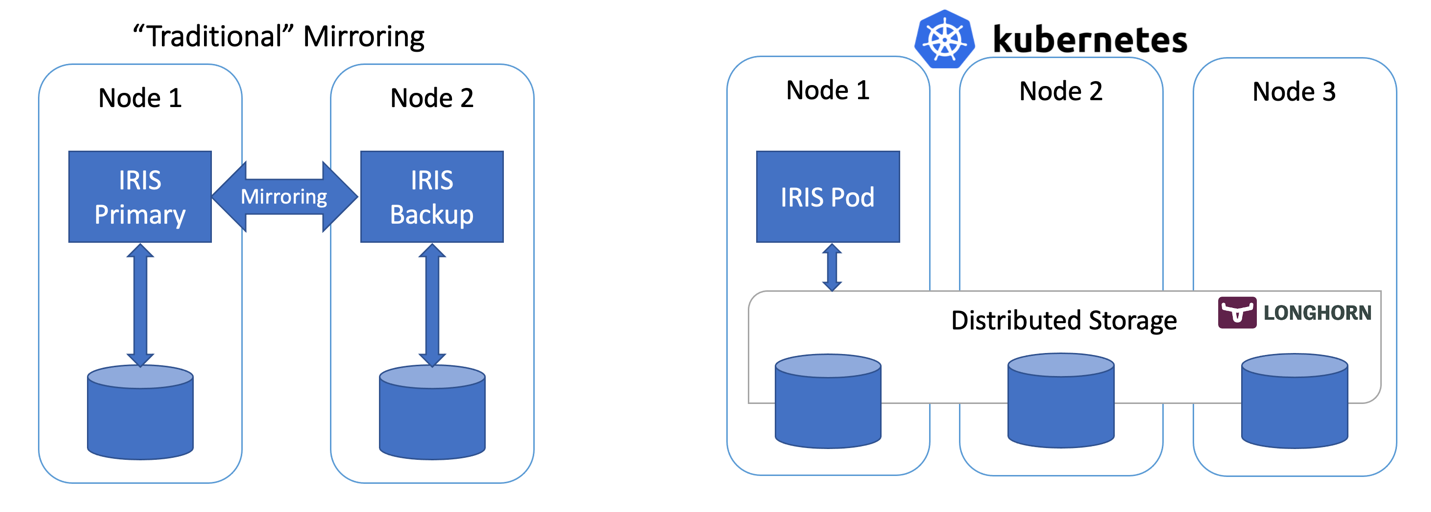
Figure 1 - Traditional Mirroring vs Kubernetes with Distributed Storage

All the source code for this article is available at https://github.com/antonum/ha-iris-k8s
TL;DR

Assuming you have a running 3 node cluster and have some familiarity with Kubernetes – go right ahead:

kubectl apply -f https://raw.githubusercontent.com/longhorn/longhorn/master/deploy/longhorn.yaml
kubectl apply -f https://github.com/antonum/ha-iris-k8s/raw/main/tldr.yaml

If you are not sure what the two lines above are about or don’t have the system to execute these on – skip to the “High Availability Requirements” section. We’ll explain things in the details as we go.

The first line installs Longhorn - open-source distributed Kubernetes storage. The second one installs InterSystems IRIS deployment, using Longhorn-based volume for Durable SYS.

Wait for all the pods to come up to the running state. kubectl get pods -A

You now should be able to access the IRIS management portal at http://<IRIS Service Public IP>:52773/csp/sys/%25CSP.Portal.Home.zen  (default password is 'SYS') and IRIS command line via:

kubectl exec -it iris-podName-xxxx -- iris session iris

Simulate the Failure

Now start messing around. But before you do it, try to add some data into the database and make sure it's there when IRIS is back online.

kubectl exec -it iris-6d8896d584-8lzn5 -- iris session iris
USER>set ^k8stest($i(^k8stest))=$zdt($h)_" running on "_$system.INetInfo.LocalHostName()
USER>zw ^k8stest
^k8stest=1
^k8stest(1)="01/14/2021 14:13:19 running on iris-6d8896d584-8lzn5"

Our "chaos engineering" starts here:

# Stop IRIS - Container will be restarted automatically
kubectl exec -it iris-6d8896d584-8lzn5 -- iris stop iris quietly
 
# Delete the pod - Pod will be recreated
kubectl delete pod iris-6d8896d584-8lzn5
 
# "Force drain" the node, serving the iris pod - Pod would be recreated on another node
kubectl drain aks-agentpool-29845772-vmss000001 --delete-local-data --ignore-daemonsets --force
 
# Delete the node - Pod would be recreated on another node
# well... you can't really do it with kubectl. Find that instance or VM and KILL it.
# if you have access to the machine - turn off the power or disconnect the network cable. Seriously!

High Availability Requirements


We are building a system that can tolerate a failure of the following:

  • IRIS instance within container/VM. IRIS – level failure.
  • Pod/Container failure.
  • Temporary unavailability of the individual cluster node. A good example would be the Availability Zone temporary goes off-line.
  • Permanent failure of individual cluster node or disk.

Basically, the scenarios we just tried in the “Simulate the failure” section.

If any of these failures occur, the system should get online without any human involvement and without data loss. Technically there are limits on what data persistence guarantees. IRIS itself can provide based on the Journal Cycle and transaction usage within an application: https://docs.intersystems.com/irisforhealthlatest/csp/docbook/Doc.View.cls?KEY=GCDI_journal#GCDI_journal_writecycle In any case, we are talking under two seconds for RPO (Recovery Point Objective).

Other components of the system (Kubernetes API Service, etcd database, LoadBalancer service, DNS and others) are outside of the scope and typically managed by the Managed Kubernetes Service such as Azure AKS or AWS EKS so we assume that they are highly available already.

Another way of looking at it – we are responsible for handling individual compute and storage component failures and assuming that the rest is taken care of by the infrastructure/cloud provider.

Architecture

When it comes to high availability for InterSystems IRIS, the traditional recommendation is to use mirroring. With mirroring you have two always-on IRIS instances synchronously replicating data. Each node maintains a full copy of the database and if the Primary node goes down, users reconnect to the Backup node. Essentially, with the mirroring approach, IRIS is responsible for the redundancy of both compute and storage.

With mirrors deployed in different availability zones, mirroring provides required redundancy for both compute and storage failure and allows for the excellent RTO (Recovery Time Objective or the time it takes for a system to get back online after a failure) of just a few seconds. You can find the deployment template for Mirrored IRIS on AWS Cloud here: https://community.intersystems.com/post/intersystems-iris-deployment%C2%A0guide-aws%C2%A0using-cloudformation-template

The less pretty side of mirroring is the complexity of setting it up, performing backup/restore procedures and the lack of replication for security settings and local non-database files.

Container orchestrators such as Kubernetes (wait, it’s 2021… are there any other left?!) provide compute redundancy via Deployment objectsautomatically restarting the failed IRIS Pod/Container in case of failure. That’s why you see only one IRIS node running on the Kubernetes architecture diagram. Instead of keeping a second IRIS node always running we outsource the compute availability to Kubernetes. Kubernetes will make sure that the IRIS pod be recreated in case the original pod fails for whatever reason.
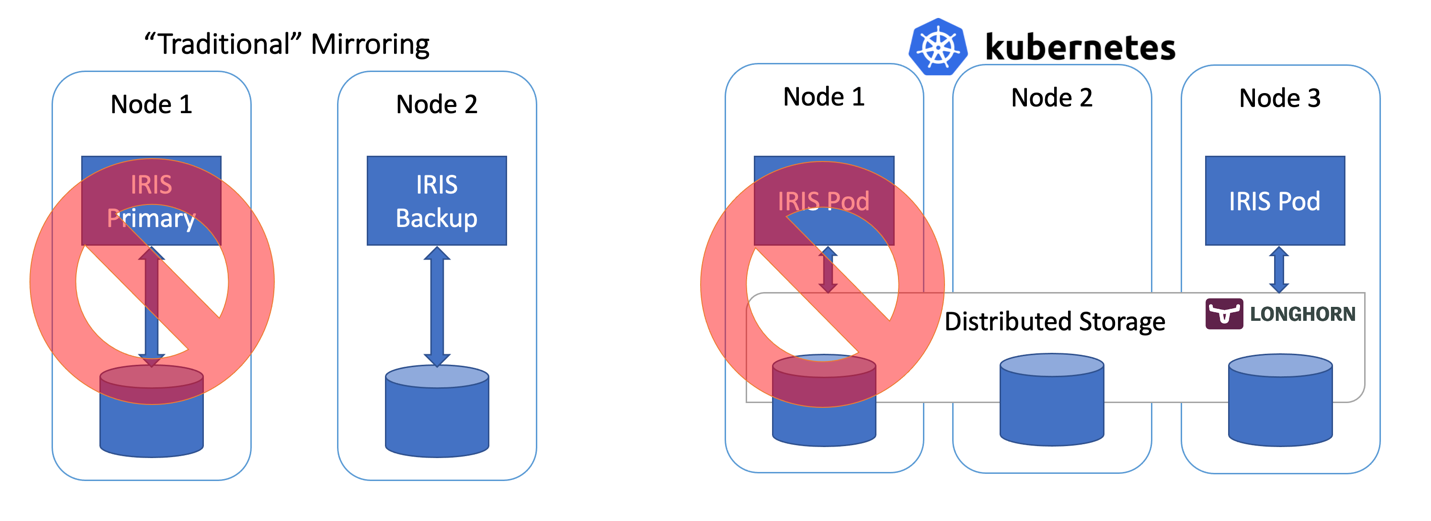
Figure 2 Failover Scenario

So far so good… If IRIS node fails, Kubernetes just creates a new one. Depending on your cluster it takes anywhere between 10 and 90 seconds to get IRIS back online after the compute failure. It is a step down compared with just a couple of seconds for mirroring, but if it’s something you can tolerate in the unlikely event of the outage, the reward is the greatly reduced complexity. No mirroring to configure. No security setting and file replication to worry about.

Frankly, if you login inside the container, running IRIS in Kubernetes, you’ll not even notice that you are running inside the highly available environment. Everything looks and feels just like a single instance IRIS deployment.

Wait, what about storage? We are dealing with a database nevertheless … Whatever failover scenario we can imagine, our system should take care of the data persistence too. Mirroring relies on the compute, local to the IRIS node. If the node dies or just becomes temporarily unavailable – so does the storage for that node. That’s why in mirroring configuration IRIS takes care of replicating databases on the IRIS level.

We need storage that can not only preserve the state of the database upon container restart but also can provide redundancy for the event like node or entire segment of the network (Availability Zone) going down. Just a few years ago there was no easy answer to this. As you can guess from the diagram above – we have such an answer now. It is called distributed container storage.

Distributed storage abstracts underlying host volumes and presents them as one joint storage available to every node of the k8s cluster. We use Longhorn https://longhorn.io in this article; it’s free, open-source and fairly easy to install. But you can also take a look at others, such as OpenEBS, Portworx and StorageOS that would provide the same functionality. Rook Ceph is another CNCF Incubating project to consider. On the high end of the spectrum – there are enterprise-grade storage solutions such as NetApp, PureStorage and others.

Step by step guide

In TL;DR section we just installed the whole thing in one shot. Appendix B would guide you through step- by step installation and validation procedures.

Kubernetes Storage

Let’s step back for a second and talk about containers and storage in general and how IRIS fits into the picture.

By default all data inside the container is ephemeral. When the container dies, data disappears. In Docker, you can use the concept of volumes. Essentially it allows you to expose the directory on the host OS to the container.

docker run --detach
  --publish 52773:52773
  --volume /data/dur:/dur
  --env ISC_DATA_DIRECTORY=/dur/iconfig
  --name iris21 --init intersystems/iris:2020.3.0.221.0

In the example above we are starting the IRIS container and making the host-local ‘/data/dur’ directory accessible to the container at the ‘/dur’ mount point. So, if the container is storing anything inside this directory, it would be preserved and available to use on the next container start.

On the IRIS side of things, we can instruct IRIS to store all the data that needs to survive container restart in the specific directory by specifying ISC_DATA_DIRECTORY. Durable SYS is the name of the IRIS feature you might need to look for in the documentation https://docs.intersystems.com/irisforhealthlatest/csp/docbook/Doc.View.cls?KEY=ADOCK#ADOCK_iris_durable_running

In Kubernetes the syntax is different, but the concepts are the same.

Here is the basic Kubernetes Deployment for IRIS.

apiVersion: apps/v1
kind: Deployment
metadata:
  name: iris
spec:
  selector:
    matchLabels:
      app: iris
  strategy:
    type: Recreate
  replicas: 1
  template:
    metadata:
      labels:
        app: iris
    spec:
      containers:
      - image: store/intersystems/iris-community:2020.4.0.524.0
        name: iris
        env:
        - name: ISC_DATA_DIRECTORY
          value: /external/iris
        ports:
        - containerPort: 52773
          name: smp-http
        volumeMounts:
        - name: iris-external-sys
          mountPath: /external
      volumes:
      - name: iris-external-sys
        persistentVolumeClaim:
          claimName: iris-pvc


In the deployment specification above, ‘volumes’ part lists storage volumes. They can be available outside of the container, via persistentVolumeClaim such as ‘iris-pvc’. volumeMounts expose this volume inside the container. ‘iris-external-sys’ is the identifier that ties volume mount to the specific volume. In reality, we might have multiple volumes and this name is used just to distinguish one from another. You can call it ‘steve’ if you want.

Already familiar environment variable ISC_DATA_DIRECTORY directs IRIS to use a specific mount point to store all the data that needs to survive container restart.

Now let’s take a look at the Persistent Volume Claim iris-pvc.

apiVersion: v1
kind: PersistentVolumeClaim
metadata:
  name: iris-pvc
spec:
  storageClassName: longhorn
  accessModes:
    - ReadWriteOnce
  resources:
    requests:
      storage: 10Gi


Fairly straightforward. Requesting 10 gigabytes, mountable as Read/Write on one node only, using storage class of ‘longhorn’.

That storageClassName: longhorn is actually critical here.

Let’s look at what storage classes are available on my AKS cluster:

kubectl get StorageClass
NAME                             PROVISIONER                     RECLAIMPOLICY   VOLUMEBINDINGMODE   ALLOWVOLUMEEXPANSION   AGE
azurefile                        kubernetes.io/azure-file        Delete          Immediate           true                   10d
azurefile-premium                kubernetes.io/azure-file        Delete          Immediate           true                   10d
default (default)                kubernetes.io/azure-disk        Delete          Immediate           true                   10d
longhorn                         driver.longhorn.io              Delete          Immediate           true                   10d
managed-premium                  kubernetes.io/azure-disk        Delete          Immediate           true                   10d

There are few storage classes from Azure, installed by default and one from Longhorn that we installed as part of the very first command:

kubectl apply -f https://raw.githubusercontent.com/longhorn/longhorn/master/deploy/longhorn.yaml

If you comment out #storageClassName: longhorn in the Persistent Volume Claim definition, it will use storage class, currently marked as “default” which is a regular Azure Disk.

To illustrate why we need Distributed storage let’s repeat the “chaos engineering” experiments we described at the beginning of the article without longhorn storage. The first two scenarios (stop IRIS and delete the Pod) would successfully complete and systems would recover to the operational state. Attempting to either drain or kill the node would bring the system into a failed state.

#forcefully drain the node
kubectl drain aks-agentpool-71521505-vmss000001 --delete-local-data --ignore-daemonsets

kubectl describe pods ...   Type     Reason            Age                  From               Message   ----     ------            ----                 ----               -------   Warning  FailedScheduling  57s (x9 over 2m41s)  default-scheduler  0/3 nodes are available: 1 node(s) were unschedulable, 2 node(s) had volume node affinity conflict.

Essentially, Kubernetes would try to restart the IRIS pod on the cluster, but the node where it was originally started is not available and the other two nodes have “volume node affinity conflict”. With this storage type, the volume is available only on the node it was originally created since it is basically tied to the disk available on the node host.

With longhorn as a storage class, both “force drain” and “node kill” experiments succeed, and the IRIS pod is back into operation shortly. To achieve it Longhorn takes control over the available storage on the 3 nodes of the cluster and replicates the data across all three nodes. Longhorn promptly repairs cluster storage if one of the nodes becomes permanently unavailable. In our “node kill” scenario, the IRIS pod is restarted on another node right away using two remaining volume replicas.  Then, AKS provisions a new node to replace the lost one and as soon as it is ready, Longhorn kicks in and rebuilds required data on the new node. Everything is automatic, without your involvement.
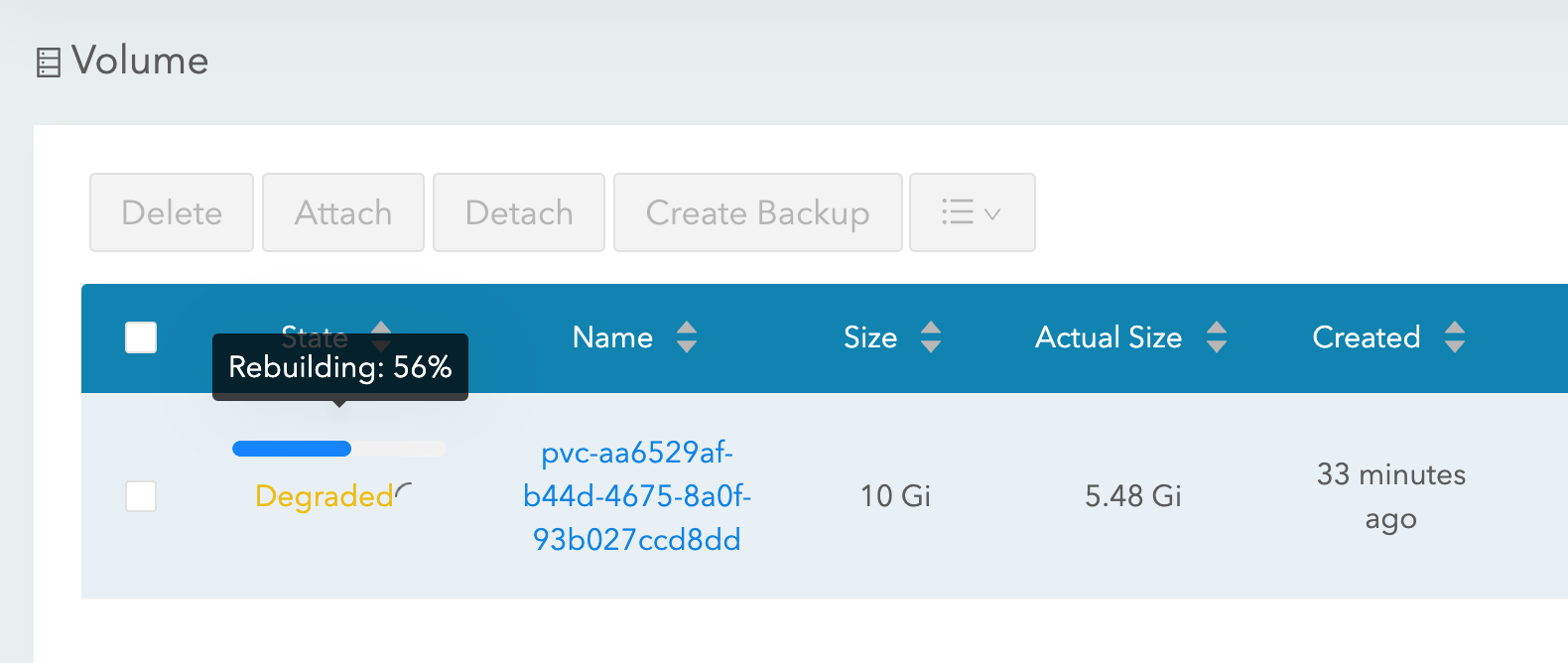
Figure 3 Longhorn rebuilding volume replica on the replaced node

More about k8s deployment

Let’s take a look at some other aspects of our deployment:

apiVersion: apps/v1
kind: Deployment
metadata:
  name: iris
spec:
  selector:
    matchLabels:
      app: iris
  strategy:
    type: Recreate
  replicas: 1
  template:
    metadata:
      labels:
        app: iris
    spec:
      containers:
      - image: store/intersystems/iris-community:2020.4.0.524.0
        name: iris
        env:
        - name: ISC_DATA_DIRECTORY
          value: /external/iris
        - name: ISC_CPF_MERGE_FILE
          value: /external/merge/merge.cpf
        ports:
        - containerPort: 52773
          name: smp-http
        volumeMounts:
        - name: iris-external-sys
          mountPath: /external
        - name: cpf-merge
          mountPath: /external/merge
        livenessProbe:
          initialDelaySeconds: 25
          periodSeconds: 10
          exec:
            command:
            - /bin/sh
            - -c
            - "iris qlist iris | grep running"
      volumes:
      - name: iris-external-sys
        persistentVolumeClaim:
          claimName: iris-pvc
      - name: cpf-merge
        configMap:
          name: iris-cpf-merge


strategy: Recreate, replicas: 1 tells Kubernetes that at any given time it should maintain one and exactly one instance of IRIS pod running. This is what takes care of our “delete pod” scenario.

livenessProbe section makes sure that IRIS is always up inside the container and handles “IRIS is down” scenario. initialDelaySeconds allows for some grace period for IRIS to start. You might want to increase it if IRIS is taking a considerable time to start your deployment.

CPF MERGE feature of IRIS allows you to modify the content of the configuration file iris.cpf upon container start. See https://docs.intersystems.com/irisforhealthlatest/csp/docbook/DocBook.UI.Page.cls?KEY=RACS_cpf#RACS_cpf_edit_merge for relevant documentation. In this example I’m using Kubernetes Config Map to manage the content of the merge file: https://github.com/antonum/ha-iris-k8s/blob/main/iris-cpf-merge.yaml Here we adjust global buffers and gmheap values, used by IRIS instance, but everything you can find in iris.cpf file is a fair game. You can even change the default IRIS password using `PasswordHash` field in the CPF Merge file. Read more at: https://docs.intersystems.com/irisforhealthlatest/csp/docbook/Doc.View.cls?KEY=ADOCK#ADOCK_iris_images_password_auth

Besides Persistent Volume Claim https://github.com/antonum/ha-iris-k8s/blob/main/iris-pvc.yaml deployment https://github.com/antonum/ha-iris-k8s/blob/main/iris-deployment.yaml and ConfigMap with CPF Merge content https://github.com/antonum/ha-iris-k8s/blob/main/iris-cpf-merge.yaml our deployment needs a service that exposes IRIS deployment to the public internet: https://github.com/antonum/ha-iris-k8s/blob/main/iris-svc.yaml

kubectl get svc
NAME         TYPE           CLUSTER-IP    EXTERNAL-IP     PORT(S)           AGE
iris-svc     LoadBalancer   10.0.18.169   40.88.123.45   52773:31589/TCP   3d1h
kubernetes   ClusterIP      10.0.0.1      <none>          443/TCP           10d

External IP of the iris-svc can be used to access the IRIS management portal via http://40.88.123.45:52773/csp/sys/%25CSP.Portal.Home.zen. The default password is 'SYS'.

Backup/Restore and Storage Scaling

Longhorn provides web-based UI for configuring and managing volumes.

Identify the pod, running longhorn-ui component and establish port forwarding with kubectl:

kubectl -n longhorn-system get pods
# note the longhorn-ui pod id.

kubectl port-forward longhorn-ui-df95bdf85-gpnjv 9000:8000 -n longhorn-system

Longhorn UI will become available at http://localhost:9000
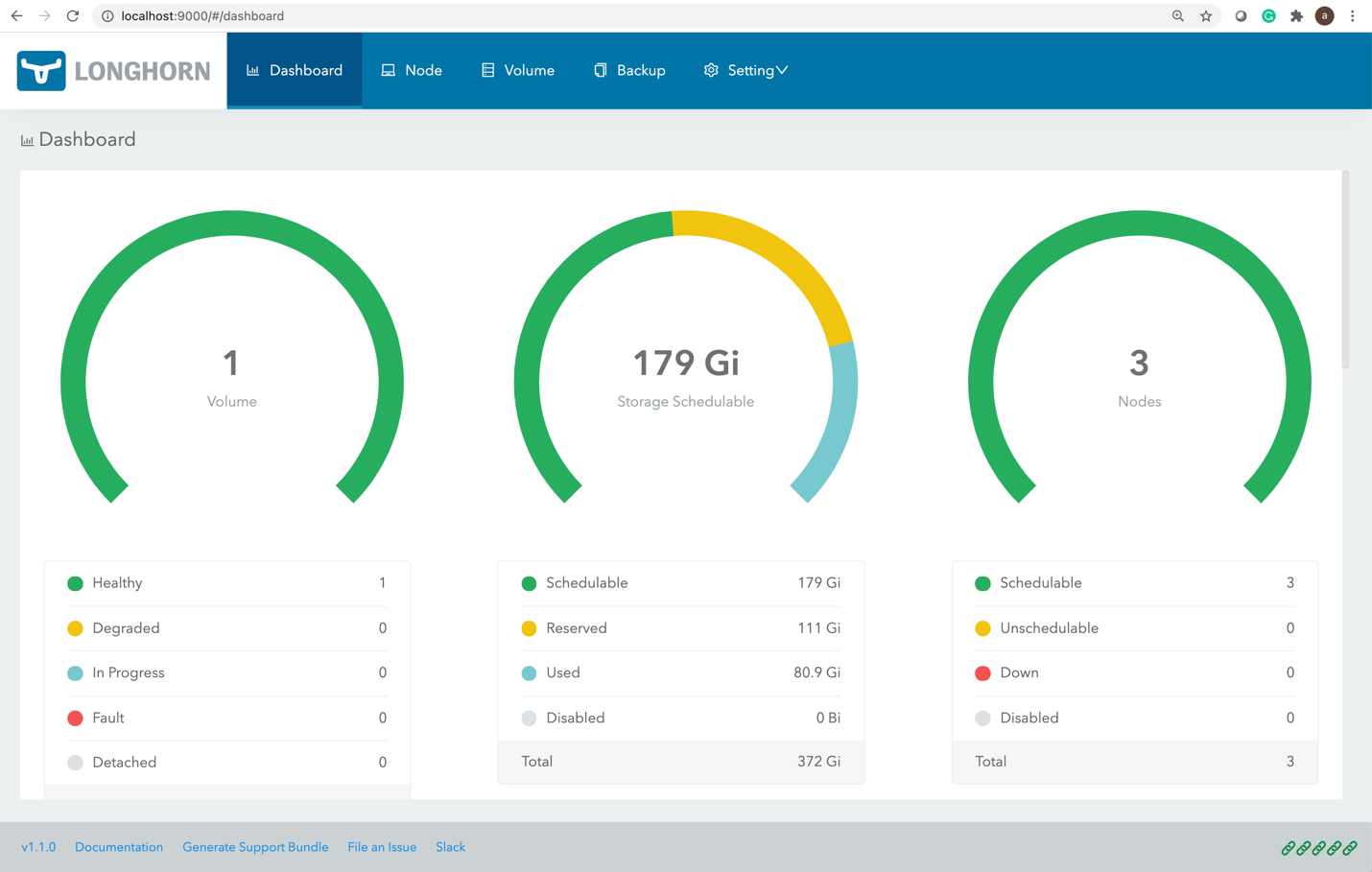
Figure 4 Longhorn UI

Besides high availability, most of the Kubernetes container storage solutions provide convenient options for backup, snapshots and restore. Details are implementation-specific, but the common convention is that backup is associated with the VolumeSnapshot. It is so for Longhorn. Depending on your Kubernetes version and provider you might also need to install volume snapshotter https://github.com/kubernetes-csi/external-snapshotter

`iris-volume-snapshot.yaml` is an example of such a volume snapshot. Before using it, you need to configure backups to either the S3 bucket or NFS volume in Longhorn. https://longhorn.io/docs/1.0.1/snapshots-and-backups/backup-and-restore/set-backup-target/

# Take crash-consistent backup of the iris volume
kubectl apply -f iris-volume-snapshot.yaml

For IRIS it is recommended that you execute External Freeze before taking the backup/snapshot and Thaw after. See details here: https://docs.intersystems.com/irisforhealthlatest/csp/documatic/%25CSP.Documatic.cls?LIBRARY=%25SYS&CLASSNAME=Backup.General#ExternalFreeze  

To increase the size of the IRIS volume - adjust storage request in persistent volume claim (file `iris-pvc.yaml`), used by IRIS.

...
  resources:
    requests:
      storage: 10Gi #change this value to required

Then, re-apply the pvc specification. Longhorn cannot actually apply this change while the volume is connected to the running Pod. Temporarily change replicas count to zero in the deployment so volume size can be increased.

High Availability – Overview

At the beginning of the article, we set some criteria for High Availability. Here is how we achieve it with this architecture:

Failure Domain

Automatically mitigated by

IRIS instance within container/VM. IRIS – level failure.

Deployment Liveness probe restarts container in case IRIS is down

Pod/Container failure.

Deployment recreates Pod

Temporary unavailability of the individual cluster node. A good example would be Availability Zone going off-line.

Deployment recreates pod on another node. Longhorn makes data available on another node.

Permanent failure of individual cluster node or disk.

Same as above + k8s cluster autoscaler replaces a damaged node with a new one. Longhorn rebuilds data on the new node.

Zombies and other things to consider

If you are familiar with running IRIS in the Docker containers, you might have used the `--init` flag.

docker run --rm -p 52773:52773 --init store/intersystems/iris-community:2020.4.0.524.0

The goal of this flag is to prevent the formation of the "zombie processes". In Kubernetes, you can either use ‘shareProcessNamespace: true’ (security considerations apply) or in your own containers utilize `tini`. Example Dockerfile with tini:

FROM iris-community:2020.4.0.524.0
...
# Add Tini
USER root
ENV TINI_VERSION v0.19.0
ADD https://github.com/krallin/tini/releases/download/${TINI_VERSION}/tini /tini
RUN chmod +x /tini
USER irisowner
ENTRYPOINT ["/tini", "--", "/iris-main"]

Starting 2021, all InterSystems provided container images would include tini by default.

You can further decrease the failover time for “force drain node/kill node” scenarios by adjusting few parameters:

Longhorn Pod Deletion Policy https://longhorn.io/docs/1.1.0/references/settings/#pod-deletion-policy-when-node-is-down and kubernetes taint-based eviction: https://kubernetes.io/docs/concepts/scheduling-eviction/taint-and-toleration/#taint-based-evictions

Disclaimer

As the InterSystems employee, I kinda have to put this in here: Longhorn is used in this article as an example of distributed Kubernetes Block Storage. InterSystems does not validate or issue an official support statement for individual storage solutions or products. You need to test and validate if any specific storage solution fits your needs.

Distributed storage might also have substantially different performance characteristics, comparing to node-local storage. Especially for write operations, where data must be written to multiple locations before it is considered to be in the persisted state. Make sure to test your workloads and understand the specific behaviour and options your CSI driver offers..

Basically, InterSystems does not validate and/or endorse specific storage solutions like Longhorn in the same way as we don’t validate individual HDD brands or server hardware manufacturers. I personally found Longhorn easy to work with and their development team extremely responsive and helpful at the project’s GitHub page. https://github.com/longhorn/longhorn 

Conclusion

Kubernetes ecosystem evolved significantly in the past few years and with the use of distributed block storage solutions, you now can build a Highly Available configuration that can sustain IRIS instance, cluster node and even Availability Zone failure.

You can outsource compute and storage high availability to Kubernetes components, resulting in a significantly simpler system to configure and maintain, comparing to the traditional IRIS mirroring. At the same time, this configuration might not provide the same RTO and storage – level performance as mirrored configuration.

In this article, we build a highly available IRIS configuration using Azure AKS as a managed Kubernetes and Longhorn distributed storage system. You can explore multiple alternatives such as AWS EKS, Google Kubernetes Engine for managed K8s, StorageOS, Portworx and OpenEBS as distributed container storage or even enterprise-level storage solutions such as NetApp, PureStorage, Dell EMC and others.

Appendix A. Creating Kubernetes Cluster in the cloud

Managed Kubernetes service from one of the public cloud providers is an easy way to create k8s cluster required for this setup. Azure’s AKS default configuration is ready out of the box to be used for the deployment described in this article.

Create a new AKS cluster with 3 nodes. Leave everything else default.
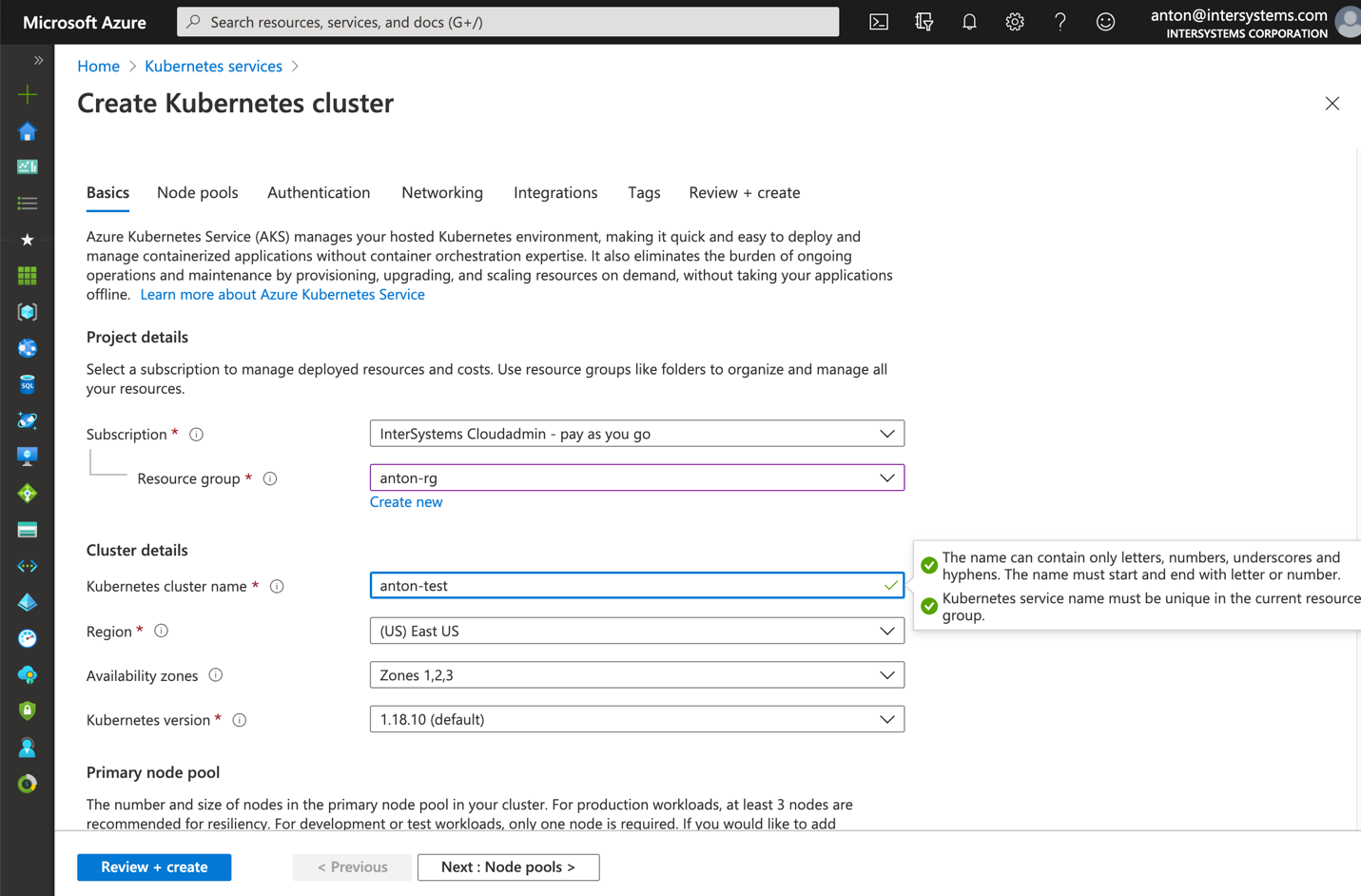
Figure 5 Create AKS cluster

Install kubectl on your computer locally: https://kubernetes.io/docs/tasks/tools/install-kubectl/

Register your AKS cluster with local kubectl
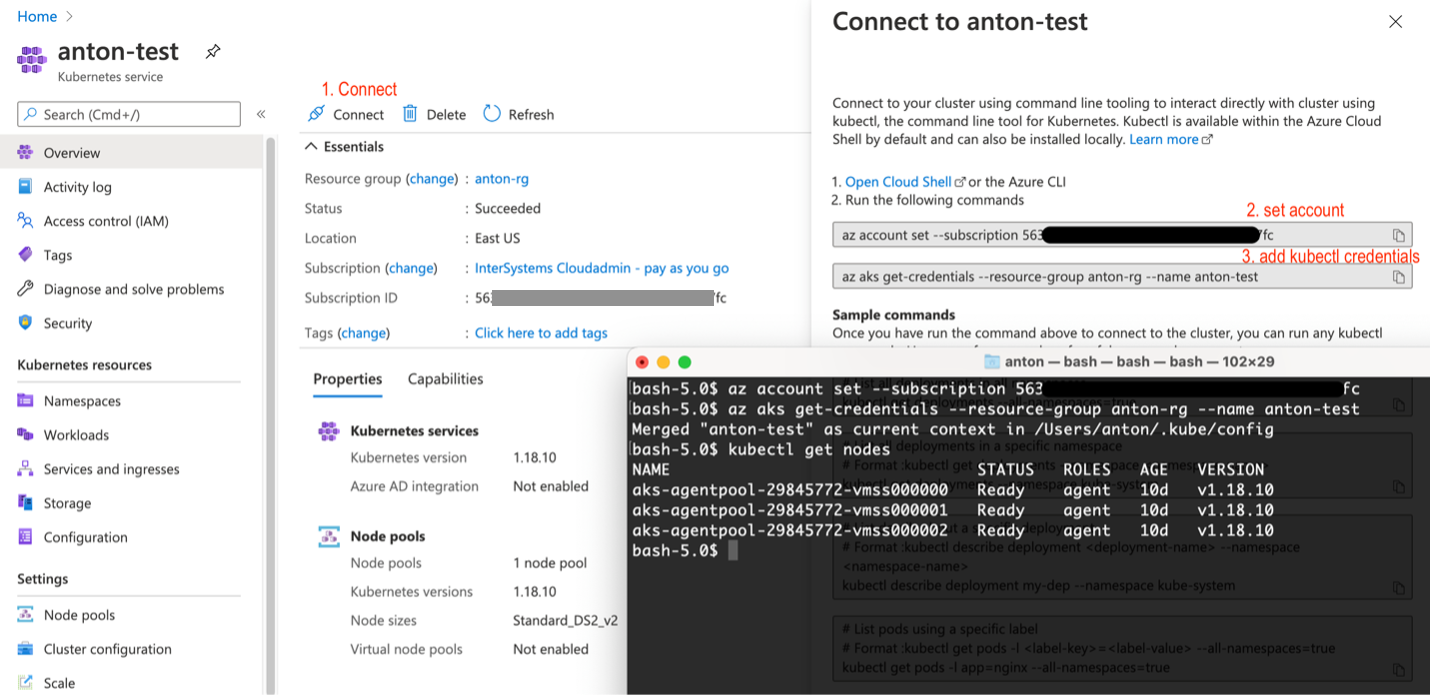
 

Figure 6 Register AKS cluster with kubectl

After that, you can get right back to the beginning of the article and install longhorn and IRIS deployment.

Installation on AWS EKS is a little bit more complicated. You need to make sure every instance in your node group has open-iscsi installed.

sudo yum install iscsi-initiator-utils -y

Installing Longhorn on GKE requires extra step, described here: https://longhorn.io/docs/1.0.1/advanced-resources/os-distro-specific/csi-on-gke/

Appendix B. Step by step installation

Step 1 – Kubernetes Cluster and kubectl

You need 3 nodes k8s cluster. Appendix A describes how to get one on Azure.

$ kubectl get nodes
NAME                                STATUS   ROLES   AGE   VERSION
aks-agentpool-29845772-vmss000000   Ready    agent   10d   v1.18.10
aks-agentpool-29845772-vmss000001   Ready    agent   10d   v1.18.10
aks-agentpool-29845772-vmss000002   Ready    agent   10d   v1.18.10

Step 2 – Install Longhorn

kubectl apply -f https://raw.githubusercontent.com/longhorn/longhorn/master/deploy/longhorn.yaml

Make sure all the pods in the ‘longhorn-system’ namespace are in the running state. It might take few minutes.

$ kubectl get pods -n longhorn-system
NAME                                       READY   STATUS    RESTARTS   AGE
csi-attacher-74db7cf6d9-jgdxq              1/1     Running   0          10d
csi-attacher-74db7cf6d9-l99fs              1/1     Running   1          11d
...
longhorn-manager-flljf                     1/1     Running   2          11d
longhorn-manager-x76n2                     1/1     Running   1          11d
longhorn-ui-df95bdf85-gpnjv                1/1     Running   0          11d

Refer to the Longhorn installation guide for details and troubleshooting https://longhorn.io/docs/1.1.0/deploy/install/install-with-kubectl

Step 3 – Clone the GitHub repo

$ git clone https://github.com/antonum/ha-iris-k8s.git
$ cd ha-iris-k8s
$ ls
LICENSE                   iris-deployment.yaml      iris-volume-snapshot.yaml
README.md                 iris-pvc.yaml             longhorn-aws-secret.yaml
iris-cpf-merge.yaml       iris-svc.yaml             tldr.yaml

Step 4 – deploy and validate components one by one

tldr.yaml file contains all the components needed for the deployment in one bundle. Here we’ll install them one by one and validate the setup of every one of them individually.

# If you have previously applied tldr.yaml - delete it.
$ kubectl delete -f https://github.com/antonum/ha-iris-k8s/raw/main/tldr.yaml

Create Persistent Volume Claim

$ kubectl apply -f iris-pvc.yaml persistentvolumeclaim/iris-pvc created

$ kubectl get pvc NAME       STATUS   VOLUME                                     CAPACITY   ACCESS MODES   STORAGECLASS   AGE iris-pvc   Bound    pvc-fbfaf5cf-7a75-4073-862e-09f8fd190e49   10Gi       RWO            longhorn       10s

Create Config Map

$ kubectl apply -f iris-cpf-merge.yaml

$ kubectl describe cm iris-cpf-merge Name:         iris-cpf-merge Namespace:    default Labels:       <none> Annotations:  <none>

Data

merge.cpf:

[config] globals=0,0,800,0,0,0 gmheap=256000 Events:  <none>

create iris deployment

$  kubectl apply -f iris-deployment.yaml deployment.apps/iris created

$ kubectl get pods                     NAME                    READY   STATUS              RESTARTS   AGE iris-65dcfd9f97-v2rwn   0/1     ContainerCreating   0          11s

note the pod name. You’ll use it to connect to the pod in the next command

$ kubectl exec -it iris-65dcfd9f97-v2rwn   -- bash

irisowner@iris-65dcfd9f97-v2rwn:~$ iris session iris Node: iris-65dcfd9f97-v2rwn, Instance: IRIS

USER>w $zv IRIS for UNIX (Ubuntu Server LTS for x86-64 Containers) 2020.4 (Build 524U) Thu Oct 22 2020 13:04:25 EDT

h<enter> to exit IRIS shell

exit<enter> to exit pod

access the logs of the IRIS container

$ kubectl logs iris-65dcfd9f97-v2rwn ... [INFO] ...started InterSystems IRIS instance IRIS 01/18/21-23:09:11:312 (1173) 0 [Utility.Event] Private webserver started on 52773 01/18/21-23:09:11:312 (1173) 0 [Utility.Event] Processing Shadows section (this system as shadow) 01/18/21-23:09:11:321 (1173) 0 [Utility.Event] Processing Monitor section 01/18/21-23:09:11:381 (1323) 0 [Utility.Event] Starting TASKMGR 01/18/21-23:09:11:392 (1324) 0 [Utility.Event] [SYSTEM MONITOR] System Monitor started in %SYS 01/18/21-23:09:11:399 (1173) 0 [Utility.Event] Shard license: 0 01/18/21-23:09:11:778 (1162) 0 [Database.SparseDBExpansion] Expanding capacity of sparse database /external/iris/mgr/iristemp/ by 10 MB.

create iris service

$ kubectl apply -f iris-svc.yaml    service/iris-svc created

$ kubectl get svc NAME         TYPE           CLUSTER-IP     EXTERNAL-IP    PORT(S)           AGE iris-svc     LoadBalancer   10.0.214.236   20.62.241.89   52773:30128/TCP   15s

Step 5 – Access management portal

Finally – connect to the management portal of the IRIS, using the external IP of the service: http://20.62.241.89:52773/csp/sys/%25CSP.Portal.Home.zen username _SYSTEM, Password SYS. You’ll be asked to change it on your first login.
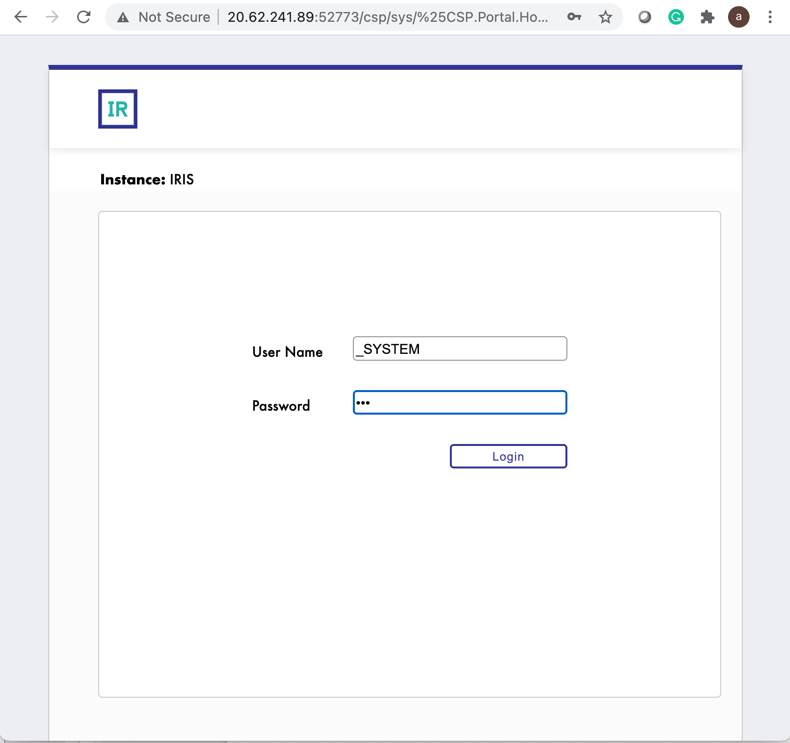
 

16
8 3897
Article Yuri Marx · May 15, 2023 6m read

 These days the vast majority of applications are deployed on public cloud services. There are multiple advantages, including the reduction in human and material resources needed, the ability to grow quickly and cheaply, greater availability, reliability, elastic scalability, and options to improve the protection of digital assets. One of the most favored options is the Google Cloud. It lets us deploy our applications using virtual machines (Compute Engine), Docker containers (Cloud Run), or Kubernetes (Kubernetes Engine). The first one does not use Docker. Instead, it utilizes a virtual

0
3 5031
Article Bob Binstock · Apr 26, 2021 9m read

Like hardware hosts, virtual hosts in public and private clouds can develop resource bottlenecks as workloads increase. If you are using and managing InterSystems IRIS instances deployed in public or private clouds, you may have encountered a situation in which addressing performance or other issues requires increasing the capacity of an instance's host (that is, vertically scaling).

1
0 511
Article Evgeny Shvarov · Mar 20, 2020 3m read

Hi colleagues!

Every day Johns Hopkins University publishes new data on coronavirus COVID-19 pandemic status.

I built a simple InterSystems IRIS Analytics dashboard using InterSystems IRIS Community Edition in docker deployed on GCP Kubernetes which shows key measures of the disease outbreak.

This dashboard is an example of how information from CSV could be analyzed with IRIS Analytics and deployed to GCP Kubernetes in a form of InterSystems IRIS Community Edition.

Added the interactive map of the USA:

13
3 1082
Article Evgeny Shvarov · Jun 12, 2020 3m read

Hi Devs!

Last weekend I had been testing the newborn csvgen module and was looking for a CSV file to test - thus I came across an interesting datafile on Data.World  with Game of Throne episodes statistics. Death statistics. These folks documented all the murders through all the 8 seasons and noted where, who, from what clan with what weapon had killed another one.

So I imported it and made an IRIS Analytics dashboard.

You Know Nothing, Jon Snow | You Know Nothing, Jon Snow | Know ...

Don't worry, Jon,  with this dashboard we can figure out something ). See the details below.

0
2 758
Article Mikhail Khomenko · Nov 18, 2019 9m read

Most of us are more or less familiar with Docker. Those who use it like it for the way it lets us easily deploy almost any application, play with it, break something and then restore the application with a simple restart of the Docker container.InterSystems also likes Docker.The InterSystems OpenExchange projectcontains a number of examples that run InterSystems IRIS images in Docker containers that are easy to download and run. You’ll also find other useful components, such as the Visual Studio IRIS plugin.It’s easy enough to run IRIS in Docker with additional code for specific use cases, but

1
4 996
Article Mikhail Khomenko · Jan 13, 2020 16m read

Last time we launched an IRIS application in the Google Cloud using its GKE service.

And, although creating a cluster manually (or through gcloud) is easy, the modern Infrastructure-as-Code (IaC) approach advises that the description of the Kubernetes cluster should be stored in the repository as code as well. How to write this code is determined by the tool that’s used for IaC.

In the case of Google Cloud, there are several options, among them Deployment Manager and Terraform. Opinions are divided as to which is better: if you want to learn more, read this Reddit thread Opinions on Terraform vs. Deployment Manager? and the Medium article Comparing GCP Deployment Manager and Terraform

1
2 1525
Article sween · Nov 7, 2019 5m read

Loading your IRIS Data to your Google Cloud Big Query Data Warehouse and keeping it current can be a hassle with bulky Commercial Third Party Off The Shelf ETL platforms, but made dead simple using the iris2bq utility.

Let's say IRIS is contributing to workload for a Hospital system, routing DICOM images, ingesting HL7 messages,  posting FHIR resources, or pushing CCDA's to next provider in a transition of care.  Natively, IRIS persists these objects in various stages of the pipeline via the nature of the business processes and anything you included along the way.  Lets send that up to Google Big Query to augment and compliment the rest of our Data Warehouse data and ETL (Extract Transform Load) or ELT (Extract Load Transform) to our hearts desire.

A reference architecture diagram may be worth a thousand words, but 3 bullet points may work out a little bit better:

  • It exports the data from IRIS into DataFrames
  • It saves them into GCS as .avro to keep the schema along the data: this will avoid to specify/create the BigQuery table schema beforehands.
  • It starts BigQuery jobs to import those .avro into the respective BigQuery tables you specify.


3
0 1265
Question Ignacio Valdes · Dec 1, 2019

I want to add ports 9100 and 9101 in addition to 52773. I read on docker container documentation that this is not possible on a already ran image. Currently it starts the google cloud IRIS health container automatically without me able to specify the additional ports. How can I add ports to Google cloud IRIS Health container?

5
0 970
Question Ignacio Valdes · Nov 3, 2019

Hi all, New user here. I have an instance of Google Cloud Iris Health Community Edition running and am logged in on terminal. I follow the instructions for Google Cloud IRIS Health Community Edition. How do I get to iris? iris status yields nothing, there is no /bin/iris and sudo docker ps -a shows no containers but there probably is a iris container somewhere on the instance?  'Visit the site' yields ERR_CONNECTION_REFUSED 

12
0 452
Question Dan Crouthamel · Oct 25, 2019

I'm trying to setup Iris Community on a GCP node and the following fails

iris load https://github.com/intersystems/quickstarts-multimodel-python

Error:

sudo: /tmp/195/load.sh: command not found

in /opt/ISC/info.sh

    local directory url
    url=$1
    #get the directory where the bash script lives and add a random numbered new dir
    dir1="/tmp"
    dir2=$(($(od -An -N1 -tu1 /dev/urandom)))
    directory="$dir1/$dir2"
    
    #get the code and set permissions
    sudo git clone -q $url $directory
    sudo chmod -R 775 $directory

    #run the repo specific code
    sudo $directory/load.sh

1
0 241
InterSystems Official Thomas Carroll · Feb 14, 2019

Breaking news!

InterSystems just announced the availability of the InterSystems IRIS for Health™ Data Platform across the Amazon Web ServicesGoogle Cloud, and Microsoft Azure marketplaces.

With access to InterSystems unified data platform on all three major cloud providers, developers and customers have flexibility to rapidly build and scale the digital applications driving the future of care on the platform of their choice. 

To learn more please follow this link

0
0 569
Article Mark Bolinsky · Oct 12, 2018 31m read

Google Cloud Platform (GCP) provides a feature rich environment for Infrastructure-as-a-Service (IaaS) as a cloud offering fully capable of supporting all of InterSystems products including the latest InterSystems IRIS Data Platform. Care must be taken, as with any platform or deployment model, to ensure all aspects of an environment are considered such as performance, availability, operations, and management procedures.  Specifics of each of those areas will be covered in this article.

0
3 4538