#Encryption

0 Followers · 57 Posts

In cryptography, encryption is the process of encoding a message or information in such a way that only authorized parties can access it and those who are not authorized cannot.

Article Ashok Kumar T · Feb 17, 2025 6m read

What is JWT?

JWT (JSON Web Token) is an open standard (RFC 7519) that offers a lightweight, compact, and self-contained method for securely transmitting information between two parties. It is commonly used in web applications for authentication, authorization, and information exchange.

A JWT is typically composed of three parts:

1. JOSE (JSON Object Signing and Encryption) Header
2. Payload
3. Signature

These parts are encoded in Base64Url format and concatenated with dots (.) separating them.

Structure of a JWT

Header

{ "alg": "HS256", "typ": "JWT"}

Payload

3
8 389
Question Robert Hildebrand · Oct 30, 2025

Hello,I am currently facing the task of retrieving or sending HL7 messages from a web API. Since we only send HL7 messages via internal sockets, web APIs are relatively new to me.The following is my plan for the new interface:I have created a new custom business service that periodically sends requests to a business process. In this business process, the HTTP request (HTTP.GenericMessage) is then created from scratch. The special feature is the "Authorisation" header field, where a signature is inserted, which consists of a base64-encoded hash value. The request is then sent to the API via a

4
0 51
Article Eric Fortenberry · Feb 19, 2025 19m read

What is TLS?

TLS, the successor to SSL, stands for Transport Layer Security and provides security (i.e. encryption and authentication) over a TCP/IP connection. If you have ever noticed the "s" on "https" URLs, you have recognized an HTTP connection "secured" by SSL/TLS. In the past, only login/authorization pages on the web would use TLS, but in today's hostile internet environment, best practice indicates that we should secure all connections with TLS.

Why use TLS?

So, why would you implement TLS for HL7 connections? As data breaches, ransomware, and vulnerabilities continue to rise, every measure you take to add security to these valuable data feeds becomes more crucial. TLS is a proven, well-understood method of protecting data in transit.

TLS provides two main features that are beneficial to us: 1) encryption and 2) authentication.

Encryption

Encryption transforms the data in transit so that only the two parties in the conversation can read/understand the information being exchanged. In most cases, only the application processes involved in the TLS connection can interpret the data being transferred. This means that any bad actors on the communicating servers or networks will not be able to read the data, even if they happen to capture the raw TCP packets with a packet sniffer (think wiretapping, wireshark, tcpdump, etc.).
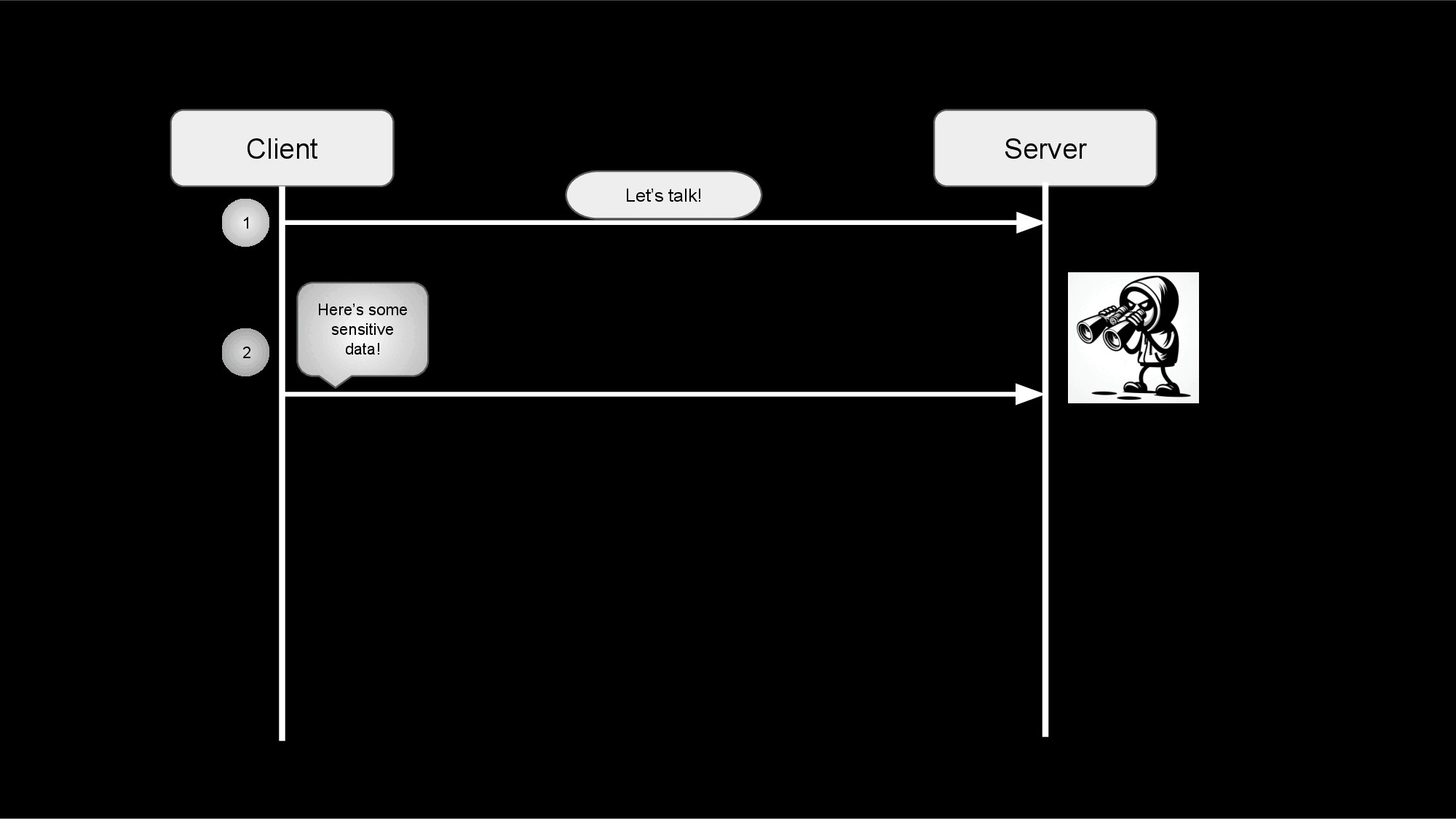
Without TLS

Authentication

Authentication insures that each side is communicating with their intended party and not an impostor. By relying on the exchange of certificates (and the associated proof-of-ownership verification that occurs during a TLS handshake), when using TLS, you can be certain that you are exchanging data with a trusted party. There are several attacks that involve tricking a server into communicating with a bad actor by redirecting traffic to the wrong server (for instance, DNS and ARP poisoning). When TLS is involved, the impostors would not only have to redirect traffic, but they would also have to steal the certificates and keys belonging to the trusted party.

Authentication not only protects against intentional attacks by hackers/bad actors, but it can also protect against accidental misconfigurations that could send data to the wrong system(s). For example, if you accidentally change the IP address of an HL7 connection to a server that is not using the expected certificate, the TLS handshake will fail verification before sending any data to the incorrect server.

Host Verification

When performing verification, a client has the option of performing host verification. This verification compares the IP or hostname used in the connection with the IPs and hostnames embedded in the certificate. If enabled and the connection IP/host does not match an IP/host found in the certificate, the TLS handshake will not succeed. You can find the IPs and hostnames in the "Subject" and "Subject Alternative Name" X.509 fields that are discussed below.

Proving Ownership of a Certificate with a Private Key

To prove ownership of the certificates exchanged with TLS, you also need access to the private key tied to the public key embedded in the certificate. We won't discuss the cryptography used to prove ownership with a private key, but you need to realize that access to your certificate's private key is necessary during the TLS handshake.

Mutual TLS

With most https connections made by your web browser, only the web server's authenticity/certificate is verified. Web servers typically do not authenticate the client with certificates. Instead, most web servers rely upon application-level client authentication (login forms, cookies, passwords, etc.).

With HL7, it is preferred that both sides of the connection are authenticated. When both sides are authenticated, it is called "mutual TLS". With mutual TLS, both the server and the client exchange their certificates and the other side verifies the provided certificates before continuing with the connection and exchanging data.

X.509 Certificates

X.509 Certificate Fields

To provide encryption and authentication, information about each party's public key and identity is exchanged in X.509 certificates. Below are some of the common fields of an X.509 certificate that we will focus on:

  • Serial Number: A number unique to a CA that identifies this specific certificate
  • Subject Public Key Info: Public key of the owner
  • Subject: Distinguished name (DN) of the server/service this certificate represents
    • This can be blank, if Subject Alternative Names are provided.
  • Issuer: Distinguished name (DN) of the CA that issued/signed this certificate
  • Validity Not Before: Start date that this certificate becomes valid
  • Validity Not After: Expiration date when this certificate becomes invalid
  • Basic Constraints: Indicates whether this is a CA or not
  • Key Usage: The intended usage of the public key provided by this certificate
    • Example values: digitalSignature, contentCommitment, keyEncipherment, dataEncipherment, keyAgreement, keyCertSign, cRLSign, encipherOnly, decipherOnly
  • Extended Key Usage: Additional intended usages of the public key provided by this certificate
    • Example values: serverAuth, clientAuth, codeSigning, emailProtection, timeStamping, OCSPSigning, ipsecIKE, msCodeInd, msCodeCom, msCTLSign, msEFS
    • Both serverAuth and clientAuth usages are needed for mutual TLS connections.
  • Subject Key Identifier: Identifies the subject's public key provided by this certificate
  • Authority Key Identifier: Identifies the issuer's public key used to verify this certificate
  • Subject Alternative Name: Contains one or more alternative names for this subject
    • DNS names and IP addresses are common alternative names provided in this field.
    • Subject Alternative Name is sometimes abbreviated SAN.
    • The DNS name or IP address used in the connection should be in this list or the Subject's Common Name for host verification to be successful.

Distinguished Names

The Subject and Issuer fields of an X.509 certificate are defined as Distinguished Names (DN). Distinguished names are made up of multiple attributes, where each attribute has the format <attr>=<value>. While not an exhaustive list, here are several common attributes found in Subject and Issuer fields:

AbbreviationNameExampleNotes
CNCommon NameCN=server1.domain.comUsually, the Fully Qualified Domain Name (FQDN) of a server/service
CCountryC=USTwo-Character Country Code
STState (or Province)ST=MassachusettsFull State/Province Name
LLocalityL=CambridgeCity, County, Region, etc.
OOrganizationO=Best CorporationOrganization's Name
OUOrganizational UnitOU=FinanceDepartment, Division, etc.

Given the examples in the table above, the full DN for this example would be C=US, ST=Massachusetts, L=Cambridge, O=Best Corporation, OU=Finance, CN=server1.domain.com

Note that the Common Name found in the Subject is used during host verification and normally matches the fully qualified domain name (FQDN) of the server or service associated with the certificate. The Subject Alternative Names from the certificate can also be used during host verification.

Certificate Expiration

The Validity Not Before and Validity Not After fields in the certificate provide a range of dates, between which, the given certificate is valid.

Typically, leaf certificates are valid for a year or two (though there is a push for web sites to reduce their expiration windows to much shorter ranges). Certificate authorities tend to have an expiration window of several years.

Certificate expiration is a necessary but inconvenient feature of TLS. Before adding TLS to your HL7 connections, be sure to have a plan for replacing the certificates prior to their expiration. Once a certificate expires, you will no longer be able to establish a TLS connection with it.

X.509 Certificate Formats

These X.509 certificate fields (along with others) are arranged in ASN.1 format and typically saved to file in one of the following formats:

  • DER (binary format)
  • PEM (base64)

An example PEM-encoding of an X.509 certificate:

-----BEGIN CERTIFICATE-----
MIIEVTCCAz2gAwIBAgIQMm4hDSrdNjwKZtu3NtAA9DANBgkqhkiG9w0BAQsFADA7
MQswCQYDVQQGEwJVUzEeMBwGA1UEChMVR29vZ2xlIFRydXN0IFNlcnZpY2VzMQww
CgYDVQQDEwNXUjIwHhcNMjUwMTIwMDgzNzU0WhcNMjUwNDE0MDgzNzUzWjAZMRcw
FQYDVQQDEw53d3cuZ29vZ2xlLmNvbTBZMBMGByqGSM49AgEGCCqGSM49AwEHA0IA
BDx/pIz8HwLWsWg16BG6YqeIYBGof9fn6z6QwQ2v6skSaJ9+0UaduP4J3K61Vn2v
US108M0Uo1R1PGkTvVlo+C+jggJAMIICPDAOBgNVHQ8BAf8EBAMCB4AwEwYDVR0l
BAwwCgYIKwYBBQUHAwEwDAYDVR0TAQH/BAIwADAdBgNVHQ4EFgQU3rId2EvtObeF
NL+Beadr56BlVZYwHwYDVR0jBBgwFoAU3hse7XkV1D43JMMhu+w0OW1CsjAwWAYI
KwYBBQUHAQEETDBKMCEGCCsGAQUFBzABhhVodHRwOi8vby5wa2kuZ29vZy93cjIw
JQYIKwYBBQUHMAKGGWh0dHA6Ly9pLnBraS5nb29nL3dyMi5jcnQwGQYDVR0RBBIw
EIIOd3d3Lmdvb2dsZS5jb20wEwYDVR0gBAwwCjAIBgZngQwBAgEwNgYDVR0fBC8w
LTAroCmgJ4YlaHR0cDovL2MucGtpLmdvb2cvd3IyLzlVVmJOMHc1RTZZLmNybDCC
AQMGCisGAQQB1nkCBAIEgfQEgfEA7wB2AE51oydcmhDDOFts1N8/Uusd8OCOG41p
wLH6ZLFimjnfAAABlIMTadcAAAQDAEcwRQIgf6SEH+xVO+nGDd0wHlOyVTbmCwUH
ADj7BJaSQDR1imsCIQDjJjt0NunwXS4IVp8BP0+1sx1BH6vaxgMFOATepoVlCwB1
AObSMWNAd4zBEEEG13G5zsHSQPaWhIb7uocyHf0eN45QAAABlIMTaeUAAAQDAEYw
RAIgBNtbWviWZQGIXLj6AIEoFKYQW4pmwjEfkQfB1txFV20CIHeouBJ1pYp6HY/n
3FqtzC34hFbgdMhhzosXRC8+9qfGMA0GCSqGSIb3DQEBCwUAA4IBAQCHB09Uz2gM
A/gRNfsyUYvFJ9J2lHCaUg/FT0OncW1WYqfnYjCxTlS6agVUPV7oIsLal52ZfYZU
lNZPu3r012S9C/gIAfdmnnpJEG7QmbDQZyjF7L59nEoJ80c/D3Rdk9iH45sFIdYK
USAO1VeH6O+kAtFN5/UYxyHJB5sDJ9Cl0Y1t91O1vZ4/PFdMv0HvlTA2nyCsGHu9
9PKS0tM1+uAT6/9abtqCBgojVp6/1jpx3sx3FqMtBSiB8QhsIiMa3X0Pu4t0HZ5j
YcAkxtIVpNJ8h50L/52PySJhW4gKm77xNCnAhAYCdX0sx76eKBxB4NqMdCR945HW
tDUHX+LWiuJX
-----END CERTIFICATE-----

As you can see, PEM encoding wraps the base64-encoded ASN.1 data of the certificate with -----BEGIN CERTIFICATE----- and -----END CERTIFICATE-----.

Building Trust with Certicate Authorities

On the open internet, it would be impossible for your web browser to know about and trust every website's certificate. There are just too many!

To get around this problem, your web browser delegates trust to a pre-determined set of certificate authorities (CAs). Certificate authorities are entities which verify that a person requesting a certificate for a web site or domain actually owns and is responsible for the server, domain, or business associated with the certificate request. Once the CA has verified an owner, it is able to issue the requested certificate.

Each certificate authority is represented by one or more X.509 certificates. These CA certificates are used to sign any certificates issued by the CA. If you look in the Issuer field of an X.509 certificate, you will find a reference to the CA certificate that created and signed this certificate.

If a certificate is created without a certificate authority, the certificate is called a self-signed certificate. You know a certificate is self-signed if the Subject and Issuer fields of the certificate match.

Generally, the CA will create a self-signed root certificate with a long expiration window. This root certificate will then be used to generate a couple of intermediate certificate authorities, that have a slightly shorter expiration window. The root CA will be securely locked down and rarely be used after creating the intermediate CAs. The intermediate CAs will be used to issue and sign leaf certificates on a day-to-day basis.

The reason for creating intermediate CAs instead of using the root CA directly is to minimize impact in the case of a breach or mishandled certificate. If a single intermediate CA is compromised, the company will still have the other CAs available to continue providing service.

Certificate Chains

A connection's certificate and all of the CA certificates involved in issuing and signing this certificate can be arranged into a structure called a certificate chain. This certificate chain (as described below) will be used to verify and trust the connection's certificate.

If you follow a connection's leaf certificate to the issuing CA (using the Issuer field), and then from that CA walk to its issuer (and so on, until you reach a self-signed root certifcate) you would have walked the certificate chain.
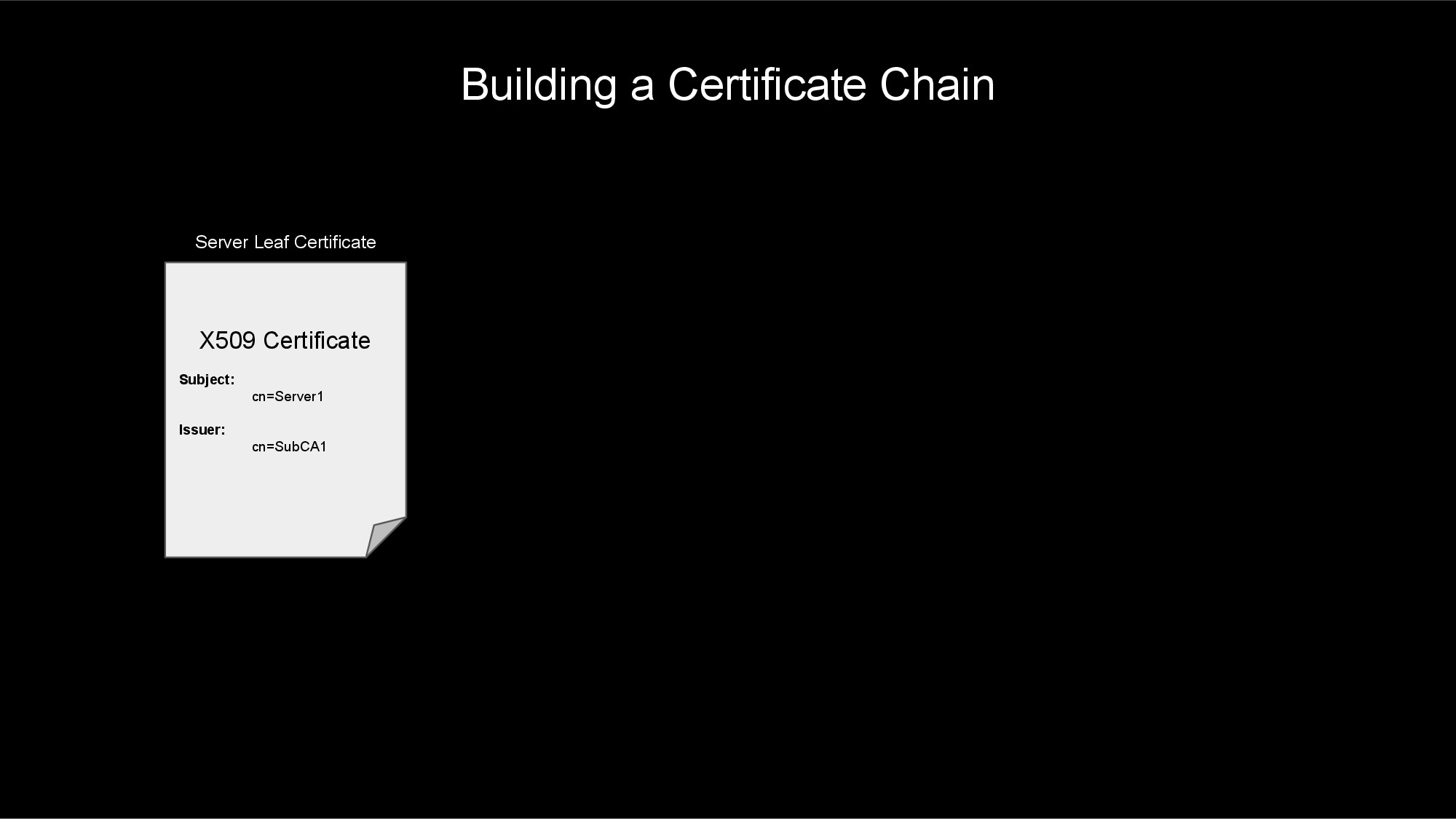
Building a Certificate Chain

Trusting a Certificate

Your web browser and operating system typically maintains a list of trusted certificate authorities. When configuring an HL7 interface or other application, you will likely point your interface to a CA-bundle file that contains a list of trusted CAs. This file will usually contain a list of one or more CA certificates encoded in PEM format. For example:

# Maybe an Intermediate CA
-----BEGIN CERTIFICATE-----
MIIDQTCCAimgAwIBAgITBmyfz5m/jAo54vB4ikPmljZbyjANBgkqhkiG9w0BAQsF
...
rqXRfboQnoZsG4q5WTP468SQvvG5
-----END CERTIFICATE-----

# Maybe the Root CA
-----BEGIN CERTIFICATE-----
MIIDqDCCApCgAwIBAgIJAP7c4wEPyUj/MA0GCSqGSIb3DQEBBQUAMDQxCzAJBgNV
...
WyH8EZE0vkHve52Xdf+XlcCWWC/qu0bXu+TZLg==
-----END CERTIFICATE-----

When your web browser (or HL7 interface) attempts to make a TLS connection, it will use this list of trusted CA certificates to determine if it trusts the certificate exchanged during the TLS handshake.

The process will start at the leaf certificate and traverse the certificate chain to next CA certificate. If the CA certificate is not found in the trust store or CA-bundle, then the leaf certificate is not trusted, and the TLS connection fails.

If the CA certificate is found in the trust store or CA-bundle file, then the process continues walking up the certificate chain, verifying that each CA along the way is in the trust store. Once the root CA certificate at the top of the chain is verified (along with all of the intermediate CA certificates along the way), the process can trust the server's leaf certificate.
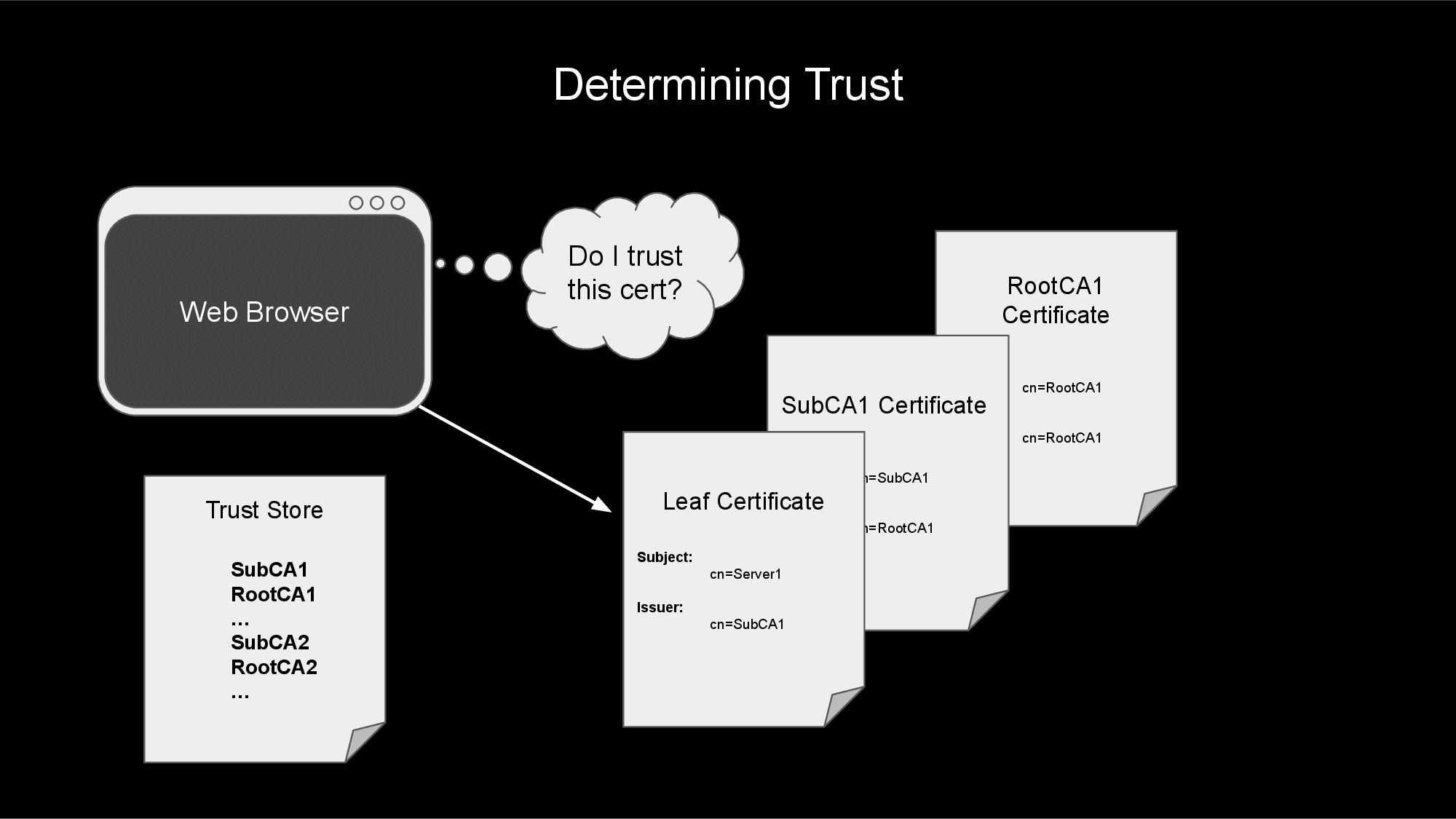
Determining Trust

The TLS Handshake

To add TLS to a TCP/IP connection (such as an HL7 feed), the client and server must perform a TLS handshake after the TCP/IP connection has been established. This handshake involves agreeing on encryption ciphers/methods, agreeing on TLS version, exchanging X.509 certificates, proving ownership of these certificates, and validating that each side trusts the other.

The high-level steps of a TLS handshake are:

  1. Client makes TCP/IP connection to the server.
  2. Client starts the TLS handshake.
  3. Server sends it's certificate (and proof-of-ownership) to the client.
  4. Client verifies the server certificate.
  5. If mutual TLS, the client sends it's certificate (and proof-of-ownership) to the server.
  6. If mutual TLS, the server verifies the client certificate.
  7. Client and server send encrypted data back and forth.

TLS Handshake

1. Client makes TCP/IP connection to the server.

During step #1, the client and server perform a TCP 3-way handshake to establish a TCP/IP connection between them. In a 3-way handshake:

  1. The client sends a SYN packet.
  2. The server sends a SYN-ACK packet.
  3. The client sends an ACK packet.

Once this handshake is complete, the TCP/IP connection is established. The next step is to start the TLS handshake.

2. Client starts the TLS handshake.

After a TCP connection is established, one of the sides must act as the client and start the TLS handshake. Typically, the process that initiated the TCP connection also is responsible for initiating the TLS handshake, but this can be flipped in rare cases.

To start the TLS handshake, the client sends a ClientHello message to the server. This message contains various options used to negotiate the security settings of the connection with the server.

3. Server sends it's certificate (and proof-of-ownership) to the client.

After receiving the client's ClientHello message, the server in turn responds with a ServerHello message. This includes the negotiated security settings.

Following the ServerHello message, the server will also send a Certificate and CertificateVerify message to the client. This shares the X.509 certificate chain with the client and provides proof-of-ownership of the associated private key for the certificate.

4. Client verifies the server certificate.

Once the client receives the ServerHello, Certificate, and CertificateVerify messages, the client will verify that the certificate is valid and trusted (by comparing the CAs to trusted CA-bundle files, the operating system certificate store, or web browser certificate store). The client will also do any host verification (see above) to make sure the connection address matches the certificate addresses/IPs.

5. If mutual TLS, the client sends it's certificate (and proof-of-ownership) to the server.

If this is a mutual TLS connection (determined by the server sending a CertificateRequest message), the client will send a Certificate message including its certificate chain and then a CertificateVerify message to prove ownership of the associated private key.

6. If mutual TLS, the server verifies the client certificate.

Again, if this is a mutual TLS connection, the server will verify that certificate chain sent by the client is valid and trusted.

7. Client and server send encrypted data back and forth.

If the TLS handshake makes it this far without failing, the client and server will exchange Finished messages to complete the handshake. After this, encrypted data can be sent back-and-forth between the client and the server.

Setting Up TLS on HL7 Interfaces

Congratulations on making it this far! Now that you know about TLS, how would you go about implementing TLS on your HL7 connections? In general, here are the steps that you will need to perform to setup TLS on your HL7 connections.

  1. Choose a certificate authority.
  2. Create a key and certificate signing request.
  3. Obtain your certificate from your CA.
  4. Obtain the certificate chain for your peer.
  5. Create an SSL config for the connection.
  6. Add the SSL config to the interface, bounce the interface, and verify message flow.

1. Choose a certificate authority.

The process you use to obtain a certificate and key for your server will greatly depend upon the security policies of your company. In most scenarios, you will end up with one of the following CAs signing your certificate:

  1. An internal, company CA will sign your certificate.
  • This is my favorite option, as your company already has the infrastructure in place to maintain certificates and CAs. You just need to work with the team that owns this infrastructure to get your own certificate for your HL7 interfaces.
  1. A public CA will sign your certificate.
  • This option is nice in the sense that the public CA also has all of the infrastructure in place to maintain certificates and CAs. This option is probably overkill for most HL7 interfaces, as public CAs typically provide certificates for the open internet; HL7 interfaces tend to connect over private intranet, not the public internet.
  • Obtaining certificates from a public CA may incur a cost, as well.
  1. A CA you create and maintain will sign your certificate.
  • This option may work well for you, but unfortunately, this means you bear the burden of maintaining and securing your CA configuration and software.
  • Use at your own risk!
  • This option is the most complex. Get ready for a steep learning curve.
  • You can use open source, proven software packages for managing your CA and certificates. The OpenSSL suite is a great option. Other options are EJBCA, step-ca, and cfssl.

2. Create a key and certificate signing request.

After you have chosen your CA, your next step is to create a private key and certificate signing request (CSR). How you generate the key and CSR will depend upon your company policy and the CA that you chose. For now, we'll just talk about the steps from a high-level.

When generating a private key, the associated public key is also generated. The public key will be embedded within your CSR and your signed certificate. These two keys will be used to prove ownership of your signed certificate when establishing a TLS connection.

CAUTION! Make sure that you save your private key in a secure location (preferably in a password-protected format). If you lose this key, your certificate will no longer be usable. If someone else gains access to this key, they will be able to impersonate your server.

The certificate signing request will include information about your server, your company, your public key, how you will use the certificate, etc. It will also include proof that you own the associated private key. This CSR will then be provided to your CA to generate and sign your certificate.

NOTE: When creating the CSR, make sure that you request an Extended Key Usage of both serverAuth and clientAuth, if you are using mutual TLS. Most CAs are used to signing certificates with only serverAuth key usage. Unfortunately, this means that the certificate can not be used as a client certificate in a mutual TLS connection.

3. Obtain your certificate from your CA.

After creating your key and CSR, submit the CSR to your certificate authority. After performing several checks, your CA should be able to provide you with a signed certificate and the associated certificate chain. You will want this certificate and chain saved in PEM format. If the CA provided your certificate in a different format, you will need to convert it using a tool like OpenSSL.

4. Obtain the certificate chain for your peer.

The previous steps were focused on obtaining a certificate for your server. You should be able to use this certificate (and the associated key) with each HL7 connection to/from this server. You will also have to obtain the certificate chains for each of the systems/peers to which you will be connecting.

The certificate chains for each peer will need to be saved in a file in PEM format. This CA-bundle will not need to contain the leaf certificates; it only needs to contain the intermediate and root CA certificates.

Be sure to provide your peer with a CA-bundle containing your intermediate and root CAs. This will allow them to trust your certificate when you make a connection.

5. Create an SSL config for the connection.

In InterSystems's Health Connect, you will need to create client and server SSL configs for each system that your server will be connecting to. These SSL configs will point to the associated system's CA-bundle file and will also point to your server's key and certificate files.

Client SSL configs are used on operations to initiate the TLS handshake. Server SSL configs are used on services to respond to TLS handshakes. If a system has both inbound services and outbound operations, you will need to configure both a client and server SSL config for that system.

To create a client SSL config:

  1. Go to System Administration > Security > SSL/TLS Configurations.
  2. Click Create New Configuration.
  3. Give your SSL configuration a Configuration Name and Description.
  4. Make sure your SSL configuration is Enabled.
  5. Choose Client as the Type.
  6. Choose Require for the Server certificate verification field. This performs host verification on the connection.
  7. Point File containing trusted Certificate Authority certificate(s) to the CA-bundle file that contains the intermediate and root CAs (in PEM format) for the system to which you are connecting.
  8. Point File containing this client's certificate to the file that holds your server's X.509 certificate in PEM format.
  9. Point File containing associated private key to the file containing your certificate's private key.
  10. Private key type will most likely be RSA. This should match the type of your private key.
  11. If you private key is password protected (as it should be), fill in the password in both the Private key password and Private key password (confirm) fields.
  12. You likely can leave the other fields to their default values.

To create a server SSL config:

  1. Go to System Administration > Security > SSL/TLS Configurations.
  2. Click Create New Configuration.
  3. Give your SSL configuration a Configuration Name and Description.
  4. Make sure your SSL configuration is Enabled.
  5. Choose Server as the Type.
  6. Choose Require for the Client certificate verification field. This will make sure that mutual TLS is performed.
  7. Point File containing trusted Certificate Authority certificate(s) to the CA-bundle file that contains the intermediate and root CAs (in PEM format) for the system to which you are connecting.
  8. Point File containing this server's certificate to the file that holds your server's X.509 certificate in PEM format.
  9. Point File containing associated private key to the file containing your certificate's private key.
  10. Private key type will most likely be RSA. This should match the type of your private key.
  11. If you private key is password protected (as it should be), fill in the password in both the Private key password and Private key password (confirm) fields.
  12. You likely can leave the other fields to their default values.

Creating SSL Configs

6. Add the SSL config to the interface, bounce the interface, and verify message flow.

Once you've created the client and server SSL configs, you are ready to activate TLS on the interfaces. On each service or operation, select the associated SSL config on the Connection Settings > SSL Configuration dropdown found on the Settings tab of the interface.

After bouncing the interface, you should see the connection reestablish. When a new message is tranferred, a Completed status indicates that TLS is working. If TLS is not working, every time a message is attempted, the connection will drop.

To help debug issues with TLS, you may need to use tools such as tcpdump, Wireshark, or OpenSSL's s_client utility.

Summary

This has been a very long deep-dive into the topic of SSL/TLS. There is so much more information that was not included in this article. Hopefully, this has provided you with enough of an overview of how TLS works that you can research the details and learn more information as needed.

If you are looking for an in-depth resource on TLS, check out Ivan Ristić's website, fiestyduck.com and book, Bulletproof TLS and PKI. I have found this book to be a great resource for learning more about the details of TLS.

1
6 466
Article sween · Sep 10, 2025 6m read

A step by step implementation path to a cross regional stretched IrisCluster with Mirroring using the Intersystems Kubernetes Operator (IKO), Google Cloud Platform, and Tailscale.

I am giving this distraction the code name "Compliment Sandwich" for a reason yet to be realized, but I'd rather the community go right for the jugular shooting holes in a solution that implements wireguard based connectivity for our workloads in general, as I would like to refine it as a fall project leading up to KubeCon in Atlanta and if I miss the mark, Ill get it done before Amsterdam. 


1
1 101
Question Scott Roth · Jun 13, 2025

I have an application that is requires an Encoded HL7 message sent over SOAP over HTTPS using SSL/TLS... the Response that is return is also encoded, which I know how to Decode but not sure when I Decode the response how to Extract the HL7 message to send back to the router.

How do I capture the Routing Source System and parse the encoded message back into an HL7 format that would show on the trace viewer?

Below is an example...where I get the response and want to send it back to FeederScottRouting as an HL7 message that can be tied to the Parent ID of the sending request message?

4
0 95
Article Eduard Lebedyuk · Apr 18, 2025 8m read

For my hundredth article on the Developer Community, I wanted to present something practical, so here's a comprehensive implementation of the GPG Interoperability Adapter for InterSystems IRIS.

Every so often, I would encounter a request for some GPG support, so I had several code samples written for a while, and I thought to combine all of them and add missing GPG functionality for a fairly complete coverage. That said, this Business Operation primarily covers data actions, skipping management actions such as key generation, export, and retrieval as they are usually one-off and performed manually anyways. However, this implementation does support key imports for obvious reasons. Well, let's get into it.

What is GPG?

GnuPG is a complete and free implementation of the OpenPGP standard as defined by RFC4880 (also known as PGP). GnuPG allows you to encrypt and sign your data and communications and perform the corresponding tasks of decryption and signature verification.

For InterSystems Interoperability adapter, I will be using Embedded Python and gnupg Python library specifically.

The gnupg module allows Python programs to make use of the functionality provided by the GNU Privacy Guard (abbreviated GPG or GnuPG). Using this module, Python programs can encrypt and decrypt data, digitally sign documents and verify digital signatures, manage (generate, list and delete) encryption keys, using Public Key Infrastructure (PKI) encryption technology based on OpenPGP.

Disclaimer

This project, whenever possible, aims to use GPG defaults. Your organization's security policies might differ. Your jurisdiction or your organization's compliance with various security standards might require you to use GPG with different settings or configurations. The user is wholly responsible for verifying that cryptographic settings are adequate and fully compliant with all applicable regulations. This module is provided under an MIT license. Author and InterSystems are not responsible for any improper or incorrect use of this module.

Installation

OS and Python

First, we'll need to install python-gnupg, which can be done using pip or irispip:

irispip install  --target C:\InterSystems\IRIS\mgr\python python-gnupg

If you're on Windows, you should install GPG itself. GPG binaries must be in the path, and you must restart IRIS after GPG installation. If you're on Linux or Mac, you likely already have GPG installed.

InterSystems IRIS

After that, load the code into any Interoperability-enabled namespace and compile it. The code is in Utils.GPG package and has the following classes:

  • Operation: main Business Operation class
  • *Request: Interoperability request classes
  • *Response: Interoperability response classes
  • File*: Interoperability request and response classes using %Stream.FileBinary for payload
  • Tests: code for manual testing, samples

Each request has two properties:

  • Stream — set that to your payload. In File* requests, your stream must be of the %Stream.FileBinary class; for non-file requests, it must be of the %Stream.GlobalBinary class.
  • ResponseFilename — (Optional) If set, the response will be written into a file at the specified location. If not set, for File requests, the response will be placed into a file with .asc or .txt added to the request filename. If not set, for global stream requests, the response will be a global stream.

The request type determines the GPG operation to perform. For example, EncryptionRequest is used to encrypt plaintext payloads.

Each response (except for Verify) has a Stream property, which holds the response, and a Result property, which holds a serializable subset of a GPG result object converted into IRIS persistent object. The most important property of a Result object is a boolean ok, indicating overall success.

Sample key generation

Next, you need a sample key; skip this step if you already have one (project repo also contains sample keys, you can use them for debugging, passphrase is 123456):

Use any Python shell (for example, do $system.Python.Shell()):

import gnupg
gpg_home = 'C:\InterSystems\IRIS\Mgr\pgp'
gpg = gnupg.GPG(gnupghome=gpg_home)
input_data = gpg.gen_key_input(key_type="RSA", key_length=2048)
master_key = gpg.gen_key(input_data)
public_key = 'C:\InterSystems\IRIS\Mgr\keys\public.asc'
result_public = gpg.export_keys(master_key.fingerprint, output=public_key)
private_key = 'C:\InterSystems\IRIS\Mgr\keys\private.asc'
result_private = gpg.export_keys(master_key.fingerprint, True, passphrase="", output=private_key)

You must set gpg_home, private_key, and public_key to valid paths. Note that a private key can only be exported with a passphrase.

Production configuration

Add Utils.GPG.Operation to your Production, there are four custom settings available:

  • Home: writable directory for GPG to keep track of an internal state.
  • Key: path to a key file to import
  • Credentials: if a key file is passphrase protected, select a Credential with a password to be used as a passphrase.
  • ReturnErrorOnNotOk: If this is False and the GPG operation fails, the response will be returned with all the info we managed to collect. If this is True, any GPG error will result in an exception.

On startup, the operation loads the key and logs GPG initialized if everything is okay. After that, it can accept all request types based on an imported key (a public key can only encrypt and verify).

Usage

Here's a sample encryption request:

/// do ##class(Utils.GPG.Tests).Encrypt()
ClassMethod Encrypt(target = {..#TARGET}, plainFilename As %String, encryptedFilename As %String)
{
	if $d(plainFilename) {
		set request = ##class(FileEncryptionRequest).%New()
		set request.Stream = ##class(%Stream.FileBinary).%New()
		$$$TOE(sc, request.Stream.LinkToFile(plainFilename))
	} else {
		set request = ##class(EncryptionRequest).%New()
		set request.Stream = ##class(%Stream.GlobalBinary).%New()
		do request.Stream.Write("123456")
		$$$TOE(sc, request.Stream.%Save())
	}
	
	if $d(encryptedFilename) {
		set request.ResponseFilename = encryptedFilename
	}
		
	set sc = ##class(EnsLib.Testing.Service).SendTestRequest(target, request, .response, .sessionid)
	
	zw sc, response, sessionid
}

In the same manner, you can perform Decryption, Sign, and Verification requests. Check Utils.GPG.Tests for all the examples.

Why Business Operation?

While writing this, I received a very interesting question about why GPG needs to be a separate Business Host and not a part of a Business Process. As this can be very important for any cryptography code, I wanted to include my rationale on that topic.

I would like to start with how Business Processes work and why this is a crucial consideration for cryptography code. Consider this simple Business Process User.BPL:

<process language='objectscript' request='Ens.Request' response='Ens.Response'>
  <context>
    <property name='x' type='%Integer' instantiate='0' />
  </context>
  <sequence>
    <assign property="context.x" value="1" action="set" />
    <if name='Check' condition='1' >
      <true>
        <assign property="context.x" value="2" action="set"  />
      </true>
    </if>
  </sequence>
</process>

It will generate the Context class with one property:

Class User.BPL.Context Extends Ens.BP.Context 
{
Property x As %Integer;
}

And State class with two methods (simplified):

Method S1(process As User.BPL, context As User.BPL.Context)
{
  Set context.x=1
  Set ..%NextState="S2"
  Quit ..ManageState()
}

Method S2(process As User.BPL, context As User.BPL.Context)
{
  Set context.x=2
  Set ..%NextState="S3"
  Quit ..ManageState()
}

Since BP is a state machine, it will simply call the first state and then whatever is set in %NextState. Each state has information on all possible next states—for example, one next state for a true path and another for a false path in the if block state. However, the BP engine manages the state between state invocations. In our case, it saves the User.BPL.Context object which holds an entire context - property x.

But there's no guarantee that after saving the state of a particular BP invocation, the subsequent state for this invocation would be called next immediately. The BP engine might wait for a reply from BO/BP, work on another invocation, or even work on another process entirely if we're using shared pool workers. Even with a dedicated worker pool, another worker might grab the same process invocation to continue working on it.

This is usually fine since the worker's first action before executing the next state is loading the context from memory—in our example, it's an object of the User.BPL.Context class with one integer property x, which works.

But in the case of any cryptography library, the context must contain something along the lines of:

/// Private Python object holding GPG module
Property %GPG As %SYS.Python; 

Which is a runtime Python module object that cannot be persisted. It also likely cannot be pickled or even dilled as we initialize a crypto context to hold a key — the library is rather pointless without it, after all.

So, while theoretically, it could work if the entire cryptography workload (idempotent init – idempotent key load - encryption - signing) is handled within one state, that is a consideration that must always be carefully observed. Especially since, in many cases, it will work in low-load environments (i.e., dev) where there's no queue to speak of, and one BP invocation will likely progress from beginning to end uninterrupted. But when the same code is promoted to a high-load environment with queues and resource contention (i.e., live), the BP engine is likelier to switch between different invocations to speed things up.

That's why I highly recommend extracting your cryptography code into a separate business operation. Since one business operation can handle multiple message types, you can have one business operation that processes PGP signing/encryption/verification requests. Since BOs (and BSes) are not state machines, once you load the library and key(s) in the init code, they will not be unloaded until your BH job expires one way or another.

Conclusion

GPG Interoperability Adapter for InterSystems IRIS allows you to use GPG easily if you need Encryption/Decryption and Signing/Verification.

Documentation

0
0 137
Question Jim Lyons · Oct 16, 2024

Working on a project where I'm needing to make FHIR calls from my HealthConnect Interop production to Epic. 

My issue is I'm not able to construct a valid JWT for the OAuth token retrieval that Epic will accept. I have the below code where I'm able to create a valid header and payload that I'm base64URL encoding and then trying to sign with my .pem private key file. However, Epic is not liking the signature portion of my JWT.

1
0 187
Question Oliver Wilms · Nov 19, 2024

I need to create a JWT to connect to EPIC FHIRserver sandbox.

https://fhir.epic.com/Documentation?docId=oauth2&section=BackendOAuth2G…

You will generate a one-time use JSON Web Token (JWT) to authenticate your app to the authorization server and obtain an access token that can be used to authenticate your app's web service calls. There are several libraries for creating JWTs. See jwt.io for some examples.

The header and payload are then base64 URL encoded, combined with a period separating them, and cryptographically signed using the private key to generate a signature.

5
0 239
Question David Marinkovic · May 21, 2024


Hi guys,

I need to check my HTTPS POST REQUEST, in order to do this I try to catch it by using wireshark.

I can't see anything because of the encryption.

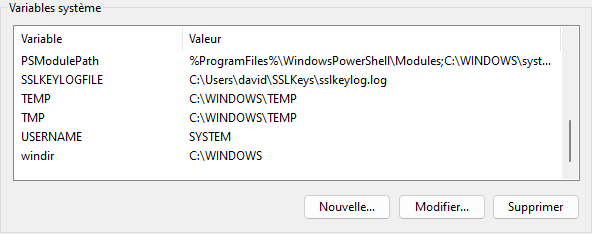
I try unsuccefully to use the SSLKEYLOGFILE key (windows 11), but the generated file did not increase when I trigger my code OR postman, it grows only by the action of the web browser.

My question is so simple :

1°) How have a clear view of the HTTPS request from IRIS code in wireshark

2°) Why the keylog file did not increase when trigger the code from IRIS ?

2
0 451
Question David Marinkovic · May 16, 2024

Hi guys,

I try to make a test of encryption, decryption of a simple text.

I can crypt my text, but I can't decrypt it, do you see somewhere a dummy error of my part ?

Thanks for help

ClassMethod UnitTest()

{

  set inputPlainText = "David"

  // get private key

  set privKeyFileName = "C:\temp\toto.pem"

  set privobjCharFile = ##class(%Stream.FileCharacter).%New()

  set privobjCharFile.Filename = privKeyFileName

  set privKey = privobjCharFile.Read()

  set Inputbase64 = $SYSTEM.Encryption.Base64Encode(inputPlainText)

  // encrypte text using RSA

2
1 244
Article Richard Rael · Jan 22, 2024 7m read

IRIS can use a KMS (Key Managment Service) as of release 2023.3.  Intersystems documentation is a good resource on KMS implementation but does not go into details of the KMS set up on the system, nor provide an easily followable example of how one might set this up for basic testing.

The purpose of this article is to supplement the docs with a brief explanation of KMS, an example of its use in IRIS, and notes for setup of a testing system on AWS EC2 RedHat Linux system using the AWS KMS.  It is assumed in this document that the reader/implementor already has access/knowledge to set up an AWS EC2 Linux system running IRIS (2023.3 or later), and that they have proper authority to access the AWS KMS and AWS IAM (for creating roles and polices), or that they will be able to get this access either on their own or via their organizations Security contact in charge of their AWS access.

0
1 297
Question Mary George · Sep 20, 2023

Hi Community, 
 

Can I please check what the size limit for the parameter in  $SYSTEM.Encryption.Base64Decode() method ? 

I have a 12 page base64 encoded PDF document, which is failing when decoded. I am getting the error below:

ERROR <Ens>ErrException: <ILLEGAL VALUE>zXSDToLogical+1^%Library.Binary.1 -- logged as '-' number - @''

OBX:5 size=4233781

I tried the below from terminal, but it is not able copy the whole string for the parameter so couldn't execute it. 

Set text=$SYSTEM.Encryption.Base64Decode("JVB<<TRUNCATED>>) 

4
0 613
Question Nick Hershberger · Jun 13, 2023

We've implemented SAML authentication for our application where we are the service provider and various other entities are the identity providers. We've done successful connections with several identity providers including Okta, Duo Mobile, Ping Identity, and Azure. Validating the SAML response with signed assertions has been working great. Now, I am trying implement support for the SAML assertions in the response being encrypted for a new identity provider and struggling to understand procedurally how to go about this. From the sample XML below, I assume I need to decrypt the <CipherData>

0
0 446
Article Mauro Aguirre · May 11, 2023 13m read

Several steps should be done in order to secure the connection through xDBC clients to an IRIS Server instance using TLS. Most of the information can be obtained from the documentation about TLS on IRIS here, about configuring the security layer for encrypted connections. In the next paragraphs we will cover an step-by-step guide on how to configure and test the connection using SQL Clients apps using ODBC and JDBC.

You can download the drivers from InterSystems IRIS Driver Packages

Configuring IRIS SuperServer to use TLS

IRIS Documentation on this link

Before starting with the client connections, the IRIS SuperServer should be secured by configuring the SSL Configuration. Have a read of the IRIS Documentation here in order to fully understand the steps. The first step is to generate a certificate authority and the server certificate and key. I used easyRSA assuming a Linux server environment. The installation directory for easyRSA would be "~/easyRSA".

$ mkdir ~/certs
$ cd ~/certs
$ ~/easyRSA/easyrsa init-pki
Notice
------
'init-pki' complete; you may now create a CA or requests.

Your newly created PKI dir is:
* /home/useradmin/cert/pki

* Using Easy-RSA configuration:

* IMPORTANT: Easy-RSA 'vars' template file has been created in your new PKI.
             Edit this 'vars' file to customise the settings for your PKI.
             To use a global vars file, use global option --vars=<YOUR_VARS>

* Using x509-types directory: /home/useradmin/easyrsa/x509-types

$ ~/easyRSA/easyrsa build-ca
* Using SSL: openssl OpenSSL 1.1.1k  FIPS 25 Mar 2021

* Using Easy-RSA configuration: /home/useradmin/cert/pki/vars


Enter New CA Key Passphrase:

Confirm New CA Key Passphrase:
.......................................+++++
........................................................................+++++
You are about to be asked to enter information that will be incorporated
into your certificate request.
What you are about to enter is what is called a Distinguished Name or a DN.
There are quite a few fields but you can leave some blank
For some fields there will be a default value,
If you enter '.', the field will be left blank.
-----
Common Name (eg: your user, host, or server name) [Easy-RSA CA]:iris-server

Notice
------
CA creation complete and you may now import and sign cert requests.
Your new CA certificate file for publishing is at:
/home/useradmin/cert/pki/ca.crt
$ ~/easyRSA/easyrsa gen-req IRIS nopass
* Using SSL: openssl OpenSSL 1.1.1k  FIPS 25 Mar 2021

* Using Easy-RSA configuration: /home/useradmin/cert/pki/vars
Generating a RSA private key
.................................................+++++
.............................+++++
writing new private key to '/home/useradmin/cert/pki/bf84ccf8/temp.5fd8704f'
-----
You are about to be asked to enter information that will be incorporated
into your certificate request.
What you are about to enter is what is called a Distinguished Name or a DN.
There are quite a few fields but you can leave some blank
For some fields there will be a default value,
If you enter '.', the field will be left blank.
-----
Common Name (eg: your user, host, or server name) [IRIS]:

Notice
------
Keypair and certificate request completed. Your files are:
req: /home/useradmin/cert/pki/reqs/IRIS.req
key: /home/useradmin/cert/pki/private/IRIS.key
$ ~/easyRSA/easyrsa sign-req server IRIS
* Using SSL: openssl OpenSSL 1.1.1k  FIPS 25 Mar 2021

* Using Easy-RSA configuration: /home/useradmin/cert/pki/vars

You are about to sign the following certificate.
Please check over the details shown below for accuracy. Note that this request
has not been cryptographically verified. Please be sure it came from a trusted
source or that you have verified the request checksum with the sender.

Request subject, to be signed as a server certificate for 825 days:

subject=
    commonName                = IRIS


Type the word 'yes' to continue, or any other input to abort.
  Confirm request details: yes

Using configuration from /home/useradmin/cert/pki/3754c4d3/temp.165602f3
Enter pass phrase for /home/useradmin/cert/pki/private/ca.key:
Check that the request matches the signature
Signature ok
The Subject's Distinguished Name is as follows
commonName            :ASN.1 12:'IRIS'
Certificate is to be certified until Aug 13 02:25:01 2025 GMT (825 days)

Write out database with 1 new entries
Data Base Updated

Notice
------
Certificate created at:
* /home/useradmin/cert/pki/issued/IRIS.crt

Then copy the files to a known location, and assign the correct permissions to them

$ sudo mkdir /tls
$ sudo cp ~/cert/pki/issued/* /tls/
$ sudo cp ~/cert/pki/private/* /tls/
$ sudo cp ~/cert/pki/ca.crt /tls/
$ sudo chown irisusr.irisgrp /tls/*
$ sudo chmod 440 /tls/*
$ ll /tls/*
total 20
-r--r-----. 1 irisusr irisgrp 1196 May 10 22:29 ca.crt
-r--r-----. 1 irisusr irisgrp 1874 May 10 22:29 ca.key
-r--r-----. 1 irisusr irisgrp 4592 May 10 22:29 IRIS.crt
-r--r-----. 1 irisusr irisgrp 1704 May 10 22:29 IRIS.key

Optionally, generate client certificate and key for mutual verification. Is recommended to do it after establishing an initial encrypted connection.

After the creation of the server cert/key, the SuperServer SSL Configuration will use them to encrypt the connection. It can be done from the IRIS Management Portal or using the IRIS console with the following commands.

IRIS> set p("CertificateFile") = "/tls/IRIS.crt"
IRIS> set p("Ciphersuites") = "TLS_AES_256_GCM_SHA384:TLS_CHACHA20_POLY1305_SHA256:TLS_AES_128_GCM_SHA256"
IRIS> set p("Description") = "Autogenerated SuperServer Configuration"
IRIS> set p("Enabled") = 1
IRIS> set p("PrivateKeyFile") = "/tls/IRIS.key"
IRIS> set p("PrivateKeyPassword") = ""
IRIS> set p("PrivateKeyType") = 2
IRIS> set p("TLSMaxVersion") = 32
IRIS> set p("TLSMinVersion") = 16
IRIS> set p("Type") = 1
IRIS> set sc = ##class(Security.SSLConfigs).Create("%SuperServer", .p)
IRIS> kill p

Set TLSMinVersion to 32 to stick with TLSv1.3. The name of the SSL Configuration must be exactly "%SuperServer", as we are configuring the SuperServer.

Once the configuration is created, enable (or require) SuperServer SSL/TLS support running the following commands from IRIS console.

IRIS> set p("SSLSuperServer") = 1
IRIS> set sc = ##class(Security.System).Modify("SYSTEM", .p)
IRIS> kill p

To set the SSLSuperServer configuration to "1" will enable the TLS encryption but not require it. Before you require SSL/TLS connections, remember to enable encrypted connections for WebGateway and Studio. Is recommended first enabling encrypted connections, then verifying all clients (xDBC, WebGateway, Studio, NativeAPI, etc) use SSL/TLS connections and after that change the "SSLSuperServer" configuration to "2" to require the usage of SSL/TLS connections.

Configuring ODBC Windows Driver Connection

IRIS ODBC Windows Drivers download

In the previous step, the CA certificate was created, get the certificate from the server and make sure the format is in PEM format. The certificate could be converted using "openssl" if needed by executing the following command.

$ sudo openssl x509 -in /tls/ca.crt -out /tls/ca.pem -outform PEM

After installing the driver in Windows, a configuration file should be created, since the client installer does not create one. By default the settings file is called SSLdefs.ini and should be put in the InterSystems IRIS directory under the 32-bit common program files. This directory is found in the Windows environment variable %COMMONPROGRAMFILES(x86)% on 64-bit Windows or %COMMONPROGRAMFILES% on 32-bit Windows versions. For example, on Windows 10 64-bit, the path is:

C:\Program Files (x86)\Common Files\InterSystems\IRIS

To specify a different location, an environment variable called "ISC_SSLconfigurations" must be created with the full path and file name. You may need administrator privileges to do this.

This file has two sections: the configuration where the address, ports and name of the SSL config are specified, and the section where the parameters of the encrypted connection are set. This file is also used by Studio in order to get the parameters to establish the connection with the server. The first section should look like this:

[IRIS Server]
Address=10.100.1.17
Port=51773
TelnetPort=23
SSLConfig=DefaultSettings

The name between the bracket should be something meaningful for you, but it can be anything. The address, port and telnet port are the settings used to decide which connection should match this section. Either IP address or DNS names can be used for the address. The final parameter (SSLConfig) is the name of the configuration to get TLS settings from. It needs to match the name of one of the configuration in the file. The second section looks like this:

[DefaultSettings]
VerifyPeer=2
VerifyHost=1
CAfile=c:\InterSystems\certificates\ca.pem
CertFile=c:\InterSystems\certificates\client.pem
KeyFile=c:\InterSystems\certificates\client.key
Password=
KeyType=2
Protocols=24
CipherList=ALL:!aNULL:!eNULL:!EXP:!SSLv2 

The name in this section matches the name listed in the SSLConfig parameter of the first section. Then, this config will be used for connections to the address "10.100.1.17" on ports "51773" or "23". The descriptions of the parameters are as follows.

  • VerifyPeer
    Options for this are 0=none, 1=request, and 2=require. Require is the recommended value. If you choose none, it is possible for a malicious server to pretend to be the server you mean to connect to. If you choose require, you'll need to fill in a Certificate Authority that you trust to verify certificates for the CAFile value. This is the equivalent of "Server certificate verification" in the portal.
  • VerifyHost
    Options for this are 0=none, 1=required. This option checks that the server's certificate lists the host name or IP you've asked to connect to in the Subject's Common Name or subjectAlternativeName fields. This field does not have an equivalent in the portal, but is the same type of check as the SSLCheckServerIdentity property of the %Net.HttpRequest class. It is only configurable if your client is using Caché / Ensemble 2018.1 or later, or any version of InterSystems IRIS Data Platform.
  • CAfile
    The path to the trusted Certificate Authority (CA) file. This should be the CA that signed the certificate of the other side (the server), not your own certificate. This should be filled in if you have picked a VerifyPeer value of 2. This is the equivalent of "File containing trusted Certificate Authority certificate(s)" in the portal. Certificates must be in PEM format.
  • CertFile
    The path to your own certificate. This should be blank if your client doesn't have one. This is the equivalent of "File containing this client's certificate" in the portal. Certificates must be in PEM format.
  • KeyFile
    The path to the matching private key for CertFile. This should be filled in if you have a CertFile, and blank if you don't. This is the equivalent of "File containing associated private key" in the portal.
  • Password
    The password needed to decrypt your private key. This should be blank if you're not using a certificate for this client, or if the certificate's private key is not encrypted on disk.
  • KeyType
    Is your private key RSA (2) or DSA (1)? The value is only relevant for configurations which have CertFile and KeyFile set. If you're not sure which it is, your key is probably RSA.
  • Protocols
    This is a decimal representation of bit values for the versions of SSL/TLS supported. The options are: 1=SSLv2, 2=SSLv3, 4=TLSv1, 8=TLSv1.1, 16=TLSv1.2, 32=TLSv1.3. SSLv2 and SSLv3 have known problems and are not recommended. More than one version may be specfied by adding numbers. For example, 24 is TLSv1.1 and TLSv1.2. This the equivalent of the "Protocols" checkboxes in the portal.
  • CipherList
    This is the equivalent of "Enabled ciphersuites" in the portal. This controls exactly which types of encryption and hashing will be acceptable to this client. ALL:!aNULL:!eNULL:!EXP:!SSLv2 is the default value for this setting in the management portal. If you're having trouble with your connection, it's probably not this. Changing this can make your connection less secure by allowing weak encryption. You can find more information about this value on the openssl website.

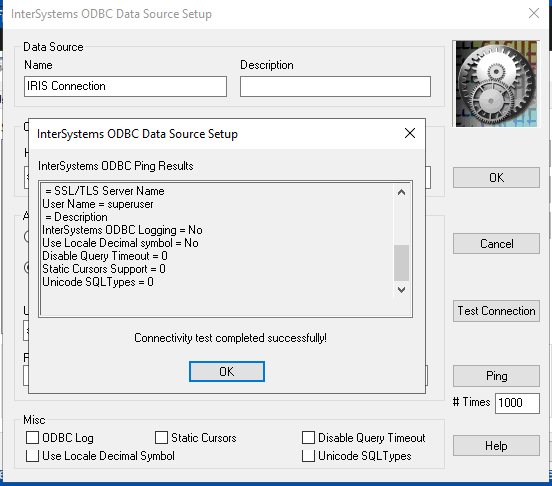
Save the SSLdefs.ini file in the specified path and using the "ODBC Data Source Administrator" create a new Data Source using the "InterSystems IRIS ODBC35" driver. Give the data source a name, set the Host and Port, specify the Namespace, User Name and Password. Under "Authentication Method" select "Password with SSL/TLS" in order to use the encrypted connection. If you configured the ODBC connection with the address and port specified in the SSLdefs.ini file, then you will be using the TLS encrypted connection. Press "Test Connection" in order to check if the ODBC is configured correctly.

ODBC Windows Data Source Administrator

ODBC IRIS Driver Configuration

ODBC IRIS Driver Connection Test

You can use the configured ODBC data source with any ODBC client to get access to the IRIS instance.

Configuring JDBC Client

IRIS JDBC Driver download
Using the JDBC Driver documentation

To use any of the JDBC SQL clients you need to first download the JDBC driver, copy it in the tool library directory and specify the Connection URL for the IRIS JDBC Driver. The minimal required parameters for this URL are:

jdbc:IRIS://<host>:<port>/<namespace>

but you can also specify several optional URL parameters. The full syntax is:

jdbc:IRIS://<host>:<port>/<namespace>/<logfile>:<eventclass>:<nodelay>:<ssl>

and for the purposes of this article, the ssl parameter enables TLS for both IRISDriver and IRISDataSource. Valid values are true and false. If not set, it defaults to false. So, in order to connect to our server using an encrypted connection, we should specify the URL as:

jdbc:IRIS://10.100.1.17:51773/USER/:::true

(if there is a "blank" value in the optional parameters will use the default)

It is important to note here that the CA certificate should be added to the Java trust store. In order to do this, we could use the keytool command. First locate the Java home directory where the CA certificates are. This can be achieved by going to the command line or terminal, depending on what operating system you are, and execute:

Linux: echo $JAVA_HOME
Windows: echo %JAVA_HOME%

Usually the CA certificates store is under JAVA_HOME/lib/security/cacerts. Once you located the file, make a backup copy of it and get the CA certificate for your server. To import it to the java trust store run the following command:

Linux:
$ keytool -import -trustcacerts -keystore "$JAVA_HOME/lib/security/cacerts" -storepass changeit -noprompt -alias mycert -file /path/to/ca.crt

Windows:
C:\> keytool -import -trustcacerts -keystore %JAVA_HOME%\lib\security\cacerts -storepass changeit -noprompt -alias mycert -file \path\to\ca.crt

Replace the paths and path delimiters accordingly.

This will add the CA certificate to the trusted store in order for the driver to accept the encrypted connection. Now from the JDBC SQL Client program you can connect to the server using the connection URL specifying to use SSL/TLS.

JDBC SQL Client Connection Test

General Considerations

  • Verifying that connection is encrypted

    To check whether the connection is encrypted and running through SSL/TLS, you could run Wireshark to capture some network packets and analyze their contents. You will easily see "TLSv1.x" in the protocol column, and upon checking the contents, it is clearly encrypted.

    Wireshark Network Packet Monitoring

Links

0
2 1117
Article Eduard Lebedyuk · Feb 10, 2023 6m read

In this article, we will establish an encrypted JDBC connection between Tableau Desktop and InterSystems IRIS database using a JDBC driver. While documentation on configuring TLS with Java clients covers all possible topics on establishing an encrypted JDBC connection, configuring it with Tableau might be a little bit tricky, so I decided to write it down.

Securing SuperServer

Before we start with client connections, you need to configure SuperServer, which by default runs on port 1972 and is responsible for xDBC traffic to accept encrypted connections. This topic is described in the documentation, but to summarise it, you need to do three things:

  1. Generate CA and server cert/key. I use easyRSA:
mkdir /tls
cd /easyrsa3
./easyrsa init-pki
# Prep a vars file https://www.sbarjatiya.com/notes_wiki/index.php/Easy-rsa#Initialize_pki_infrastructure
# cp /tls/vars /opt/install/easy-rsa/easyrsa3/pki/vars
./easyrsa build-ca
./easyrsa gen-req IRIS nopass
./easyrsa sign-req server IRIS
cp pki/issued/* /tls/
cp pki/private/* /tls/
cp pki/ca.crt /tls/
sudo chown irisusr:irissys /tls/*
sudo chmod 440 /tls/*

Optionally, generate client cert/key for mutual verification. I recommend doing it after establishing an initial encrypted connection. 2. Create %SuperServer SSL Configuration, which uses server cert/key from (1).

set p("CertificateFile")="/tls/IRIS.crt"
set p("Ciphersuites")="TLS_AES_256_GCM_SHA384:TLS_CHACHA20_POLY1305_SHA256:TLS_AES_128_GCM_SHA256"
set p("Description")="Autogenerated SuperServer Configuration"
set p("Enabled")=1
set p("PrivateKeyFile")="/tls/IRIS.key"
set p("PrivateKeyPassword")=""
set p("PrivateKeyType")=2
set p("TLSMaxVersion")=32
set p("TLSMinVersion")=16 // Set TLSMinVersion to 32 to stick with TLSv1.3
set p("Type")=1
set sc = ##class(Security.SSLConfigs).Create("%SuperServer", .p)
kill p
  1. Enable (or Require) SuperServer SSL/TLS support::
set p("SSLSuperServer")=1
set sc = ##class(Security.System).Modify("SYSTEM", .p)
kill p

Where: 0 - disabled, 1 - enabled, 2 - required.

Before you Require SSL/TLS connections, remember to enable SSL/TLS connections to the SuperServer for WebGateway and Studio. I recommend first enabling SSL/TLS connections, then verifying that all clients (xDBC, WebGateway, Studio, NativeAPI, etc.) use encrypted SSL/TLS connections and requiring SSL/TLS connections only after that.

Now we are ready to establish an encrypted JDBC connection from Tableau Desktop.

Configuring encrypted JDBC connection from Tableau Desktop

  1. Download JDBC drivers.
  2. Place the JDBC driver into the correct folder:
  • Windows: C:\Program Files\Tableau\Drivers
  • Mac: ~/Library/Tableau/Drivers
  • Linux: /opt/tableau/tableau_driver/jdbc
  1. Create truststore.jks from the SuperServer CA certificate: keytool -import -file CA.cer -alias CA -keystore truststore.jks -storepass 123456 -noprompt
  2. Create SSLConfig.properties file:
debug = false
logFile = javatls.log
protocol = TLSv1.3
cipherSuites = TLS_AES_256_GCM_SHA384
trustStoreType = JKS
trustStore = truststore.jks
trustStorePassword = 123456
trustStoreRecoveryPassword = 123456
  1. Place SSLConfig.properties and truststore.jks in a working directory of your java program. Note that Tableau spawns several processes. You need a working directory for the Java process (which is not a root process or one of the QT processes). Here's how to find it on Windows with ProcessExplorer: image and go to the java process properties and get the current directory: image

So for Windows, for me it's C:\Users\elebedyu\AppData\Local\Temp\TableauTemp, or in general %LOCALAPPDATA%\Temp\TableauTemp. On Mac and Linux, you can figure it out using lsof -d cwd. Please write in comments if you determined the directory for Mac/Linux.

  1. Create .properties file. This file contains JDBC customizations. Name it IRIS.properties and place it:
  • On Windows: C:\Users\<user>\Documents\My Tableau Repository
  • On Mac and Linux: ~/Documents/My Tableau Repository

If you are using the Tableau version before 2020.3, you should use Java 8 for JDBC connections. Java 8 properties files require ISO-8859-1 encoding. As long as your properties file contains only ASCII characters, you can also save it in UTF-8. However, ensure that you don't save with a BOM (Byte order mark). Starting in Tableau version 2020.3, you can use UTF-8 encoded properties files, which are standard with Java 9+. In this file, specify your JDBC connection properties:

host=
port=
user=
password=
connection\ security\ level=10

Note that Tableau uses JDBCDriverManager, all properties are listed here. As per the .propertiesfile spec, you must escape whitespaces in keys with a \.

  1. Open Tableau and create a new JDBC connection, specifying the properties file. It should connect.

image

Debugging connections

First try establishing an unencrypted connection. If something does not work, go to My Tableau Repository\Logs and open jprotocolserver.log. In there, search for:

Connecting to jdbc:IRIS://host:port/DATABASE
Connection properties {password=*******, connection security level=*******, port=*******, host=*******, user=_SYSTEM}
Connected using driver {com.intersystems.jdbc.IRISDriver} from isolatedDriver.

If logged connection properties do not contain the properties you expect, Tableau is not seeing your IRIS.properties file.

Verifying that connection is encrypted

  1. Close everything except for Tableau, which might communicate with IRIS.

  2. Open WireShark and start capturing on the correct network interface. Set Capture Filter to: host <iris-ip-address>. image

  3. In Tableau, try to connect to IRIS, change the schema, or perform any other action requiring server communication.

  4. If everything is properly configured, you should see Packets with Protocol TLSv1.3, and following a TCP stream should result in you looking at a ciphertext. image

Conclusion

Use the best security practices for xDBC connections.

Links

3
2 763
Question Minn Bo Bo · Feb 16, 2023

So I have a base string that I want to sign using RSA-SHA256. I have a .p12 file and passphrase to get the RSA Private key using NodeJS (pem.readPkcs12 library), which I don't know how to do that in intersystems as well. (would appreciate if you can include a solution for that too)
The main problem here is I am trying to sign a string and print the result to terminal, using the code below in a routine (.mac file).

2
0 805
Question Menno Voerman · Nov 4, 2022

Hi All,

Hopefully  someone can help me with this case. I need to encrypt a text(querystring) with an AES265 encryption. An other vendor is decrypting this information. I have a working class in C#. I've tried to build the same in Objectscript for the encrypt part but there's a missing link somewhere.  What's the difference between the C# and Objectscript implementation?

Objectscript code (until now):

7
0 742
Question Nael Nasereldeen · Oct 27, 2019

Hi,

We wanted to use the MD5Hash function,

And had trouble understanding it's return value , as documented:

"Return value: 16-byte MD5 hash."

The value we wanted should have been a simple string, and we did not know how to convert the output to string.

Searching for a solution we found this article:

https://groups.google.com/forum/#!msg/intersystems-public-cache/FdkHIgS9PkQ/P7s-92kN70UJ

That had this solution that works:

"If you know what this gibberish stuff is about, it can be very simple ;)

8
0 1638
Question David Underhill · Aug 23, 2022

Credentials for a Productions are stored as plain text in ^Ens.SecondaryData.Password and exposed as plain text via SQL table Ens_Config.Credentials which is not ideal as only admins should know the credentials.

I can create my own adapter etc... to store and use encrypted passwords but does anyone know if there is a standard way to do this in a Production?

Alternatively, am I missing how to secure this so the production can run and someone can monitor and operate a production without access to the SQL table or global?

2
2 675
Question Nicola Sartore · Dec 2, 2021

I need to store an equivalent of the SNN (Social Security number). I need it to be encrypted and I'll have to be able to search for it once stored.

For what I've seen my options are: 

- SHAHash from the %system.encryption library. Simple and easy to implement. My question is, might collisions be a problem? We are talking about a 10 millions entry.

- AES encryption. In this case I'd like to know if there is a standard way for key management in the InterSystems environment.

I can eventually get a certificate for this project to use other encryption function as well.

Open to suggestions.

2
0 384
Question Norman W. Freeman · Oct 5, 2021

I would like to know if an encrypted caché database can run significantly slower than a normal "unencrypted" database, in a way that is noticeable to the end user (e.g. slower response time for most pages, especially the ones that rely on read/writing to globals).

I searched in Intersystems knowledge base and couldn't find anything related. I'm looking for possible before/after benchmarks.

3
0 375
Question Dale Gravatt · Jul 15, 2021

Can the built-in $System.Encryption.TOTP() function be used in conjunction with Authenticator Apps (e.g. Google, Microsoft, and so on)?

Providing the same secret/key to a variety of authentication apps, they all return the same synchronized value. However, passing the same secret/key to $System.Encryption.TOTP() is generating a different value (with all instances executing at the same time for comparison).

1
0 302