#Best Practices

0 Followers · 298 Posts

Best Practices recommendations on how to develop, test, deploy and manage solutions on InterSystems Data Platforms better. 

InterSystems staff + admins Hide everywhere
Hidden post for admin
Article Yaron Munz · Jul 12, 2022 5m read

Overview

We started to use Azure Service Bus (ASB) as an enterprise messaging solution 3 years ago. It is being used to publish and consume data between many applications in the organization. Since the data flow is complex, and one application’s data is usually needed in multi applications the “publisher” ---> ”multiple subscribers” model was a great fit. The ASB usage in the organization is dozens of millions of messages per day, while IRIS platform is having around 2-3 million messages/day.

The Problem with ASB

3
3 818
Article Lorenzo Scalese · Apr 22, 2022 8m read

Apache Web Gateway with Docker

Hi, community.

In this article, we will programmatically configure an Apache Web Gateway with Docker using:

  • HTTPS protocol.
  • TLS\SSL to secure the communication between the Web Gateway and the IRIS instance.

image

We will use two images: one for the Web Gateway and the second one for the IRIS instance.

All necessary files are available in this GitHub repository.

Let’s start with a git clone:

git clone https://github.com/lscalese/docker-webgateway-sample.git
cd docker-webgateway-sample

Prepare your system

To avoid problems with permissions, your system needs a user and a group:

  • www-data
  • irisowner

It’s required to share certificates files with the containers. If they don’t exist on your system, simply execute:

sudo useradd --uid 51773 --user-group irisowner
sudo groupmod --gid 51773 irisowner
sudo useradd –user-group www-data

Generate certificates

In this sample, we will use three certificates:

  1. HTTPS web server usage.
  2. TLS\SSL encryption on Web Gateway client.
  3. TLS\SSL encryption on IRIS Instance.

A script ready-to-use is available to generate them.

However, you should customize the subject of the certificate; simply edit the gen-certificates.sh file.

This is the structure of OpenSSL subj argument:

  1. C: Country code
  2. ST: State
  3. L: Location
  4. O: Organization
  5. OU: Organization Unit
  6. CN: Common name (basically the domain name or the hostname)

Feel free to change these values.

# sudo is needed due chown, chgrp, chmod ...
sudo ./gen-certificates.sh

If everything is ok, you should see two new directories ./certificates/ and ~/webgateway-apache-certificates/ with certificates:

FileContainerDescription
./certificates/CA_Server.cerwebgateway,irisAuthority server certificate
./certificates/iris_server.ceririsCertificate for IRIS instance (used for mirror and wegateway communication encryption)
./certificates/iris_server.keyirisRelated private key
~/webgateway-apache-certificates/apache_webgateway.cerwebgatewayCertificate for apache webserver
~/webgateway-apache-certificates/apache_webgateway.keywebgatewayRelated private key
./certificates/webgateway_client.cerwebgatewayCertificate to encrypt communication between webgateway and IRIS
./certificates/webgateway_client.keywebgatewayRelated private key

Keep in mind that if there are self-signed certificates, web browsers will show security alerts. Obviously, if you have a certificate delivered by a certified authority, you can use it instead of a self-signed one (especially for the Apache server certificate).

Web Gateway Configuration files

Take a look at the configuration files.

CSP.INI

You can see a CSP.INI file in the webgateway-config-files directory.
It will be pushed into the image, but the content can be modified at runtime. Consider this file as a template.

In this sample the following parameters will be overridden on container startup:

  • Ip_Address
  • TCP_Port
  • System_Manager

See startUpScript.sh for more details. Roughly, the replacement is performed with the sed command line.

Also, this file contains the SSL\TLS configuration to secure the communication with the IRIS instance:

SSLCC_Certificate_File=/opt/webgateway/bin/webgateway_client.cer
SSLCC_Certificate_Key_File=/opt/webgateway/bin/webgateway_client.key
SSLCC_CA_Certificate_File=/opt/webgateway/bin/CA_Server.cer

These lines are important. We must ensure the certificate files will be available for the container.
We will do that later in the docker-compose file with a volume.

000-default.conf

This is an Apache configuration file. It allows the use of HTTPS protocol and redirects HTTP calls to HTTPS.
Certificate and private key files are setup in this file:

SSLCertificateFile /etc/apache2/certificate/apache_webgateway.cer
SSLCertificateKeyFile /etc/apache2/certificate/apache_webgateway.key

IRIS instance

For our IRIS instance, we configure only the minimal requirement to allow the SSL\TLS communication with the Web Gateway; it involves:

  1. %SuperServer SSL Config.
  2. Enable SSLSuperServer security setting.
  3. Restrict the list of IPs that can use the Web Gateway service.

To ease the configuration, config-api is used with a simple JSON configuration file.

{
   "Security.SSLConfigs": {
       "%SuperServer": {
           "CAFile": "/usr/irissys/mgr/CA_Server.cer",
           "CertificateFile": "/usr/irissys/mgr/iris_server.cer",
           "Name": "%SuperServer",
           "PrivateKeyFile": "/usr/irissys/mgr/iris_server.key",
           "Type": "1",
           "VerifyPeer": 3
       }
   },
   "Security.System": {
       "SSLSuperServer":1
   },
   "Security.Services": {
       "%Service_WebGateway": {
           "ClientSystems": "172.16.238.50;127.0.0.1;172.16.238.20"
       }
   }
}

There is no action needed. The configuration will be automatically loaded on container startup.

Image tls-ssl-webgateway

dockerfile

ARG IMAGEWEBGTW=containers.intersystems.com/intersystems/webgateway:2021.1.0.215.0
FROM ${IMAGEWEBGTW}
ADD webgateway-config-files /webgateway-config-files
ADD buildWebGateway.sh /
ADD startUpScript.sh /
RUN chmod +x buildWebGateway.sh startUpScript.sh && /buildWebGateway.sh
ENTRYPOINT ["/startUpScript.sh"]

By default the entry point is /startWebGateway, but we need to perform some operations before starting the webserver. Remember that our CSP.ini file is a template, and we need to change some parameters (IP, port, system manager) on starting. startUpScript.sh will perform these changes and then execute the initial entry point script /startWebGateway.

Starting containers

docker-compose file

Before starting containers, the docker-compose.yml file must be modified:

  • **SYSTEM_MANAGER** must be set with the IP authorized to have an access to Web Gateway Managementhttps://localhost/csp/bin/Systems/Module.cxw Basically, it's your IP address (It could be a comma-separated list).

  • **IRIS_WEBAPPS** must be set with the list of your CSP applications. The list is separated by space, for example: IRIS_WEBAPPS=/csp/sys /swagger-ui. By default, only /csp/sys is exposed.

  • Ports 80 and 443 are mapped. Adapt them to other ports if they are already used on your system.

version: '3.6'
services:

 webgateway:
   image: tls-ssl-webgateway
   container_name: tls-ssl-webgateway
   networks:
     app_net:
       ipv4_address: 172.16.238.50
   ports:
     # change the local port already used on your system.
     - "80:80"
     - "443:443"
   environment:
     - IRIS_HOST=172.16.238.20
     - IRIS_PORT=1972
     # Replace by the list of ip address allowed to open the CSP system manager
     # https://localhost/csp/bin/Systems/Module.cxw 
     # see .env file to set environement variable.
     - "SYSTEM_MANAGER=${LOCAL_IP}"
     # the list of web apps
     # /csp allow to the webgateway to redirect all request starting by /csp to the iris instance
     # You can specify a list separate by a space : "IRIS_WEBAPPS=/csp /api /isc /swagger-ui"
     - "IRIS_WEBAPPS=/csp/sys"
   volumes:
     # Mount certificates files.
     - ./volume-apache/webgateway_client.cer:/opt/webgateway/bin/webgateway_client.cer
     - ./volume-apache/webgateway_client.key:/opt/webgateway/bin/webgateway_client.key
     - ./volume-apache/CA_Server.cer:/opt/webgateway/bin/CA_Server.cer
     - ./volume-apache/apache_webgateway.cer:/etc/apache2/certificate/apache_webgateway.cer
     - ./volume-apache/apache_webgateway.key:/etc/apache2/certificate/apache_webgateway.key
   hostname: webgateway
   command: ["--ssl"]

 iris:
   image: intersystemsdc/iris-community:latest
   container_name: tls-ssl-iris
   networks:
     app_net:
       ipv4_address: 172.16.238.20
   volumes:
     - ./iris-config-files:/opt/config-files
     # Mount certificates files.
     - ./volume-iris/CA_Server.cer:/usr/irissys/mgr/CA_Server.cer
     - ./volume-iris/iris_server.cer:/usr/irissys/mgr/iris_server.cer
     - ./volume-iris/iris_server.key:/usr/irissys/mgr/iris_server.key
   hostname: iris
   # Load the IRIS configuration file ./iris-config-files/iris-config.json
   command: ["-a","sh /opt/config-files/configureIris.sh"]

networks:
 app_net:
   ipam:
     driver: default
     config:
       - subnet: "172.16.238.0/24"

Build and start:


docker-compose up -d --build

Containers tls-ssl-iris and tls-ssl-webgateway should be started.

Test Web Access

Apache default page

Open the page http://localhost. You will be automatically redirected to https://localhost.
The browsers show security alerts. This is the standard behaviour with a self-signed certificate, accept the risk and continue.

image

Web Gateway management page

Open https://localhost/csp/bin/Systems/Module.cxw and test the server connection. image

Management portal

Open https://localhost/csp/sys/utilhome.csp

image

Great! The Web Gateway sample is working!

IRIS Mirror with Web Gateway

In the previous article, we built a mirror environment, but the Web Gateway was a missing piece. Now, we can improve that.
A new repository iris-miroring-with-webgateway is available including Web Gateway and a few more improvements:

  1. Certificates are no longer generated on the fly but in a separate process.
  2. IP Addresses are replaced by environment variables in docker-compose and JSON configuration files. Variables are defined in the '.env' file.
  3. The repository can be used as a template.

See the repository README.md file to run an environment like this:

image

15
8 2069
Article Pete Greskoff · Jun 27, 2018 8m read

NB. Please be advised that PKI is not intended to produce certificates for secure production systems. You should make alternate arrangements to create certificates for your productions.
NB. PKI is deprecated as of IRIS 2024.1: documentation and announcement.

In this post, I am going to detail how to set up a mirror using SSL, including generating the certificates and keys via the Public Key Infrastructure built in to InterSystems IRIS Data Platform. I did a similar post in the past for Caché, so feel free to check that out here if you are not running InterSystems IRIS. Much like the original, the goal of this is to take you from new installations to a working mirror with SSL, including a primary, backup, and DR async member, along with a mirrored database. I will not go into security recommendations or restricting access to the files. This is meant to just simply get a mirror up and running. Example screenshots are taken on a 2018.1.1 version of IRIS, so yours may look slightly different.

3
4 1775
Article Henry Pereira · Aug 2, 2021 8m read

https://media.giphy.com/media/Nxu57gIbNuYOQ/giphy.gif

Easy, easy, I'm not promoting a war against the machines in the best sci-fi way to avoid world domination of Ultron or Skynet. Not yet, not yet 🤔

I invite you to challenge the machines through the creation of a very simple game using ObjectScript with embedded Python.

I have to say that I got super excited with the feature of Embedded Python on InterSystems IRIS, it's incredible the bunch of possibilities that opens to create fantastic apps.

Let's build a tic tac toe, the rules are quite simple and I believe that everyone knows how to play.

That's what saved me of the tedium in my childhood during long car trips with family before chidren have cellphones or tablets, nothing like challenge my siblings to play some matches on the blurry glass.

So buckle up and let's go!

Rules

As said, the rules are quite simple:

  • only 2 players for set
  • it's played in turns in a grid of 3x3
  • the human player will always be the letter X and the computer the letter O
  • the players will only be able to put the letters in the empty spaces
  • the first to complete a sequence of 3 equal letters on the horizontal, or on vertical or on diagonal, is the winner
  • when the 9 spaces are occupied that will be draw and the end of the match

https://media4.giphy.com/media/3oriNKQe0D6uQVjcIM/giphy.gif?cid=790b761123702fb0ddd8e14b01746685cc0059bac0bc66e9&rid=giphy.gif&ct=g

All the mechanism and the rules we will write on ObjectScript, the mechanism of the computer player will be written in Python.

Let's get the hands dirty

We will control the board in a global, in wich each row will be in a node and each column in a piece.

Our first method is to initiate the board, to make it easy I will initiate the global already with the nodes(rows A, B and C) and with the 3 pieces:

/// Iniciate a New Game
ClassMethod NewGame() As %Status
{
  Set sc = $$$OK
  Kill ^TicTacToe
  Set ^TicTacToe("A") = "^^"
  Set ^TicTacToe("B") = "^^"
  Set ^TicTacToe("C") = "^^"
  Return sc
}

at this moment we will create a method to add the letters in the empty spaces, for this each player will give the location of the space on the board.

Each row a letter and each column a number, to put the X in the middle, for example, we pass B2 and the letter X to the method.

ClassMethod MakeMove(move As %String, player As %String) As %Boolean
{
  Set $Piece(^TicTacToe($Extract(move,1,1)),"^",$Extract(move,2,2)) = player
}

Let's validate if the coordination is valid, the most simple way I see is using a regular expression:

ClassMethod CheckMoveIsValid(move As %String) As %Boolean
{
  Set regex = ##class(%Regex.Matcher).%New("(A|B|C){1}[0-9]{1}")
  Set regex.Text = $ZCONVERT(move,"U")
  Return regex.Locate()
}

we need to garantee that the selected space is empty

ClassMethod IsSpaceFree(move As %String) As %Boolean
{
  Quit ($Piece(^TicTacToe($Extract(move,1,1)),"^",$Extract(move,2,2)) = "")
}

Nooice!

Now let's check if any player won the set or if the game is already finished, for this let's create the method CheckGameResult.

First we check if there was any winner completing by the horizontal, we will use a list with the rows and a simple $Find solves

    Set lines = $ListBuild("A","B","C")
    // Check Horizontal
    For i = 1:1:3 {
      Set line = ^TicTacToe($List(lines, i))
      If (($Find(line,"X^X^X")>0)||($Find(line,"O^O^O")>0)) {
        Return $Piece(^TicTacToe($List(lines, i)),"^", 1)_" won"
      }
    }

With another For we check the vertical

For j = 1:1:3 {
      If (($Piece(^TicTacToe($List(lines, 1)),"^",j)'="") &&
        ($Piece(^TicTacToe($List(lines, 1)),"^",j)=$Piece(^TicTacToe($List(lines, 2)),"^",j)) &&
        ($Piece(^TicTacToe($List(lines, 2)),"^",j)=$Piece(^TicTacToe($List(lines, 3)),"^",j))) {
        Return $Piece(^TicTacToe($List(lines, 1)),"^",j)_" won"
      }
    }

to check the diagonal:

    If (($Piece(^TicTacToe($List(lines, 2)),"^",2)'="") &&
      (
        (($Piece(^TicTacToe($List(lines, 1)),"^",1)=$Piece(^TicTacToe($List(lines, 2)),"^",2)) &&
          ($Piece(^TicTacToe($List(lines, 2)),"^",2)=$Piece(^TicTacToe($List(lines, 3)),"^",3)))||
        (($Piece(^TicTacToe($List(lines, 1)),"^",3)=$Piece(^TicTacToe($List(lines, 2)),"^",2)) &&
        ($Piece(^TicTacToe($List(lines, 2)),"^",2)=$Piece(^TicTacToe($List(lines, 3)),"^",1)))
      )) {
      Return ..WhoWon($Piece(^TicTacToe($List(lines, 2)),"^",2))
    }

at last, we check if there was a draw

    Set gameStatus = ""
    For i = 1:1:3 {
      For j = 1:1:3 {
        Set:($Piece(^TicTacToe($List(lines, i)),"^",j)="") gameStatus = "Not Done"
      }
    }
    Set:(gameStatus = "") gameStatus = "Draw"

Great!

It's time to build the machine

Let's create our opponent, we need to create an algorithm able to calculate all the available movements and use a metric to know wich is the best movement.

The ideal is to use an algorithm of decision called MiniMax (Wikipedia: MiniMax)

https://media3.giphy.com/media/WhTC5v5qQP4yAUvGKz/giphy.gif?cid=ecf05e47cx92yiew8vsig62tjq738xf7hfde0a2ygyfdl0xt&rid=giphy.gif&ct=g

The MiniMax algorithm is a decision rule used in games theory, decision theory and artificial intelligence.

Basicaly, we need to know how to play assuming wich will be the possible movements of the opponent and catch the best scene possible.

In details, we take the actual scene and recursively check the result of the movement of each player, in case the computer wins the match we score with +1, in case it looses we then score with -1 and 0 if draw.

If it is not the end of the game, we open another tree with the current game state. After that, we find the move with the maximum value to the computer and the minimum to the opponent.

See the diagram below, there are 3 available movements: B2, C1 and C3.

Choosing C1 or C3, the opponent has a chance to win in the next turn, but if choosing B2 dosen't matter the movement the opponent chooses, the machine wins the match.

minimaxp

It's like have the time stone in our hands and try to find the best timeline.

https://pa1.narvii.com/7398/463c11d54d8203aac94cda3c906c40efccf5fd77r1-460-184_hq.gif

Converting to python

ClassMethod ComputerMove() As %String [ Language = python ]
{
  import iris
  from math import inf as infinity
  computerLetter = "O"
  playerLetter = "X"

  def isBoardFull(board):
    for i in range(0, 8):
      if isSpaceFree(board, i):
        return False
    return True

  def makeMove(board, letter, move):
    board[move] = letter

  def isWinner(brd, let):
    # check horizontals
    if ((brd[0] == brd[1] == brd[2] == let) or \
      (brd[3] == brd[4] == brd[5] == let) or \
      (brd[6] == brd[7] == brd[8] == let)):
        return True
    # check verticals
    if ((brd[0] == brd[3] == brd[6] == let) or \
        (brd[1] == brd[4] == brd[7] == let) or \
        (brd[2] == brd[5] == brd[8] == let)):
        return True
    # check diagonals
    if ((brd[0] == brd[4] == brd[8] == let) or \
        (brd[2] == brd[4] == brd[6] == let)):
        return True
    return False

  def isSpaceFree(board, move):
    #Retorna true se o espaco solicitado esta livre no quadro
    if(board[move] == ''):
      return True
    else:
      return False

  def copyGameState(board):
    dupeBoard = []
    for i in board:
      dupeBoard.append(i)
    return dupeBoard

  def getBestMove(state, player):
    done = "Done" if isBoardFull(state) else ""
    if done == "Done" and isWinner(state, computerLetter): # If Computer won
      return 1
    elif done == "Done" and isWinner(state, playerLetter): # If Human won
      return -1
    elif done == "Done":    # Draw condition
      return 0

    # Minimax Algorithm
    moves = []
    empty_cells = []
    for i in range(0,9):
      if state[i] == '':
        empty_cells.append(i)

    for empty_cell in empty_cells:
      move = {}
      move['index'] = empty_cell
      new_state = copyGameState(state)
      makeMove(new_state, player, empty_cell)

      if player == computerLetter:
          result = getBestMove(new_state, playerLetter)
          move['score'] = result
      else:
          result = getBestMove(new_state, computerLetter)
          move['score'] = result

      moves.append(move)

    # Find best move
    best_move = None
    if player == computerLetter:
        best = -infinity
        for move in moves:
            if move['score'] > best:
                best = move['score']
                best_move = move['index']
    else:
        best = infinity
        for move in moves:
            if move['score'] < best:
                best = move['score']
                best_move = move['index']

    return best_move

  lines = ['A', 'B', 'C']
  game = []
  current_game_state = iris.gref("^TicTacToe")

  for line in lines:
    for cell in current_game_state[line].split("^"):
      game.append(cell)

  cellNumber = getBestMove(game, computerLetter)
  next_move = lines[int(cellNumber/3)]+ str(int(cellNumber%3)+1)
  return next_move
}

First I convert the global in a simple array, ignoring columns and rows, leting flat to facilitate.

At each analised move we call the method copyGameState that, as the name says, copys the state of the game in that moment, where we apply the MiniMax.

The method getBestMove that will be called recursevely until ends the game finding a winner or draw.

First the empty spaces are mapped and we verify the result of each move, changing between the players.

The results are stored in move['score'] to, after we check all the possibilities, find the best move.

I hope you have had fun, it is possible to improve the intelligence using algorithms like Alpha-Beta Pruning(Wikipedia: AlphaBeta Pruning) or neural network, just take care not to give life to Skynet.

https://media4.giphy.com/media/mBpthYTk5rfbZvdtIy/giphy.gif?cid=790b761181bf3c36d85a50b84ced8ac3c6c937987b7b0516&rid=giphy.gif&ct=g

Feel free to leave any comments or questions.

That's all folks

Complete source code: InterSystems Iris version 2021.1.0PYTHON

8
5 1555
Article sween · Jul 29, 2021 6m read

We are ridiculously good at mastering data. The data is clean, multi-sourced, related and we only publish it with resulting levels of decay that guarantee the data is current. We chose the HL7 Reference Information Model (RIM) to land the data, and enable exchange of the data through Fast Healthcare Interoperability Resources (FHIR®).

We are also a high performing, full stack team, and like to keep our operational resources on task, so managing the underlying infrastructure to host the FHIR® data repository for purposes of ingestion and consumption is not in the cards for us. For this, we chose the FHIR® Accelerator Service to handle storage, credentials, back up, development, and FHIR® interoperability.

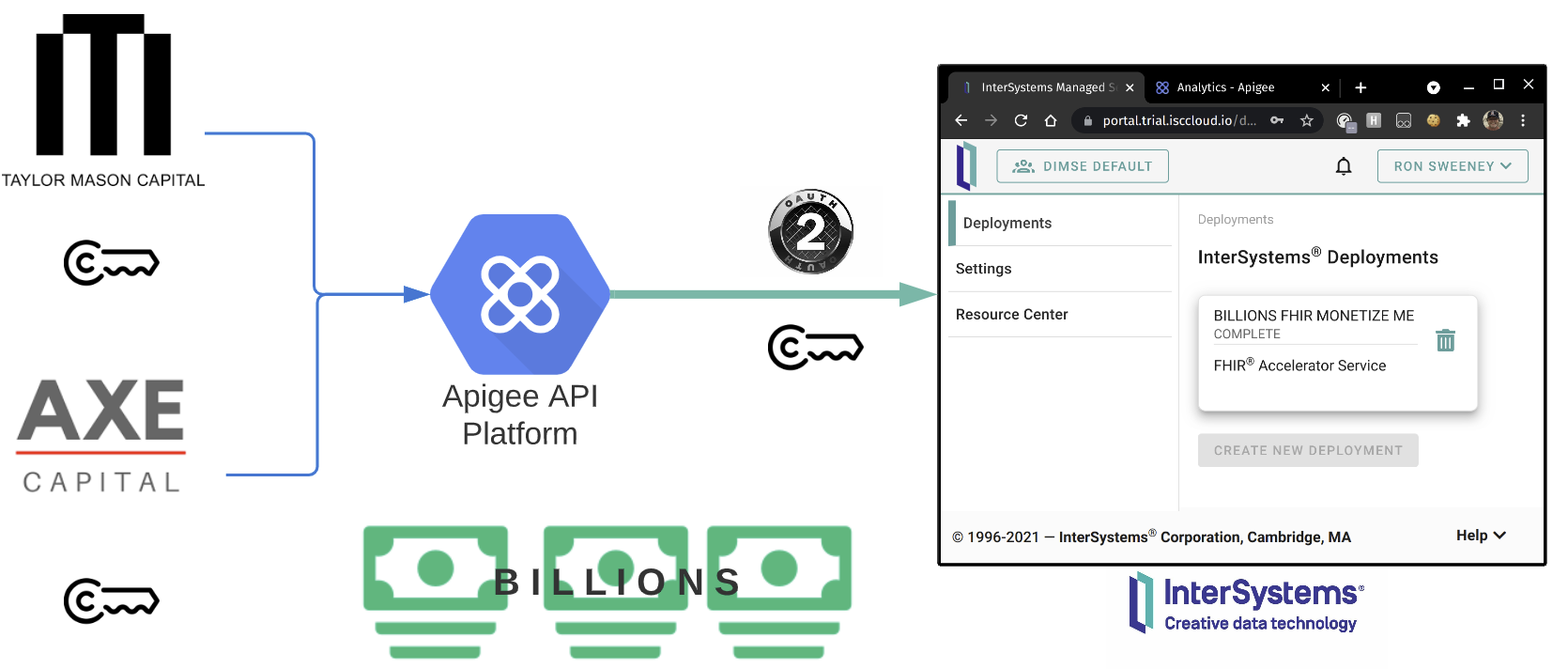
Our data is marketable, and well served as an API, so we will monetize it. This means we need to package our data/api up for appropriate sale — which includes: a developer portal, documentation, sample code, testing tools, and other resources to get developers up and running quickly against our data. We need to focus on making our API as user-friendly as possible, and give us some tooling to ward off abuse and protect our business against denial service attacks. For the customers using our data, we chose to use Google Cloud's Apigee Edge.

image

With our team focused and our back office entirely powered as services, we are set to make B I L L I O N S, and this is an account as to how.

Provisioning

High level tasks for provisioning in the FHIR® Accelerator Service and Google Cloud's Apigee Edge.

FHIR® Accelerator Service

Head over to the AWS Marketplace and subscribe to the InterSystems FHIR® Accelerator Service, or sign up for a trial account directly here. After your account has been created, create a FHIR® Accelerator deployment for use to store and sell your FHIR® data.

image

After a few minutes, the deployment will be ready for use and available to complete the following tasks:

  1. Create an API Key in the Credentials section and record it.
  2. Record the newly created FHIR® endpoint from the Overview section.

imageimage

Google Cloud Apigee Edge

Within your Google Cloud account, create a project and enable it for use with Apigee Edge. To understand a little bit of the magic that is going on with the following setup, we are enabling a Virtual Network to be created, a Load Balancer, SSL/DNS for our endpoint, and making some choices on whether or not its going to be publicly accessible.

Fair warning here, if you create this as an evaluation and start making M I L L I O N S, it cannot be converted to a paid plan later on to continue on to making B I L L I O N S.

imageimageimage

Build the Product

Now, lets get on to building the product for our two initial customers of our data, Axe Capital and Taylor Mason Capital. image

Implement Proxy

Out first piece of the puzzle here is the mechanics of our proxy from Apigee to the FHIR® Accelerator Service. At its core, we are implementing a basic reverse proxy that backs the Apigee Load Balancer with our FHIR® API. Remember that we created all of the Apigee infrastructure during the setup process when we enabled the GCP Project for Apigee.

image

Configure the Proxy

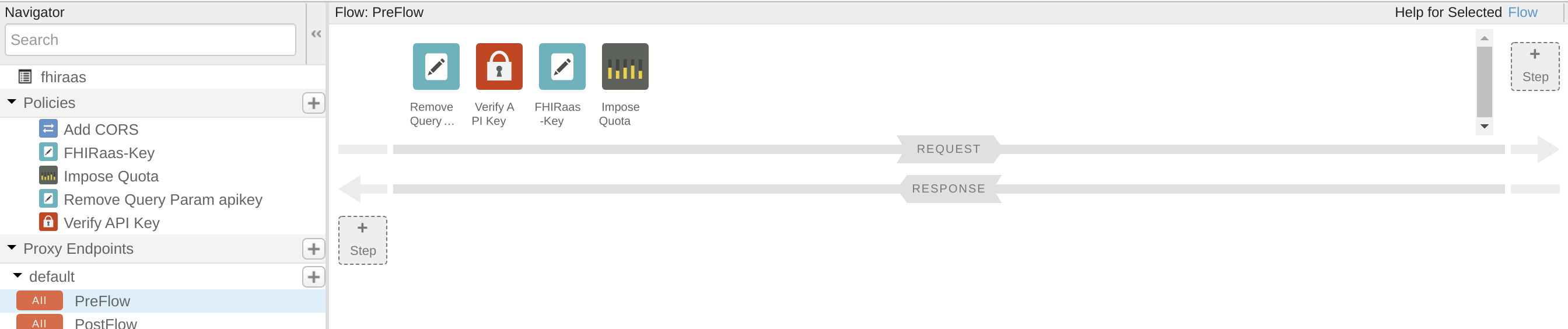
Configuring the proxy basically means you are going to define a number of policies to the traffic/payload as it either flows to (PreFlow/PostFlow) to shape the interaction and safety of how the customers/applications behave against the API.

In the below, we configure a series of policies that :

  1. Add CORS Headers.
  2. Remove the API Key from the query string.
  3. Add the FHIR® Accelerator API key to the headers.
  4. Impose a Quota/Limit.

image

A mix of XML directives and a user interface to configure the policy is available as below.

image

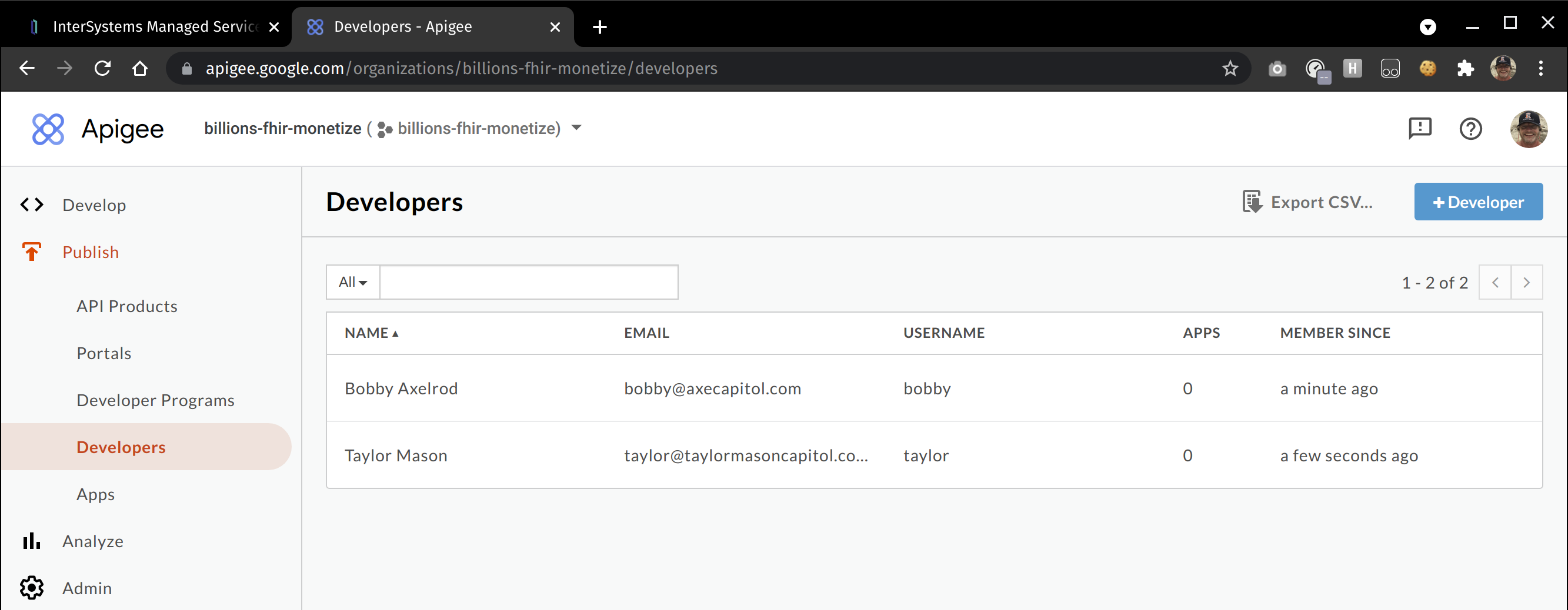
Add a Couple of Developers, Axe and Taylor

We need to add some developers next, which is as simple as adding the users to any directory, this is required to enable the Applications that are created in the next step and supplied to our customers.

image

Configure the Apps, one per customer

Applications is where we break part our product and logically divide it up to our customers, here we will create one app per customer. Important note here that in our case for this demonstration, this is where the apikey for that particular customer is assigned, after we assign the developer to the app.

image

Create the Developer Portal

The Developer Portal is the "clown suit" and front door for our customers and where they can interact with what they are paying for. It comes packed with some powerful customization, a specific url for the product it is attached to, and allows the import of a swagger/openapi spec for developers to interact with the api using swagger based implemented UI. Lucky for us the Accelerator Service comes with a swagger definition, so we just have to know where to look for it and make some modifications so that the defs work against our authentication scheme and url. We don't spend a lot of time here in the demonstration, but you should if you plan on setting yourself apart for the paying customers.

image

Have Bobby Send a Request

Let's let Bobby Axelrod run up a tab by sending his first requests to our super awesome data wrapped up in FHIR®. For this, keep in mind the key that is being used and the endpoint that is being used, is all assigned by Apigee Edge, but the access to the FHIR® Accelerator Service is done through the single key we supplied in the API Proxy.

image

image

Rate Limit Bobby with a Quota

Let's just say one of our customers has a credit problem, so we want to limit the use of our data on a rate basis. If you recall, we did specify a rate of 30 requests a minute when we setup the proxy, so lets test that below.

image

Bill Axe Capital

I will get in front of your expectations here so you wont be too disappointed by how rustic the billing demonstration is, but it does employ a technique here to generate a report for purposes of invoicing, that actually removes things that may or may not be the customers fault in the proxy integration. For instance, if you recall from the rate limit demo above, we sent in 35 requests, but limited things to 30, so a quick filter in the billing report will actually remove those and show we are competent enough to bill only for our customers utilization.

image

To recap, monetizing our data included:

  • Safety against abuse and DDOS protection.
  • Developer Portal and customization for the customer.
  • Documentation through Swagger UI.
  • Control over the requests Pre/Post our API

... and a way to invoice for B I L L I O N S.

2
1 856
Article Vicky Li · Nov 14, 2016 14m read

As we all know, Caché is a great database that accomplishes lots of tasks within itself. However, what do you do when you need to access an external database? One way is to use the Caché SQL Gateway via JDBC. In this article, my goal is to answer the following questions to help you familiarize yourself with the technology and debug some common problems.

Outline

Before we dive into these questions, let us quickly discuss the architecture of the JDBC SQL Gateway. To make it simple, you can think of the architecture as Cache making a TCP connection to a Java process, called the Gateway process. The Gateway process then connects to a remote database, such as Caché, Oracle, or SQL Server, using the driver specified for that database. For further information about the architecture of the SQL Gateway, please refer to the documentation on Using the Caché SQL Gateway.

Connection Parameters

When connecting to a remote database, you need to provide the following parameters:

  • username
  • password
  • driver name
  • URL
  • class path

Connecting to a Caché Database

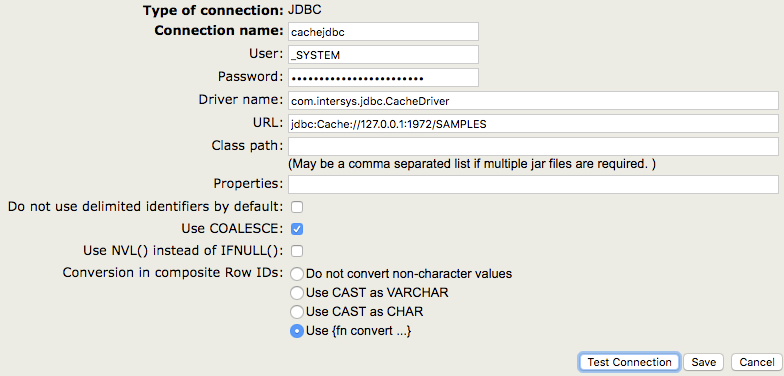
For example, if you need to connect to a Caché instance using the SQL Gateway via JDBC, you need to navigate to [System Administration] -> [Configuration] -> [Connectivity] -> [SQL Gateway Connections] in the System Management Portal (SMP). Then click "Create New Connection" and specify "JDBC" as the type of connection.

When connecting to a Caché system, the driver name must always be com.intersys.jdbc.CacheDriver, as shown in the screenshot. If you are connecting to a third party database, then you will need to use a different driver name (see Connecting to Third Party Databases below).

When connecting to Caché databases, you do not need to specify a class path because the JAR file is automatically loaded.

The URL parameter will also vary depending upon the database to which you are connecting. For Caché databases, you should use a URL in the form

jdbc:Cache://[server_address]:[superserver_port]/[namespace]

Connecting to Third Party Databases

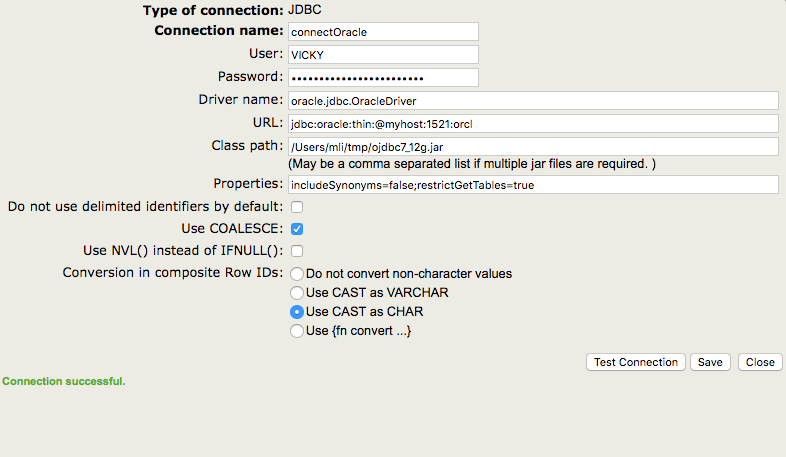
A common third party database is Oracle. Below is an example configuration.

As you can see, the driver name and URL have different patterns than what we used for the previous connection. In addition, I specified a class path in this example, because I need to use Oracle's driver to connect to their database.

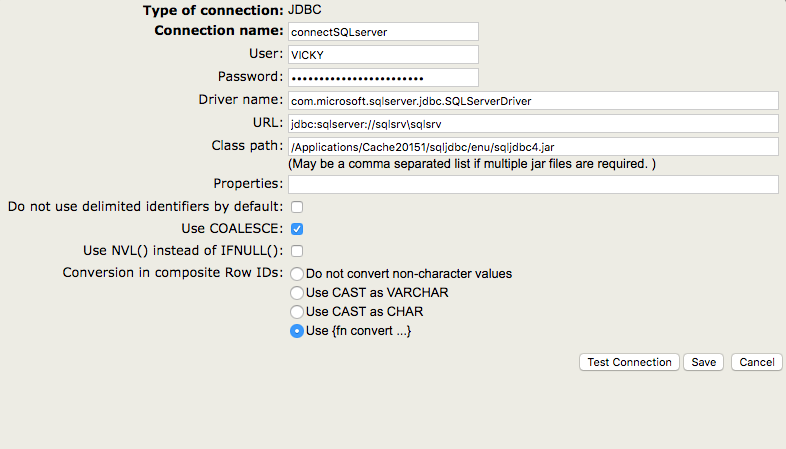
As you can imagine, SQL Server uses different URL and driver name patterns.

You can test if the values are valid by clicking the "Test Connection" button. To create the connection, click "Save".

JDBC Gateway vs Java Gateway Business Service

First of all, the JDBC gateway and the Java gateway service are completely independent from each other. The JDBC gateway can be used on all Caché-based systems, whereas the Java gateway business service only exists as a part of Ensemble. In addition, the Java gateway service uses a different process from what the JDBC gateway uses. For details on the Java gateway business service, please see The Java Gateway Business Service.

Tools and Methods

Below are 5 common tools and methods used to solve problems with the JDBC SQL Gateway. My intention is to discuss these tools first and show you some examples of when to use them in the next section.

1. Logs

A. Driver Log vs Gateway Log

When using JDBC gateway, the corresponding log is the JDBC SQL gateway log. As we have discussed earlier, the JDBC gateway is used when Caché needs to access external databases, which means Caché is the client. The driver log, however, corresponds to using the InterSystems' JDBC driver to access a Caché database from an external application, which means Caché the server. If you have a connection from a Caché database to another Caché database, both log types could be useful.

In our documentation, the section on enabling the driver log is called "Enabling Logging for JDBC", and the section on enabling the gateway log is called "Enabling Logging for the JDBC SQL Gateway".

Even though the two logs both include the word "JDBC", they are completely independent. The scope of this article is about the JDBC gateway, so I will further discuss the gateway log. For information on the driver log, please refer to Enabling Driver Log.

B. Enabling Gateway Log

If you are using the Caché JDBC SQL Gateway, then you need to do the following to enable logging: in the Management Portal, go to [System Administration] > [Configuration] > [Connectivity] > [JDBC Gateway Settings]. Specify a value for JDBC gateway log. This should be the full path and name of a log file (for example, /tmp/jdbcGateway.log). The file will be automatically created if it does not exist, but the directory will not be. Caché will start the JDBC SQL Gateway with logging for you.

If you are using the Java Gateway business service in Ensemble, please see Enabling Java Gateway Logging in Ensemble for information on how to enable logging.

C. Analyzing a Gateway Log

Now you have collected a gateway log, you may wonder: what is the structure of the log and how do I read it? Good questions! Here I will provide some basic information to get you started. Unfortunately, fully intepreting the log is not always possible without access to the source code, so for complex situations, please do not hesitate to contact the InterSystems' Worldwide Response Center (WRC)!

To demystify the structure of the log, remember it is always a chunk of data followed by a description of what it does. For example, see this image with some basic syntax highlighting:

In order to make sense of what Received means here, you need to remember the gateway log records interactions between the gateway and the downstream database. Thus, Received means the gateway received the information from Caché/Ensemble. In the above example, the gateway received the text of a SELECT query. The meanings of different msgId values can be found in internal code. The 33 we see here means "Prepare Statement".

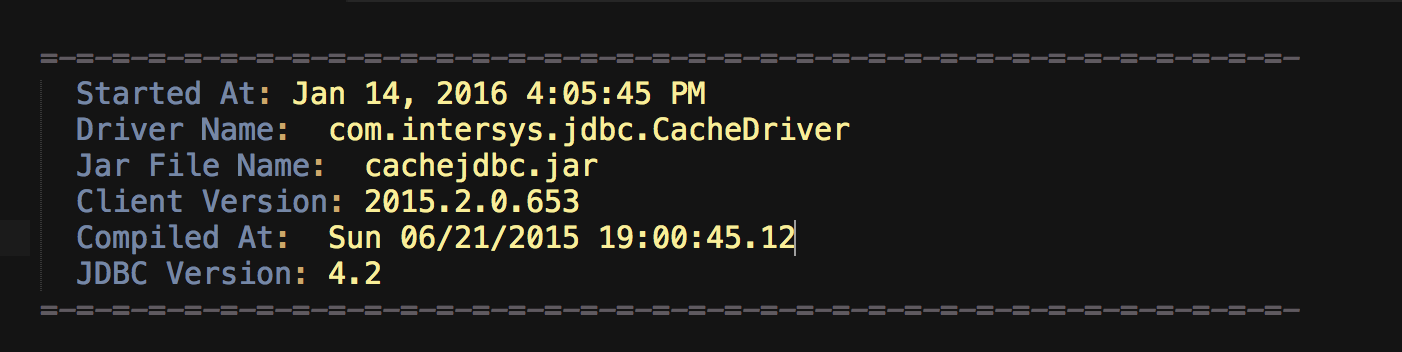
The log itself also provides driver information, which is good to check when debugging issues. Here is an example,

As we can see, the Driver Name is com.intersys.jdbc.CacheDriver, which is the name of the driver used to connect to the Gateway process. The Jar File Name is cachejdbc.jar, which is the name of the jar file located at <cache_install_directory>\lib\.

2. Finding the Gateway Process

To find the gateway process, you can run the ps command. For example,

ps -ef | grep java

This ps command displays information about the Java process, including the port number, the jar file, the log file, the Java process ID, and the command that started the Java process.

Here is an example of the result of the command:

mlimbpr15:~ mli$ ps -ef | grep java 
17182 45402 26852   0 12:12PM ??         0:00.00 sh -c java -Xrs -classpath /Applications/Cache20151/lib/cachegateway.jar:/Applications/Cache20151/lib/cachejdbc.jar com.intersys.gateway.JavaGateway 62972 /Applications/Cache20151/mgr/JDBC.log 2>&1 
17182 45403 45402   0 12:12PM ??         0:00.22 /usr/bin/java -Xrs -classpath /Applications/Cache20151/lib/cachegateway.jar:/Applications/Cache20151/lib/cachejdbc.jar com.intersys.gateway.JavaGateway 62972 /Applications/Cache20151/mgr/JDBC.log 
502 45412 45365   0 12:12PM ttys000    0:00.00 grep java

On Windows, you can check the task manager to find information about the gateway process.

3. Starting and Stopping the Gateway

There are two ways to start and stop the gateway:

  1. Through the SMP
  2. Using the Terminal

A. Through the SMP

You can start and stop the gateway in the SMP by accessing [System Administration] -> [Configuration] -> [Connectivity] -> [JDBC Gateway Server].

B. Using the Terminal

On Unix machines, you can also start the gateway from the terminal. As we discussed in the previous section, the result of ps -ef | grep java contains the command that started the Java process, which in the above example is:

java -Xrs -classpath /Applications/Cache20151/lib/cachegateway.jar:/Applications/Cache20151/lib/cachejdbc.jar com.intersys.gateway.JavaGateway 62972 /Applications/Cache20151/mgr/JDBC.log

To stop the gateway from the terminal, you could kill the process. The Java process ID is the second number from the line that contains the above command, which in the above example is 45402. Thus, to stop the gateway, you can run:

kill 45402

4. Writing a Java Program

Running a Java program to connect to a downstream database is a great way to test the connection, verify the query, and help isolate the cause of a given issue. I'm attaching an example of a Java program that makes a connection to SQL Server and prints out a list of all tables. I will explain why this may be useful in the next section.

import java.sql.*; 
import java.sql.Date; 
import java.util.*; 
import java.lang.reflect.Method; 
import java.io.InputStream; 
import java.io.ByteArrayInputStream; 
import java.math.BigDecimal; 
import javax.sql.*;

// Author: Vicky Li
// This program makes a connection to SQL Server and retrieves all tables. The output is a list of tables.

public class TestConnection {
    public static void main(String[] args) {
        try {
            Class.forName("com.microsoft.sqlserver.jdbc.SQLServerDriver");
            //please replace url, username, and password with the correct parameters
            Connection conn = DriverManager.getConnection(url,username,password);

            System.out.println("connected");

            DatabaseMetaData meta = conn.getMetaData();
            ResultSet res = meta.getTables(null, null, null, new String[] {"TABLE"});
            System.out.println("List of tables: ");
            while (res.next()) {
                System.out.println(
                    "   " + res.getString("TABLE_CAT") +
                    ", " + res.getString("TABLE_SCHEM") +
                    ", " + res.getString("TABLE_NAME") +
                    ", " + res.getString("TABLE_TYPE")
                );
            }
        } catch (Exception e) {
            e.printStackTrace();
        }
    }
}

To run this Java program (or any Java program), you need to first compile the .java file, which in our case is called TestConnection.java. Then a new file will be generated at the same location, which you can then run with the following command on a UNIX system:

java -cp "<path to driver>/sqljdbc4.jar:lib/*:." TestConnection

On Windows, you can run the following command:

java -cp "<path to driver>/sqljdbc4.jar;lib/*;." TestConnection

5. Taking a jstack Trace

As the name suggests, jstack prints Java stack traces of Java threads. This tool can become handy when you need a better understanding of what the Java process is doing. For example, if you see the Gateway process hanging on a certain message in the gateway log, you might want to collect a jstack trace. I want to point out that jstack is a low level tool that should only be used when other methods, such as analyzing the gateway log, don't solve the problem.

Before you collect a jstack trace, you need to make sure that the JDK is installed. Here is the command to collect a jstack trace:

jstack -F <pid> > /<path to file>/jstack.txt

where the pid is the process ID of the gateway process, which can be obtained from running the ps command, such as ps -ef | grep java. For information on how to find the pid, please revisit Starting and Stopping the Gateway.

Now, here are some special considerations for Red Hat machines. In the past, there had been trouble attaching jstack to the JDBC Gateway process (as well as the Java Gateway business service process started by Ensemble) on some versions of Red Hat, so the best way to collect a jstack trace on Red Hat is to start the gateway process manually. For instructions, please refer to Collecting a jstack Trace on Red Hat.

Common Types of Problems and Approaches to Solve Them

1. Problem: Java is not installed correctly

In this situation, check the Java version and environment variables.

To check the Java version, you can run the following from a terminal:

java -version

If you get the error java: Command not found, then the Cache process cannot find the location of the Java executables. This can usually be fixed by putting the Java executables on the PATH. If you run into issues with this, feel free to contact the Worldwide Response Center (WRC).

2. Problem: Connection failure

A good diagnostic for connection failures is to verify whether the gateway process starts. You can do so by either checking the gateway log or the gateway process. On modern versions, you can also go to the SMP and visit [System Administration] -> [Configuration] -> [Connectivity] -> [JDBC Gateway Server], and check whether the page shows "JDBC Gateway is running".

If the gateway process isn't running, then it's likely that Java is not installed correctly or you are using the wrong port; if the gateway process is running, then it's likely that the connection parameters are wrong.

For the former situation, please refer to the previous section and double check the port number. I'll further discuss the latter situation here.

It is the customer's responsibility to use the correct connection parameters:

  • username
  • password
  • driver name
  • URL
  • class path

You can test whether you have the correct parameters by any of the following three ways:

  • Use the "Test Connection" button after selecting a connection name in [System Administration] -> [Configuration] -> [Connectivity] -> [SQL Gateway Connections]. Note: on modern systems, "Test Connection" gives useful error messages; on older systems, the JDBC gateway log is necessary to find more information about the failure.

  • Run the following command line from a Caché terminal to test the connection:

      d $SYSTEM.SQLGateway.TestConnection(<connection name>)
    
  • Run a Java program to make a connection. The program you write can be similar to the example we discussed earlier.

3. Problem: mismatch between how Caché understands JDBC and how the remote database understands JDBC, such as:

  • datatype problems
  • stored procedure with output parameters
  • streams

For this category, it is often more helpful to work with the Worldwide Response Center (WRC). Here is what we often do to determine if the issue is within our internal code or with the remote database (or with the driver):

Footnotes

The Java Gateway Business Service

The Ensemble Business Service class name is EnsLib.JavaGateway.Service, and the adapter class is EnsLib.JavaGateway.ServiceAdapter. The Ensemble session first creates a connection to the Java Gateway Server, which is a Java process. The architecture is similar to the architecture of JDBC SQL Gateway, except the Java process is managed by the Business Operation. For more details, please refer to the documentation.

Enabling Driver Log

To enable the driver log, you need to append a log file name to the end of the JDBC connection string. For example, if the original connection string looks like:

jdbc:Cache://127.0.0.1:1972/USER

To enable logging, add a file (jdbc.log) to the end of the connection string, so that it looks like this:

jdbc:Cache://127.0.0.1:1972/USER/jdbc.log

The log file will be saved to the working directory of the Java application.

Enabling Java Gateway Logging in Ensemble

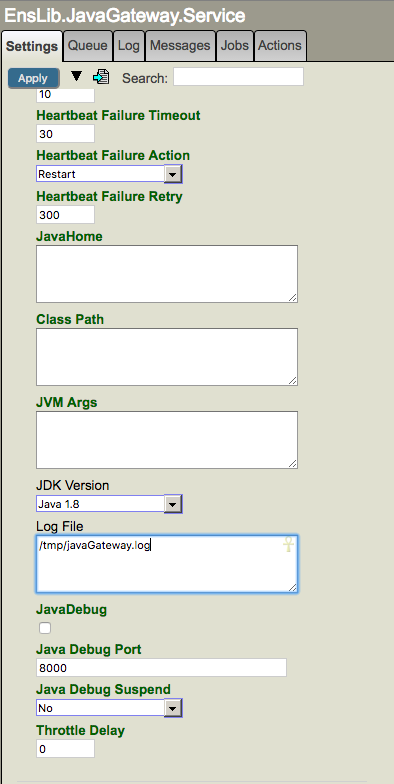
If you are using the Java gateway business service in Ensemble to access another database, then to enable logging you need to specify the path and name of a log file (for example, /tmp/javaGateway.log) in the "Log File" field in the Java gateway service. Please note that the path has to exist.

Remember, the Java gateway connection used by the Ensemble production is separate from connections used by linked tables or other productions. Thus, if you are using Ensemble, you need to collect the log in the Java gateway service. The code that starts the Java gateway service uses the "Log File" parameter in Ensemble, and does not use the setting in the Caché SQL Gateway in the SMP as described previously.

Collecting a jstack Trace on Red Hat

The key here is to start the gateway process manually, and the command to start the gateway can be obtained from running ps -ef | grep java. Below are complete steps to follow when collecting a jstack trace on Red Hat when running either the JDBC gateway or the Java gateway business service.

  1. Make sure JDK is installed.

  2. In a terminal, run ps -ef | grep java. Get the following two pieces of information from the result:

    • a. Copy the command that started the gateway. It should look something like this: java -Xrs -classpath /Applications/Cache20151/lib/cachegateway.jar:/Applications/Cache20151/lib/cachejdbc.jar com.intersys.gateway.JavaGateway 62972 /Applications/Cache20151/mgr/JDBC2.log

    • b. Get the Java process ID (pid), which is the second number from the line that contains the above command.

  3. Kill the process with kill <pid>.

  4. Run the command you copied from Step 2.a. to start a gateway process manually.

  5. Take a look at the gateway log (in our example, it is located at /Applications/Cache20151/mgr/JDBC2.log) and make sure you see a entries like >> LOAD_JAVA_CLASS: com.intersys.jdbc.CacheDriver. This step is just to verify that a call to the gateway is successfully made.

  6. In a new terminal, run ps -ef | grep java to get the pid of the gateway process.

  7. Gather a jstack trace: jstack -F <pid> > /tmp/jstack.txt

2
8 4663
Article Sylvain Guilbaud · Apr 20, 2022 4m read

During a major version upgrade it is advisable to recompile the classes and routines of all your namespaces (see Major Version Post-Installation Tasks).

do $system.OBJ.CompileAllNamespaces("u")
do ##Class(%Routine).CompileAllNamespaces()

To automate this administration task and keep a log of any errors, below is an example of a class to import and compile into the USER namespace that you can use after each upgrade : admin.utils.cls

3
1 1408
Article Murray Oldfield · Mar 8, 2016 8m read

Your application is deployed and everything is running fine. Great, hi-five! Then out of the blue the phone starts to ring off the hook – it’s users complaining that the application is sometimes ‘slow’. But what does that mean? Sometimes? What tools do you have and what statistics should you be looking at to find and resolve this slowness? Is your system infrastructure up to the task of the user load? What infrastructure design questions should you have asked before you went into production? How can you capacity plan for new hardware with confidence and without over-spec'ing? How can you stop the phone ringing? How could you have stopped it ringing in the first place?

13
6 4804
Article Murray Oldfield · Apr 27, 2016 11m read

InterSystems Data Platforms and performance - Part 5 Monitoring with SNMP

In previous posts I have shown how it is possible to collect historical performance metrics using pButtons. I go to pButtons first because I know it is installed with every Data Platforms instance (Ensemble, Caché, …). However there are other ways to collect, process and display Caché performance metrics in real time either for simple monitoring or more importantly for much more sophisticated operational analytics and capacity planning. One of the most common methods of data collection is to use SNMP (Simple Network Management Protocol).

SNMP a standard way for Caché to provide management and monitoring information to a wide variety of management tools. The Caché online documentation includes details of the interface between Caché and SNMP. While SNMP should 'just work' with Caché there are some configuration tricks and traps. It took me quite a few false starts and help from other folks here at InterSystems to get Caché to talk to the Operating System SNMP master agent, so I have written this post so you can avoid the same pain.

In this post I will walk through the set up and configuration of SNMP for Caché on Red Hat Linux, you should be able to use the same steps for other *nix flavours. I am writing the post using Red Hat because Linux can be a little more tricky to set up - on Windows Caché automatically installs a DLL to connect with the standard Windows SNMP service so should be easier to configure.

Once SNMP is set up on the server side you can start monitoring using any number of tools. I will show monitoring using the popular PRTG tool but there are many others - Here is a partial list.

Note the Caché and Ensemble MIB files are included in the Caché_installation_directory/SNMP folder, the file are: ISC-CACHE.mib and ISC-ENSEMBLE.mib.

Previous posts in this series:

Start here...

Start by reviewing Monitoring Caché Using SNMP in the Caché online documentation.

1. Caché configuration

Follow the steps in Managing SNMP in Caché section in the Caché online documentation to enable the Caché monitoring service and configure the Caché SNMP subagent to start automatically at Caché startup.

Check that the Caché process is running, for example look on the process list or at the OS:

ps -ef | grep SNMP
root      1171  1097  0 02:26 pts/1    00:00:00 grep SNMP
root     27833     1  0 00:34 pts/0    00:00:05 cache -s/db/trak/hs2015/mgr -cj -p33 JOB^SNMP

Thats all, Caché configuration is done!

2. Operating system configuration

There is a little more to do here. First check that the snmpd daemon is installed and running. If not then install and start snmpd.

Check snmpd status with:

service snmpd status

Start or Stop snmpd with:

service snmpd start|stop

If snmp is not installed then you will have to install as per OS instructions, for example:

yum -y install net-snmp net-snmp-utils

3. Configure snmpd

As detailed in the Caché documentation, on Linux systems the most important task is to verify that the SNMP master agent on the system is compatible with the Agent Extensibility (AgentX) protocol (Caché runs as a subagent) and the master is active and listening for connections on the standard AgentX TCP port 705.

This is where I ran into problems. I made some basic errors in the snmp.conf file that meant the Caché SNMP subagent was not communicating with the OS master agent. The following sample /etc/snmp/snmp.conf file has been configured to start agentX and provide access to the Caché and ensemble SNMP MIBs.

Note you will have to confirm whether the following configuration complies with your organisations security policies.

At a minimum the following lines must be edited to reflect your system set up.

For example change:

syslocation  "System_Location"

to

syslocation  "Primary Server Room"

Also edit the at least the following two lines:

syscontact  "Your Name"
trapsink  Caché_database_server_name_or_ip_address public 	

Edit or replace the existing /etc/snmp/snmp.conf file to match the following:


###############################################################################
#
# snmpd.conf:
#   An example configuration file for configuring the NET-SNMP agent with Cache.
#
#   This has been used successfully on Red Hat Enterprise Linux and running
#   the snmpd daemon in the foreground with the following command:
#
#	/usr/sbin/snmpd -f -L -x TCP:localhost:705 -c./snmpd.conf
#
#   You may want/need to change some of the information, especially the
#   IP address of the trap receiver of you expect to get traps. I've also seen
#   one case (on AIX) where we had to use  the "-C" option on the snmpd command
#   line, to make sure we were getting the correct snmpd.conf file. 
#
###############################################################################

###########################################################################
# SECTION: System Information Setup
#
#   This section defines some of the information reported in
#   the "system" mib group in the mibII tree.

# syslocation: The [typically physical] location of the system.
#   Note that setting this value here means that when trying to
#   perform an snmp SET operation to the sysLocation.0 variable will make
#   the agent return the "notWritable" error code.  IE, including
#   this token in the snmpd.conf file will disable write access to
#   the variable.
#   arguments:  location_string

syslocation  "System Location"

# syscontact: The contact information for the administrator
#   Note that setting this value here means that when trying to
#   perform an snmp SET operation to the sysContact.0 variable will make
#   the agent return the "notWritable" error code.  IE, including
#   this token in the snmpd.conf file will disable write access to
#   the variable.
#   arguments:  contact_string

syscontact  "Your Name"

# sysservices: The proper value for the sysServices object.
#   arguments:  sysservices_number

sysservices 76

###########################################################################
# SECTION: Agent Operating Mode
#
#   This section defines how the agent will operate when it
#   is running.

# master: Should the agent operate as a master agent or not.
#   Currently, the only supported master agent type for this token
#   is "agentx".
#   
#   arguments: (on|yes|agentx|all|off|no)

master agentx
agentXSocket tcp:localhost:705

###########################################################################
# SECTION: Trap Destinations
#
#   Here we define who the agent will send traps to.

# trapsink: A SNMPv1 trap receiver
#   arguments: host [community] [portnum]

trapsink  Caché_database_server_name_or_ip_address public 	

###############################################################################
# Access Control
###############################################################################

# As shipped, the snmpd demon will only respond to queries on the
# system mib group until this file is replaced or modified for
# security purposes.  Examples are shown below about how to increase the
# level of access.
#
# By far, the most common question I get about the agent is "why won't
# it work?", when really it should be "how do I configure the agent to
# allow me to access it?"
#
# By default, the agent responds to the "public" community for read
# only access, if run out of the box without any configuration file in 
# place.  The following examples show you other ways of configuring
# the agent so that you can change the community names, and give
# yourself write access to the mib tree as well.
#
# For more information, read the FAQ as well as the snmpd.conf(5)
# manual page.
#
####
# First, map the community name "public" into a "security name"

#       sec.name  source          community
com2sec notConfigUser  default       public

####
# Second, map the security name into a group name:

#       groupName      securityModel securityName
group   notConfigGroup v1           notConfigUser
group   notConfigGroup v2c           notConfigUser

####
# Third, create a view for us to let the group have rights to:

# Make at least  snmpwalk -v 1 localhost -c public system fast again.
#       name           incl/excl     subtree         mask(optional)
# access to 'internet' subtree
view    systemview    included   .1.3.6.1

# access to Cache MIBs Caché and Ensemble
view    systemview    included   .1.3.6.1.4.1.16563.1
view    systemview    included   .1.3.6.1.4.1.16563.2
####
# Finally, grant the group read-only access to the systemview view.

#       group          context sec.model sec.level prefix read   write  notif
access  notConfigGroup ""      any       noauth    exact  systemview none none

After editing the /etc/snmp/snmp.conf file restart the snmpd deamon.

service snmpd restart

Check the snmpd status, note that AgentX has been started see the status line: Turning on AgentX master support.


h-4.2# service snmpd restart
Redirecting to /bin/systemctl restart  snmpd.service
sh-4.2# service snmpd status
Redirecting to /bin/systemctl status  snmpd.service
● snmpd.service - Simple Network Management Protocol (SNMP) Daemon.
   Loaded: loaded (/usr/lib/systemd/system/snmpd.service; disabled; vendor preset: disabled)
   Active: active (running) since Wed 2016-04-27 00:31:36 EDT; 7s ago
 Main PID: 27820 (snmpd)
   CGroup: /system.slice/snmpd.service
		   └─27820 /usr/sbin/snmpd -LS0-6d -f

Apr 27 00:31:36 vsan-tc-db2.iscinternal.com systemd[1]: Starting Simple Network Management Protocol (SNMP) Daemon....
Apr 27 00:31:36 vsan-tc-db2.iscinternal.com snmpd[27820]: Turning on AgentX master support.
Apr 27 00:31:36 vsan-tc-db2.iscinternal.com snmpd[27820]: NET-SNMP version 5.7.2
Apr 27 00:31:36 vsan-tc-db2.iscinternal.com systemd[1]: Started Simple Network Management Protocol (SNMP) Daemon..
sh-4.2# 

After restarting snmpd you must restart the Caché SNMP subagent using the ^SNMP routine:

%SYS>do stop^SNMP()

%SYS>do start^SNMP(705,20)

The operating system snmpd daemon and Caché subagent should now be running and accessible.

4. Testing MIB access

MIB access can be checked from the command line with the following commands. snmpget returns a single value:

snmpget -mAll -v 2c -c public vsan-tc-db2 .1.3.6.1.4.1.16563.1.1.1.1.5.5.72.50.48.49.53

SNMPv2-SMI::enterprises.16563.1.1.1.1.5.5.72.50.48.49.53 = STRING: "Cache for UNIX (Red Hat Enterprise Linux for x86-64) 2015.2.1 (Build 705U) Mon Aug 31 2015 16:53:38 EDT"

And snmpwalk will 'walk' the MIB tree or branch:

snmpwalk -m ALL -v 2c -c public vsan-tc-db2 .1.3.6.1.4.1.16563.1.1.1.1

SNMPv2-SMI::enterprises.16563.1.1.1.1.2.5.72.50.48.49.53 = STRING: "H2015"
SNMPv2-SMI::enterprises.16563.1.1.1.1.3.5.72.50.48.49.53 = STRING: "/db/trak/hs2015/cache.cpf"
SNMPv2-SMI::enterprises.16563.1.1.1.1.4.5.72.50.48.49.53 = STRING: "/db/trak/hs2015/mgr/"
etc
etc

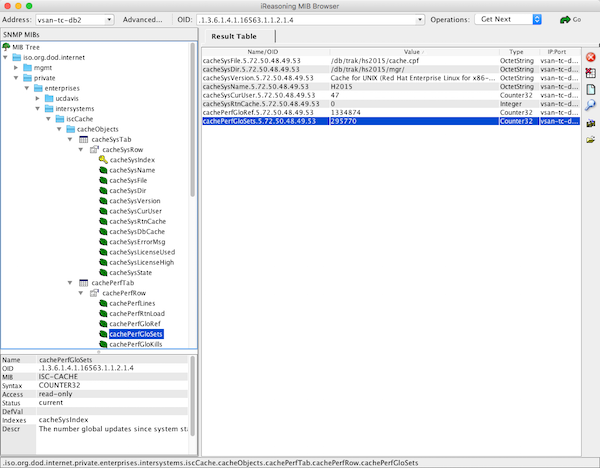
There are also several windows and *nix clients available for viewing system data. I use the free iReasoning MIB Browser. You will have to load the ISC-CACHE.MIB file into the client so it knows the structure of the MIB.

The following image shows the iReasoning MIB Browser on OSX.

free iReasoning MIB Browser

Including in Monitoring tools

This is where there can be wide differences in implementation. The choice of monitoring or analytics tool I will leave up to you.

Please leave comments to the post detailing the tools and value you get from them for monitoring and managing your systems. This will be a big help for other community members.

Below is a screen shot from the popular PRTG Network Monitor showing Caché metrics. The steps to include Caché metrics in PRTG are similar to other tools.

PRTG Monitoring tool

Example workflow - adding Caché MIB to monitoring tool.

Step 1.

Make sure you can connect to the operating system MIBs. A tip is to do your trouble-shooting against the operating system not Caché. It is most likely that monitoring tools already know about and are preconfigured for common operating system MIBs so help form vendors or other users may be easier.

Depending on the monitoring tool you choose you may have to add an SNMP 'module' or 'application', these are generally free or open source. I found the vendor instructions pretty straight forward for this step.

Once you are monitoring the operating system metrics its time to add Caché.

Step 2.

Import the ISC-CACHE.mib and ISC-ENSEMBLE.mib into the tool so that it knows the MIB structure.

The steps here will vary; for example PRTG has a 'MIB Importer' utility. The basic steps are to open the text file ISC-CACHE.mib in the tool and import it to the tools internal format. For example Splunk uses a Python format, etc.

Note: I found the PRTG tool timed out if I tried to add a sensor with all the Caché MIB branches. I assume it was walking the whole tree and timed out for some metrics like process lists, I did not spend time troubleshooting this, instead I worked around this problem by only importing the performance branch (cachePerfTab) from the ISC-CACHE.mib.

Once imported/converted the MIB can be reused to collect data from other servers in your network. The above graphic shows PRTG using Sensor Factory sensor to combine multiple sensors into one chart.

Summary

There are many monitoring, alerting and some very smart analytics tools available, some free, others with licences for support and many and varied functionality.

You must monitor your system and understand what activity is normal, and what activity falls outside normal and must be investigated. SNMP is a simple way to expose Caché and Ensemble metrics.

8
2 4561
Article Eduard Lebedyuk · Nov 20, 2019 9m read

In this article, I would like to talk about the spec-first approach to REST API development.

While traditional code-first REST API development goes like this:

  • Writing code
  • REST-enabling it
  • Documenting it (as a REST API)

Spec-first follows the same steps but reverse. We start with a spec, also doubling as documentation, generate a boilerplate REST app from that and finally write some business logic.

This is advantageous because:

  • You always have relevant and useful documentation for external or frontend developers who want to use your REST API
  • Specification created in OAS (Swagger) can be imported into a variety of tools allowing editing, client generation, API Management, Unit Testing and automation or simplification of many other tasks
  • Improved API architecture.  In code-first approach, API is developed method by method so a developer can easily lose track of the overall API  architecture, however with the spec-first developer is forced to interact with an API from the position if API consumer which usually helps with designing cleaner API architecture
  • Faster development - as all boilerplate code is automatically generated you won't have to write it, all that's left is developing business logic.
  • Faster feedback loops - consumers can get a view of the API immediately and they can easier offer suggestions simply by modifying the spec

Let's develop our API in a spec-first approach!

6
10 3439
Article Yuri Marx · May 13, 2022 8m read


The InterSystems IRIS has excellent support for encryption, decryption and hashing operations. Inside the class %SYSTEM.Encryption (https://docs.intersystems.com/iris20212/csp/documatic/%25CSP.Documatic…) there are class methods for the main algorithms on the market.


IRIS Algorithms and Encrypt/Decrypt types

As you can see, the operations are based on keys and include 3 options:

3
2 1569
Article Lucas Enard · May 3, 2022 44m read


This formation, accessible on my GitHub, will cover, in half a hour, how to read and write in csv and txt files, insert and get inside the IRIS database and a distant database using Postgres or how to use a FLASK API, all of that using the Interoperability framework using ONLY Python following the PEP8 convention.

This formation can mostly be done using copy paste and will guide you through everystep before challenging you with a global exercise.
We are available to answer any question or doubt in the comment of that post, on teams or even by mail at lucas.enard@intersystems.com .

We would really appreciate any feedback and remarks regarding every and any aspect of this formation.

1. Ensemble / Interoperability Formation

The goal of this formation is to learn InterSystems' interoperability framework using python, and particularly the use of:

  • Productions
  • Messages
  • Business Operations
  • Adapters
  • Business Processes
  • Business Services
  • REST Services and Operations

TABLE OF CONTENTS:

2. Framework

This is the IRIS Framework.
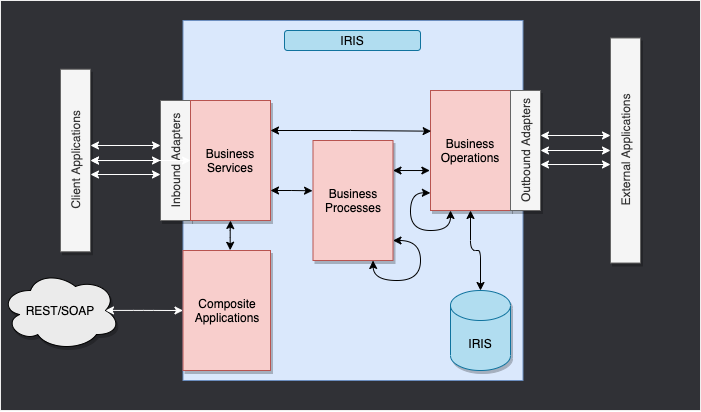
FrameworkFull

The components inside of IRIS represent a production. Inbound adapters and outbound adapters enable us to use different kind of format as input and output for our databse.
The composite applications will give us access to the production through external applications like REST services.

The arrows between them all of this components are messages. They can be requests or responses.

3. Adapting the framework

In our case, we will read lines from a csv file and save it into the IRIS database and in a .txt file.

We will then add an operation that will enable us to save objects in an extern database too, using a db-api. This database will be located in a docker container, using postgre.

Finally, we will see how to use composite applications to insert new objects in our database or to consult this database (in our case, through a REST service).

The framework adapted to our purpose gives us:

WIP FrameworkAdapted
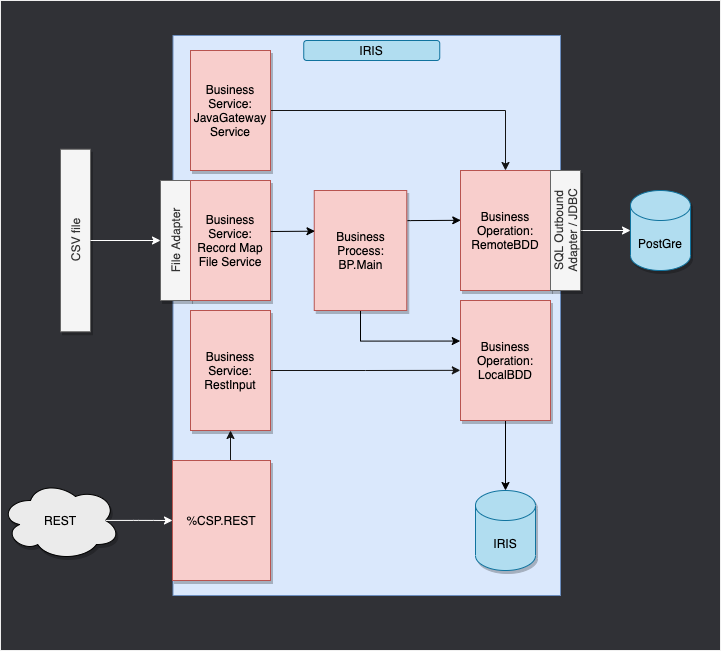
4. Prerequisites

For this formation, you'll need:

5. Setting up

5.1. Docker containers

In order to have access to the InterSystems images, we need to go to the following url: http://container.intersystems.com. After connecting with our InterSystems credentials, we will get our password to connect to the registry. In the docker VScode addon, in the image tab, by pressing connect registry and entering the same url as before (http://container.intersystems.com) as a generic registry, we will be asked to give our credentials. The login is the usual one but the password is the one we got from the website.

From there, we should be able to build and compose our containers (with the docker-compose.yml and Dockerfile files given).

5.2. Management Portal and VSCode

This repository is ready for VS Code.

Open the locally-cloned formation-template-python folder in VS Code.

If prompted (bottom right corner), install the recommended extensions.

5.3. Having the folder open inside the container

It is really important to be inside the container before coding.
Mainly to be able to have autocompletion enabled.
For this, docker must be on before opening VSCode.
Then, inside VSCode, when prompted (in the right bottom corner), reopen the folder inside the container so you will be able to use the python components within it.
The first time you do this it may take several minutes while the container is readied.

More information here

Architecture


By opening the folder remote you enable VS Code and any terminals you open within it to use the python components within the container. Configure these to use /usr/irissys/bin/irispython

PythonInterpreter

5.4. Register components

In order to register the components we are creating in python to the production it is needed to use the register_component function from the grongier.pex._utils module.

IMPORTANT: The components were already registered before ( expect for the HelloWorldOperation and the global exercise ).
For the HelloWorldOperation and for the global exercise, here are the steps to register components:
For this we advise you to use the build-in python console to add manually the component at first when you are working on the project.

You will find those commands in the misc/register.py file.
To use them you need to firstly create the component then you can start a terminal in VSCode ( it will be automatically in the container if you followed step 5.2. and 5.3)
To launch an IrisPython console enter :

/usr/irissys/bin/irispython

Then enter :

from grongier.pex._utils import register_component

Now you can register your component using something like :

register_component("bo","HelloWorldOperation","/irisdev/app/src/python/",1,"Python.HelloWorldOperation")

This line will register the class HelloWorldOperation that is coded inside the module bo, file situated at /irisdev/app/src/python/ (which is the right path if you follow this course) using the name Python.HelloWorldOperation in the management portal.

It is to be noted that if you don't change the name of the file, the class or the path, if a component was registered you can modify it on VSCode without the need to register it again. Just don't forget to restart it in the management portal.

5.5. The solution

If at any point in the formation you feel lost, or need further guidance, the solution branche on github holds all the correction and a working production.

6. Productions

A production is the base of all our work on Iris, it must be seen as the shell of our framework that will hold the services, processes and operations.
Everything in the production is going to inherit functions ; Those are the on_init function that resolve at the creation of an instance of this class and the on_tear_down function that resolve when the instance is killed. This will be useful to set variables or close a used open file when writing.

It is to be noted that a production with almost all the services, processes and operations was alredy created.
If you are asked to connect use username:SuperUser and password:SYS

Then, we will go through the [Interoperability] and [Configure] menus and click Production:
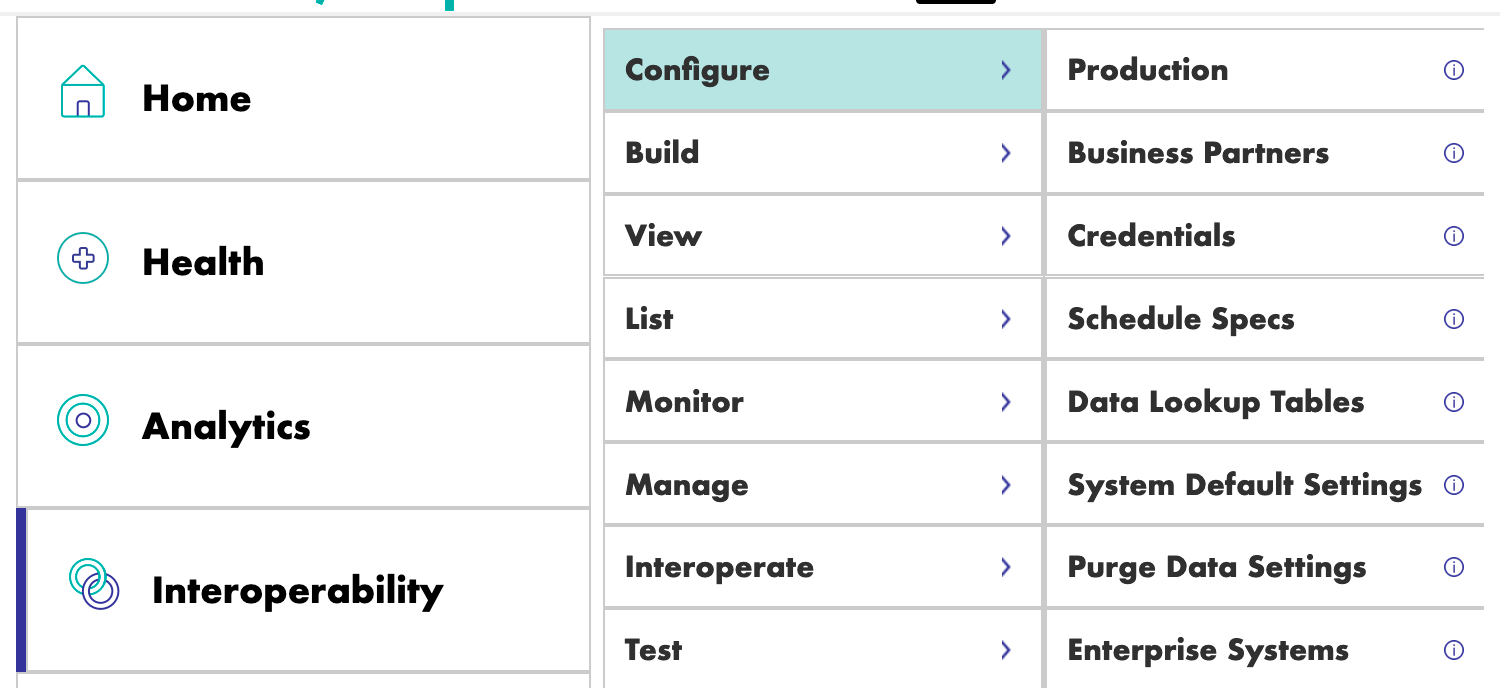
ProductionMenu

If the production isn't open do : Go to the [Interoperability] and [Configure] menu then click[Production]. Now click [Open] then chose iris / Production

If the production ins't in iris/production, note that it is important to choose the namespace IRISAPP in the management portal. SwitchNamespace


From here you can go directly to Business Operations.


But if you are interested on how to create a production, the steps to create one if needed or just for information are:
Go to the management portal and to connect using username:SuperUser and password:SYS
Then, we will go through the [Interoperability] and [Configure] menus:

ProductionMenu

We then have to press [New], select the [Formation] package and chose a name for our production:
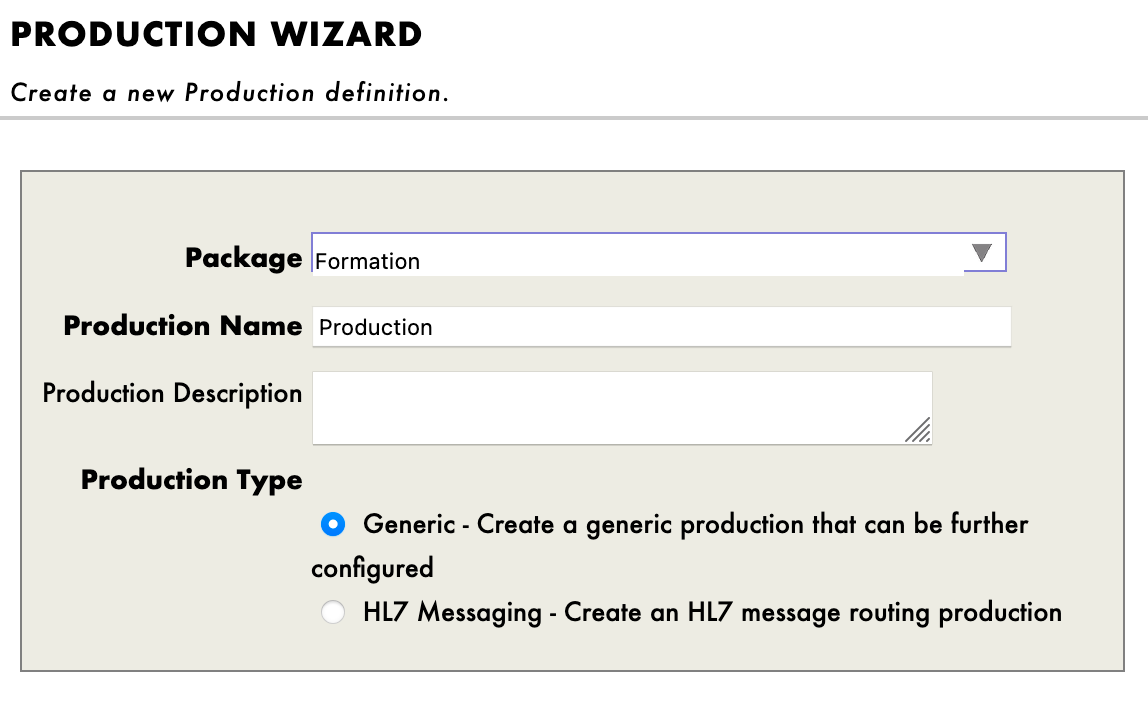
ProductionCreation

Immediately after creating our production, we will need to click on [Production Settings] just above the [Operations] section. In the right sidebar menu, we will have to activate [Testing Enabled] in the [Development and Debugging] part of the [Settings] tab (don't forget to press [Apply]).
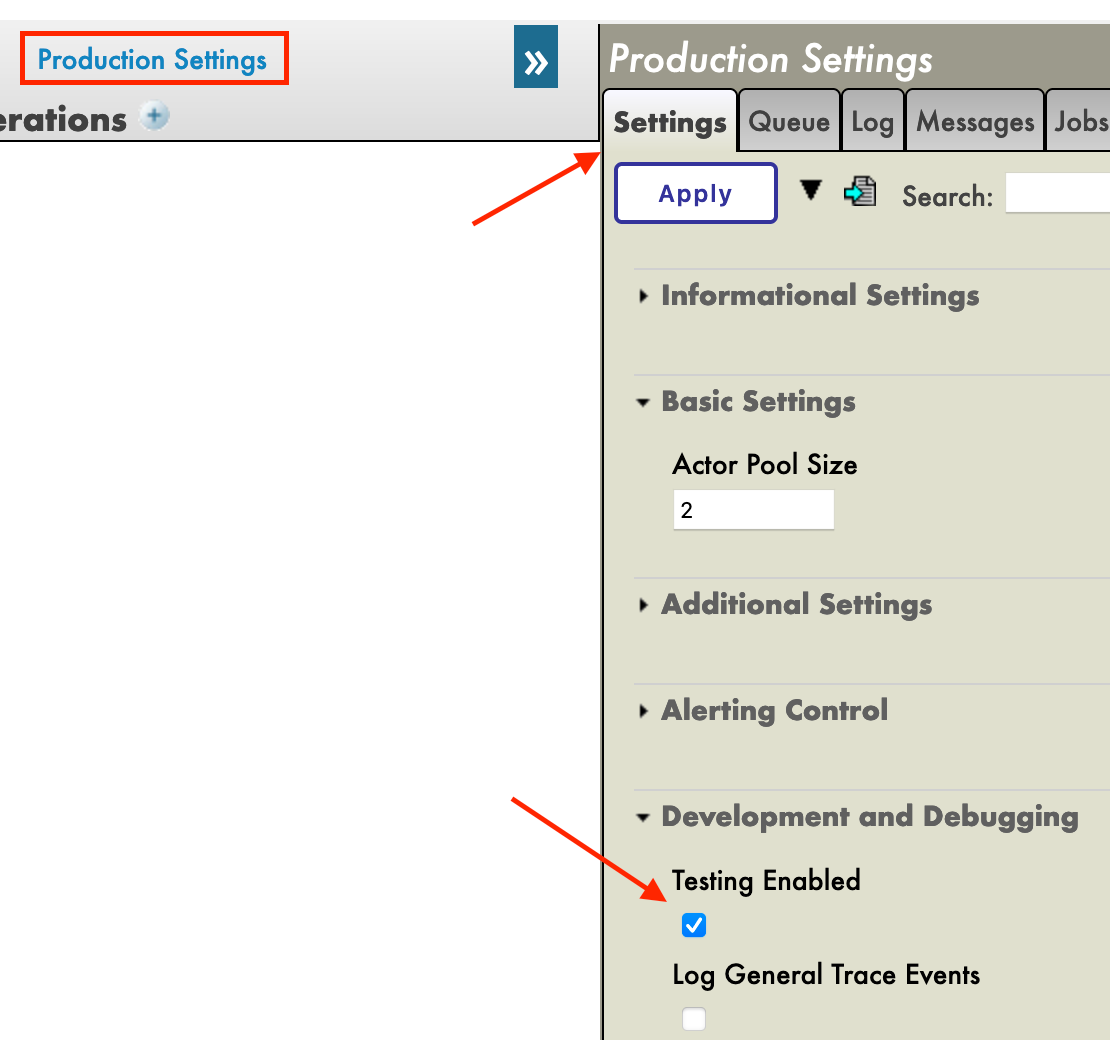
ProductionTesting

In this first production we will now add Business Operations.

7. Business Operations

A Business Operation (BO) is a specific operation that will enable us to send requests from IRIS to an external application / system. It can also be used to directly save in IRIS what we want.
BO also have an on_message function that will be called every time this instance receive a message from any source, this will allow us to receive information and send it, as seen in the framework, to an external client.

We will create those operations in local in VSCode, that is, in the src/python/bo.py file.
Saving this file will compile them in IRIS.

To start things we will design the simplest operation possible and try it out.
In the src/python/bo.py file we will create a class called HelloWorldOperation that will write a message in the logs when it receive any request.

To do so we just have to add in the src/python/bo.py file, right after the import line and just before the class FileOperation: :

class HelloWorldOperation(BusinessOperation):
    def on_message(self, request):
        self.log_info("Hello World!")

Now we need to register it to our production, add it to the production and finally try it out.

To register it follow step by step How to register a component.

Now go to the management portal and click on the [Production] tab. To add the operation, we use the Management Portal. By pressing the [+] sign next to [Operations], we have access to the [Business Operation Wizard].
There, we chose the operation classes we just created in the scrolling menu.
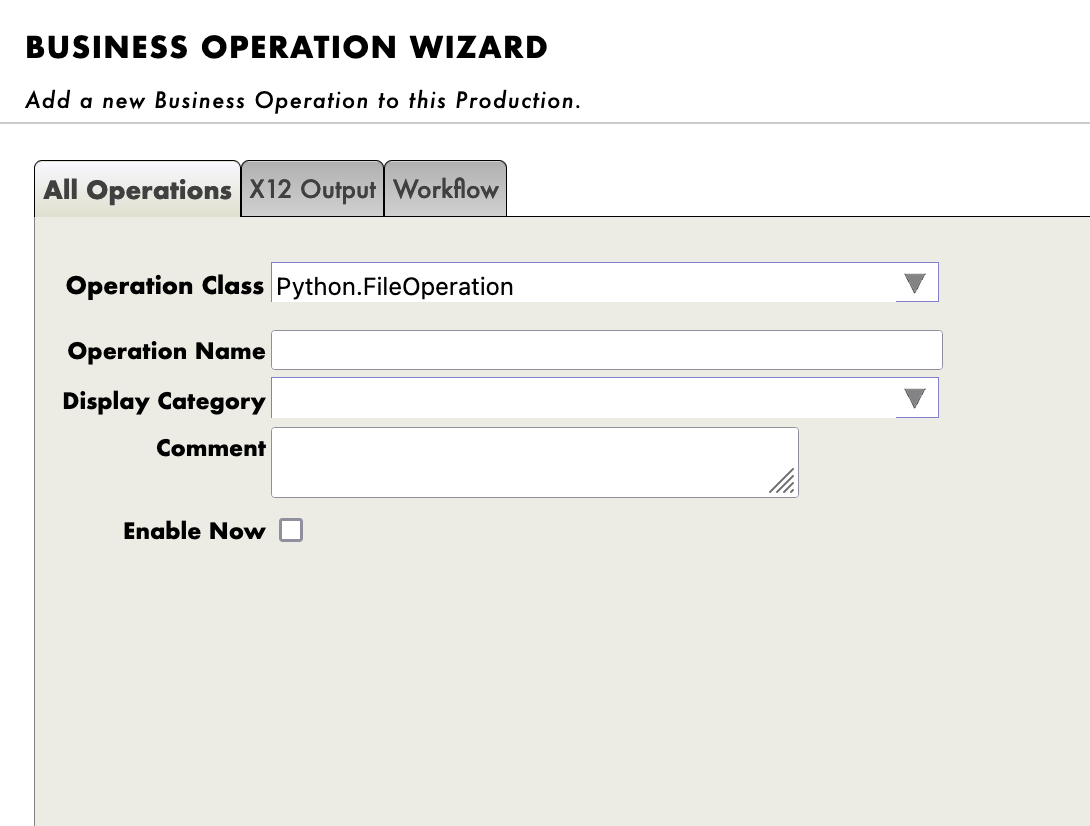
OperationCreation

Now double click on the operation we just created and press start, then start the production.

IMPORTANT:To test the operation,select the Python.HelloWorldOperationoperation and going in the [Actions] tabs in the right sidebar menu, we should be able to test the operation
(if it doesn't work, activate testing and check if the production is started and reload the operation by double clicking it and clicking restart).

Testing on HelloWorldOperation
By using the test function of our management portal, we will send the operation a message. Using as Request Type:
Ens.request in the scrolling menu.
( Or almost any other message type )

Then click Call test service

Then by going to the visual trace and clicking the white square you should read : "Hello World".
Well done, you have created your first full python operation on IRIS.


Now, for our firsts big operations we will save the content of a message in the local database and write the same information locally in a .txt file.

We need to have a way of storing this message first.

7.1. Creating our object classes

We will use dataclass to hold information in our messages.

In our src/python/obj.py file we have,
for the imports:

from dataclasses import dataclass

for the code:

@dataclass
class Formation:
    id_formation:int = None
    nom:str = None
    salle:str = None

The Formation class will be used as a Python object to store information from a csv and send it to the # 8. business process.


Your turn to create your own object class
The same way, create the Training class, in the same file, that will be used to send information from the # 8. business process to the multiple operation, to store it into the Iris database or write it down on a .txt file.
We only need to store a name which is a string and a room which is a string.

Try it by yourself before checking the solution.

Solution :
The final form of the obj.py file:

from dataclasses import dataclass

@dataclass
class Formation:
    id_formation:int = None
    nom:str = None
    salle:str = None

@dataclass
class Training:
    name:str = None
    room:str = None

7.2. Creating our message classes

These messages will contain a Formation object or a Training object, located in the obj.py file created in 7.1

Note that messages, requests and responses all inherit from the grongier.pex.Message class.

In the src/python/msg.py file we have,
for the imports:

from dataclasses import dataclass
from grongier.pex import Message

from obj import Formation,Training

for the code:

@dataclass
class FormationRequest(Message):
    formation:Formation = None

Again,the FormationRequest class will be used as a message to store information from a csv and send it to the # 8. business process.


Your turn to create your own message class
The same way, create the TrainingRequest class, in the same file, it will be used to send information from the # 8. business process to the multiple operation, to store it into the Iris database or write it down on a .txt file.
We only need to store a training which is a Training object.

Try it by yourself before checking the solution.

Solution :
The final form of the msg.py file:

from dataclasses import dataclass
from grongier.pex import Message

from obj import Formation,Training

@dataclass
class FormationRequest(Message):
    formation:Formation = None

@dataclass
class TrainingRequest(Message):
    training:Training = None

7.3. Creating our operations

Now that we have all the elements we need, we can create our operations.
Note that any Business Operation inherit from the grongier.pex.BusinessOperation class.
All of our operations will be in the file src/python/bo.py, to differentiate them we will have to create multiple classes as seen right now in the file as all the classes for our operations are already there, but of course, almost empty for now.

When an operation receive a message/request, it will automatically dispatch the message/request to the correct function depending of the type of the message/request specified in the signature of each function. If the type of the message/request is not handled, it will be forwarded to the on_message function.

Now, we will create an operation that will store data to our database.
In the src/python/bo.py file we have for the code of the class IrisOperation:

class IrisOperation(BusinessOperation):
    """
    It is an operation that write trainings in the iris database
    """

    def insert_training(self, request:TrainingRequest):
        """
        It takes a `TrainingRequest` object, inserts a new row into the `iris.training` table, and returns a
        `TrainingResponse` object
        
        :param request: The request object that will be passed to the function
        :type request: TrainingRequest
        :return: A TrainingResponse message
        """
        sql = """
        INSERT INTO iris.training
        ( name, room )
        VALUES( ?, ? )
        """
        name = request.training.name
        room = request.training.room
        iris.sql.exec(sql,name,room)
        return None
        
    def on_message(self, request):
        return None

As we can see, if the IrisOperation receive a message of the type msg.TrainingRequest, the information hold by the message will be transformed into an SQL query and executed by the iris.sql.exec IrisPython function. This method will save the message in the IRIS local database.

As you can see, we gathered the name and the room from the request by getting the training object and then the name and room strings from the training object.

It is now time to write that data to a .csv file.


Your turn to create your own operation
The same way that for IrisOperation, you have to fill the FileOperation class.

First of all, write the put_line function inside the FileOperation class:

    def put_line(self,filename,string):
        """
        It opens a file, appends a string to it, and closes the file
        
        :param filename: The name of the file to write to
        :param string: The string to be written to the file
        """
        try:
            with open(filename, "a",encoding="utf-8",newline="") as outfile:
                outfile.write(string)
        except Exception as error:
            raise error

Now you can try to create the write_training function, which will call the put_line function once.

It will gather the name and the room from the request by getting the training object and then the name and room strings from the training object.
Then it will call the put_line function with the name of the file of your choice and the string to be written to the file.

Solution :
In the src/python/bo.py file we have,
for the imports:

from grongier.pex import BusinessOperation
import os
import iris

from msg import TrainingRequest,FormationRequest

for the code of the class FileOperation:

class FileOperation(BusinessOperation):
    """
    It is an operation that write a training or a patient in a file
    """
    def on_init(self):
        """
        It changes the current working directory to the one specified in the path attribute of the object, or to /tmp if no path attribute is specified. 
        It also sets the filename attribute to toto.csv if it is not already set
        :return: None
        """
        if hasattr(self,'path'):
            os.chdir(self.path)
        else:
            os.chdir("/tmp")
        return None

    def write_training(self, request:TrainingRequest):
        """
        It writes a training to a file
        
        :param request: The request message
        :type request: TrainingRequest
        :return: None
        """
        room = name = ""
        if request.training is not None:
            room = request.training.room
            name = request.training.name
        line = room+" : "+name+"\n"
        filename = 'toto.csv'
        self.put_line(filename, line)
        return None

    def on_message(self, request):
        return None

    def put_line(self,filename,string):
        """
        It opens a file, appends a string to it, and closes the file
        
        :param filename: The name of the file to write to
        :param string: The string to be written to the file
        """
        try:
            with open(filename, "a",encoding="utf-8",newline="") as outfile:
                outfile.write(string)
        except Exception as error:
            raise error


As we can see, if the FileOperation receive a message of the type msg.TrainingRequest it will dispatch it to the write_training function since it's signature on request is TrainingRequest.
In this function, the information hold by the message will be written down on the toto.csv file.

Note that path is already a parameter of the operation and you could make filename a variable with a base value of toto.csv that can be changed directly in the management portal.
To do so, we need to edit the on_init function like this:

    def on_init(self):
        if hasattr(self,'path'):
            os.chdir(self.path)
        else:
            os.chdir("/tmp")
        if not hasattr(self,'filename'):
            self.filename = 'toto.csv'
        return None

Then, we would call self.filename instead of coding it directly inside the operation and using filename = 'toto.csv'.
Then, the write_training function would look like this:

    def write_training(self, request:TrainingRequest):
        room = name = ""
        if request.training is not None:
            room = request.training.room
            name = request.training.name
        line = room+" : "+name+"\n"
        self.put_line(self.filename, line)
        return None

See the part Testing below in 7.5 for further information on how to choose our own filename.


Those components were already registered to the production in advance.

For information, the steps to register your components are: Following 5.4. and using:

register_component("bo","FileOperation","/irisdev/app/src/python/",1,"Python.FileOperation")

And:

register_component("bo","IrisOperation","/irisdev/app/src/python/",1,"Python.IrisOperation")

7.4. Adding the operations to the production

Our operations are already on our production since we have done it for you in advance.
However if you create a new operation from scratch you will need to add it manually.

If needed for later of just for information, here are the steps to register an operation.
For this, we use the Management Portal. By pressing the [+] sign next to [Operations], we have access to the [Business Operation Wizard].
There, we chose the operation classes we just created in the scrolling menu.

OperationCreation

Don't forget to do it with all your new operations !

7.5. Testing

Double clicking on the operation will enable us to activate it or restart it to save our changes.
IMPORTANT: Note that this step of deactivating it and reactivating it is crucial to save our changes.
IMPORTANT: After that, by selecting the Python.IrisOperationoperation and going in the [Actions] tabs in the right sidebar menu, we should be able to test the operation
(if it doesn't work, activate testing and check if the production is started and reload the operation by double clicking it and clicking restart).

Testing on IrisOperation
For IrisOperation it is to be noted that the table was created automatically. For information, the steps to create it are: Access the Iris DataBase using the management portal by seeking [System Explorer] then [SQL] then [Go]. Now you can enter in the [Execute Query] :

CREATE TABLE iris.training (
	name varchar(50) NULL,
	room varchar(50) NULL
)


By using the test function of our management portal, we will send the operation a message of the type we declared earlier. If all goes well, showing the visual trace will enable us to see what happened between the processes, services and operations.
Using as Request Type:
Grongier.PEX.Message in the scrolling menu.
Using as %classname:

msg.TrainingRequest

Using as %json:

{
    "training":{
        "name": "name1",
        "room": "room1"
    }
}

Then click Call test service

Here, we can see the message being sent to the operation by the process, and the operation sending back a response (It must say no response since in the code used return None, we will see later how to return messages).
You should get a result like this : IrisOperation
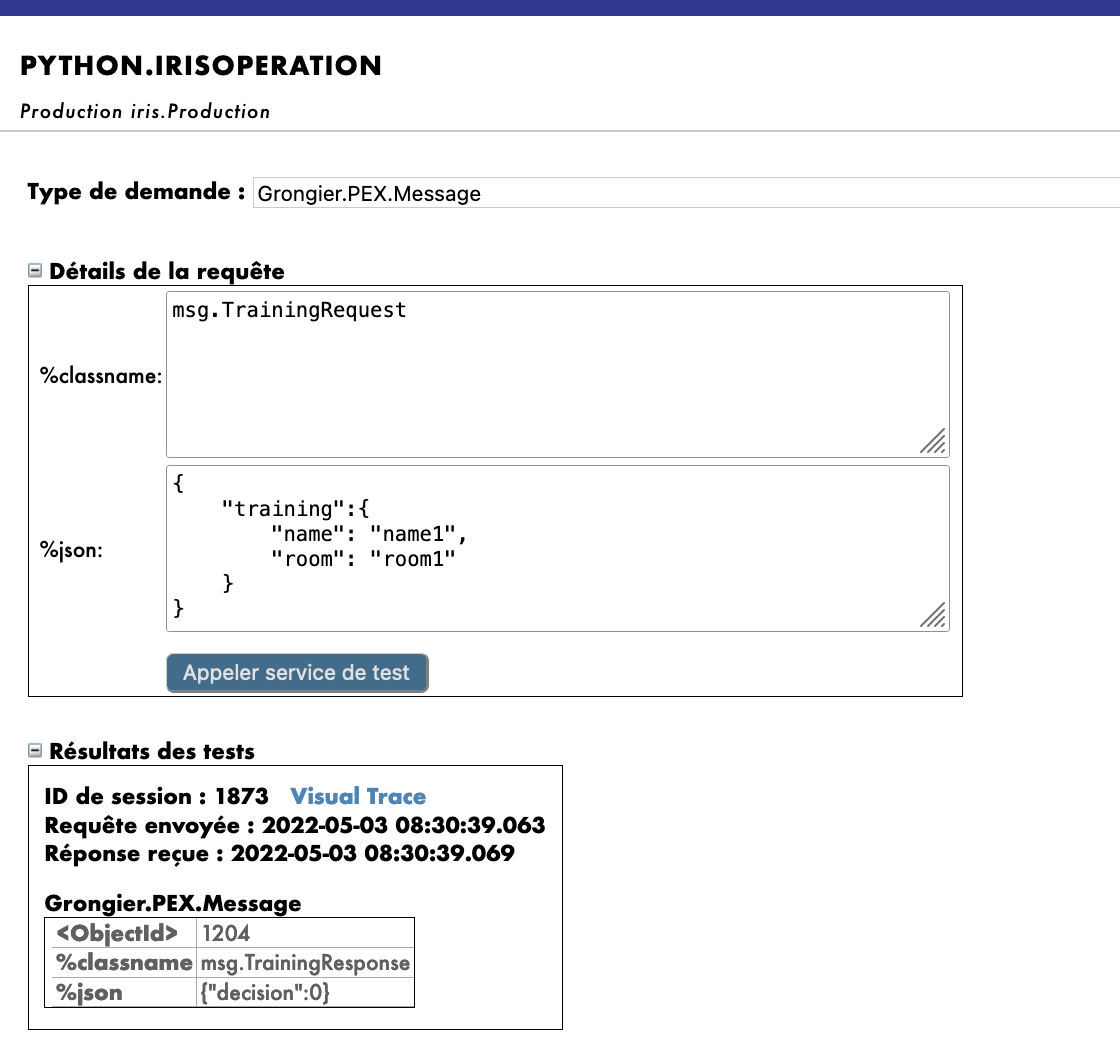

Testing on FileOperation
For FileOperation it is to be noted that you can fill the path in the %settings available on the Management Portal as follow ( and you can add in the settings the filename if you have followed the filename note from 7.3. ) using:

path=/tmp/

or this:

path=/tmp/
filename=tata.csv

You should get a result like this: Settings for FileOperation
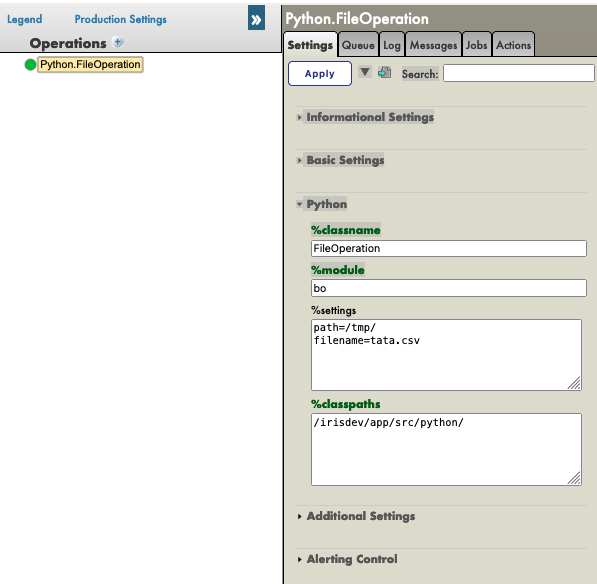

Again, by selecting the Python.FileOperationoperation and going in the [Actions] tabs in the right sidebar menu, we should be able to test the operation
(if it doesn't work, activate testing and check if the production is started).
Using as Request Type:
Grongier.PEX.Message in the scrolling menu.
Using as %classname:

msg.TrainingRequest

Using as %json:

{
    "training":{
        "name": "name1",
        "room": "room1"
    }
}

Then click Call test service

You should get a result like this : FileOperation
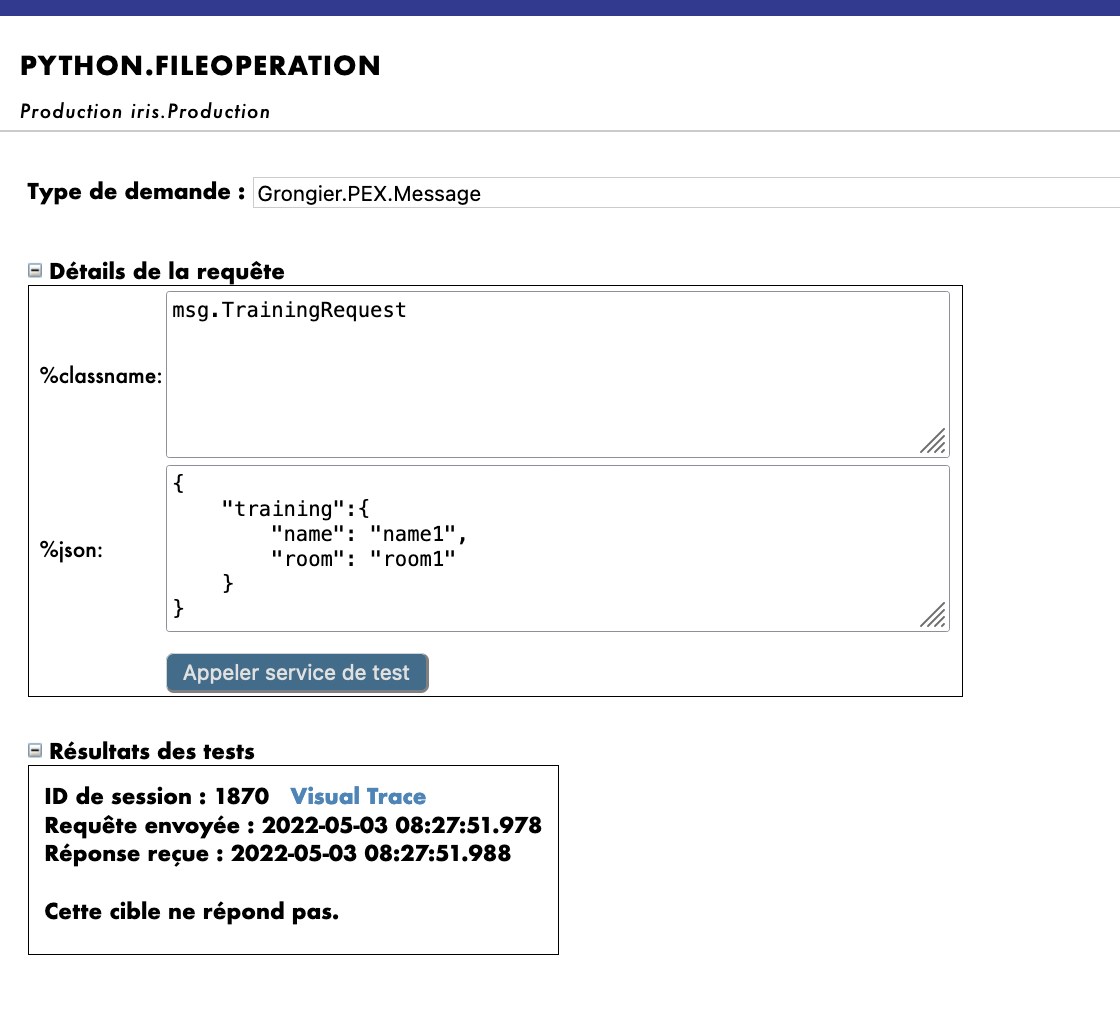

In order to see if our operations worked it is needed for us to acces the toto.csv (or tata.csv if you have followed the filename note from 7.3.) file and the Iris DataBase to see the changes.
It is needed to be inside the container for the next step, if 5.2. and 5.3 were followed it should be good.
To access the toto.csv you will need to open a terminal then type:

bash
cd /tmp
cat toto.csv

or use "cat tata.csv" if needed.
IMPORTANT: If the file doesn't exist you may not have restarted the operation on the management portal therefore nothing happened !
To do that, double click on the operation and select restart ( or deactivate then double click again and activate)
You may need to test again


To access the Iris DataBase you will need to access the management portal and seek [System Explorer] then [SQL] then [Go]. Now you can enter in the [Execute Query] :

SELECT * FROM iris.training

8. Business Processes

Business Processes (BP) are the business logic of our production. They are used to process requests or relay those requests to other components of the production.
BP also have an on_request function that will be called everytime this instance receive a request from any source, this will allow us to receive information and process it in anyway and disptach it to the right BO.

We will create those process in local in VSCode, that is, in the src/python/bp.py file.
Saving this file will compile them in IRIS.

8.1. Simple BP

We now have to create a Business Process to process the information coming from our future services and dispatch it accordingly. We are going to create a simple BP that will call our operations.

Since our BP will only redirect information we will call it Router and it will be in the file src/python/bp.py like this,
for the imports:

from grongier.pex import BusinessProcess

from msg import FormationRequest, TrainingRequest
from obj import Training

for the code:


class Router(BusinessProcess):

    def on_request(self, request):
        """
        It receives a request, checks if it is a formation request, and if it
        is, it sends a TrainingRequest request to FileOperation and to IrisOperation
        
        :param request: The request object that was received
        :return: None
        """
        if isinstance(request,FormationRequest):

            msg = TrainingRequest()
            msg.training = Training()
            msg.training.name = request.formation.nom
            msg.training.room = request.formation.salle

            self.send_request_sync('Python.FileOperation',msg)
            self.send_request_sync('Python.IrisOperation',msg)
        return None

The Router will receive a request of the type FormationRequest and will create and send a message of the type TrainingRequest to the IrisOperation and the FileOperation operations. If the message/request is not an instance of the type we are looking for, we will just do nothing and not dispatch it.


Those components were already registered to the production in advance.

For information, the steps to register your components are: Following 5.4. and using:

register_component("bp","Router","/irisdev/app/src/python/",1,"Python.Router")

8.2. Adding the process to the production

Our process is already on our production since we have done it for you in advance.
However if you create a new process from scratch you will need to add it manually.

If needed for later of just for information, here are the steps to register a process.
For this, we use the Management Portal. By pressing the [+] sign next to [Process], we have access to the [Business Process Wizard].
There, we chose the process class we just created in the scrolling menu.

8.3. Testing

Double clicking on the process will enable us to activate it or restart it to save our changes.
IMPORTANT: Note that this step of deactivating it and reactivating it is crucial to save our changes.
IMPORTANT: After that, by selecting the process and going in the [Actions] tabs in the right sidebar menu, we should be able to test the process
(if it doesn't work, activate testing and check if the production is started and reload the process by double clicking it and clicking restart).

By doing so, we will send the process a message of the type msg.FormationRequest. Using as Request Type:
Grongier.PEX.Message in the scrolling menu.
Using as %classname:

msg.FormationRequest

Using as %json:

{
    "formation":{
        "id_formation": 1,
        "nom": "nom1",
        "salle": "salle1"
    }
}

Then click Call test service
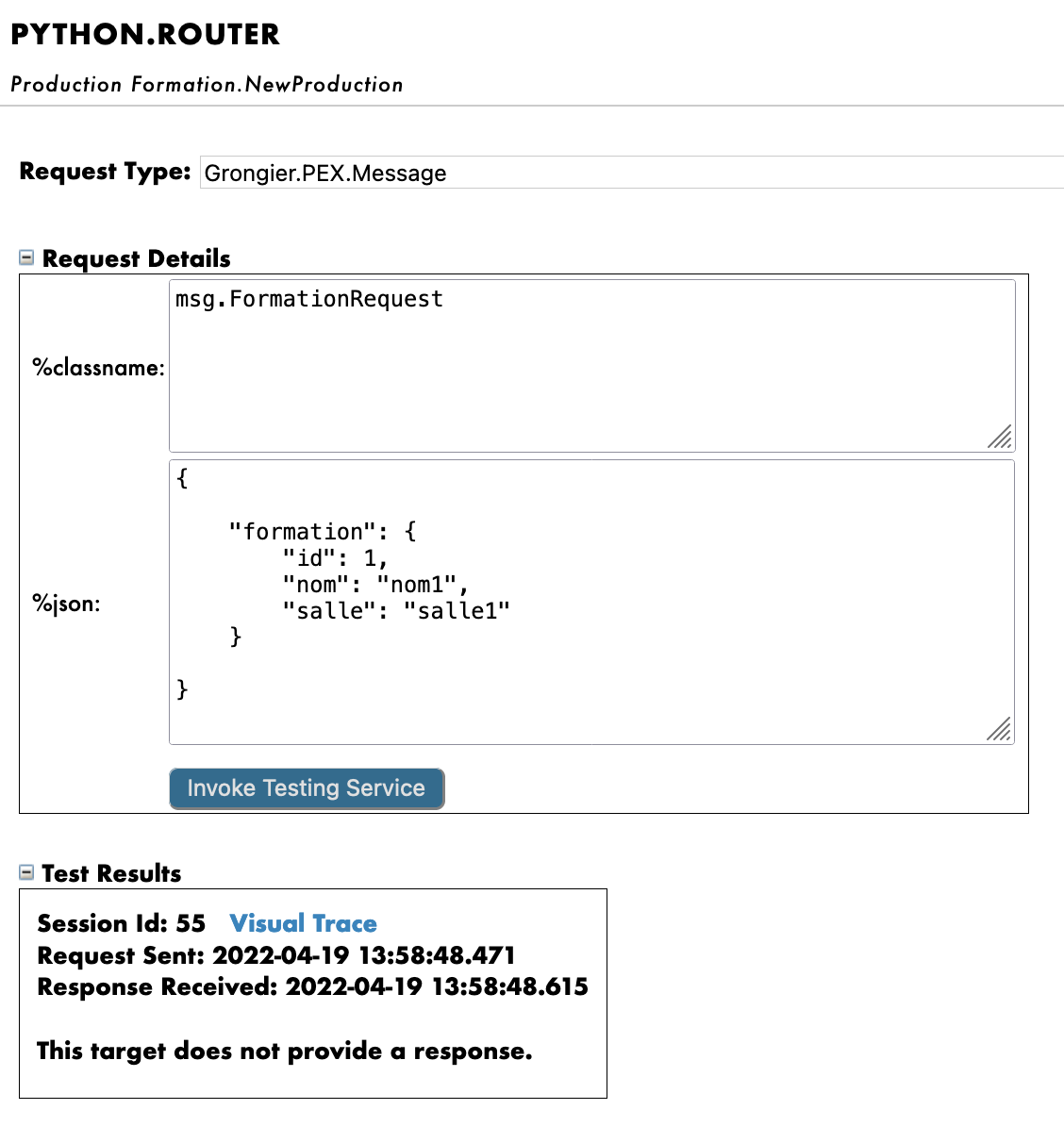
RouterTest

If all goes well, showing the visual trace will enable us to see what happened between the process, services and processes.
Here, we can see the messages being sent to the operations by the process, and the operations sending back a response. RouterResults
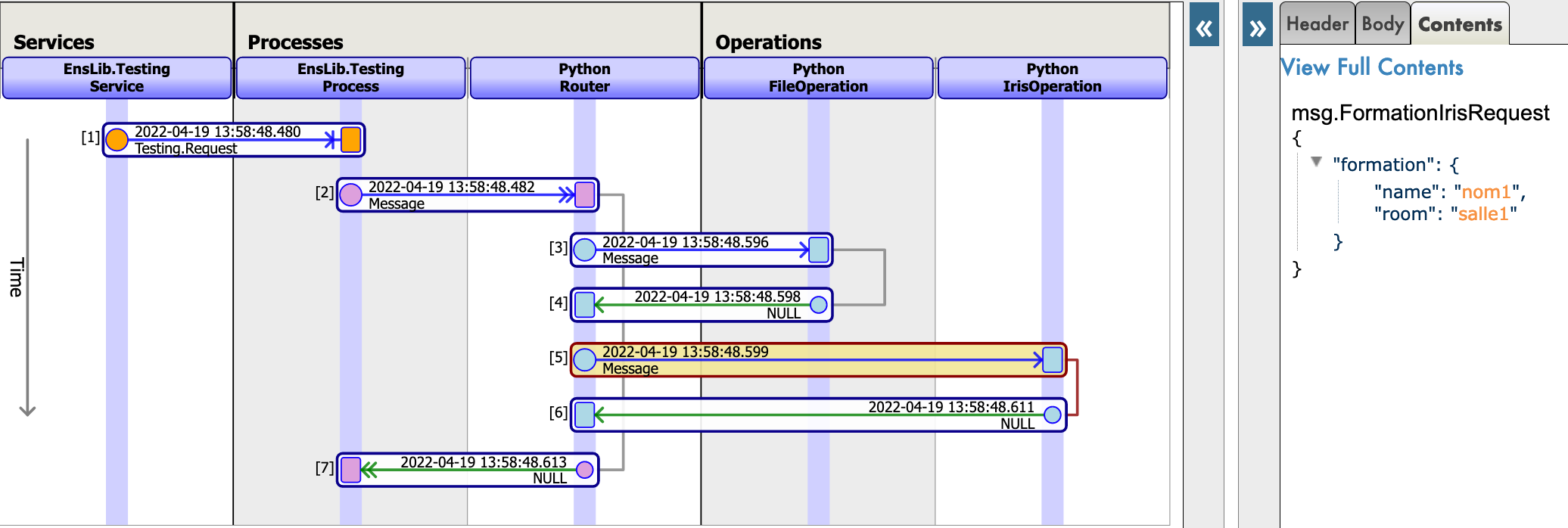
9. Business Service

Business Service (BS) are the ins of our production. They are used to gather information and send them to our routers. BS also have an on_process_input function that often gather information in our framework, it can be called by multiple ways such as a REST API or an other service, or by the service itself to execute his code again. BS also have a get_adapter_type function that allow us to allocate an adapter to the class, for example Ens.InboundAdapter that will make it so that the service will call his own on_process_input every 5 seconds.

We will create those services in local in VSCode, that is, in the python/bs.py file.
Saving this file will compile them in IRIS.

9.1. Simple BS

We now have to create a Business Service to read a CSV and send each line as a msg.FormationRequest to the router.

Since our BS will read a csv we will call it ServiceCSV and it will be in the file src/python/bs.py like this,
for the imports:

from grongier.pex import BusinessService

from dataclass_csv import DataclassReader

from obj import Formation
from msg import FormationRequest

for the code:

class ServiceCSV(BusinessService):
    """
    It reads a csv file every 5 seconds, and sends each line as a message to the Python Router process.
    """

    def get_adapter_type():
        """
        Name of the registred adaptor
        """
        return "Ens.InboundAdapter"
    
    def on_init(self):
        """
        It changes the current path to the file to the one specified in the path attribute of the object,
        or to '/irisdev/app/misc/' if no path attribute is specified
        :return: None
        """
        if not hasattr(self,'path'):
            self.path = '/irisdev/app/misc/'
        return None

    def on_process_input(self,request):
        """
        It reads the formation.csv file, creates a FormationRequest message for each row, and sends it to
        the Python.Router process.
        
        :param request: the request object
        :return: None
        """
        filename='formation.csv'
        with open(self.path+filename,encoding="utf-8") as formation_csv:
            reader = DataclassReader(formation_csv, Formation,delimiter=";")
            for row in reader:
                msg = FormationRequest()
                msg.formation = row
                self.send_request_sync('Python.Router',msg)
        return None

It is advised to keep the FlaskService as it is and juste fill the ServiceCSV.

As we can see, the ServiceCSV gets an InboundAdapter that will allow it to function on it's own and to call on_process_input every 5 seconds ( parameter that can be changed in the basic settings of the settings of the service on the Management Portal)

Every 5 seconds, the service will open the formation.csv to read each line and create a msg.FormationRequest that will be send to the Python.Router.


Those components were already registered to the production in advance.

For information, the steps to register your components are: Following 5.4. and using:

register_component("bs","ServiceCSV","/irisdev/app/src/python/",1,"Python.ServiceCSV")

9.2. Adding the service to the production

Our service is already on our production since we have done it for you in advance.
However if you create a new service from scratch you will need to add it manually.

If needed for later of just for information, here are the steps to register a service.
For this, we use the Management Portal. By pressing the [+] sign next to [service], we have access to the [Business Services Wizard].
There, we chose the service class we just created in the scrolling menu.

9.3. Testing

Double clicking on the service will enable us to activate it or restart it to save our changes.
IMPORTANT: Note that this step of deactivating it and reactivating it is crucial to save our changes.
As explained before, nothing more has to be done here since the service will start on his own every 5 seconds.
If all goes well, showing the visual trace will enable us to see what happened between the process, services and processes.
Here, we can see the messages being sent to the process by the service, the messages to the operations by the process, and the operations sending back a response. ServiceCSVResults
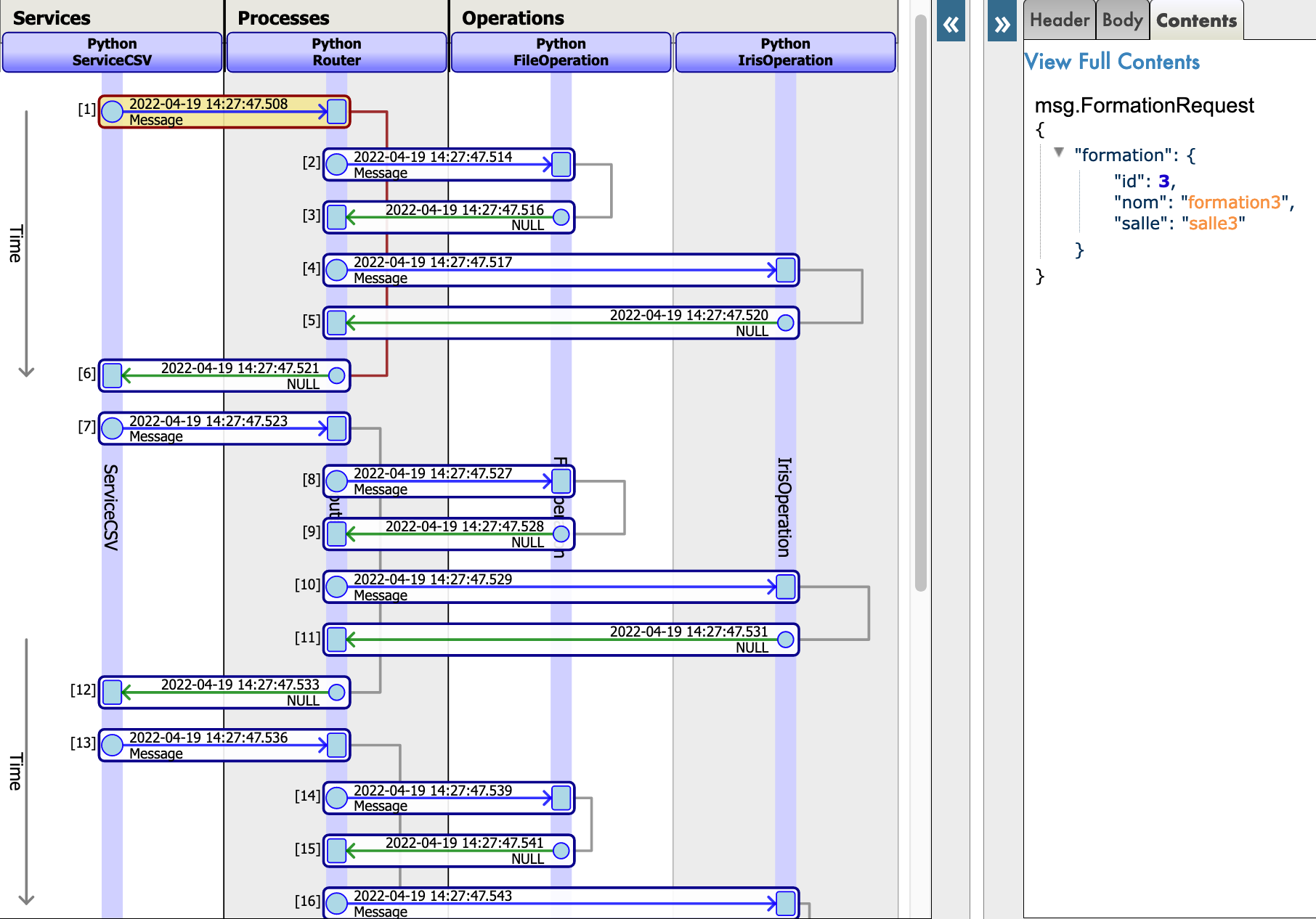
10. Getting access to an extern database using a db-api

In this section, we will create an operation to save our objects in an extern database. We will be using the db-api, as well as the other docker container that we set up, with postgre on it.

10.1. Prerequisites

In order to use postgre we need psycopg2 which is a python module allowing us to connect to the postegre database with a simple command.
It was already done automatically but for informations,the steps are : access the inside of the docker container to install psycopg2 using pip3.
Once you are in the terminal enter :

pip3 install psycopg2-binary

Or add your module in the requirements.txt and rebuild the container.

10.2. Creating our new operation

Our new operation needs to be added after the two other one in the file src/python/bo.py. Our new operation and the imports are as follows,
for the imports:

import psycopg2

for the code:

class PostgresOperation(BusinessOperation):
    """
    It is an operation that write trainings in the Postgre database
    """

    def on_init(self):
        """
        it is a function that connects to the Postgre database and init a connection object
        :return: None
        """
        self.conn = psycopg2.connect(
        host="db",
        database="DemoData",
        user="DemoData",
        password="DemoData",
        port="5432")
        self.conn.autocommit = True

        return None

    def on_tear_down(self):
        """
        It closes the connection to the database
        :return: None
        """
        self.conn.close()
        return None

    def insert_training(self,request:TrainingRequest):
        """
        It inserts a training in the Postgre database
        
        :param request: The request object that will be passed to the function
        :type request: TrainingRequest
        :return: None
        """
        cursor = self.conn.cursor()
        sql = "INSERT INTO public.formation ( name,room ) VALUES ( %s , %s )"
        cursor.execute(sql,(request.training.name,request.training.room))
        return None
    
    def on_message(self,request):
        return None

This operation is similar to the first one we created. When it will receive a message of the type msg.TrainingRequest, it will use the psycopg module to execute SQL requests. Those requests will be sent to our postgre database.

As you can see here the connection is written directly into the code, to improve our code we could do as before for the other operations and make, host, database and the other connection information, variables with a base value of db and DemoData etc that can be change directly onto the management portal.
To do this we can change our on_init function by :

    def on_init(self):
        if not hasattr(self,'host'):
          self.host = 'db'
        if not hasattr(self,'database'):
          self.database = 'DemoData'
        if not hasattr(self,'user'):
          self.user = 'DemoData'
        if not hasattr(self,'password'):
          self.password = 'DemoData'
        if not hasattr(self,'port'):
          self.port = '5432'

        self.conn = psycopg2.connect(
        host=self.host,
        database=self.database,
        user=self.user,
        password=self.password,
        port=self.port)

        self.conn.autocommit = True

        return None


Those components were already registered to the production in advance.

For information, the steps to register your components are: Following 5.4. and using:

register_component("bo","PostgresOperation","/irisdev/app/src/python/",1,"Python.PostgresOperation")

10.3. Configuring the production

Our operation is already on our production since we have done it for you in advance.
However if you create a new operation from scratch you will need to add it manually.

If needed for later of just for information, here are the steps to register an operation.
For this, we use the Management Portal. By pressing the [+] sign next to [Operations], we have access to the [Business Operation Wizard].
There, we chose the operation classes we just created in the scrolling menu.


Afterward, if you wish to change the connection, you can simply add in the %settings in [Python] in the [parameter] window of the operation the parameter you wish to change. See the second image of 7.5. Testing for more details.

10.4. Testing

Double clicking on the operation will enable us to activate it or restart it to save our changes.
IMPORTANT: Note that this step of deactivating it and reactivating it is crucial to save our changes.
IMPORTANT: After that, by selecting the operation and going in the [Actions] tabs in the right sidebar menu, we should be able to test the operation
(if it doesn't work, activate testing and check if the production is started and reload the operation by double clicking it and clicking restart).

For PostGresOperation it is to be noted that the table was created automatically.

By doing so, we will send the operation a message of the type msg.TrainingRequest. Using as Request Type:
Grongier.PEX.Message in the scrolling menu.
Using as %classname:

msg.TrainingRequest

Using as %json:

{
    "training":{
        "name": "name1",
        "room": "room1"
    }
}

Then click Call test service

Like this: testpostgres
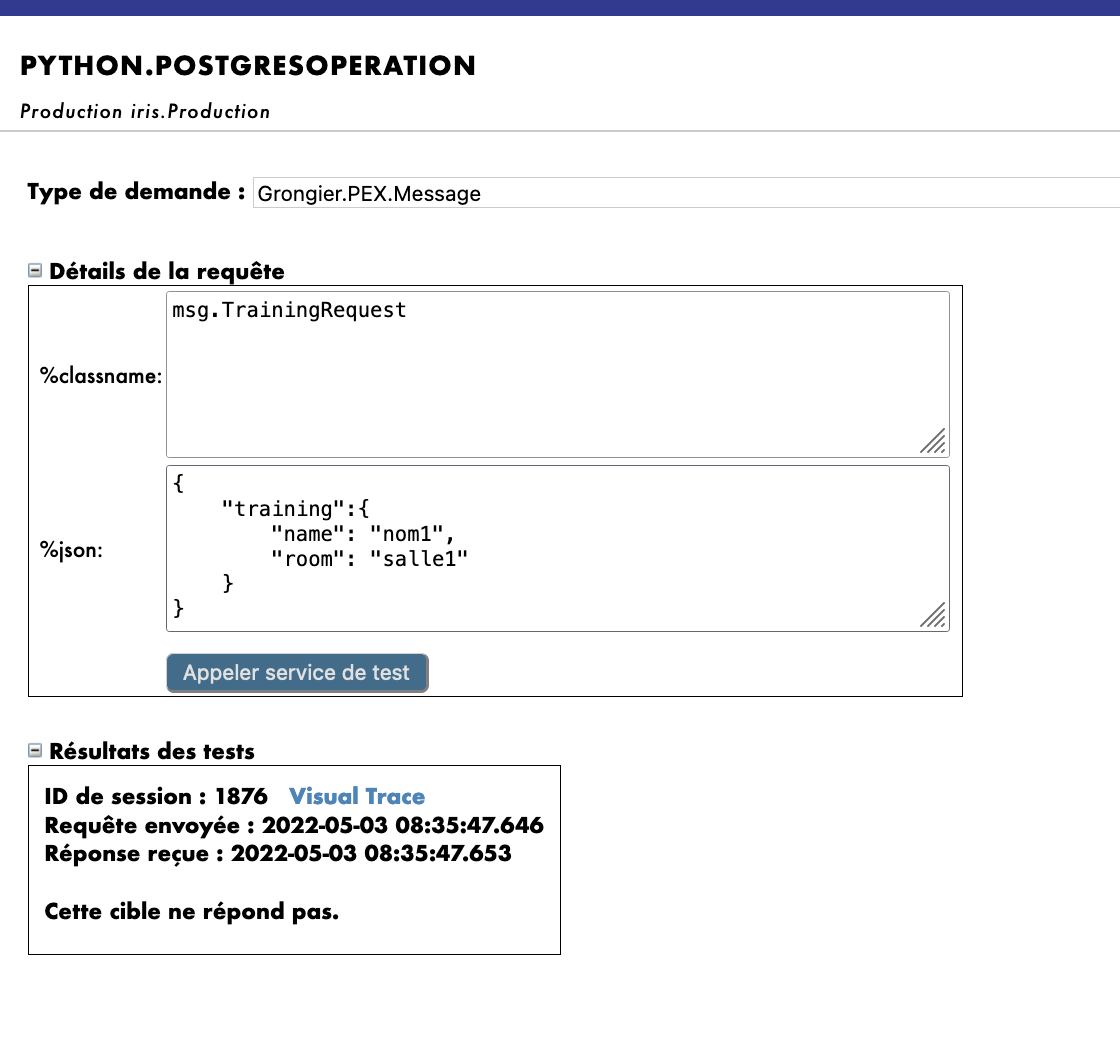
When testing the visual trace should show a success.

We have successfully connected with an extern database.

If you have followed this formation so far you should have understand that for now, no processes nor services calls our new PostgresOperation meaning that without using the test function of our management portal, it will not be called.

10.5. Exercise

As an exercise, it could be interesting to modify bo.IrisOperation so that it returns a boolean that will tell the bp.Router to call bo.PostgresOperation depending on the value of that boolean.
That way, our new operation will be called.

Hint: This can be done by changing the type of reponse bo.IrisOperation returns and by adding to that new type of message/response a new boolean property and using the if activity in our bp.Router.

10.6. Solution

First, we need to have a response from our bo.IrisOperation . We are going to create a new message after the other two, in the src/python/msg.py like,
for the code:

@dataclass
class TrainingResponse(Message):
    decision:int = None

Then, we change the response of bo.IrisOperation by that response, and set the value of its decision to 1 or 0 randomly.
In the src/python/bo.pyyou need to add two imports and change the IrisOperation class,
for the imports:

import random
from msg import TrainingResponse

for the code:

class IrisOperation(BusinessOperation):
    """
    It is an operation that write trainings in the iris database
    """

    def insert_training(self, request:TrainingRequest):
        """
        It takes a `TrainingRequest` object, inserts a new row into the `iris.training` table, and returns a
        `TrainingResponse` object
        
        :param request: The request object that will be passed to the function
        :type request: TrainingRequest
        :return: A TrainingResponse message
        """
        resp = TrainingResponse()
        resp.decision = round(random.random())
        sql = """
        INSERT INTO iris.training
        ( name, room )
        VALUES( ?, ? )
        """
        iris.sql.exec(sql,request.training.name,request.training.room)
        return resp
        
    def on_message(self, request):
        return None

We will now change our process `bp.Router` in `src/python/bp.py`, where we will make it so that if the response from the IrisOperation is 1 it will call the PostgesOperation. Here is the new code :
class Router(BusinessProcess):

    def on_request(self, request):
        """
        It receives a request, checks if it is a formation request, and if it
        is, it sends a TrainingRequest request to FileOperation and to IrisOperation, which in turn sends it to the PostgresOperation if IrisOperation returned a 1.
        
        :param request: The request object that was received
        :return: None
        """
        if isinstance(request,FormationRequest):

            msg = TrainingRequest()
            msg.training = Training()
            msg.training.name = request.formation.nom
            msg.training.room = request.formation.salle

            self.send_request_sync('Python.FileOperation',msg)
            
            form_iris_resp = self.send_request_sync('Python.IrisOperation',msg)
            if form_iris_resp.decision == 1:
                self.send_request_sync('Python.PostgresOperation',msg)
        return None

VERY IMPORTANT : we need to make sure we use send_request_sync and not send_request_async in the call of our operations, or else the activity will set off before receiving the boolean response.


Before testing don't forget to double click on every modified service/process/operation to restart them or your changes won't be effective.


In the visual trace, after testing, we should have approximately half of objects read in the csv saved also in the remote database.
Note that to test you can just start the bs.ServiceCSV and it will automatically send request to the router that will then dispatch properly the requests.
Also note that you must double click on a service/operation/process and press reload or restart if you want your saved changes on VSCode to apply.

11. REST service

In this part, we will create and use a REST Service.

11.1. Prerequisites

In order to use Flask we will need to install flask which is a python module allowing us to easily create a REST service. It was already done automatically but for information the steps are : access the inside of the docker container to install flask on iris python. Once you are in the terminal enter :

pip3 install flask

Or add your module in the requirements.txt and rebuild the container.

11.2. Creating the service

To create a REST service, we will need a service that will link our API to our production, for this we create a new simple service in src/python/bs.py just after the ServiceCSV class.

class FlaskService(BusinessService):

    def on_init(self):    
        """
        It changes the current target of our API to the one specified in the target attribute of the object,
        or to 'Python.Router' if no target attribute is specified
        :return: None
        """    
        if not hasattr(self,'target'):
            self.target = "Python.Router"        
        return None

    def on_process_input(self,request):
        """
        It is called to transmit information from the API directly to the Python.Router process.
        :return: None
        """
        return self.send_request_sync(self.target,request)

on_process_input this service will simply transfer the request to the Router.


Those components were already registered to the production in advance.

For information, the steps to register your components are: Following 5.4. and using:

register_component("bs","FlaskService","/irisdev/app/src/python/",1,"Python.FlaskService")


To create a REST service, we will need Flask to create an API that will manage the get and post function: We need to create a new file as python/app.py:

from flask import Flask, jsonify, request, make_response
from grongier.pex import Director
import iris

from obj import Formation
from msg import FormationRequest


app = Flask(__name__)

# GET Infos
@app.route("/", methods=["GET"])
def get_info():
    info = {'version':'1.0.6'}
    return jsonify(info)

# GET all the formations
@app.route("/training/", methods=["GET"])
def get_all_training():
    payload = {}
    return jsonify(payload)

# POST a formation
@app.route("/training/", methods=["POST"])
def post_formation():
    payload = {} 

    formation = Formation()
    formation.nom = request.get_json()['nom']
    formation.salle = request.get_json()['salle']

    msg = FormationRequest(formation=formation)

    service = Director.CreateBusinessService("Python.FlaskService")
    response = service.dispatchProcessInput(msg)

    return jsonify(payload)

# GET formation with id
@app.route("/training/<int:id>", methods=["GET"])
def get_formation(id):
    payload = {}
    return jsonify(payload)

# PUT to update formation with id
@app.route("/training/<int:id>", methods=["PUT"])
def update_person(id):
    payload = {}
    return jsonify(payload)

# DELETE formation with id
@app.route("/training/<int:id>", methods=["DELETE"])
def delete_person(id):
    payload = {}  
    return jsonify(payload)

if __name__ == '__main__':
    app.run('0.0.0.0', port = "8081")

Note that the Flask API will use a Director to create an instance of our FlaskService from earlier and then send the right request.

We made the POST formation functional in the code above, if you wish, you can make the other functions in order to get/post the right information using all the things we have learned so far, however note that no solution will be provided for it.

11.3. Testing

We now need to start our flask app using Python Flask:
How to start our flask app.py

Finally, we can test our service with any kind of REST client after having reloaded the Router service.

Using any REST service (as RESTer for Mozilla), it is needed to fill the headers like this:

Content-Type : application/json
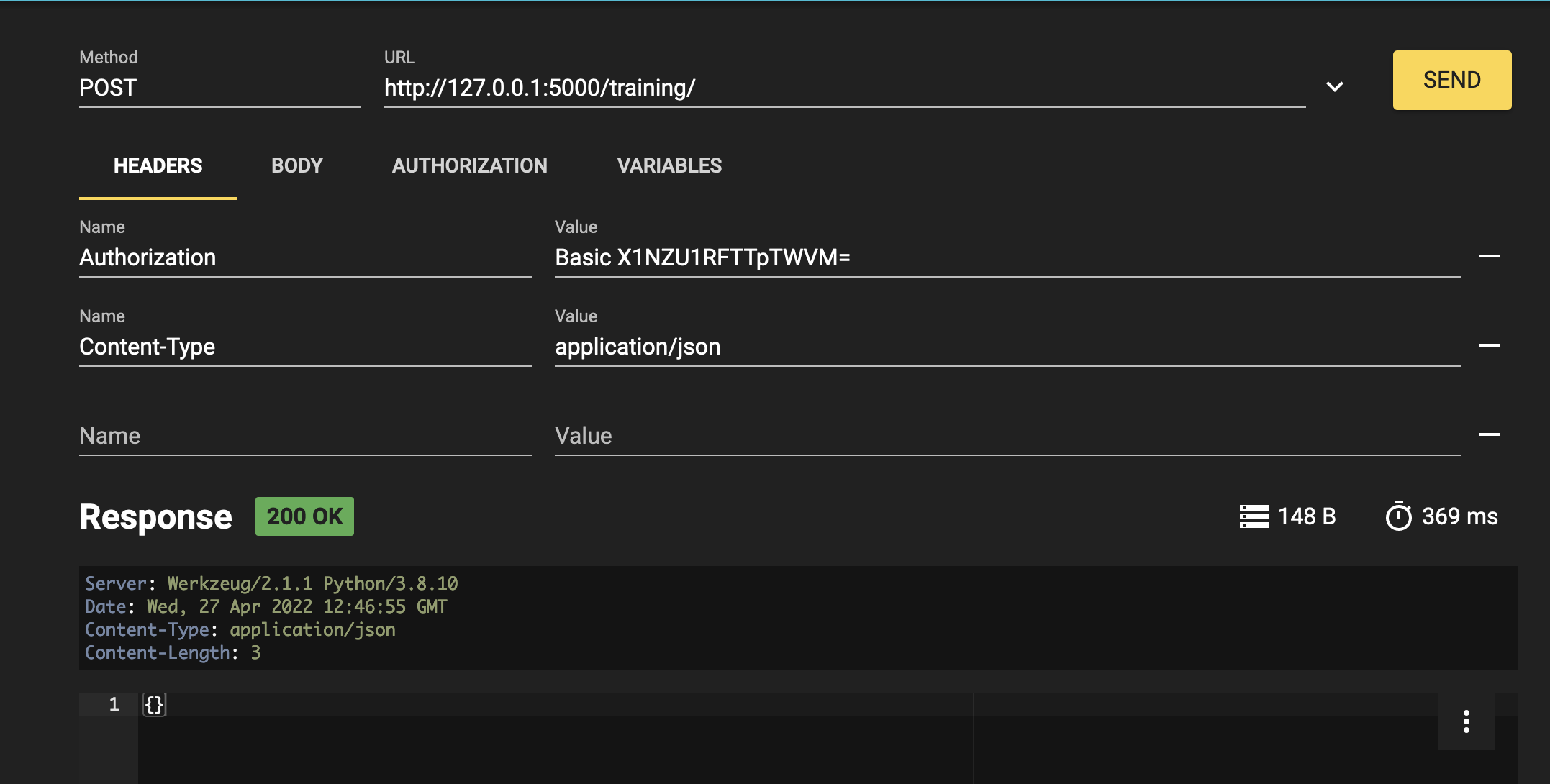
RESTHeaders

The body like this:

{
    "nom":"testN",
    "salle":"testS"
}
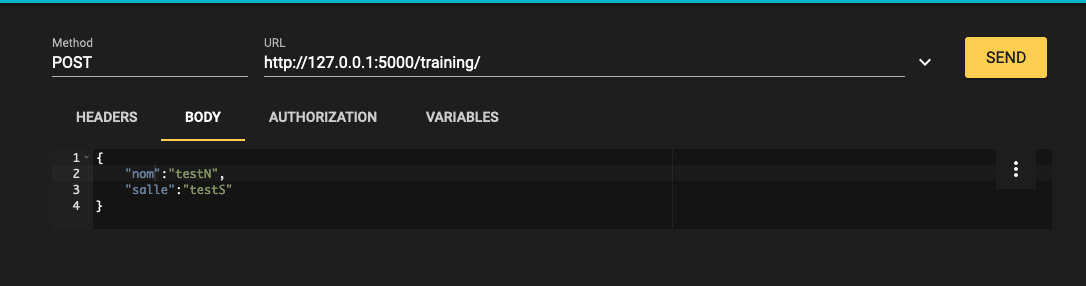
RESTBody

The authorization like this:
Username:

SuperUser

Password:

SYS
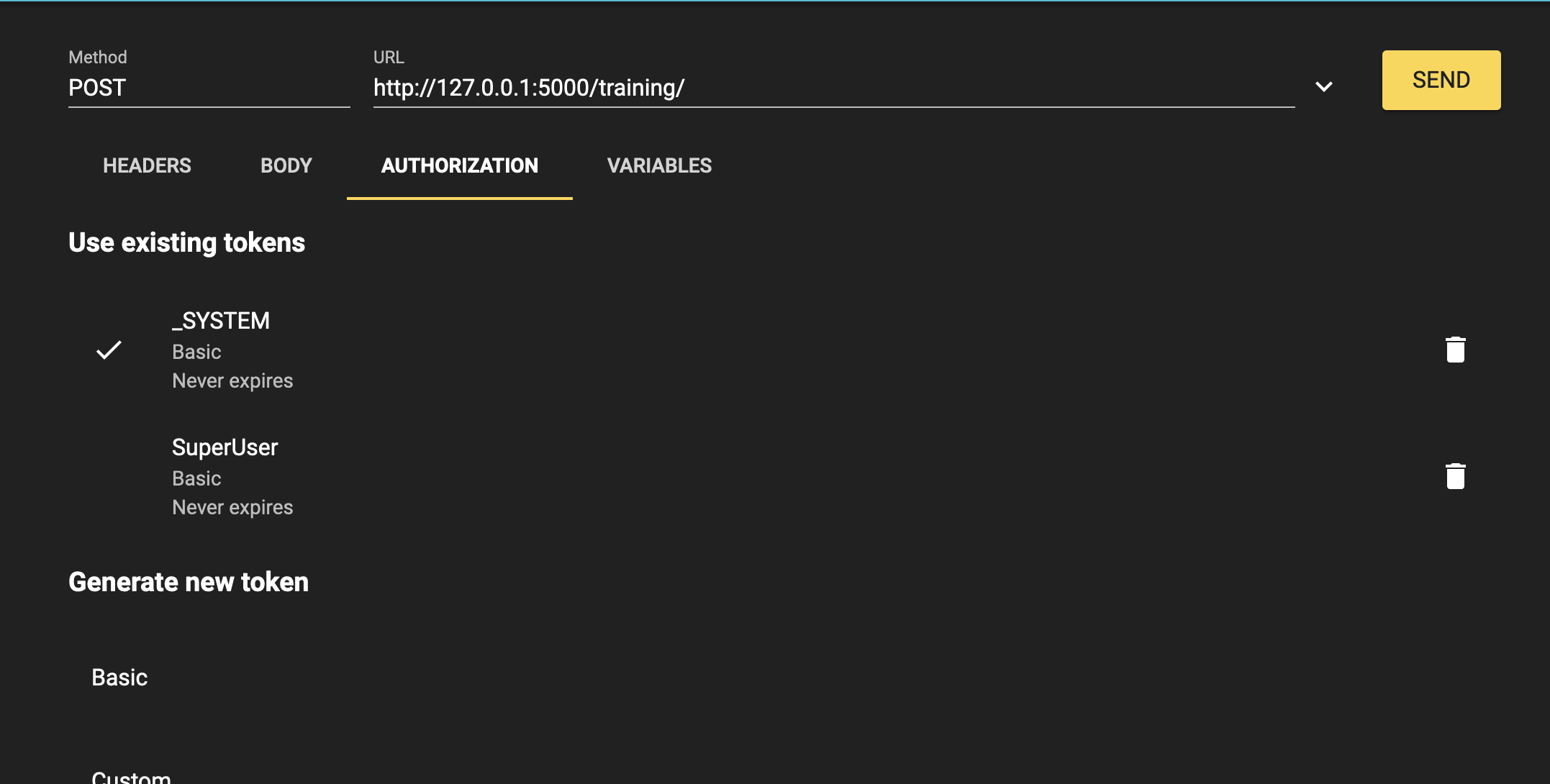
RESTAuthorization

Finally, the results should be something like this: RESTResults
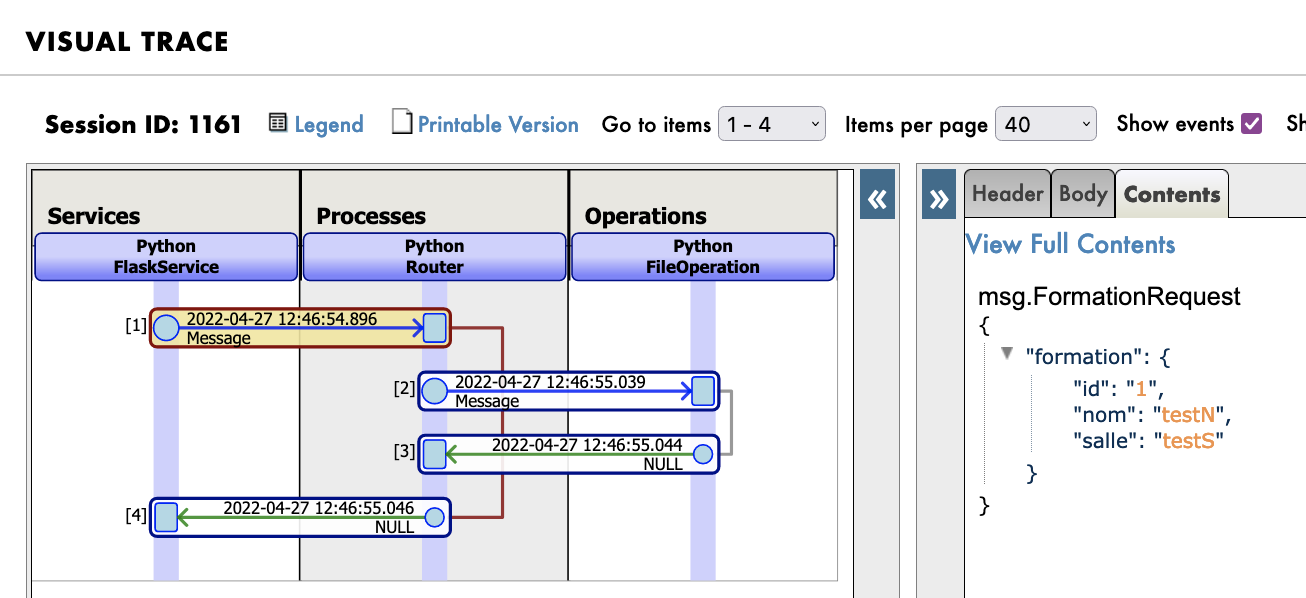
12. Global exercise

Now that we are familliar with all the important concepts of the Iris DataPlatform and its Framework it is time to try ourselves on a global exercise that will make us create a new BS and BP, modify greatly our BO and also explore new concept in Python.

12.1. Instructions

Using this endpoint : https://lucasenard.github.io/Data/patients.json we have to automatically get information about patients and their number of steps. Then, we must calculate the average number of steps per patient before writing it down on a csv file locally.

If needed, it is advised to seek guidance by rereading through the whole formation or the parts needed or by seeking help using the hints below.

Don't forget to register your components to acces them on the management portal.

When everything is done and tested, or if the hints aren't enough to complete the exercise, the solution step-by-step is present to walk us through the whole procedure.

12.2. Hints

In this part we can find hints to do the exercise.
The more you read through a part the more hints you get, it is advised to read only what you need and not all the part every time.

For example you can read How to gather information and How to gather information with request in the bs part and not read the rest.

12.2.1. bs

12.2.1.1. Get information

To get the information from the endpoint it is advised to search for the requests module of python and use json and json.dumps to make it into str to send it in the bp

12.2.1.2. Get information with requests

An online python website or any local python file can be used to use requests and print the output and it's type to go further and understand what we get.

12.2.1.3. Get information with requests and using it

It is advised to create a new message type and object type to hold information and send it to a process to calculate the average.

12.2.1.4. Get information solution

Solution on how to use request to get data and in our case, partially what to do with it.

r = requests.get(https://lucasenard.github.io/Data/patients.json)
data = r.json()
for key,val in data.items():
    ...

Again, in an online python website or any local python file, it is possible to print key, val and their type to understand what can be done with them.
It is advised to store val usign json.dumps(val) and then, after the SendRequest,when you are in the process, use json.loads(request.patient.infos)to get it ( if you have stored the informations of val into patient.infos )

12.2.2. bp

12.2.2.1. Average number of steps and dict

statistics is a native library that can be used to do math.

12.2.2.2. Average number of steps and dict : hint

The native map function in python can allow you to seperate information within a list or a dict for example.

Don't forget to transform the result of map back to a list using the list native function.

12.2.2.3. Average number of steps and dict : with map

Using an online python website or any local python file it is possible to calculate average of a list of lists or a list of dict doing :

l1 = [[0,5],[8,9],[5,10],[3,25]]
l2 = [["info",12],["bidule",9],[3,3],["patient1",90]]
l3 = [{"info1":"7","info2":0},{"info1":"15","info2":0},{"info1":"27","info2":0},{"info1":"7","info2":0}]

#avg of the first columns of the first list (0/8/5/3)
avg_l1_0 = statistics.mean(list(map(lambda x: x[0]),l1))

#avg of the second columns of the first list (5/9/10/25)
avg_l1_1 = statistics.mean(list(map(lambda x: x[1]),l1))

#avg of 12/9/3/90
avg_l2_1 = statistics.mean(list(map(lambda x: x[1]),l2))

#avg of 7/15/27/7
avg_l3_info1 = statistics.mean(list(map(lambda x: int(x["info1"])),l3))

print(avg_l1_0)
print(avg_l1_1)
print(avg_l2_1)
print(avg_l3_info1)

12.2.2.4. Average number of steps and dict : the answer

If your request hold a patient which as an atribute infos which is a json.dumps of a dict of date and number of steps, you can calculate his avergae number of steps using :

statistics.mean(list(map(lambda x: int(x['steps']),json.loads(request.patient.infos))))

12.2.3. bo

It is advised to use something really similar to bo.FileOperation.WriteFormation

Something like bo.FileOperation.WritePatient

12.3. Solutions

12.3.1. obj & msg

In our obj.py we can add :

@dataclass
class Patient:
    name:str = None
    avg:int = None
    infos:str = None

In our msg.py we can add,
for the imports:

from obj import Formation,Training,Patient

for the code:

@dataclass
class PatientRequest(Message):
    patient:Patient = None

We will hold the information in a single obj and we will put the str of the dict out of the get request directly into the infos attribute. The average will be calculated in the Process.

12.3.2. bs

In our bs.py we can add, for the imports:

import requests

for the code:

class PatientService(BusinessService):

    def get_adapter_type():
        """
        Name of the registred adaptor
        """
        return "Ens.InboundAdapter"

    def on_init(self):
        """
        It changes the current target of our API to the one specified in the target attribute of the object,
        or to 'Python.PatientProcess' if no target attribute is specified.
        It changes the current api_url of our API to the one specified in the target attribute of the object,
        or to 'https://lucasenard.github.io/Data/patients.json' if no api_url attribute is specified.
        :return: None
        """
        if not hasattr(self,'target'):
            self.target = 'Python.PatientProcess'
        if not hasattr(self,'api_url'):
            self.api_url = "https://lucasenard.github.io/Data/patients.json"
        return None

    def on_process_input(self,request):
        """
        It makes a request to the API, and for each patient it finds, it creates a Patient object and sends
        it to the target
        
        :param request: The request object that was sent to the service
        :return: None
        """
        req = requests.get(self.api_url)
        if req.status_code == 200:
            dat = req.json()
            for key,val in dat.items():
                patient = Patient()
                patient.name = key
                patient.infos = json.dumps(val)
                msg = PatientRequest()
                msg.patient = patient                
                self.send_request_sync(self.target,msg)
        return None

It is advised to make the target and the api url variables ( see on_init ).
After the requests.getputting the information in the req variable, it is needed to extract the information in json, which will make dat a dict.
Using dat.items it is possible to iterate on the patient and its info directly.
We then create our object patient and put val into a string into the patient.infos variable using json.dumps that transform any json data to string.
Then, we create the request msg which is a msg.PatientRequest to call our process.

Don't forget to register your component : Following 5.4. and using:

register_component("bs","PatientService","/irisdev/app/src/python/",1,"Python.PatientService")

12.3.3. bp

In our bp.py we can add, for the imports:

import statistic

for the code:

class PatientProcess(BusinessProcess):

    def on_request(self, request):
        """
        It takes a request, checks if it's a PatientRequest, and if it is, it calculates the average number
        of steps for the patient and sends the request to the Python.FileOperation service.
        
        :param request: The request object that was sent to the service
        :return: None
        """
        if isinstance(request,PatientRequest):
            request.patient.avg = statistics.mean(list(map(lambda x: int(x['steps']),json.loads(request.patient.infos))))
            self.send_request_sync('Python.FileOperation',request)

        return None

We take the request we just got, and if it is a PatientRequest we calculate the mean of the steps and we send it to our FileOperation. This fills the avg variable of our patient with the right information ( see the hint on the bp for more information )

Don't forget to register your component : Following 5.4. and using:

register_component("bp","PatientProcess","/irisdev/app/src/python/",1,"Python.PatientProcess")

12.3.4. bo

In our bo.py we can add, inside the class FileOperation :

    def write_patient(self, request:PatientRequest):
        """
        It writes the name and average number of steps of a patient in a file
        
        :param request: The request message
        :type request: PatientRequest
        :return: None
        """
        name = ""
        avg = 0
        if request.patient is not None:
            name = request.patient.name
            avg = request.patient.avg
        line = name + " avg nb steps : " + str(avg) +"\n"
        filename = 'Patients.csv'
        self.put_line(filename, line)
        return None

As explained before, it is not needed to register FileOperation again since we did it already before.

12.4. Testing

See 7.4. to add our operation.

See 9.2. to add our service.

Now we can head towards the management portal and do as before. Remember that our new service will execute automatically since we added an InboundAdapter to it.

The same way we checked for the toto.csv we can check the Patients.csv

12.5. Conclusion of the global exercise

Through this exercise it is possible to learn and understand the creation of messages, services, processes and operation.
We discovered how to fecth information in Python and how to execute simple task on our data.

In the github, a solution branch is available with everything already completed.

13. Conclusion

Through this formation, we have created a fully fonctional production using only IrisPython that is able to read lines from a csv file and save the read data into a local txt, the IRIS database and an extern database using a db-api.
We also added a REST service in order to use the POST verb to save new objects.

We have discovered the main elements of InterSystems' interoperability Framework.

We have done so using docker, vscode and InterSystems' IRIS Management Portal.

1
1 791
Article Tani Frankel · May 6, 2020 2m read

While reviewing our documentation for our ^pButtons (in IRIS renamed as ^SystemPerformance) performance monitoring utility, a customer told me: "I understand all of this, but I wish it could be simpler… easier to define profiles, manage them etc.".

After this session I thought it would be a nice exercise to try and provide some easier human interface for this.

The first step in this was to wrap a class-based API to the existing pButtons routine.

I was also able to add some more "features" like showing what profiles are currently running, their time remaining to run, previously running processes and more.

The next step was to add on top of this API, a REST API class.

With this artifact (a pButtons REST API) in hand, one can go ahead and build a modern UI on top of that.

For example -

15
4 1301
Article Robert Cemper · Jan 2, 2022 3m read

Thanks to @Yuri Marx we have seen a very nice example for DB migration from Postgres to IRIS.
My personal problem is the use of DBeaver as a migration tool.
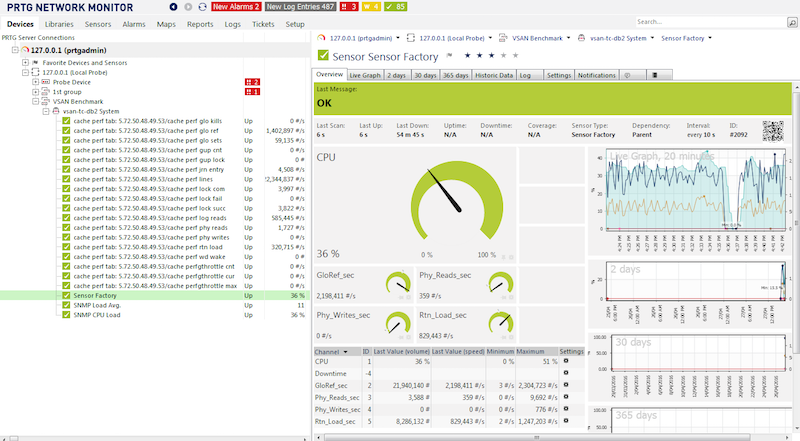
Especially as one of the strengths of IRIS ( and also Caché) before is the availability of the
SQLgateways that allow access to any external Db as long as for them an access usinig 
JDBC or ODBC is available. So I extended the package to demonstrate this.
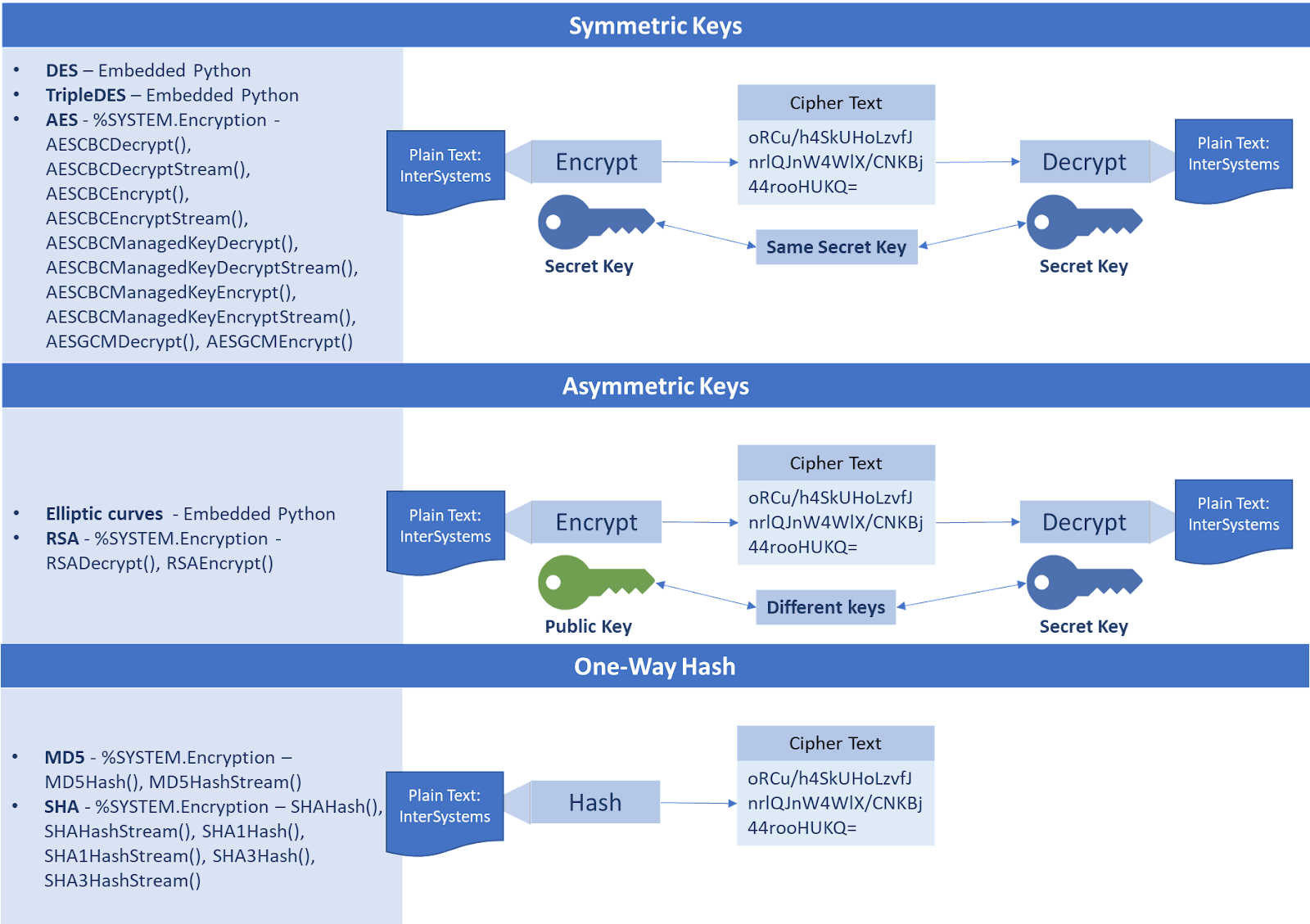
3
2 830
Article Timothy Leavitt · Mar 17, 2021 3m read

I ran into an interesting ObjectScript use case today with a general solution that I wanted to share.

Use case:

I have a JSON array (specifically, in my case, an array of issues from Jira) that I want to aggregate over a few fields - say, category, priority, and issue type. I then want to flatten the aggregates into a simple list with the total for each of the groups. Of course, for the aggregation, it makes sense to use a local array in the form:

agg(category, priority, type) = total

Such that for each record in the input array I can just:

Do $increment(agg(category, priority, type))
10
4 1156
Article Evgeny Shvarov · Jun 13, 2016 1m read

Hi, Community!

Want to share with you one debugging approach from the Russian forum.

Suppose I want to debug the application  and I want it to stop the execution on a particular line.

I add in code this line:

l +d,-d

When I want to start debugging in this line I block d in terminal

USER> l +d

And execute the app.

The app stops on this line and lets me connect to it with Studio debugger.

To release lock I do in terminal

USER> l -d

And what are your debugging practices?

8
1 725
Article Peter Steiwer · Mar 6, 2020 2m read

InterSystems IRIS Business Intelligence allows you to keep your cubes up to date in multiple ways. This article will cover building vs synchronizing. There are also ways to manually keep cubes up to date, but these are very special cases and almost always cubes are kept current by building or synchronizing.

What is Building?

1
0 697
Article Sergey Mikhailenko · Jan 18, 2022 5m read

It is becoming more and more common to see beautiful badges in the README.MD file with useful information about the current project in the repositories of GitHub, GitLab and others. For instance:

imageimage

The project is being developed The quality of the code, which also provides its own badge, which immediately shows the status of code validation of the project. If you insert a line into the README.MD file

 [![Quality Gate Status](https://community.objectscriptquality.com/api/project_badges/measure?project=intersystems_iris_community%2Fappmsw-zpm-shields&metric=alert_status)](https://community.objectscriptquality.com/dashboard?id=intersystems_iris_community%2Fappmsw-zpm-shields)

And in the /.github/workflows/ directory github project the file objectscript-quality.yml, you can see this badge: image

There are different services that grant these nameplates. For example - Shield.io It even executes screen forms, which simplify the creation of links, including for markup written in Markdown image

I have been using a lot of different beautiful and useful nameplates in my projects for a long time.

As the project of the package manager ZPM matures, the requirements for the storage resources for package modules increase too.

It happens more and more often now that I need to know more detailed information, preferably observable at first glance at the first page, without opening the project files. Such data includes:

  • what version of the project is stored in the repository. I need to see that without checking the module.xml file.
  • how that version relates to the one in the public repository. Is it the right time already to update the release or not?...
  • what ports are forwarded out in the settings of the docker file called dockerfile?

All of that is well performed by the shields.io service.

Show the version of the zpm project taken from the file module.xml

image

![Repo-GitHub](https://img.shields.io/badge/dynamic/xml?color=gold&label=GitHub%20module.xml&prefix=ver.&query=%2F%2FVersion&url=https%3A%2F%2Fraw.githubusercontent.com%2Fsergeymi37%2Fzapm%2Fmaster%2Fmodule.xml)

You can complicate the link by adding the ability to click to open the corresponding file module.xml:

[![Repo-GitHub](https://img.shields.io/badge/dynamic/xml?color=gold&label=GitHub%20module.xml&prefix=ver.&query=%2F%2FVersion&url=https%3A%2F%2Fraw.githubusercontent.com%2Fsergeymi37%2Fzapm%2Fmaster%2Fmodule.xml)](https://raw.githubusercontent.com/sergeymi37/zapm/master/module.xml)

Show the version of the zpm project taken from the service

image

![OEX-zapm](https://img.shields.io/badge/dynamic/json?url=https:%2F%2Fpm.community.intersystems.com%2Fpackages%2Fzapm%2F&label=ZPM-pm.community.intersystems.com&query=$.version&color=green&prefix=zapm)

Example of a link with a request for a service:

[![OEX-zapm](https://img.shields.io/badge/dynamic/json?url=https:%2F%2Fpm.community.intersystems.com%2Fpackages%2Fzapm%2F&label=ZPM-pm.community.intersystems.com&query=$.version&color=green&prefix=zapm)](https://pm.community.intersystems.com/packages/zapm)

Show which ports are forwarded in the settings of the docker file called dockerfile

image

 ![Docker-ports](https://img.shields.io/badge/dynamic/yaml?color=blue&label=docker-compose&prefix=ports%20-%20&query=%24.services.iris.ports&url=https%3A%2F%2Fraw.githubusercontent.com%2Fsergeymi37%2Fzapm%2Fmaster%2Fdocker-compose.yml)

For instance of a link with opening a file docker-compose.yml:

[![Docker-ports](https://img.shields.io/badge/dynamic/yaml?color=blue&label=docker-compose&prefix=ports%20-%20&query=%24.services.iris.ports&url=https%3A%2F%2Fraw.githubusercontent.com%2Fsergeymi37%2Fzapm%2Fmaster%2Fdocker-compose.yml)](https://raw.githubusercontent.com/sergeymi37/zapm/master/docker-compose.yml)

However, when it comes to more complex metrics, their combinations, or projects inside a private local network, for those purposes I have decided to bring about my REST service, which shows the version of the ZPM module from the repository file and from the service https://pm.community.intersystems.com/

After installation, you will have a service zpm-shields to which you need to provide access without authentication.

Using these links you can get a svg file that can be inserted into README.MD for instance:

![Repo](http://localhost:52773/zpm-shields/repo/mode?module=https:%2F%2Fgithub.com%2FSergeyMi37%2Fzapm&color=blue)

where the parameter values are: zpm-shields/repo - extaction from the file module.xml version module - link to the repository color - for example #00987

![Registry](http://localhost:52773/zpm-shields/registry/mode?project=appmsw-dbdeploy&color=gold)

where the parameter values are: zpm-shields/registry - getting the version by request from the service project - project name

![Repo+Registry](http://localhost:52773/zpm-shields/both/mode?module=sergeymi37%2Fappmsw-dbdeploy&project=appmsw-dbdeploy&color=FFA07A)

where the parameter values are: zpm-shields/both - extaction from the file module.xml version and getting the version by request from the service project - project name module - link to the repository

My service can also be used for local ZPM resources. To do that you need to utilise the full path of the local repository and private register.

I really like these badges. I think they might come in handy for you too.

4
3 749
Article Murray Oldfield · Jun 17, 2016 2m read

Myself and the other Technology Architects often have to explain to customers and vendors Caché IO requirements and the way that Caché applications will use storage systems. The following tables are useful when explaining typical Caché IO profile and requirements for a transactional database application with customers and vendors.  The original tables were created by Mark Bolinsky.

In future posts I will be discussing more about storage IO so am also posting these tables now as a reference for those articles. 


A list of other posts in this series is here
 

7
2 3092
Article David Loveluck · Aug 27, 2019 28m read

Since Caché 2017 the SQL engine has included new set of statistics. These record the number of times a query is executed and the time it takes to run.

This is a gold mine for anyone monitoring and trying to optimize the performance of an application that includes many SQL statements but it isn’t as easy to access the data as some people want.

This article and the associated sample code explains how to use this information and how to routinely extract a summary of daily statistics and keep a historic record of the SQL performance of your application.

What is recorded?

7
6 1657
Article Peter Steiwer · Nov 26, 2019 3m read

When designing a hierarchy in DeepSee, a child member must have only one parent member. In the case where a child corresponds to two parents, the results can become unreliable. In the case where two similar members exist, their keys must be changed so that they are unique. We will take a look at two examples to see when this happens and how to prevent it.

Example 1

There are a handful of states with a city named Boston. In my sample data, I have records from both Boston, MA and Boston, NY. My dimension is defined as:

1
1 904
Article Murray Oldfield · Nov 29, 2016 18m read

This post provides guidelines for configuration, system sizing and capacity planning when deploying Caché 2015 and later on a VMware ESXi 5.5 and later environment.

I jump right in with recommendations assuming you already have an understanding of VMware vSphere virtualization platform. The recommendations in this guide are not specific to any particular hardware or site specific implementation, and are not intended as a fully comprehensive guide to planning and configuring a vSphere deployment -- rather this is a check list of best practice configuration choices you can make. I expect that the recommendations will be evaluated for a specific site by your expert VMware implementation team.


A list of other posts in the InterSystems Data Platforms and performance series is here.

Note: This post was updated on 3 Jan 2017 to highlight that VM memory reservations must be set for production database instances to guarantee memory is available for Caché and there will be no swapping or ballooning which will negatively impact database performance. See the section below Memory for more details.


References

The information here is based on experience and reviewing publicly available VMware knowledge base articles and VMware documents for example Performance Best Practices for VMware vSphere and mapping to requirements of Caché database deployments.


Are InterSystems' products supported on ESXi?

It is InterSystems policy and procedure to verify and release InterSystems’ products against processor types and operating systems including when operating systems are virtualised. For specifics see InterSystems support policy and Release Information.

For example: Caché 2016.1 running on Red Hat 7.2 operating system on ESXi on x86 hosts is supported.

Note: If you do not write your own applications you must also check your application vendors support policy.

Supported Hardware

VMware virtualization works well for Caché when used with current server and storage components. Caché using VMware virtualization has been deployed succesfully at customer sites and has been proven in benchmarks for performance and scalability. There is no significant performance impact using VMware virtualization on properly configured storage, network and servers with later model Intel Xeon processors, specifically: Intel Xeon 5500, 5600, 7500, E7-series and E5-series (including the latest E5 v4).

Generally Caché and applications are installed and configured on the guest operating system in the same way as for the same operating system on bare-metal installations.

It is the customers responsibility to check the VMware compatibility guide for the specific servers and storage being used.


Virtualised architecture

I see VMware commonly used in two standard configurations with Caché applications:

  • Where primary production database operating system instances are on a ‘bare-metal’ cluster, and VMware is only used for additional production and non-production instances such as web servers, printing, test, training and so on.
  • Where ALL operating system instances, including primary production instances are virtualized.

This post can be used as a guide for either scenario, however the focus is on the second scenario where all operating system instances including production are virtualised. The following diagram shows a typical physical server set up for that configuration.


<img alt=""src="https://community.intersystems.com/sites/default/files/inline/images/cachebestpractice2016_201.png">

Figure 1. Simple virtualised Caché architecture


Figure 1 shows a common deployment with a minimum of three physical host servers to provide N+1 capacity and availability with host servers in a VMware HA cluster. Additional physical servers may be added to the cluster to scale resources. Additional physical servers may also be required for backup/restore media management and disaster recovery.


For recommendations specific to VMware vSAN, VMware's Hyper-Converged Infrastructure solution, see the following post: Part 8 Hyper-Converged Infrastructure Capacity and Performance Planning. Most of the recommendations in this post can be applied to vSAN -- with the exception of some of the obvious differences in the Storage section below.


VMWare versions

The following table shows key recommendations for Caché 2015 and later:

<img alt=""src="https://community.intersystems.com/sites/default/files/inline/images/cachebestpractice2016_202.png">

vSphere is a suite of products including vCenter Server that allows centralised system management of hosts and virtual machines via the vSphere client.

This post assumes that vSphere will be used, not the "free" ESXi Hypervisor only version.

VMware has several licensing models; ultimately choice of version is based on what best suits your current and future infrastructure planning.

I generally recommend the "Enterprise" edition for its added features such as Dynamic Resource Scheduling (DRS) for more efficient hardware utilization and Storage APIs for storage array integration (snapshot backups). The VMware web site shows edition comparisons.

There are also Advanced Kits that allow bundling of vCenter Server and CPU licenses for vSphere. Kits have limitations for upgrades so are usually only recommended for smaller sites that do not expect growth.


ESXi Host BIOS settings

The ESXi host is the physical server. Before configuring BIOS you should:

  • Check with the hardware vendor that the server is running the latest BIOS
  • Check whether there are any server/CPU model specific BIOS settings for VMware.

Default settings for server BIOS may not be optimal for VMware. The following settings can be used to optimize the physical host servers to get best performance. Not all settings in the following table are available on all vendors’ servers.

<img alt=""src="https://community.intersystems.com/sites/default/files/inline/images/cachebestpractice2016_203.png">


Memory

The following key rules should be considered for memory allocation:

<img alt=""src="https://community.intersystems.com/sites/default/files/inline/images/cachebestpractice2016_210.png">

When running multiple Caché instances or other applications on a single physical host VMware has several technologies for efficient memory management such as transparent page sharing (TPS), ballooning, swap, and memory compression. For example when multiple OS instances are running on the same host TPS allows overcommitment of memory without performance degradation by eliminating redundant copies of pages in memory, which allows virtual machines to run with less memory than on a physical machine.

Note: VMware Tools must be installed in the operating system to take advantage of these and many other features of VMware.

Although these features exist to allow for overcommitting memory, the recommendation is to always start by sizing vRAM of all VMs to fit within the physical memory available. Especially important in production environments is to carefully consider the impact of overcommitting memory and overcommit only after collecting data to determine the amount of overcommitment possible. To determine the effectiveness of memory sharing and the degree of acceptable overcommitment for a given Caché instance, run the workload and use Vmware commands resxtop or esxtop to observe the actual savings.

A good reference is to go back and look at the fourth post in this series on memory when planning your Caché instance memory requirements. Especially the section "VMware Virtualisation considerations" where I point out:

Set VMware memory reservation on production systems.

You want tomust avoid any swapping for shared memory so set your production database VMs memory reservation to at least the size of Caché shared memory plus memory for Caché processes and operating system and kernel services. If in doubtReserve the full production database VMs memory (100% reservation) to guarantee memory is available for your Caché instance so there will be no swapping or ballooning which will negatively impact database performance.

Notes: Large memory reservations will impact vMotion operations so it is important to take this into consideration when designing the vMotion/management network. A virtual machine can only be live migrated, or started on another host with Vmware HA if the target host has free physical memory greater than or equal to the size of the reservation. This is especially important for production Caché VMs. For example pay particular attention to HA Admission Control policies.

Ensure capacity planning allows for distribution of VMs in event of HA failover.

For non-production environments (test, train, etc) more aggressive memory overcommitment is possible, however do not over commit Caché shared memory, instead limit shared memory in the Caché instance by having less global buffers. 

Current Intel processor architecture has a NUMA topology. Processors have their own local memory and can access memory on other processors in the same host. Not surprisingly accessing local memory has lower latency than remote. For a discussion of CPU check out the third post in this series including a discussion about NUMA in the comments section.

As noted in the BIOS section above a strategy for optimal performance is to ideally size VMs only up to maximum of number of cores and memory on a single processor. For example if your capacity planning shows your biggest production Caché database VM will be 14 vCPUs and 112 GB memory then consider whether a a cluster of servers with 2x E5-2680 v4 (14-core processor) and 256 GB memory is a good fit.

Ideally size VMs to keep memory local to a NUMA node. But dont get too hung up on this.

If you need a "Monster VM" bigger than a NUMA node that is OK, VMware will manage NUMA for optimal performance. It also important to right-size your VMs and not allocate more resources than are needed (see below).


CPU

The following key rules should be considered for virtual CPU allocation:

<img alt=""src="https://community.intersystems.com/sites/default/files/inline/images/vmware_best_practice_cpu_20171017.png">

Production Caché systems should be sized based on benchmarks and measurements at live customer sites. For production systems use a strategy of initially sizing the system the same as bare-metal CPU cores and as per best practice monitoring to see if virtual CPUS (vCPUs) can be reduced.

Hyperthreading and capacity planning

A good starting point for sizing production database VMs based on your rules for physical servers is to calculate physical server CPU requirements for the target processor with hyper-threading enabled then simply make the transaltaion:

One physical CPU (includes hyperthreading) = One vCPU (includes hyperthreading).

A common misconception is that hyper-threading somehow doubles vCPU capacity. This is NOT true for physical servers or for logical vCPUs. Hyperthreading on a bare-metal server may give a 30% uplift in performance over the same server without hyperthreading, but this can also be variable depending on the application.

For initial sizing assume is that the vCPU has full core dedication. For example; if you have a 32-core (2x 16-core) E5-2683 V4 server – size for a total of up to 32 vCPU capacity knowing there may be available headroom. This configuration assumes hyper-threading is enabled at the host level. VMware will manage the scheduling between all the applications and VMs on the host. Once you have spent time monitoring the appliaction, operating system and VMware performance during peak processing times you can decide if higher consolidation is possible.

Licencing

In vSphere you can configure a VM with a certain number of sockets or cores. For example, if you have a dual-processor VM (2 vCPUs), it can be configured as two CPU sockets, or as a single socket with two CPU cores. From an execution standpoint it does not make much of a difference because the hypervisor will ultimately decide whether the VM executes on one or two physical sockets. However, specifying that the dual-CPU VM really has two cores instead of two sockets could make a difference for software licenses. Note: Caché license counts the cores (not threads).


Storage

This section applies to the more traditional storage model using a shared storage array. For vSAN recommendations also see the following post: Part 8 Hyper-Converged Infrastructure Capacity and Performance Planning

The following key rules should be considered for storage:

<img alt=""src="https://community.intersystems.com/sites/default/files/inline/images/cachebestpractice2016_205_1.png">

Size storage for performance

Bottlenecks in storage is one of the most common problems affecting Caché system performance, the same is true for VMware vSphere configurations. The most common problem is sizing storage simply for GB capacity, rather than allocating a high enough number of spindles to support expected IOPS. Storage problems can be even more severe in VMware because more hosts can be accessing the same storage over the same physical connections.

VMware Storage overview

VMware storage virtualization can be categorized into three layers, for example:

  • The storage array is the bottom layer, consisting of physical disks presented as logical disks (storage array volumes or LUNs) to the layer above.
  • The next layer is the virtual environment occupied by vSphere. Storage array LUNs are presented to ESXi hosts as datastores and are formatted as VMFS volumes.
  • Virtual machines are made up of files in the datastore and include virtual disks are presented to the guest operating system as disks that can be partitioned and used in file systems.

VMware offers two choices for managing disk access in a virtual machine—VMware Virtual Machine File System (VMFS) and raw device mapping (RDM), both offer similar performance. For simple management VMware generally recommends VMFS, but there may be situations where RDMs are required. As a general recommendation – unless there is a particular reason to use RDM choose VMFS, new development by VMware is directed to VMFS and not RDM.

###Virtual Machine File System (VMFS)

VMFS is a file system developed by VMware that is dedicated and optimized for clustered virtual environments (allows read/write access from several hosts) and the storage of large files. The structure of VMFS makes it possible to store VM files in a single folder, simplifying VM administration. VMFS also enables VMware infrastructure services such as vMotion, DRS and VMware HA.

Operating Systems, applications, and data are stored in virtual disk files (.vmdk files). vmdk files are stored in the Datastore. A single VM can be made up of multiple vmdk files spread over several datastores. As the production VM in the diagram below shows a VM can include storage spread over several data stores. For production systems best performance is achieved with one vmdk file per LUN, for non-production systems (test, training etc) multiple VMs vmdk files can share a datastore and a LUN.

While vSphere 5.5 has a maximum VMFS volume size of 64TB and VMDK size of 62TB when deploying Caché typically multiple VMFS volumes mapped to LUNs on separate disk groups are used to separate IO patterns and improve performance. For example random or sequential IO disk groups or to separate production IO from IO from other environments.

The following diagram shows an overview of an example VMware VMFS storage used with Caché:


Figure 2. Example Caché storage on VMFS


RDM

RDM allows management and access of raw SCSI disks or LUNs as VMFS files. An RDM is a special file on a VMFS volume that acts as a proxy for a raw device. VMFS is recommended for most virtual disk storage, but raw disks might be desirable in some cases. RDM is only available for Fibre Channel or iSCSI storage.

VMware vStorage APIs for Array Integration (VAAI)

For the best storage performance, customers should consider using VAAI-capable storage hardware. VAAI can improve the performance in several areas including virtual machine provisioning and of thin-provisioned virtual disks. VAAI may be available as a firmware update from the array vendor for older arrays.

Virtual Disk Types

ESXi supports multiple virtual disk types:

Thick Provisioned – where space is allocated at creation. There are further types:

  • Eager Zeroed – writes 0’s to the entire drive. This increases the time it takes to create the disk, but results in the best performance, even on the first write to each block.
  • Lazy Zeroed – writes 0’s as each block is first written to. Lazy zero results in a shorter creation time, but reduced performance the first time a block is written to. Subsequent writes, however, have the same performance as on eager-zeroed thick disks.

Thin Provisioned – where space is allocated and zeroed upon write. There is a higher I/O cost (similar to that of lazy-zeroed thick disks) during the first write to an unwritten file block, but on subsequent writes thin-provisioned disks have the same performance as eager-zeroed thick disks

In all disk types VAAI can improve performance by offloading operations to the storage array. Some arrays also support thin provisioning at the array level, do not thin provision ESXi disks on thin provisioned array storage as there can be conflicts in provisioning and management.

Other Notes

As noted above for best practice use the same strategies as bare-metal configurations; production storage may be separated at the array level into several disk groups:

  • Random access for Caché production databases
  • Sequential access for backups and journals, but also a place for other non-production storage such as test, train, and so on

Remember that a datastore is an abstraction of the storage tier and, therefore, it is a logical representation not a physical representation of the storage. Creating a dedicated datastore to isolate a particular I/O workload (whether journal or database files), without isolating the physical storage layer as well, does not have the desired effect on performance.

Although performance is key, choice of shared storage depends more on existing or planned infrastructure at site than impact of VMware. As with bare-metal implementations FC SAN is the best performing and is recommended. For FC 8Gbps adapters are the recommended minimum. iSCSI storage is only supported if appropriate network infrastructure is in place, including; minimum 10Gb Ethernet and jumbo frames (MTU 9000) must be supported on all components in the network between server and storage with separation from other traffic.

Use multiple VMware Paravirtual SCSI (PVSCSI) controllers for the database virtual machines or virtual machines with high I/O load. PVSCSI can provide some significant benefits by increasing overall storage throughput while reducing CPU utilization. The use of multiple PVSCSI controllers allows the execution of several parallel I/O operations inside the guest operating system. It is also recommended to separate journal I/O traffic from the database I/O traffic through separate virtual SCSI controllers. As a best practice, you can use one controller for the operating system and swap, another controller for journals, and one or more additional controllers for database data files (depending on the number and size of the database data files).

Aligning file system partitions is a well-known storage best practice for database workloads. Partition alignment on both physical machines and VMware VMFS partitions prevents performance I/O degradation caused by I/O crossing track boundaries. VMware test results show that aligning VMFS partitions to 64KB track boundaries results in reduced latency and increased throughput. VMFS partitions created using vCenter are aligned on 64KB boundaries as recommended by storage and operating system vendors.


Networking

The following key rules should be considered for networking:

<img alt=""src="https://community.intersystems.com/sites/default/files/inline/images/cachebestpractice2016_211_1.png">

As noted above VMXNET adapaters have better capabilities than the default E1000 adapter. VMXNET3 allows 10Gb and uses less CPU where as E1000 is only 1Gb. If there is only 1 gigabit network connections between hosts there is not a lot of difference for client to VM communication. However with VMXNET3 it will allow 10Gb between VMs on the same host, which does make a difference especially in multi-tier deployments or where there is high network IO requirements between instances. This feature should also be taken into consideration when planning affinity and antiaffinity DRS rules to keep VMs on the same or separate virtual switches.

The E1000 use universal drivers that can be used in Windows or Linux. Once VMware Tools is installed on the guest operating system VMXNET virtual adapters can be installed.

The following diagram shows a typical small server configuration with four physical NIC ports, two ports have been configured within VMware for infrastructure traffic: dvSwitch0 for Management and vMotion, and two ports for application use by VMs. NIC teaming and load balancing is used for best throughput and HA.


Figure 3. A typical small server configuration with four physical NIC ports.


Guest Operating Systems

The following are recommended:

<img alt=""src="https://community.intersystems.com/sites/default/files/inline/images/cachebestpractice2016_208.png">

It is very important to load VMware tools in to all VM operating systems and keep the tools current.

VMware Tools is a suite of utilities that enhances the performance of the virtual machine's guest operating system and improves management of the virtual machine. Without VMware Tools installed in your guest operating system, guest performance lacks important functionality.

Its vital that the time is set correctly on all ESXi hosts - it ends up affecting the Guest VMs. The default setting for the VMs is not to sync the guest time with the host - but at certain times the guest still do sync their time with the host and if the time is out has been known to cause major issues. VMware recommends using NTP instead of VMware Tools periodic time synchronization. NTP is an industry standard and ensures accurate timekeeping in your guest. It may be necessary to open the firewall (UDP 123) to allow NTP traffic.


DNS Configuration

If your DNS server is hosted on virtualized infrastructure and becomes unavailable, it prevents vCenter from resolving host names, making the virtual environment unmanageable -- however the virtual machines themselves keep operating without problem.

<img alt=""src="https://community.intersystems.com/sites/default/files/inline/images/cachebestpractice2016_209.png">


High Availability

High availability is provided by features such as VMware vMotion, VMware Distributed Resource Scheduler (DRS) and VMware High Availability (HA). Caché Database mirroring can also be used to increase uptime.

It is important that Caché production systems are designed with n+1 physical hosts. There must be enough resources (e.g. CPU and Memory) for all the VMs to run on remaining hosts in the event of a single host failure. In the event of server failure if VMware cannot allocate enough CPU and memory resources on the remaining server VMware HA will not restart VMs on the remaining servers.

vMotion

vMotion can be used with Caché. vMotion allows migration of a functioning VM from one ESXi host server to another in a fully transparent manner. The OS and applications such as Caché running in the VM have no service interruption.

When migrating using vMotion, only the status and memory of the VM—with its configuration—moves. The virtual disk does not need to move; it stays in the same shared-storage location. Once the VM has migrated, it is operating on the new physical host.

vMotion can function only with a shared storage architecture (such as Shared SAS array, FC SAN or iSCSI). As Caché is usually configured to use a large amount of shared memory it is important to have adequare network capacity available to vMotion, a 1Gb nework may be OK, however higher bandwidth may be required or multi-NIC vMotion can be configured.

DRS

Distributed Resource Scheduler (DRS) is a method of automating the use of vMotion in a production environment by sharing the workload among different host servers in a cluster. DRS also presents the ability to implement QoS for a VM instance to protect resources for Production VMs by stopping non-production VMs over using resources. DRS collects information about the use of the cluster’s host servers and optimize resources by distributing the VMs’ workload among the cluster’s different servers. This migration can be performed automatically or manually.

Caché Database Mirror

For mission critical tier-1 Caché database application instances requiring the highest availability consider also using InterSystems synchronous database mirroring. Additional advantages of also using mirroring include:

  • Separate copies of up-to-date data.
  • Failover in seconds (faster than restarting a VM then operating System then recovering Caché).
  • Failover in case of application/Caché failure (not detected by VMware).

vCenter Appliance

The vCenter Server Appliance is a preconfigured Linux-based virtual machine optimized for running vCenter Server and associated services. I have been recommending sites with small clusters to use the VMware vCenter Server Appliance as an alternative to installing vCenter Server on a Windows VM. In vSphere 6.5 the appliance is recommended for all deployments.


Summary

This post is a rundown of key best practices you should consider when deploying Caché on VMware. Most of these best practices are not unique to Caché but can be applied to other tier-1 business critical deployments on VMware.

If you have any questions please let me know via the comments below.

1
6 7256
Article Daniel Kutac · Aug 10, 2016 22m read

Created by Daniel Kutac, Sales Engineer, InterSystems

Warning: if you get confused by URLs used: the original series used screens from machine called dk-gs2016. The new screenshots are taken from a different machine. You can safely treat url WIN-U9J96QBJSAG as if it was dk-gs2016.

Part 2. Authorization server, OpenID Connect server

12
3 5695
Article Eduard Lebedyuk · Nov 19, 2020 3m read

In this article, we will run an InterSystems IRIS cluster using docker and Merge CPF files - a new feature allowing you to configure servers with ease.

On UNIX® and Linux, you can modify the default iris.cpf using a declarative CPF merge file. A merge file is a partial CPF that sets the desired values for any number of parameters upon instance startup. The CPF merge operation works only once for each instance.

Our cluster architecture is very simple, it would consist of one Node1 (master node) and two Data Nodes (check all available roles). Unfortunately, docker-compose cannot deploy to several servers (although it can deploy to remote hosts), so this is useful for local development of sharding-aware data models,  tests, and such. For a productive InterSystems IRIS Cluster deployment, you should use either ICM or IKO.

3
1 763
Article Timothy Leavitt · Jun 4, 2020 3m read

Over the past year or so, my team (Application Services at InterSystems - tasked with building and maintaining many of our internal applications, and providing tools and best practices for other departmental applications) has embarked on a journey toward building Angular/REST-based user interfaces to existing applications originally built using CSP and/or Zen. This has presented an interesting challenge that may be familiar to many of you - building out new REST APIs to existing data models and business logic.

34
6 1763