#Best Practices

0 Followers · 298 Posts

Best Practices recommendations on how to develop, test, deploy and manage solutions on InterSystems Data Platforms better. 

InterSystems staff + admins Hide everywhere
Hidden post for admin
Article Mark Bolinsky · Feb 12, 2019 32m read

The Amazon Web Services (AWS) Cloud provides a broad set of infrastructure services, such as compute resources, storage options, and networking that are delivered as a utility: on-demand, available in seconds, with pay-as-you-go pricing. New services can be provisioned quickly, without upfront capital expense. This allows enterprises, start-ups, small and medium-sized businesses, and customers in the public sector to access the building blocks they need to respond quickly to changing business requirements.

Updated: 10-Jan, 2023 

3
12 6954
Article Evgeny Shvarov · Mar 14, 2019 5m read

Hi Community!

I think everyone keeps the source code of the project in the repository nowadays: Github, GitLab, bitbucket, etc. Same for InterSystems IRIS projects  check any on Open Exchange.

What do we do every time when start or continue working with a certain repository with InterSystems Data Platform?

We need a local InterSystems IRIS machine, have the environment for the project set up and the source code imported.

So every developer performs the following:

  1. Check out the code from repo
  2. Install/Run local IRIS installation
  3. Create a new namespace/database for a project
  4. Import the code into this new namespace
  5. Setup all the rest environment
  6. Start/continue coding the project 

If you dockerize your repository this steps line could be shortened to this 3 steps:

  1. Check out the code from repo
  2. Run docker-compose build 
  3. Start/continue coding the project 

Profit - no any hands-on for 3-4-5 steps which could take minutes and bring head ache sometime.

You can dockerize (almost) any your InterSystems repo with a few following steps. Let’s go!

10
9 1899
Article Benjamin De Boe · Sep 13, 2022 8m read

In the vast and varied SQL database market, InterSystems IRIS stands out as a platform that goes way beyond just SQL, offering a seamless multimodel experience and supporting a rich set of development paradigms. Especially the advanced Object-Relational engine has helped organizations use the best-fit development approach for each facet of their data-intensive workloads, for example ingesting data through Objects and simultaneously querying it through SQL. Persistent Classes correspond to SQL tables, their properties to table columns and business logic is easily accessed using User-Defined Functions or Stored Procedures. In this article, we'll zoom in on a little bit of the magic just below the surface, and discuss how it may affect your development and deployment practices. This is an area of the product where we have plans to evolve and improve, so please don't hesitate to share your views and experiences using the comments section below.

6
0 1139
Article Sean McKenna · Aug 26, 2016 8m read

Enterprise Monitor is a component of Ensemble and can help organizations monitor multiple productions running on different namespaces within the same instance or namespaces running on multiple instances.

Documentation can be found at:

http://docs.intersystems.com/ens20161/csp/docbook/DocBook.UI.Page.cls?KEY=EMONITOR_all#EMONITOR_enterprise

In Ensemble 2016.1 there were changes made to make this utility work with HealthShare environments.

This article will:

  • Show how to set up Enterprise Monitor for HealthShare sites
  • Show some features of Enterprise Monitor
  • Show some features of Enterprise Message Viewer

For this article, I used the following version of HealthShare:

Cache for Windows (x86-64) 2016.1 (Build 656U) Fri Mar 11 2016 17:42:42 EST [HealthShare Modules:Core:14.02.2415 + Linkage Engine:14.02.2415 + Patient Index:14.02.2415 + Clinical Viewer:14.02.2415 + Active Analytics:14.02.2415]

2
0 1539
Article Henry Pereira · Dec 1, 2021 5m read

freepik- freepik.com First of all, what is data anonymization?

According to Wikipedia:

Data anonymization is a type of information sanitization whose intent is privacy protection. It is the process of removing personally identifiable information from data sets, so that the people whom the data describe remain anonymous.

In other words, the data anonymization is a process that retains the data but keeps the source anonymous. Depending on the adopted anonymization technique the data is redacted, masked or substituted.

And that is the purpose of iris-Disguise, to provide a set of anonymization tools.

You can use in two different ways, by method execution or specify your anonymization strategy inside the persistent class definition itself.

The current version of iris-Disguise offers 6 strategies to anonymize data:

  • Destruction
  • Scramble
  • Shuffling
  • Partial Masking
  • Randomization
  • Faking

Let me explain each strategy, I will show a method execution with an example and as mentioned, I'll also show how to apply inside the persistent class definition. To use iris-Disguise in this way you need to "wear a disguise glasses". In the persistent class, you can extent the dc.Disguise.Glasses class and change any property with the data type with the strategy of your choice. After that, at any moment, just call the DisguiseProcess method on the class. All the values will be replaced using the strategy of the data type.

So buckle up and let's go.

Destruction

This strategy will replace a entire column with a word ('CONFIDENTIAL' is the default).

Do ##class(dc.Disguise.Strategy).Destruction("classname", "propertyname", "Word to replace")

The third parameter is optional. If not provided, the word 'CONFIDENTIAL' will be used.

Class packageSample.FictionalCharacter Extends (%Persistent, dc.Disguise.Glasses)
{
Property Name As dc.Disguise.DataTypes.String(FieldStrategy = "DESTRUCTION");
}
Do ##class(packageSample.FictionalCharacter).DisguiseProcess()

1

Scramble

This strategy will scrambling all characters in a property.

Do ##class(dc.Disguise.Strategy).Scramble("classname", "propertyname")

Class packageSample.FictionalCharacter Extends (%Persistent, dc.Disguise.Glasses)
{
Property Name As dc.Disguise.DataTypes.String(FieldStrategy = "SCRAMBLE");
}
Do ##class(packageSample.FictionalCharacter).DisguiseProcess()

scramble

Shuffling

Shuffling will rearrange all values in a given property. Is not a masking strategy because it works "verticaly". This strategy is useful for relatinship because referential integrity will be kept. Until this version, this method only works on one-to-many relationships.

Do ##class(dc.Disguise.Strategy).Shuffling("classname", "propertyname")

Class packageSample.FictionalCharacter Extends (%Persistent, dc.Disguise.Glasses)
{
Property Name As %String;
Property Weapon As dc.Disguise.DataTypes.String(FieldStrategy = "SHUFFLING");
}
Do ##class(packageSample.FictionalCharacter).DisguiseProcess()

shuffling

Partial Masking

This strategy will obfuscate the part of data, a credit card number for example, can be replaced by 456X XXXX XXXX X783

Do ##class(dc.Disguise.Strategy).PartialMasking("classname", "propertyname", prefixLength, suffixLength, "mask")

PrefixLength, suffixLength and mask are optional. If not provided, the default values will be used.

Class packageSample.FictionalCharacter Extends (%Persistent, dc.Disguise.Glasses)
{
Property Name As %String;
Property SSN As dc.Disguise.DataTypes.PartialMaskString(prefixLength = 2, suffixLength = 2);
Property Weapon As %String;
}
Do ##class(packageSample.FictionalCharacter).DisguiseProcess()

partialmsk

Randomization

This strategy will generate purely random data. There are three types of randomization: integer, numeric and date.

Do ##class(dc.Disguise.Strategy).Randomization("classname", "propertyname", "type", from, to)

type: "integer", "numeric" or "date". "integer" is the default.

from and to are optional. Is to define the range of randomization. For integer type the default range is 1 to 100. For numeric type the default range is 1.00 to 100.00.

Class packageSample.FictionalCharacter Extends (%Persistent, dc.Disguise.Glasses)
{
Property Name As %String;
Property Age As dc.Disguise.DataTypes.RandomInteger(MINVAL = 10, MAXVAL = 25);
Property SSN As %String;
Property Weapon As %String;
}
Do ##class(packageSample.FictionalCharacter).DisguiseProcess()

rand

Fake Data

The idea of Faking is to replace data with random but plausible values. iris-Disguise provides a small set of methods to generate fake data.

Do ##class(dc.Disguise.Strategy).Fake("classname", "propertyname", "type")

type: "firstname", "lastname", "fullname", "company", "country", "city" and "email"

Class packageSample.FictionalCharacter Extends (%Persistent, dc.Disguise.Glasses)
{
Property Name As dc.Disguise.DataTypes.FakeString(FieldStrategy = "FIRSTNAME");
Property Age As %Integer;
Property SSN As %String;
Property Weapon As %String;
}
Do ##class(packageSample.FictionalCharacter).DisguiseProcess()

fake

### I want to hear from you!

Feedback and ideas are welcome!

Let me know what you think of this tool, how it fits your needs and what features are missing.

And I want to say a very special thanks to @Henrique Dias, @Oliver Wilms, @Robert Cemper, @Yuri Marx and @Evgeny Shvarov that commented, reviewed, suggested and made rich discussions which inspired me to create and improve the iris-Disguise.

12
3 1503
Article Robert Cemper · May 22, 2022 1m read

I'm sure you have met this situation:

  • There is a bug in a System that you can't reproduce yourself locally
  • You need to run a few lines in the affected instance
  • You get full access to System Management Portal
  • But there is just  no terminal, nor console, nor access with Studio, Atelier or VSCode
  • How to run your few lines for testing ???
3
5 1074
Article Yuri Marx · Sep 26, 2022 9m read

Visual Studio Code (VSCode) is the most popular code editor on the market. It was created by Microsoft and distributed as a free IDE. VSCode supports dozens of programming languages, including ObjectScript, Until 2018, Atelier (based on Eclipse). It was considered as one of the main options to develop InterSystems products. However, in December 2018, when the InterSystems Developer Community launched support for VSCode, a relevant portion of InterSystems professionals started actually using this editor and have been doing it ever since, especially the developers working with new technologies

4
6 2281
Article Murray Oldfield · Nov 14, 2019 6m read

Released with no formal announcement in IRIS preview release 2019.4 is the /api/monitor service exposing IRIS metrics in Prometheus format. Big news for anyone wanting to use IRIS metrics as part of their monitoring and alerting solution. The API is a component of the new IRIS System Alerting and Monitoring (SAM) solution that will be released in an upcoming version of IRIS.

However, you do not have to wait for SAM to start planning and trialling this API to monitor your IRIS instances. In future posts, I will dig deeper into the metrics available and what they mean and provide example interactive dashboards. But first, let me start with some background and a few questions and answers.

IRIS (and Caché) is always collecting dozens of metrics about itself and the platform it is running on. There have always been multiple ways to collect these metrics to monitor Caché and IRIS. I have found that few installations use IRIS and Caché built-in solutions. For example, History Monitor has been available for a long time as a historical database of performance and system usage metrics. However, there was no obvious way to surface these metrics and instrument systems in real-time.

IRIS platform solutions (along with the rest of the world) are moving from single monolithic applications running on a few on-premises instances to distributed solutions deployed 'anywhere'. For many use cases existing IRIS monitoring options do not fit these new paradigms. Rather than completely reinvent the wheel InterSystems looked to popular and proven current Open Source solutions for monitoring and alerting.

Prometheus?

Prometheus is a well known and widely deployed open source monitoring system based on proven technology. It has a wide variety of plugins. It is designed to work well within the cloud environment, but also is just as useful for on-premises. Plugins include operating systems, web servers such as Apache and many other applications. Prometheus is often used with a front end client, for example, Grafana, which provides a great UI/UX experience that is extremely customisable.

Grafana?

Grafana is also open source. As this series of posts progresses, I will provide sample templates of monitoring dashboards for common scenarios. You can use the samples as a base to design dashboards for what you care about. The real power comes when you combine IRIS metrics in context with metrics from your whole solution stack. From the platform components, operating system, IRIS and especially when you add instrumentation from your applications.

Haven't I seen this before?

Monitoring IRIS and Caché with Prometheus and Grafana is not new. I have been using these applications for several years to monitor my development and test systems. If you search the Developer Community for "Prometheus", you will find other posts (for example, some excellent posts by Mikhail Khomenko) that show how to expose Caché metrics for use by Prometheus.

The difference now is that the /api/monitor API is included and enabled by default. There is no requirement to code your own classes to expose metrics.


Prometheus Primer

Here is a quick orientation to Prometheus and some terminology. I want you to see the high level and to lay some groundwork and open the door to how you think of visualising or consuming the metrics provided by IRIS or other sources.

Prometheus works by scraping or pulling time series data exposed from applications as HTTP endpoints (APIs such as IRIS /api/monitor). Exporters and client libraries exist for many languages, frameworks, and open-source applications — for example, for web servers like Apache, operating systems, docker, Kubernetes, databases, and now IRIS.

Exporters are used to instrument applications and services and to expose relevant metrics on an endpoint for scraping. Standard components such as web servers, databases, and the like - are supported by core exporters. Many other exporters are available open-source from the Prometheus community.

Prometheus Terminology

A few key terms are useful to know:

  • Targets are where the services are that you care about, like a host or application or services like Apache or IRIS or your own application.
  • Prometheus scrapes targets over HTTP collecting metrics as time-series data.
  • Time-series data is exposed by applications, for example, IRIS or via exporters.
  • Exporters are available for things you don't control like Linux kernel metrics.
  • The resulting time-series data is stored locally on the Prometheus server in a database **.
  • The time-series database can be queried using an optimised query language (PromQL). For example, to create alerts or by client applications such as Grafana, to display the metrics in a dashboard.

** Spoiler Alert; For security, scaling, high availability and some other operational efficiency reasons, for the new SAM solution the database used for Prometheus time-series data is IRIS! However, access to the Prometheus database -- on IRIS -- is transparent, and applications such as Grafana do not know or care.

Prometheus Data Model

Metrics returned by the API are in Prometheus format. Prometheus uses a simple text-based metrics format with one metric per line, the format is;

<identifier> [ (time n, value n), ....]

Metrics can have labels as (key, value) pairs. Labels are a powerful way to filter metrics as dimensions. As an example, examine a single metric returned for IRIS /api/monitor. In this case journal free space:

iris_jrn_free_space{id="WIJ",dir=”/fast/wij/"} 401562.83

The identifier tells you what the metric is and where it came from:

iris_jrn_free_space

Multiple labels can be used to decorate the metrics, and then used to filter and query. In this example, you can see the WIJ and the directory where the WIJ is stored:

id="WIJ",dir="/fast/wij/"

And a value: 401562.83 (MB).


What IRIS metrics are available?

The preview documentation has a list of metrics. However, be aware there may be changes. You can also simply query the /api/monitor/metrics endpoint and see the list. I use Postman which I will demonstrate in the next community post.


What should I monitor?

Keep these points in mind as you think about how you will monitor your systems and applications.

  • When you can, instrument key metrics that affect users.
    • Users don't care that one of your machines is short of CPU.
    • Users care if the service is slow or having errors.
    • For your primary dashboards focus on high-level metrics that directly impact users.
  • For your dashboards avoid a wall of graphs.
    • Humans can't deal with too much data at once.
    • For example, have a dashboard per service.
  • Think about services, not machines.
    • Once you have isolated a problem to one service, then you can drill down and see if one machine is the problem.

References

Documentation and downloads for: Prometheus and Grafana

I presented a pre-release overview of SAM (including Prometheus and Grafana) at InterSystems Global Summit 2019 you can find the link at InterSystems learning services. If the direct link does not work go to the InterSystems learning services web site and search for: "System Alerting and Monitoring Made Easy"

Search here on the community for "Prometheus" and "Grafana".

2
7 2165
Article Brendan Bannon · Aug 29, 2016 7m read

The Art of Mapping Globals to Classes 1 of 3

Looking to breathe new life into an old MUMPS application?  Follow these steps to map your existing globals to classes and expose all that beautiful data to Objects and SQL.

By following the simple steps in this article and the next two you will be able to map all but the craziest globals to Caché classes.  For the crazy ones I will put up a zip file of different mappings I have collected over the years.  This is NOT for new data; if you don’t already have existing global please just use the default storage.

26
12 6089
Article Julian Matthews · Jul 21, 2021 4m read

Over the years, I have found myself needing to create multiple HL7 messages based on a single inbound message. Usually these take the form of an order or result from a lab. Each time I have approached it, I have tried to start from scratch under the belief that the previous attempt could have been done better.

Recently, the need arose again and I was able to create a solution that I wasn't ashamed of. My main concern was that I would always either find myself getting buried in a BPL, or use ObjectScript and attempt to edit messages using the SetValueAt Method for the HL7 Message Class.

Problem

1
1 1406
Article Evgeny Shvarov · Jun 24, 2020 3m read

Hi Developers!

Suppose you have a persistent class with data and you want to have a simple Angular UI for it to view the data and make CRUD operations.

Recently @Alberto Fuentes described how to build Angular UI for your InterSystems IRIS application using RESTForms2. 

In this article, I want to tell you how you can get a simple Angular UI to CRUD and view your InterSystems IRIS class data automatically in less than 5 minutes.

Let's go!

3
4 1309
Article Bob Binstock · Sep 6, 2016 19m read
Mirroring 101Caché mirroring is a reliable, inexpensive, and easy to implement high availability and disaster recovery solution for Caché and Ensemble-based applications. Mirroring provides automatic failover under a broad range of planned and unplanned outage scenarios, with application recovery time typically limited to seconds. Logical data replication eliminates storage as a single point of failure and a source of data corruption. Upgrades can be executed with little or no downtime.Deploying a Caché mirror does, however, require significant planning, and involves a number of different
22
3 7775
Article Andreas Schneider · Jan 2, 2022 3m read

The last days I've work with the great new feature: LOAD DATA With this post I would like to share my first experiences with you. The following points do not contain any order or other evaluation. These are only things that I noticed when using the LOAD DATA command. It should also be noted that these points are based on the IRIS Version 2021.2.0.617 which is a preview release. So it may be that my observations do not apply to newer IRIS versions. But maybe they are helpful for others.

1) The file path is on server side

5
2 1199
Article Yuri Marx · Jul 20, 2022 6m read

Python has become the most used programming language in the world (source: https://www.tiobe.com/tiobe-index/) and SQL continues to lead the way as a database language. Wouldn't it be great for Python and SQL to work together to deliver new functionality that SQL alone cannot? After all, Python has more than 380,000 published libraries (source: https://pypi.org/) with very interesting capabilities to extend your SQL queries within Python. This article details how to create new SQL Stored Procedures in InterSystems IRIS Database using Embedded Python.

Python libraries used as samples

3
0 1280
Article Jeff Morgan · Oct 21, 2016 3m read

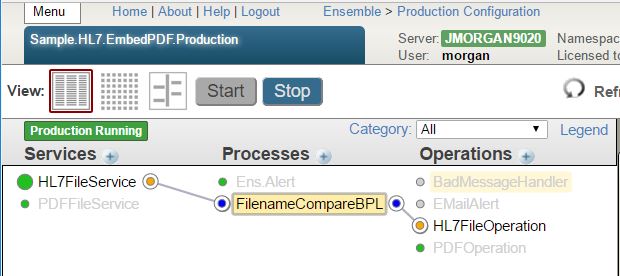
This article will describe and include an example of how to embed an external PDF file into an HL7 segment, specifically ADT_A01:2.3.1 OBX().  This can be useful when attempting to insert pictures or other external data into an HL7 message.  In this example, the name of the PDF file to be embedded is provided in the incoming HL7 message in OBX(1):ObservationValue field.

The basic stipulations for this example are as follows:

  1. Accept a PDF file
  2. Accept an HL7 message
  3. Using the name of the PDF file, embed the PDF data into the HL7 message
  4. Output the message to file


4
6 15725
Article Evgeny Shvarov · Jan 25, 2020 4m read

Hi Developers!

"objectscript.conn" :{
      "ns": "IRISAPP",
      "active": true,
      "docker-compose": {
        "service": "iris",
        "internalPort": 52773
      }

I want to share with you a nice new feature I came across in a new 0.8 release of VSCode ObjectScript plugin by @Dmitry Maslennikov and CaretDev.

The release comes with a new configuration setting "docker-compose" which solves the issue with ports you need to set up to make your VSCode Editor connect to IRIS. It was not very convenient if you had more than one docker container with IRIS running on the same machine. Now, this is solved!

Read below how it works now.

8
3 882
Article Kyle Baxter · Jul 19, 2016 2m read

Date range queries going too slow for you?  SQL Performance got you down?  I have one weird trick that might just help you out! (SQL Developers hate this!)*

If you have a class that records timestamps when the data is added, then that data will be in sequence with your IDKEY values - that is, TimeStamp< TimeStampif and only if ID1 < IDfor all IDs and TimeStamp values in table - then you can use this knowledge to increase performance for queries against TimeStamp ranges.  Consider the following table:

9
1 30594
Article Rizmaan Marikar · Jul 27, 2022 6m read

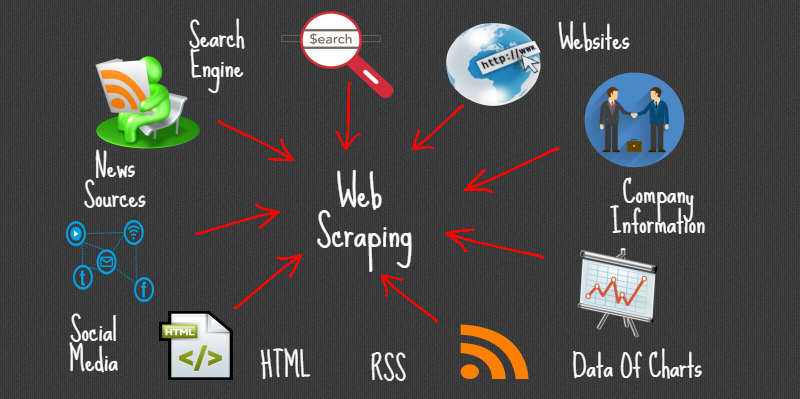
What is Web Scraping:

In simple terms, Web scrapingweb harvesting, or web data extraction is an automated process of collecting large data(unstructured) from websites. The user can extract all the data on particular sites or the specific data as per the requirement. The data collected can be stored in a structured format for further analysis.

What is Web Scraping? — James Le
Steps involved in web scraping:

  1. Find the URL of the webpage that you want to scrape
  2. Select the particular elements by inspecting
  3. Write the code to get the content of the selected elements
  4. Store the data in the required format

It’s that simple !!

12
9 1772
Article Dmitry Maslennikov · Aug 20, 2021 6m read

Some time ago GitHub, has announced the new feature, GitHub Codespaces. It gives an ability to run VSCode in the browser, with almost the same power as it would run locally on your machine, but also with a power of clouds, so, you are able to choose the machine type with up to 32 CPU cores and 64 GB of RAM.

Looks impressive, is not it? But how it could help us, to work with projects driven by InterSystems IRIS? Let's have a look, how to configure it for us.

3
7 1133
Article Sergei Sarkisian · Dec 30, 2016 27m read

This article is translation of one from Habrahabr InterSystems blog (Russian).
The original post can be found here: https://habrahabr.ru/company/intersystems/blog/251611/
 

Everyone familiar with InterSystems Ensemble, an integration and application development platform, knows what the Ensemble Workflow subsystem is and how useful it can be for automating human interaction. For those who don’t know Ensemble (and/or Workflow), I will briefly describe its capabilities (others may skip this part and learn how they can use the Workflow interface in Angular.js).

InterSystems Ensemble

6
1 4649
Article Murray Oldfield · Nov 18, 2019 8m read

The following steps show you how to display a sample list of metrics available from the /api/monitor service.

In the last post, I gave an overview of the service that exposes IRIS metrics in Prometheus format. The post shows how to set up and run IRIS preview release 2019.4 in a container and then list the metrics.


This post assumes you have Docker installed. If not, go and do that now for your platform :)


Step 1. Download and run the IRIS preview in docker

Follow the download instructions at Preview Distributions to download the Preview Licence Key and an IRIS Docker image. For the example, I have chosen InterSystems IRIS for Health 2019.4.

Follow the instructions at First Look InterSystems Products in Docker Containers. If you are familiar with containers, jump to the section titled: Download the InterSystems IRIS Docker Image.

The following terminal output illustrates the processes I used to load the docker image. The docker load command may take a couple of minutes to run;

$ pwd
/Users/myhome/Downloads/iris_2019.4

$ ls
InterSystems IRIS for Health (Container)_2019.4.0_Docker(Ubuntu)_12-31-2019.ISCkey	irishealth-2019.4.0.379.0-docker.tar

$ docker load -i irishealth-2019.4.0.379.0-docker.tar
762d8e1a6054: Loading layer [==================================================>]  91.39MB/91.39MB
e45cfbc98a50: Loading layer [==================================================>]  15.87kB/15.87kB
d60e01b37e74: Loading layer [==================================================>]  12.29kB/12.29kB
b57c79f4a9f3: Loading layer [==================================================>]  3.072kB/3.072kB
b11f1f11664d: Loading layer [==================================================>]  73.73MB/73.73MB
22202f62822e: Loading layer [==================================================>]  2.656GB/2.656GB
50457c8fa41f: Loading layer [==================================================>]   14.5MB/14.5MB
bc4f7221d76a: Loading layer [==================================================>]  2.048kB/2.048kB
4db3eda3ff8f: Loading layer [==================================================>]  1.491MB/1.491MB
Loaded image: intersystems/irishealth:2019.4.0.379.0

$ docker images
REPOSITORY                TAG                 IMAGE ID            CREATED             SIZE
intersystems/irishealth   2019.4.0.379.0      975a976ad1f4        3 weeks ago         2.83GB

For simplicity copy the key file to a folder location you will use for persistent storage and rename to iris.key;

$ mkdir -p /Users/myhome/iris/20194
$ cp 'InterSystems IRIS for Health (Container)_2019.4.0_Docker(Ubuntu)_12-31-2019.ISCkey' /Users/myhome/iris/20194/iris.key

$ cd /Users/myhome/iris/20194
$ ls
iris.key

Start IRIS using the folder you created for persistent storage;

$  docker run --name iris --init --detach --publish 52773:52773 --volume `pwd`:/external intersystems/irishealth:2019.4.0.379.0 --key /external/iris.key

$ docker ps -a
CONTAINER ID        IMAGE                                    COMMAND                  CREATED              STATUS                        PORTS                      NAMES
009e52c121f0        intersystems/irishealth:2019.4.0.379.0   "/iris-main --key /e…"   About a minute ago   Up About a minute (healthy)   0.0.0.0:52773->52773/tcp   iris

Cool! You can now connect to the System Management Portal on the running container. I used login/password SuperUser/SYS; you will be prompted to change the password first time.

Navigate to Web Applications. System > Security Management > Web Applications

You will see a Web Application: /api/monitor this is the service exposing IRIS metrics.

You do not have to do anything to return metrics, it just works.


Step 2. Preview metrics

In later posts, we will scrape this endpoint with Prometheus or SAM to collect metrics at set intervals. But for now, let us see the full list of metrics returned for this instance. A simple way, for example on Linux and OSX, is to issue an HTTP GET using the curl command. For example; on my (pretty much inactive) container the list starts with;

$ curl localhost:52773/api/monitor/metrics
:
:
iris_cpu_usage 0
iris_csp_activity{id="127.0.0.1:52773"} 56
iris_csp_actual_connections{id="127.0.0.1:52773"} 8
iris_csp_gateway_latency{id="127.0.0.1:52773"} .588
iris_csp_in_use_connections{id="127.0.0.1:52773"} 1
iris_csp_private_connections{id="127.0.0.1:52773"} 0
iris_csp_sessions 1
iris_cache_efficiency 35.565
:
:
And so on. The list can be very long on a production system. I have dumped the full list at the end of the post.

Another useful way is to use the Postman application, but there are other ways. Assuming you have installed Postman for your platform, you can issue an HTTP GET and see the metrics returned.

Summary

That is all for now. In the next post, I will start with collecting the data in Prometheus and look at a sample Grafana dashboard.

Full list from preview container

A production system will have more metrics available. As you can see from some of the labels, for example; {id="IRISLOCALDATA"} there are some metrics that are per-database or for CPU by process type {id="CSPDMN"}.

iris_cpu_pct{id="CSPDMN"} 0
iris_cpu_pct{id="CSPSRV"} 0
iris_cpu_pct{id="ECPWorker"} 0
iris_cpu_pct{id="GARCOL"} 0
iris_cpu_pct{id="JRNDMN"} 0
iris_cpu_pct{id="LICENSESRV"} 0
iris_cpu_pct{id="WDSLAVE"} 0
iris_cpu_pct{id="WRTDMN"} 0
iris_cpu_usage 0
iris_csp_activity{id="127.0.0.1:52773"} 57
iris_csp_actual_connections{id="127.0.0.1:52773"} 8
iris_csp_gateway_latency{id="127.0.0.1:52773"} .574
iris_csp_in_use_connections{id="127.0.0.1:52773"} 1
iris_csp_private_connections{id="127.0.0.1:52773"} 0
iris_csp_sessions 1
iris_cache_efficiency 35.850
iris_db_expansion_size_mb{id="ENSLIB"} 0
iris_db_expansion_size_mb{id="HSCUSTOM"} 0
iris_db_expansion_size_mb{id="HSLIB"} 0
iris_db_expansion_size_mb{id="HSSYS"} 0
iris_db_expansion_size_mb{id="IRISAUDIT"} 0
iris_db_expansion_size_mb{id="IRISLOCALDATA"} 0
iris_db_expansion_size_mb{id="IRISSYS"} 0
iris_db_expansion_size_mb{id="IRISTEMP"} 0
iris_db_free_space{id="ENSLIB"} .055
iris_db_free_space{id="HSCUSTOM"} 2.3
iris_db_free_space{id="HSLIB"} 113
iris_db_free_space{id="HSSYS"} 9.2
iris_db_free_space{id="IRISAUDIT"} .094
iris_db_free_space{id="IRISLOCALDATA"} .34
iris_db_free_space{id="IRISSYS"} 6.2
iris_db_free_space{id="IRISTEMP"} 20
iris_db_latency{id="ENSLIB"} 0.030
iris_db_latency{id="HSCUSTOM"} 0.146
iris_db_latency{id="HSLIB"} 0.027
iris_db_latency{id="HSSYS"} 0.018
iris_db_latency{id="IRISAUDIT"} 0.017
iris_db_latency{id="IRISSYS"} 0.020
iris_db_latency{id="IRISTEMP"} 0.021
iris_db_max_size_mb{id="ENSLIB"} 0
iris_db_max_size_mb{id="HSCUSTOM"} 0
iris_db_max_size_mb{id="HSLIB"} 0
iris_db_max_size_mb{id="HSSYS"} 0
iris_db_max_size_mb{id="IRISAUDIT"} 0
iris_db_max_size_mb{id="IRISLOCALDATA"} 0
iris_db_max_size_mb{id="IRISSYS"} 0
iris_db_max_size_mb{id="IRISTEMP"} 0
iris_db_size_mb{id="HSLIB",dir="/usr/irissys/mgr/hslib/"} 1321
iris_db_size_mb{id="HSSYS",dir="/usr/irissys/mgr/hssys/"} 21
iris_db_size_mb{id="ENSLIB",dir="/usr/irissys/mgr/enslib/"} 209
iris_db_size_mb{id="IRISSYS",dir="/usr/irissys/mgr/"} 113
iris_db_size_mb{id="HSCUSTOM",dir="/usr/irissys/mgr/HSCUSTOM/"} 11
iris_db_size_mb{id="IRISTEMP",dir="/usr/irissys/mgr/iristemp/"} 21
iris_db_size_mb{id="IRISAUDIT",dir="/usr/irissys/mgr/irisaudit/"} 1
iris_db_size_mb{id="IRISLOCALDATA",dir="/usr/irissys/mgr/irislocaldata/"} 1
iris_directory_space{id="HSLIB",dir="/usr/irissys/mgr/hslib/"} 53818
iris_directory_space{id="HSSYS",dir="/usr/irissys/mgr/hssys/"} 53818
iris_directory_space{id="ENSLIB",dir="/usr/irissys/mgr/enslib/"} 53818
iris_directory_space{id="IRISSYS",dir="/usr/irissys/mgr/"} 53818
iris_directory_space{id="HSCUSTOM",dir="/usr/irissys/mgr/HSCUSTOM/"} 53818
iris_directory_space{id="IRISTEMP",dir="/usr/irissys/mgr/iristemp/"} 53818
iris_directory_space{id="IRISAUDIT",dir="/usr/irissys/mgr/irisaudit/"} 53818
iris_disk_percent_full{id="HSLIB",dir="/usr/irissys/mgr/hslib/"} 10.03
iris_disk_percent_full{id="HSSYS",dir="/usr/irissys/mgr/hssys/"} 10.03
iris_disk_percent_full{id="ENSLIB",dir="/usr/irissys/mgr/enslib/"} 10.03
iris_disk_percent_full{id="IRISSYS",dir="/usr/irissys/mgr/"} 10.03
iris_disk_percent_full{id="HSCUSTOM",dir="/usr/irissys/mgr/HSCUSTOM/"} 10.03
iris_disk_percent_full{id="IRISTEMP",dir="/usr/irissys/mgr/iristemp/"} 10.03
iris_disk_percent_full{id="IRISAUDIT",dir="/usr/irissys/mgr/irisaudit/"} 10.03
iris_ecp_conn 0
iris_ecp_conn_max 2
iris_ecp_connections 0
iris_ecp_latency 0
iris_ecps_conn 0
iris_ecps_conn_max 1
iris_glo_a_seize_per_sec 0
iris_glo_n_seize_per_sec 0
iris_glo_ref_per_sec 7
iris_glo_ref_rem_per_sec 0
iris_glo_seize_per_sec 0
iris_glo_update_per_sec 2
iris_glo_update_rem_per_sec 0
iris_journal_size 2496
iris_journal_space 50751.18
iris_jrn_block_per_sec 0
iris_jrn_entry_per_sec 0
iris_jrn_free_space{id="WIJ",dir="default"} 50751.18
iris_jrn_free_space{id="primary",dir="/usr/irissys/mgr/journal/"} 50751.18
iris_jrn_free_space{id="secondary",dir="/usr/irissys/mgr/journal/"} 50751.18
iris_jrn_size{id="WIJ"} 100
iris_jrn_size{id="primary"} 2
iris_jrn_size{id="secondary"} 0
iris_license_available 31
iris_license_consumed 1
iris_license_percent_used 3
iris_log_reads_per_sec 5
iris_obj_a_seize_per_sec 0
iris_obj_del_per_sec 0
iris_obj_hit_per_sec 2
iris_obj_load_per_sec 0
iris_obj_miss_per_sec 0
iris_obj_new_per_sec 0
iris_obj_seize_per_sec 0
iris_page_space_per_cent_used 0
iris_phys_mem_per_cent_used 95
iris_phys_reads_per_sec 0
iris_phys_writes_per_sec 0
iris_process_count 29
iris_rtn_a_seize_per_sec 0
iris_rtn_call_local_per_sec 10
iris_rtn_call_miss_per_sec 0
iris_rtn_call_remote_per_sec 0
iris_rtn_load_per_sec 0
iris_rtn_load_rem_per_sec 0
iris_rtn_seize_per_sec 0
iris_sam_get_db_sensors_seconds .000838
iris_sam_get_jrn_sensors_seconds .001024
iris_system_alerts 0
iris_system_alerts_new 0
iris_system_state 0
iris_trans_open_count 0
iris_trans_open_secs 0
iris_trans_open_secs_max 0
iris_wd_buffer_redirty 0
iris_wd_buffer_write 0
iris_wd_cycle_time 0
iris_wd_proc_in_global 0
iris_wd_size_write 0
iris_wd_sleep 10002
iris_wd_temp_queue 42
iris_wd_temp_write 0
iris_wdwij_time 0
iris_wd_write_time 0
iris_wij_writes_per_sec 0

10
6 1598
Article Pierre-Yves Duquesnoy · Jan 27, 2021 29m read

Introduction {#Webinar:ImplementingIntegrationswith.NetorJava-Introduction}

InterSystems IRIS 2020.1 includes PEX (Production EXtension Framework) to facilitate the development of IRIS Interoperability productions with components written in Java or .NET.

Thanks to PEX, an integration developer with knowledge of Java or .NET can benefit from the power, scalability, and robustness of the InterSystems IRIS Interoperability framework and be productive in no time.

For an IRIS Interoperability framework expert, PEX makes it easy to enrich integrations with pre-existing Java- or .NET-language external components.

This tutorial will explore PEX and guide .NET developers along their first steps with PEX. The code is available at https://github.com/es-comunidad-intersystems/webinar-PE

The tutorial supplements the PEX documentation available online at https://docs.intersystems.com/irislatest/csp/docbook/DocBook.UI.Page.cls?KEY=EPEX.


InterSystems IRIS Interoperability Architecture {#Webinar:ImplementarIntegracionescon.NetoJava-ArquitecturadeInteroperabilidadInterSystemsIRIS}

PEX allows you to choose the programming language (currently Java or .NET, and later Python) to implement any of the components (Business Service, Business Process, Business Operation, InboundAdapter, OutboundAdapter, Messages) that form an IRIS Interoperability production.

There are 3 main components of IRIS interoperability:

  • Business Services: Components that offer a service can be used from outside. Examples of Business Services are a REST Service and SOAP Web Service, but also a Service that reads and processes new files that have been written in a directory, a service that reads and processes rows of a database table, and/or a service that reads files via FTP, etc. The Business Service can have an associated Inbound Adapter, which takes care of the implementation details of a specific protocol (SQLInboundAdapter for reading SQL tables, FileInboundAdapter for reading files, etc.). The Business Service is responsible for processing the information, copying it to an IRIS Interoperability message, and sending the message to a Business Process or Business Operations and possibly waiting for a response if there is one.  
  • Business Operation: A component that receives an IRIS interoperability message and operates on an external system, possibly with the help of an OutboundAdapter that takes care of protocol implementation details (TCP, REST, SOAP, Files, SQL, etc.). The Business Operation may or may not return a response to the caller.  
  • Business Process: An orchestration process that, when receiving an IRS Interoperability message, can make processes and calls to one or more other business processes or operations to perform complex operations and/or return a message with information added to the Business Service that has sent it.

The components configuration is grouped in a "Production", an InterSystems IRIS class that contains the definition of all the integrations that start together when IRIS initiates and the configuration for each component of these integrations. It can be edited as an IRIS class or modified from the management portal.


PEX Architecture {#Webinar:ImplementarIntegracionescon.NetoJava-ArquitecturadePEX}

To run the .NET or Java code, InterSystems IRIS uses the corresponding Object Gateway. This Gateway can be instantiated locally or on a remote server.

Java and .Net Gateways {#Webinar:ImplementarIntegracionescon.NetoJava-LosJavay.NetGateways}

The Gateway is a native .NET or Java component that listens on a specific TCP/IP port and receives requests from the IRIS process, executes them, and returns the results.

Pre-Built PEX Components {#Webinar:ImplementarIntegracionescon.NetoJava-LosComponentesPEXpre-construidos}

To use PEX in an IRIS production, a pre-built component must be added to the Production for each component developed in Java or .NET. The pre-built component serves as a wrapper for the external element it refers to and allows its properties and configuration to be defined within the production.

Java or .NET components running from the corresponding Gateway must inherit (be subclassed) from a pre-existing PEX component. Here is an overview of these elements:

IRIS Components {#Webinar:ImplementarIntegracionescon.NetoJava-ComponentesdeIRIS}

For .NET and Java

<colgroup><col><col><col></colgroup>
<th>
  Class
</th>

<th>
  Comment
</th>
<td>
  EnsLib.PEX.BusinessService
</td>

<td>
  Configured adapter: Ens.InboundAdapter
</td>
<td>
  EnsLib.PEX.BusinessProcess.
</td>

<td>
   
</td>
<td>
  EnsLib.PEX.BusinessOperation
</td>

<td>
   
</td>
<td>
  EnsLib.PEX.InboundAdapter
</td>

<td>
   
</td>
<td>
  EnsLib.PEX.OutboundAdapter
</td>

<td>
   
</td>
<td>
  EnsLib.PEX.Message
</td>

<td>
  Message to send to a PEX component
</td>
<td>
  Maps to the IRIS Message
</td>

<td>
  The PEX component's message to the IRIS component
</td>
Function
Business Service
Business Process
Business Operation
Inbound Adapter
Outbound Adapter
PEX Message
IRIS Message


Java or .NET Components

These components are available in libraries that must be added to the Java or .NET project. The minimum library to reference in a PEX project is the same as the Gateway's. Additionally, if you want to use IRISObject messages to call IRIS components from PEX, you must reference the IRISClient library:

<colgroup><col><col></colgroup>
<th>
  Libraries
</th>
<td>
  &lt;installdir>\dev\dotnet\bin\v4.5\InterSystems.Data.Gateway64.exe &lt;installdir>\dev\dotnet\bin\v4.5\InterSystems.Data.IRISClient.dll
</td>
<td>
  &lt;installdir>\dev\java\lib\JDK18\intersystems-gateway-3.1.0.jar &lt;installdir>\dev\java\lib\JDK18\intersystems-jdbc-3.1.0.jar &lt;installdir>\dev\java\lib\gson\gson-2.8.5.jar
</td>
Language
.NET
Java


Superclass to use for .NET components

<colgroup><col><col></colgroup>
<th>
  .NET class
</th>
<td>
  InterSystems.EnsLib.PEX.BusinessService
</td>
<td>
  InterSystems.EnsLib.PEX.BusinessProcess
</td>
<td>
  InterSystems.EnsLib.PEX.BusinessOperation
</td>
<td>
  InterSystems.EnsLib.PEX.InboundAdapter
</td>
<td>
  InterSystems.EnsLib.PEX.OutboundAdapter
</td>
<td>
  InterSystems.EnsLib.PEX.Message
</td>
<td>
  InterSystems.Data.IRISClient.ADO.IRISObject
</td>
Function
Business Service
Business Process
Business Operation
Inbound Adapter
Outbound Adapter
PEX Message
IRIS Message


Superclass to use for Java components

<colgroup><col><col></colgroup>
<th>
  Java class
</th>
<td>
  com.intersystems.enslib.BusinessService
</td>
<td>
  com.intersystems.enslib.BusinessProcess
</td>
<td>
  com.intersystems.enslib.BusinessOperation.
</td>
<td>
  com.intersystems.enslib.pex.InboundAdapter
</td>
<td>
  com.intersystems.enslib.pex.OutboundAdapter
</td>
<td>
  com.intersystems.enslib.pex.Message
</td>
<td>
  &lt;...>.IRISObject
</td>
Function
Business Service
Business Process
Business Operation
Inbound Adapter
Outbound Adapter
PEX message
IRIS message


Utility Functions {#Webinar:ImplementarIntegracionescon.NetoJava-FuncionesdeUtilidades}

In the components implemented in ObjectScript, InterSystems IRIS offers some commands in the form of MACRO to populate information to the IRIS Event log. These methods are available in Java and .NET as follows:

<colgroup><col><col></colgroup>
<th>
  Description
</th>
<td>
  Add a message to the Events Log with the status "info"
</td>
<td>
  Add a message to the Events Log with the status "alert"
</td>
<td>
  Add a message to the Events Log with the status "warning"
</td>
<td>
  Add a message to the Events Log with the status "error"
</td>
<td>
  Add a message to the Events Log with the status "assert"
</td>
Method
LOGINFO(message)
LOGALERT(message)
LOGWARNING(message)
LOGERROR(message)
LOGASSERT(message)


Interoperability between native and PEX components {#Webinar:ImplementarIntegracionescon.NetoJava-InteroperabilidadentrecomponentesnativosycomponentesPEX}

It's possible to combine components in InterSystems IRIS's native ObjectScript language with PEX components developed in Java or .NET.

  • When both components are BusinessService type — InboundAdapter or BusinessOperation — OutboundAdapter, the developer can choose the type of data/object to use in the calls: Calls are made between IRIS and the Java/.NET gateway following the data transformation rules that determine the Gateway.
  • When both components that exchange information are Business Hosts (BS, BP, BO), the component that must receive the message (request or response) imposes the type of objects to use for the message:
    • A PEX component always receives the message EnsLib.PEX.Message
    • An IRIS component receives the message IRISObject

EnsLib.PEX.Message {#Webinar:ImplementarIntegracionescon.NetoJava-EnsLib.PEX.Message}

EnsLib.PEX.Message allows a message whose structure has been defined in .NET or Java to be represented in the IRIS ObjectScript. IRIS uses the DynamicObject function to manipulate properties. Internally, IRIS uses JSON as the transport medium between IRIS and .NET/Java. When creating a PEX message in IRIS, the name of the NET/Java class that must be instantiated to use the message must be set as %classname.

IRISObject {#Webinar:ImplementarIntegracionescon.NetoJava-IRISObject}

To call a pre-built InterSystems IRIS component from a PEX component, an IRISObject type message must be defined (in .NET, the complete class is InterSystems.Data.IRISClient.ADO.IRISObject).

The First Steps with PEX and .NET {#Webinar:ImplementarIntegracionescon.NetoJava-PrimerosPasosconPEXy.NET}

In these first steps, we:

  • Create a .NET project with the necessary PEX libraries, version 4.5 of the .NET framework
  • Add a BusinessOperation and a Simple message to the .NET project
  • Configure the Intersystems IRIS's .NET Gateway
  • Create an Interoperability Production
  • Add a pre-built BO

Creating a .NET Project with Visual Studio 2019 {#Webinar:ImplementingIntegrationswith.NetorJava-Creatinga.NETProjectwithVisualStudio2019}

We create a new "Class Library .Net Standard in C #" type project In Visual Studio. We'll name it "PEX.Webinar.FirstDemo":

To work with PEX, we add the necessary dependencies from "Solution Explorer" and the "Add Reference" context menu:

and we add two libraries (.NET Framework 4.5! compatible ) located in a subdirectory of the InterSystems IRIS installation with the "Browse" button:

<colgroup><col></colgroup>
<installdir>\dev\dotnet\bin\v4.5\InterSystems.Data.Gateway64.exe <installdir>\dev\dotnet\bin\v4.5\InterSystems.Data.IRISClient.dll

It's then renamed from the solution Explorer Class1.cs to "FirstOperation.cs", and the class is modified to inherit from the BusinessOperation PEX class (InterSystems.EnsLib.PEX.BusinessOperation). All 3 PEX.BusinessOperation methods are overwritten:

<colgroup><col><col></colgroup>
<th>
  Description
</th>
<td>
  It runs 1 time when this component is started in the production. It allows libraries, connections, and variables to be initiated...
</td>
<td>
  It runs 1 time when this component or the production stop. It makes it possible to free up resources used in the component's life cycle
</td>
<td>
  It runs for each Message received. It allows the message to be processed and return a response
</td>
Method
OnInit
OnTearDown
OnMessage


As of now, no messages or tasks to perform have been defined. For that reason, LOGINFO functions are added in the 3 methods. On the other hand, the superclass method doesn't need to be called, so we can eliminate the calls to the base class (base.OnInit (), base.OnTearDown(), base.OnMessage). We leave the implementation as follows:

<colgroup><col><col></colgroup>
<th>
  Initial Deploy
</th>
<td>
  OnInit public override void OnInit()         {             LOGINFO("PEX.Webinar.FirstDemo.FirstOperation:OnInit()");         }
</td>
<td>
  OnTearDown public override void OnTearDown()        {            LOGINFO("PEX.Webinar.FirstDemo.FirstOperation:OnTearDown()");        }
</td>
<td>
  OnMessage public override object OnMessage(object request)        {            LOGINFO("PEX.Webinar.FirstDemo.FirstOperation:OnMessage()");            return request;        }
</td>
Method
OnInit
OnTearDown
OnMessage


This allows the initial version of the .NET project to be compiled with the "Build Solution" menu. IRIS then generates the following file, which is used next:

<colgroup><col></colgroup>
1>------ Build started: Project: PEX.Webinar.FirstDemo, Configuration: Debug Any CPU ------1>PEX.Webinar.FirstDemo -> C:\Dev\PEX\PEX.Webinar.FirstDemo\bin\Debug\netstandard2.0\PEX.Webinar.FirstDemo.dll========== Build: 1 succeeded, 0 failed, 0 up-to-date, 0 skipped ==========

InterSystems IRIS Interoperability Production Creation {#Webinar:ImplementingIntegrationswith.NetorJava-InterSystemsIRISInteroperabilityProductionCreation}

The IRIS Management Portal now lets you choose the "Interoperability" menu, the "Ensemble" namespace, and the "Configure" and "Production" menus. The "Actions" tab and the "New" button allow you to define a new IRIS Integration production.

To activate the Testing Service, select the "Settings" tab, enable "Testing Enabled" in the last section of the list ("Development and Debugging"), and click the Apply button:

Adding the .NET Gateway to the Production {#Webinar:ImplementingIntegrationswith.NetorJava-Addingthe.NETGatewaytotheProducción}

To work with the PEX, the corresponding Java or .NET Gateway should start. InterSystems recommends configuring and starting these gateways from the menu "System Administration/Configuration/Connectivity/Object Gateways" for production environments (live). For this development environment, a component can be added directly to the production to start the Gateway. This allows the gateway to be started and stopped at the same time as the production in a single click, thus freeing up access to the .NET project's .DLL when you want to recompile it (Visual Studio can't recompile it if the .NET gateway has been started).

To add the ".Net Gateway" component, add a Business Service to the production using the "+" button next to "Services". "EnsLib.DotNetGateway.Service" is the component class name (Service Class) to be added, and "Enable now" is selected to enable the component.

The added component's configuration parameters can be edited by clicking it, filling in the values in the "Settings" tab, and clicking the "Apply" button:

<colgroup><col><col><col></colgroup>
<th>
  Value
</th>

<th>
  Description
</th>
<td>
  44444
</td>

<td>
  This can be changed to the port if port 55000 is busy with another process by default.
</td>
<td>
  &lt;installdir>\dev\dotnet\bin\v4.5\
</td>

<td>
  This indicates the location where the executable Gateway (InterSystems.Data.Gateway64.exe) is located &lt;InstallDir> is the IRIS installation directory: For example: C:\InterSystems\IRIS20201\dev\dotnet\bin\v4.5\
</td>
<td>
  true
</td>

<td>
  Select the 64-bit gateway version
</td>
<td>
  4.5
</td>

<td>
  The .Net version must be 4.5
</td>
Parameter
Port
FilePath
Exec64
.NET Version


Adding the Business Operation created in .NET  {#Webinar:ImplementingIntegrationswith.NetorJava-AddingtheBusinessOperationcreatedin.NET}

Now we add a PEX Business Operation using the "+" button next to "Operations" to reference the previously created .NET code. "EnsLib.PEX.BusinessOperation" is the class type, the (optional) component is called "PEX.Webinar.FirstOperation", and it's enabled using "Enable Now".

Next, the component is configured (by clicking the added component) and selecting the "Settings" tab on the right:

<colgroup><col><col><col></colgroup>
<th>
  Value
</th>

<th>
  Description
</th>
<td>
  PEX.Webinar.FirstDemo.FirstOperation
</td>

<td>
  Name of the generated .NET class
</td>
<td>
  44444
</td>

<td>
  The TCP port in which the .NET Gateway is configured
</td>
<td>
  C:\Dev\PEX\PEX.Webinar.FirstDemo\bin\Debug\ netstandard2.0\PEX.Webinar.FirstDemo.dll
</td>

<td>
  Location of the .DLLs to include. This is the location where the Visual Studio build generated the .DLL
</td>
Parameter
Remote Classname
Gateway Port
Gateway Extra CLASSPATH

To apply the changes, click the "Apply" button:

Adding and Testing the Production {#Webinar:ImplementingIntegrationswith.NetorJava-AddingandStartingtheProduction}

The "Start" button starts the production and all its components:

InterSystems IRIS allows simple, isolated testing of a component. Click to select the "Business Operation" called "PEX.Webinar.FirstOperation" and select the "Test" button from the Actions tab:

The following data is filled on the next screen as follows:

<colgroup><col><col><col></colgroup>
<th>
  Value
</th>

<th>
  Description
</th>
<td>
  EnsLib.PEX.Message
</td>

<td>
  The type of IRIS message sent. It's always EnsLib.PEX.Message. It allows dynamic properties to pass values to the Java or .NET PEX component.
</td>
<td>
  InterSystems.EnsLib.PEX.Message
</td>

<td>
  It's the classname for the message defined in Java or .NET as a component request. For .NET, this must be InterSystems.EnsLib.PEX.Message or a subclass
</td>
Parameter
Request Type
%classname

When clicking "Invoke Testing Service", the IRIS Interoperability framework sends the message to the component, and the .NET code is executed.

Clicking "Visual Trace" allows the details to be viewed. The white dot (#3) displays the "LOGINFO" trace implemented in .NET.

The IRIS Events Log contains a compilation of all the generated LOGINFO() messages, including in OnInit() and OnTearDown().

The Next Steps with PEX: Completing the Production {#Webinar:ImplementingIntegrationswith.NetorJava-NextStepswithPEX:CompletingtheProduction}

Below, other types of components are created in .NET:

  • .NET Messages
  • .NET Business Services
  • .NET Business Process

Creating and Using a PEX Message with Data {#Webinar:ImplementingIntegrationswith.NetorJava-CreatingandUsingaPEXMessagewithData}

To pass information from Ensemble to PEX components, define a class in .NET as the subclass InterSystems.EnsLib.PEX.Message with properties for the information to be passed. Continuing with a simplified example, we add a string "value" property to the message. The PEX Business Operation will become the same type of message with the content transformed to capital letters.

Message class in .NET {#Webinar:ImplementarIntegracionescon.NetoJava-Clasedemensajeen.NET}

A new "FirstMessage.cs" file is added to the .NET project with the following definition:

FirstMessage

using System; using System.Collections.Generic; using System.Text; namespace PEX.Webinar.FirstDemo {     class FirstMessage : InterSystems.EnsLib.PEX.Message     {         public string value;     } }

Using a message from .NET {#Webinar:ImplementarIntegracionescon.NetoJava-Usodelmensajedesde.NET}

In the FirstOperation Business Operation, the data type for OnMessage is defined as an Object. It should be cast to the "FirstMessage" class to use it:

OnMessageV2

public override object OnMessage(object request)         {             LOGINFO("PEX.Webinar.FirstDemo.FirstOperation:OnMessage()");             ///the response message instantiates             FirstMessage response = new FirstMessage();             //The value is copied in "uppercase" from the request             response.value = ((FirstMessage)request).value.ToUpper();             //The response is returned             return response;         }

The IRIS production has to be stopped (with the "Stop" button), or the .NET Gateway has to at least be disabled (double-click the component) and compile the .NET project.

Using a class from InterSystems IRIS {#Webinar:ImplementarIntegracionescon.NetoJava-UsodelaclasedesdeInterSystemsIRIS}

The "Test" button (Testing Service) doesn't allow the dynamic properties of the EnsLib class to be filled.PEX.Message. However, the Testing Service can be used with an IRIS-native "Ens.StringRequest" message type and can be transformed (through Data Transformation) to a PEX message. The transformation is invoked from a pre-built Router-type Business Process.

Data Transformation {#Webinar:ImplementingIntegrationswith.NetorJava-DataTransformation}

A Data Transformation is created to copy data from the native ensemble message:

<colgroup><col><col><col><col></colgroup>
<th>
  Source
</th>

<th>
  Target
</th>

<th>
  Comment
</th>
<td>
  EnsLib.StringRequest
</td>

<td>
  EnsLib.PEX.Message
</td>

<td>
  The classes for the transformation source and target
</td>
<td>
  n/a
</td>

<td>
  PEX.Webinar.FirstDemo.FirstMessage
</td>

<td>
  For a PEX message (target), %classname defines the .NET/Java classname to be used.
</td>
<td>
  source.StringValue
</td>

<td>
  target.%jsonObject.value
</td>

<td>
  In the target PEX message, the dynamic properties are located inside %jsonObject.
</td>
 
Class
%classname
property


The Data Transformation can be created from the "Interoperability"/"Build"/"Data Transformations" management portal with the "New" button:

After that, the parameters for the transformation from the "source" to the "target" message are defined as described in the previous table using the graphic tool and completing the text in the "Action" tab to the right to obtain the two lines of text displayed at the bottom. Then, you can Save, Compile, and Test in the "Tools" tab.

Now, by opening the tools tab, you can test this Data Transformation:

The Test Window opens, where you can specify values for the source message (in StringValue) and verify the result:

As you can see, the PEX message uses an internal JSON representation to transfer the values between IRIS and Java or .NET.

Creating a Router-type Business Process {#Webinar:ImplementingIntegrationswith.NetorJava-CreatingaRoutertypeBusinessProcess}

It's now possible to add a Router type Business Process to the Production and define a Routing rule that calls the created Data Transformation and sends a message to the existing Business Operation.

In the management portal, return to the Production Configuration screen ("Interoperability" / "Configure" / "Production"), and add the Business Process type "EnsLib.Message.Router", by clicking the "+" next to "Processes", and filling in as follows:

<colgroup><col><col><col></colgroup>
<th>
  Value
</th>

<th>
  Description
</th>
<td>
  EnsLib.MsgRouter.RoutingEngine
</td>

<td>
  A Business Process for rule-based message routing
</td>
<td>
  TRUE
</td>

<td>
  Defining the skeleton of a routing rule
</td>
<td>
  MessageRouter
</td>

<td>
  A name for this component in the production
</td>
<td>
  TRUE
</td>

<td>
  Activate this component immediately
</td>
<td>
  1
</td>

<td>
  Scalability. It allows the number of active processes running simultaneously to be defined.
</td>
Parameter
Business Process Class
Auto-Create Rule
Business Process Name
Enable Now
Pool Size


The Routing Rule for this component remains to be edited. To do this, select the "MessageRouter" component in the production, and click on the magnifying glass next to the Business Rule Name:

The Rules editor makes it possible to edit the Rule to send all "Ens.StringRequest" messages to the "PEX.Webinar.FirstOperation" Business Operation after the transformation is applied to them. The "+" button lets you add elements to rules and edit an element when selecting it in advance. The rule to keep should be as follows:

By default, this component doesn't expect a response. Change your settings in the component's "Settings" tab to receive the response from the Business Operation:

Testing the Router with the Testing Service {#Webinar:ImplementarIntegracionescon.NetoJava-PruebadelEnrutadorconelServiciodePruebas}

Back to the production page, you can use the "Start" button to start the production, select the "MessageRouter" component, and with the "Actions" tab, click the "Test" button, to send an "Ens.StringRequest" type message:

The Test Response message can be viewed under "Test Results", and the full message log shows all details of the execution on the various components of the IRIS Interoperability production:

Response:

  {#Webinar:ImplementarIntegracionescon.NetoJava-}

Tracing the messages:

.NET Business Services {#Webinar:ImplementarIntegracionescon.NetoJava-BusinessServiceen.NET}

.NET Implementation {#Webinar:ImplementingIntegrationswith.NetorJava-Implementationin.NET}

Return to Visual Studio to create a .NET Business Service. In this initial example, this Business Service has no specific "Inbound Adapter" associated; it uses the "EnsLib.InboundAdapter", a component that runs at regular intervals (according to set CallInterval value) and makes a call to the Business Service every CallInterval. 

In Visual Studio, a new file "FirstService.cs" is generated for the "FirstService" class. The processing of each event detected by the Inbound Adapter is done using the "OnProcessInput" method. The object set in parameter depends on the implementation of the InboundAdapter; in this case, it's not used:

FirstService:OnProcessInput

public override object OnProcessInput(object messageInput)         {             //create a new Request Object             FirstMessage myRequest = new FirstMessage();             myRequest.value = "The send time is: " + System.DateTime.Now.ToString();             //To send without waiting for a response:             //SendRequestAsync("PEX.Webinar.FirstOperation", myRequest);             //To send and wait for a response with a 20-second timeout:             FirstMessage myResponse=(FirstMessage) SendRequestSync("PEX.Webinar.FirstOperation", myRequest, 20);             return null;         }

FirstService:OnProcessInput

public override object OnProcessInput(object messageInput)         {             //create a new Request Object             FirstMessage myRequest = new FirstMessage();             myRequest.value = "The send time is: " + System.DateTime.Now.ToString();             //To send without waiting for a response:             //SendRequestAsync("PEX.Webinar.FirstOperation", myRequest);             //To send and wait for a response with a 20-second timeout:             FirstMessage myResponse=(FirstMessage) SendRequestSync("PEX.Webinar.FirstOperation", myRequest, 20);             return null;         }

To send the message to any component of the production without recompiling it, you can use a parameter configured from the management portal; the values are specified as a JSON string within the "RemoteSettings" configuration parameter.

Parameters

class FirstService : InterSystems.EnsLib.PEX.BusinessService     {         /// <summary>         /// A parameter that can be changed from the Portal         /// </summary>         public string TargetConfigName;      (...)

If the value specified for "TargetConfigName" is set to null, the Business Service won't send the message to any destination. To detect this problem as soon as possible, one option is to validate the value of TargetConfigName when the component is started, in the OnInit() call:

FirstService:OnInit

public override void OnInit()         {            //Verify that the properties are correctly reported            if (TargetConfigName==null )             {                 LOGWARNING("TargetConfigName is missing; assign it a value in RemoteSettings");             }else             {                 LOGINFO("TargetConfigname=" + TargetConfigName);             }         }

Now, you can change the OnProcessInput to  use the value of TargetConfigName:

OnProcessInput

//Send and wait for the answer with a timeout of 20 seconds: FirstMessage myResponse=(FirstMessage) SendRequestSync(TargetConfigName, myRequest, 20);

PEX Business Service in InterSystems IRIS {#Webinar:ImplementarIntegracionescon.NetoJava-BusinessServicePEXenInterSystemsIRIS}

In the management portal, add a Business Service type component to the Production definition by clicking the "+" next to 

Then, configure the component (by clicking on the added component) and select the "Settings" tab on the right: 

<colgroup><col><col><col></colgroup>
<th>
  Value
</th>

<th>
  Description
</th>
<td>
  20
</td>

<td>
  The time between each execution of the OnTask() of the Associated Adapter and each call to the OnProcessInput()
</td>
<td>
  PEX.Webinar.FirstDemo.FirstService
</td>

<td>
  Name of the generated .NET class
</td>
<td>
  TargetConfigName=PEX.Webinar.FirstOperation
</td>

<td>
  A List of parameters in param=value format, separated by &lt;newline>
</td>
<td>
  44444
</td>

<td>
  The TCP port in which the .NET Gateway is configured
</td>
<td>
  C:\Dev\PEX\PEX.Webinar.FirstDemo\bin\Debug\ netstandard2.0\PEX.Webinar.FirstDemo.dll
</td>

<td>
  Location of the .DLLs to include. This is the location where the Visual Studio build generated the .DLL
</td>
Parameter
CallInterval
Remote Classname
Remote Settings
Gateway Port
Gateway Extra CLASSPATH


When this Business Service is activated, each CallIntervall of the OnTask() associated adapter (Ens.InboundAdapter) is executed. Here the OnTask just calls FirstService.OnProcessInput(). That is, each callInterval and FirstService.OnProcessInput() generates a message that sends to the component defined in "TargetConfigName". This can be verified in the Message Viewer:

With details of a call:

.NET Business Process {#Webinar:ImplementarIntegracionescon.NetoJava-BusinessProcess.NET}

.NET Implementation {#Webinar:ImplementingIntegrationswith.NetorJava-.NETImplementation}

Like every Business Host, the Business Process has the CallBack OnInit() and OnTearDown() Methods. The specific Business Process methods are the following:

<colgroup><col><col></colgroup>
<th>
  Description
</th>
<td>
  It's executed for each message sent to the Business Process. It's the place to implement the initial actions of the Process and make asynchronous deliveries to other components (Processes or Operations)
</td>
<td>
  It's executed 1 time for each answer of the asynchronous calls made. It allows responses to be managed and the results to be saved.
</td>
<td>
  It's executed 1 time at the end of the Business Process execution. It allows the Process's final response message to be built.
</td>
Method
OnRequest(message)
OnResponse
OnComplete

It's important to note that a Business Process can have an extended execution time (hours or days, waiting for an asynchronous response). To enable this, the IRIS Framework can interrupt and resume the process execution. All values that you want to keep during a process have to be put in properties of the class that IRIS saves persistently. It's necessary to indicate it with the notation "[persistent]".

In this example, a minimal implementation is done, where the Business Process routes the PEX message it receives to a destination:

Two variables that can be modified from the management portal are used:

FirstProcess

class FirstProcess: InterSystems.EnsLib.PEX.BusinessProcess     {         //Timeout for Calls         public string Timeout = "PT10S";         public string TargetConfigName;         public override void OnInit()         {             //Ensure that the properties are correctly entered             if (TargetConfigName == null)             {                 LOGWARNING("Missing value for TargetConfigName; It must be assigned a value in RemoteSettings");             }             else             {                 LOGINFO("TargetConfigname=" + TargetConfigName);             }         }

When you receive a message, it's sent asynchronously to TargetConfigName:

FirstProces:OnRequest

public override object OnRequest(object request)         {             LOGINFO("OnRequest");             SendRequestAsync(TargetConfigName, (InterSystems.EnsLib.PEX.Message)request, true); //ResponseRequired=true             SetTimer(Timeout, "HasTimedOut");             return null;         }

OnResponse allows call responses to be managed:

FirstProcess:OnResponse

public override object OnResponse(object request, object response, object callRequest,  object callResponse, string completionKey)        {            LOGINFO("OnResponse, CompletionKey=" + completionKey);            if (completionKey!= "HasTimedOut")            {                response = (FirstMessage)callResponse;            }            LOGINFO("Response:" + response.ToString());            return response;        }

At the end of the process, the response is returned:

FirstProcess:OnComplete

public override object OnComplete(object request, object response)       {           LOGINFO("OnComplete");           return response;       }

PEX Business Process in InterSystems IRIS {#Webinar:ImplementarIntegracionescon.NetoJava-BusinessProcessPEXenIntersystemsIRIS}

We add an EnsLib.PEX.BusinessProcess Business Process, configure it as needed, and change the TargetConfigName for the "PEX.Webinar.FirstProcess" Business Service to send the messages to the new Process instead of sending them directly to the BO. 

The component's "Settings" are defined as follows:

<colgroup><col><col></colgroup>
<th>
  value
</th>
<td>
  PEX.Webinar.FirstDemo.FirstProcess
</td>
<td>
  Timeout=PT20STargetConfigName=PEX.Webinar.FirstOperation
</td>
<td>
  44444
</td>
<td>
  C:\Dev\PEX\PEX.Webinar.FirstDemo\bin\Debug\netstandard2.0\PEX.Webinar.FirstDemo.dll
</td>
Parameter
Remote Classname
Remote Settings
Gateway Port
Gateway Extra Classpath

The result in the trace is the following:

Conclusion

PEX allows integrations to be implemented in .NET or Java very fluently and offers the full power and robustness of the InterSystems IRIS interoperability layer for developers experienced in these languages.

4
1 1223
Article Suriya Narayanan Suriya Narayanan Vadivel Murugan · Nov 12, 2016 5m read

In this article, we will discuss about Orphaned Messages.

What is an Orphaned Message

Every message body is associated with a message Header which holds the metadata. The Header holds information like source configuration name, target configuration name, time created, time processed, associated message body reference, session information, message body class name, message status. When there are message body records that do not have their corresponding Header records those are called Orphan message bodies. We will discuss possible causes which could end up with orphan message bodies.

5
7 4658
Article David Loveluck · Feb 25, 2019 4m read

There have been some very helpful articles in the community that show how to use Grafana with IRIS (or Cache/Ensemble) by using an intermediate database.

But I wanted to get at IRIS structures directly. In particular, i wanted to access the Cache History monitor data that is accessible by SQL as described here

https://community.intersystems.com/post/apm-using-cach%C3%A9-history-mo…

and didn't want anything between me and the data.

5
4 1684
Article Mark Bolinsky · Jan 29, 2016 4m read

** Revised Feb-12, 2018

While this article is about InterSystems IRIS, it also applies to Caché, Ensemble, and HealthShare distributions.

Introduction

Memory is managed in pages.  The default page size is 4KB on Linux systems.  Red Hat Enterprise Linux 6, SUSE Linux Enterprise Server 11, and Oracle Linux 6 introduced a method to provide an increased page size in 2MB or 1GB sizes depending on system configuration know as HugePages.

At first HugePages required to be assigned at boot time, and if not managed or calculated appropriately could result in wasted resources.  As a result various Linux distributions introduced Transparent HugePages with the 2.6.38 kernel as enabled by default.  This was meant as a means to automate creating, managing, and using HugePages.  Prior kernel versions may have this feature as well however may not be marked as [always] and potentially set to [madvise].  

Transparent Huge Pages (THP) is a Linux memory management system that reduces the overhead of Translation Lookaside Buffer (TLB) lookups on machines with large amounts of memory by using larger memory pages.  However in current Linux releases THP can only map individual process heap and stack space.

9
5 5652
Article Eduard Lebedyuk · Nov 26, 2018 2m read

In this article, I would show how you can upload and download files from InterSystems products via http.

The questions about working with files over http arise fairly often on community and I'm usually linking to my FileServer project which demonstrates file upload/download but I'd like to talk a bit more on how we can serve and receive files from InterSystems products.

Downloading a file

If you have a file in on a file system and you know the path you can serve it from REST or CSP context by calling this method:

3
5 3007
Article Timothy Leavitt · May 12, 2016 6m read

The topic of for/while loop performance in Caché ObjectScript came up in discussion recently, and I'd like to share some thoughts/best practices with the rest of the community. While this is a basic topic in itself, it's easy to overlook the performance implications of otherwise-reasonable approaches. In short, loops iterating over $ListBuild lists with $ListNext or over a local array with $Order are the fastest options.

As a motivating example, we will consider looping over the pieces of a comma-delimited string.

A natural way to write such a loop, in minimal code, is:

21
5 10007
Article Nicholai Mitchko · Apr 15, 2022 3m read

Adding VSCode into your IRIS container

One of the easiest ways to setup repeatable development environments is to spin up containers for them. I find that when iterating quickly, it was very convenient to host a vscode instance within my development container. Thus, I have created a quick container script to add a browser-based vscode into an IRIS container. This should work for most 2021.1+ containers. My code repository can be found here

InterSystems IRIS container with vscode and pre-connected

CredValue
User_SYSTEM
PasswordSYS

image

Overview

This project creates an IRIS container with a hosted (web-based) version of vscode available in the same IRIS container. This provides:

  • Same container code editing
  • Pre-connection to the container's IRIS instance
  • Links from the Management Portal
  • Auto starting IDE with the container

Quick Start

  1. Download or git clone https://github.com/nickmitchko/Hosting-vscode-in-a-container.git
  2. In the root of the project, run docker build . -t vscode-irishealth-ml:latest --no-cache
  3. Run docker-compose up
    • Not using docker compose? See here
  4. Navigate to Management Portal
  5. Login with the user and password near the top of this guide
  6. Click VSCODE Link on the favorites pane
  7. When prompted use the same password in vscode to connect to the IRIS instance.
# New folder for project
mkdir vscode-iris
cd vscode-iris

# Clone repo here
git clone https://github.com/nickmitchko/Hosting-vscode-in-a-container.git .

# Build image
docker build . -t vscode-irishealth-ml:latest --no-cache

# Only Run (A) or (B)
#
# (A) Run compose file
docker-compose up
# OR (B) if you want a daemon
docker-compose up -d

Adding Persistence

If you want a persistent iris instance, un comment lines 16-20 in docker-compose.yml file. This adds a persistent storage mount to the container.

    volumes:
    - "./durable/:/durable/"
    environment:
    - ISC_DATA_DIRECTORY=/durable/iconfig

Changing the base image

This image is built upon the InterSystems Developer Community zpm images (found here). These images include the zpm command which allows us to install from the package repository easily, but only has a community license of 90 days.

The image tag used for builds is:

FROM intersystemsdc/irishealth-ml-community:latest

If you want to change the image, change the first line of the docker file to your desired image tag (either a custom IRIS instance or a supported one). For example:

FROM containers.intersystems.com/intersystems/irishealth-community:2021.2.0.651.0

No Docker-Compose

If you're not using docker compose, you can still run the container as follows:

# After building the container
# --after command is required
docker run --name vscode -d \
    --publish 1972:1972 \
    --publish 52773:52773 \
    --publish 51773:51773 \
    --publish 53773:53773 \
    --publish 8080:8080 \
    --publish 8888:8888 \
    vscode-irishealth-ml:latest \
    --after "/bin/bash /install/boot.sh"
5
0 991