#InterSystems IRIS for Health

0 Followers · 2.3K Posts

InterSystems IRIS for Health™ is the world’s first and only data platform engineered specifically for the rapid development of healthcare applications to manage the world’s most critical data. It includes powerful out-of-the-box features: transaction processing and analytics, an extensible healthcare data model, FHIR-based solution development, support for healthcare interoperability standards, and more. All enabling developers to realize value and build breakthrough applications, fast. Learn more.

Announcement Shane Nowack · Jun 6, 2024

Hello Everyone,

The Certification Team of InterSystems Learning Services is developing an InterSystems ObjectScript Specialist certification exam, and we are reaching out to our community for feedback that will help us evaluate and establish the contents of this exam.  Please note that this is one of two exams being developed to replace our InterSystems IRIS Core Solutions Developer exam. You can find more details about our InterSystems IRIS Developer Professional exam here.

0
1 220
Announcement Shane Nowack · Apr 22, 2024

Hello IRIS Community,

InterSystems Certification is developing a certification exam for InterSystems IRIS SQL specialists, and if you match the exam candidate description given below, we would like you to beta test the exam. The exam will be available for beta testing on June 9 - 12, 2024 at InterSystems Global Summit 2024, but only for Summit registrants (visit this page to learn more about Certification at GS24). Beta testing will open for all other interested beta testers on June 24, 2024. However, interested beta testers should sign up now by emailing certification@intersystems.com (please let us know if you will be beta testing at Global Summit or in our online proctored environment). The beta testing must be completed by August 2, 2024.

5
7 1440
Question Thembelani Mlalazi · Jun 3, 2024

I am trying to work with the FHIR Object Model where I convert an incoming  HL7v2 to SDA then FHIR. From here I would like to be able to process the FHIR Object by deserializing it to a Bundle object using the following code my problem is I keep on getting an error  which is not explaining much about what is wrong with what I am doing any help will be appreciated  thanks.

Property FHIRAdapter As HS.JSON.AdaptorFHIR;

Method OnRequest(pRequest As HS.Message.FHIR.Request, Output pResponse As HS.Message.FHIR.Response) As %Status
{

3
0 316
Article Ariel Glikman · Jun 3, 2024 4m read

Data Analysis

This is the sequel to Data Collection. If you have not had a chance to go through and install that you should first do that.

What is provided here is the analysis for the collection of that data that was collected earlier.

In much the same way as was done in that repository you will need to import the xml that makes up this repository.

Starting at the topmost level there is a task:

InvestigateInfoTask

This task will allow us to set parameters that we will be monitoring. They are as follows:

image

GrowthPercentageWarning: What percentage growth is 'acceptable' for a global to grow.

PeriodWarning: How many days it's reasonable for the globals to make that growth in.

HistoryLength: How far back to look back into the Sample_DBExpansion_Data.GlobalAnalysisInfo table.

The default is set to a 5% growth in 7 days, looking back over the last 30 days. Once you set the parameters you can still edit them, even after the task has run one or several times. Go to task details, click edit, and change it how you see fit.

The task calls the CreateReport method of the Sample.DBExpansion.DBSizeAnalysis.InvestigateInfo class.

CreateReport will populate the two tables as explained below:

  1. GlobalInvestigationReport
  • This table will hold the 'report' that analyzed the Sample_DBExpansion_Data.GlobalAnalysisInfo table. There are several fields which will allow us to measure the growth by different parameters. The fields are described below:

image

FastFlagAll: boolean that demonstrates if any single measurement for a global was taken in 'fast' mode, meaning that all UsedMB measurements are ignored and only allocated space will be considered. Units: 1/0

AmountGrown: historicGrowth - the growth from first to last measurement. Units - MB

Decrease: boolean as to whether there was ever a decrease in size between two continual measurements. Units: 1/0

OverGrew: boolean as to whether the MaxGrowthNormalized (%/DAY) surpassed the allowed growth (converted to a %/DAY equivalence). Units: 1/0

GrowthForRequestedPeriod: taken as historicGrowthPerDay * PeriodWarning this shows how much MB this would have grown in the requested period had it grown at this rate for that period. Units: 'Normalized' MB

HistoricGrowthPerDay: defined as total growth over requested history, divided by days passed between last and first measurement. Units: MB/DAY

MaxGrowthNormalized: the greatest percentage growth / day between any two measurements within the history. This is per day but we extrapolate it to how many days were set to the PeriodWarning to make the numbers easily comparable to the user. Units: Normalized % Example of MaxGrowthNormalized: if the max growth was determined to be 5% per day over 7 days and the user entered as parameters a growth of 10% in 10 days then this column will display 5%/day * 10 days = 50%

MaxGrowthMB: maximum amount of growth between two measurements (in MB). Note that this is independent of time passed. Units: MB

ReportNum: corresponds to the ID of the row in the 'Meta' table (Sample_DBExpansion_Data.InvestigationMeta)

  1. InvestigationMeta
  • This table holds the parameters entered when the task was run in order to be able to reference them. Apart from the 3 parameters (GrowthPercentageWarning, HistoryLength, and PeriodWarning) there is also:

image

BiggestGrower: the global with the greatest AmountGrown.

NumGlobalsOvergrown: how many globals had the OverGrown flag

NumberOfMeasurementsInspected: how many measurements of each global were taken (how many times the Data Collection task was ran).

Finally note that there is also a unit testing class. It should be used in the same way as Data Collection used unit testing.

If you have any suggestions on how I can improve this from our end please let me know as well :)

0
1 189
Article Ariel Glikman · Jun 3, 2024 7m read

Graphical Display of Tables

Here we will document how you can get the results of your Data Collection to be displayed graphically. The output of your project will look like this:

image

Note that I am working on a local machine. If you are doing this on a server then be aware to use the correct IP address.

First, we will import the three classes from the that we are going to need (note that we will edit them later):

You can take the xml and import it to your system.

The spec will actually create the dispatch class and implementation template. If you're interested in learning more about this process check out my colleague's, Eduard Lebedyuk's, great article.

Set up the APIs

Note that in this demo we will be using Basic Authorization. We also assume that there is already data in the Sample_DBExpansion_Data.DBAnalysisInfo and Sample_DBExpansion_Data.GlobalAnalysisInfo tables. If there isn't then go back to Data Collection and get some data.

  1. Let's first create an endpoint which will give us access to our data: image

Fill in the same names unless you plan to customize the code for the react app on your own.

  1. Click save and let's test our APIs. Open up postman, and send the following request (make sure you use the proper authorization): image

Our output should look something like this:

{
    "data": [
        {
            "Name": "c:\\intersystems\\irishealth\\mgr\\training\\",
            "Date": "2023-04-30 15:23:58",
            "DBUsedSize": 2010,
            "DBAllocSize": 2060
        },
        {
            "Name": "c:\\intersystems\\irishealth\\mgr\\training\\",
            "Date": "2023-05-01 09:01:42",
            "DBUsedSize": 2010,
            "DBAllocSize": 2060
        },
        {
            "Name": "c:\\intersystems\\irishealth\\mgr\\training\\",
            "Date": "2023-05-03 13:57:40",
            "DBUsedSize": 150,
            "DBAllocSize": 2060
        }
    ]
}

Next let's send a GET request to http://localhost:52776/Sample/dbAnalysis/globals/all. Check that your response gives you a list of globals who's information looks like this: (note that the name will default to the class name if the global has one)

        {
            "Name": "someName.cls",
            "UsedMB": 4.2,
            "AllocatedMB": 5.7
        }

Now let's test a specific global, say Errors. Send a GET request http://localhost:52776/Sample/dbAnalysis/global/Errors. Check that your output is similar to this:

        {
            "Name": "ERRORS",
            "UsedMB": 0.4,
            "Date": "2023-04-30 15:23:58",
            "AllocatedMB": 0.45
        },
        {
            "Name": "ERRORS",
            "UsedMB": 0.43,
            "Date": "2023-05-01 09:01:42",
            "AllocatedMB": 0.49
        },
        {
            "Name": "ERRORS",
            "UsedMB": 0.1,
            "Date": "2023-05-03 13:57:40",
            "AllocatedMB": 0.13
        }

And finally, let's send a GET request to http://localhost:52776/Sample/dbAnalysis/globals/table/1000 This will give us the growth of globals, who's output we will channel into the 'Tabled Data' section of the react-app. Note that the 1000 is just referring to how many days back we should go. This is entirely up to you. Feel free to customize this in the src/components/TableInputBar.js file. Note the <Table timeBack={1000} numGlobals={searchInput}/>. Put in to here however many days you wish to see back on the react app.

You should get a response that is a list of objects like this one:

       {
            "Name": "nameOfGlobal",
            "ClassName": "AriTesting.DemoTableElad.cls",
            "OldMB": 0.14,
            "OldDate": "2023-04-30 15:23:58",
            "NewMB": 0.14,
            "NewDate": "2023-05-03 13:57:40",
            "Change": "0"
        }

Since all our requests were in order we can now create our web app. Note that if you were not getting the responses you were expecting then you should go back and see what is wrong, before moving on and creating the app that depends on them.

Steps For Creating the Web App

  1. The first thing you will do is create a generic react app. Note that you will need to have node (at least version 14) installed on the local development machine, however you will not need it on the server. If you don't have it installed, do so here. If you are not sure if you have it installed you can run this command from your terminal:
node --version
  1. Let's now install a generic react app, and we will change the parts that we will need to. This is as simple as running:
npx create-react-app data-collection-graphs
  1. If this is your first time doing this it may take a few minutes. Once it is done we will have a folder that looks as follows: image

  2. Your generic (we will customize it) react-app is now working. Check it out:

npm start

You should automatically be redirected to a tab that shows you the following (if not, go to http://localhost:3000/): image

  1. Now let's customize for our needs. Stop your app from the terminal with ^C. Download the src folder in this repository and replace the one in your directory that was automatically created by our previous commands. From within the data-collection-graphs directory, install chart-js and react-chartjs-2 as follows:
npm install --save chart.js
npm install --save react-chartjs-2

In the src/components folder there is the JavaScript code that is calling the API endpoints to obtain data for the graph. If your server is not running on localhost:80 then you should change the baseUrl (and base64 encoded basic authorization, if that's the authorization method you have chosen to use) in BarChart.js, DBChart.js, SingleGlobalHistoryChart.js, and TableData.js.

  1. Use npm start to load your page, and you should now get the page with your database analytics.

Note: You may notice a blank page and upon opening the web developer tools see that there is an error: Cross-Origin Request Blocked: The Same Origin Policy disallows reading the remote resource at http://localhost:52775/Sample/dbAnalysis/globals/all. (Reason: CORS preflight response did not succeed). Status code: 404.

If this is the case then add the following class method into your generated Sample.DBExpansion.Util.REST.disp.cls:

ClassMethod OnHandleCorsRequest(pUrl As %String) As %Status
{
     //s ^CORS("OnHandleCorsRequest")="Handled"
     #; Get the origin
     Set tOrigin=$Get(%request.CgiEnvs("HTTP_ORIGIN"))
     #; Allow requested origin
     Do ..SetResponseHeaderIfEmpty("Access-Control-Allow-Origin",tOrigin)
     #; Set allow credentials to be true
     Do ..SetResponseHeaderIfEmpty("Access-Control-Allow-Credentials","true")
     #; Allow requested headers
     Set tHeaders=$Get(%request.CgiEnvs("HTTP_ACCESS_CONTROL_REQUEST_HEADERS"))
     Do ..SetResponseHeaderIfEmpty("Access-Control-Allow-Headers",tHeaders)
     #; Allow requested method
     Set tMethod=$Get(%request.CgiEnvs("HTTP_ACCESS_CONTROL_REQUEST_METHOD"))
     Do ..SetResponseHeaderIfEmpty("Access-Control-Allow-Method",tMethod)
     Return $$$OK
}

As we are not using delegated authentication here, the request will be performed by the CSPSystem user. This means that we must give the CSPSystem user the appropriate roles for the queries we are making. Read more about that here (or don't, and just give the CSPSystem user the role needed to read data from your namespace/database.)

With Cross-Origin Resource Sharing (CORS) configured, after refreshing the page, you should see the charts begin to populate and look like what we see at the top of this page.

Feel free to play around with the code and make improvements or customizations that would suit your organization best!

If you have any suggestions on how I can improve this from our end please let me know as well.

Continue onto the data analysis repo here.

0
2 266
Article Ariel Glikman · Jun 3, 2024 6m read

Data Collection

This is a step-by-step instruction guide for creating a task to collect data about the InterSystems database and globals therein (as seen in the associated Open Exchange App - find all the associated code there)

UPDATE (Aug 1 2024): Recently I've been asked about the differences between this and the History Monitor functionality. In short, the data collection monitor builds on the history monitor by adding the ability to track growth of individual globals.

Disclaimer: This software is merely for TEST/DEMO purposes. This code is not supported by InterSystems as part of any released product. It is supplied by InterSystems as a demo/test tool for a specific product and version. The user or customer is fully responsible for the maintenance and testing of this software after delivery, and InterSystems shall bear no responsibility nor liabilities for errors or misuse of this code.

  1. First, import the file “DataCollection.xml” via the management portal, and make sure there are no errors. If there are it could be a matter of versioning, contact Ari Glikman at ari.glikman@intersystems.com for support on getting a version that’s right for you. Furthermore, ensure that you import the data into the namespace whose internal data you want collected for later inspection.

  2. Once importing is complete you should see the package Sample with several sub-packages as well

image

If a Sample package is already present on your server, then you should still see the new subpackages along with any other folders that were previously there.

  1. It is now time to run unit testing to make sure everything works correctly.

a. Create a folder called Unit Tests that can be read by your InterSystems Terminal, for example, since I have a local installation, I will just make a folder in my C drive.

FolderStructure

b. Into this folder we will now export the class Sample.DBExpansion.Test.CaptureTest as an xml file

image

c. In terminal set the global ^UnitTestRoot = “<< folder that the Unit Tests folder is >>”. Per the example above, it would be (note that you must be in the same namespace where you imported the package) C:\ (note that it is not “C:\Unit Tests” !)

set ^UnitTestRoot = "C:\"

d. d. Finally, we run the Unit Tests. Do this by running the following line of code from the terminal:

do ##class(Sample.DBExpansion.Test.TestManager).RunTest("Unit Tests", "/noload/nodelete")

We are essentially telling the program to run all tests that are found in the folder C:\Unit Tests. At the moment we only have one file there, the one created in 3.b.

The output should be as follows

UnitTestOutput

If the unit tests do not pass, then the program is not ready to run. Do not continue with the next steps until you get output that says all tests passed.

  1. Congrats! It is now time to build the task. To do this:

Open the management portal and go to System Operation > Task Manager > New Task

note that your user must have access to the %SYS namespace. otherwise the task will run but not collect any data

NewTask

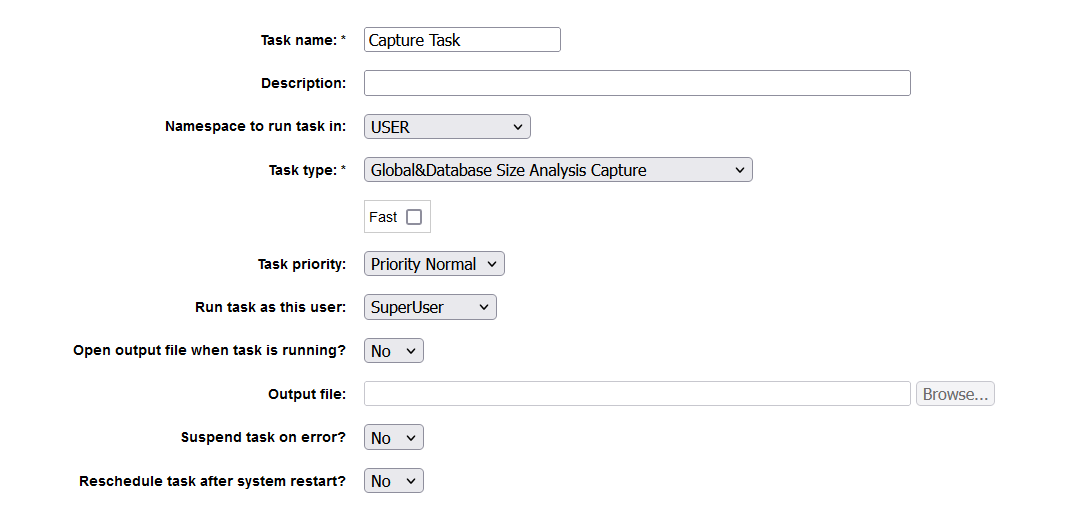
You will now be given several fields to fill as to what task you want to create. You will choose the namespace in which you imported the package and give the task a name. A description should be given for future reference. Ideally leave the fast checkbox unselected, this means that the task will run slower but will collect more complete data. If this will take too long to run (depends on how big the database and its globals are) then perhaps it is best to tick here and opt for a faster task. Select Next, choose how often the task should run, and click finish.

image

b. You will now be prompted with the Task Schedule where you can see when all tasks, including the newly created one are scheduled to run. If you additionally wish to run it now select Run on the right hand side.

Select the Task History to ensure that it was created successfully. After running the task you should see that it ran successfully as well. Otherwise an error should be seen here.

This task will create two tables:

Sample_DBExpansion_Data.DBAnalysisInfo.

This table is going to store data about the database itself. We refer to this as “Meta data”. The information it stores can be seen in the image below. The Fast Flag will indicate the selection chosen in 4.a.

DBTable

Sample_DBExpansion_Data.GlobalAnalysisInfo

This will contain the information regarding the globals in the database. Note that if there is a class name that is associated with the global, we will see it here along with their size. Lastly, note that the MetaDataID field corresponds to the ID field of the Sample_DBExpansion_Data.DBAnalysisInfo table. This means to say that at the time the database information was captured, its corresponding global information was captured and they share this identifying number (these are the globals in the database at that time). It is a way to see how the globals in a database, and the database itself evolve through time.

GLOBALTABLE

  1. Next is the ever so slightly prettier User Interface.

Recording_2023-05-23_at_2_03_45_PM_AdobeExpress

It displays information about the global and database displayed in the table in a more digestible manner. There are 3 graphs: one displaying the history of the data, the second displaying the historic sizes of a chosen global, either through the dropdown or a search, and finally there is an overview of all global sizes. At the bottom there is a table where one enters how many globals to display and it presents them ordered by size. The %Change column is highlighted yellow for a minimal change in size, green for a decrease in size, and red for a significant increase in size.

Find step-by-step instructions on how to set this up here.

If you're not interested in the graphs, then continue onto data analysis here.

Docker

Prerequisites

Make sure you have git and Docker desktop installed.

Installation

Clone/git pull the repo into any local directory

$ git clone https://github.com/rcemper/PR_DataCollection.git
$ docker compose up -d && docker compose logs -f

Container start creates appropriate directory «/home/irisowner/dev/Unit Tests»
sets ^UnitTestRoot = «/home/irisowner/dev/»

To open IRIS Terminal do:

$ docker-compose exec iris iris session iris
USER>

or using WebTerminal.
http://localhost:42773/terminal/

To access IRIS System Management Portal http://localhost:42773/csp/sys/UtilHome.csp

To access UnitTestPortal http://localhost:42773/csp/sys/%25UnitTest.Portal.Indices.cls?$NAMESPACE=USUARIO

0
5 372
InterSystems Official Fabiano Sanches · May 30, 2024

Beginning with the release of InterSystems IRIS® data platform 2022.3, InterSystems corrected the license enforcement mechanism to include REST and SOAP requests. Due to this change, environments with non-core-based licenses that use REST or SOAP may experience greater license utilization after upgrading. To determine if this advisory applies to your InterSystems license, follow the instructions in the FAQ linked below.

This table summarizes the enforcement:

0
0 394
Article Hiroshi Sato · May 30, 2024 1m read

InterSystems FAQ rubric

To disable the timeout, set the query timeout to disabled in the DSN settings:

Windows Control Panel > Administrative Tools > Data Sources (ODBC) > System DSN configuration

If you check Disable query timeout, the timeout will be disabled.

If you want to change it on the application side, you can set it at the ODBC API level.

Set the SQL_ATTR_QUERY_TIMEOUT attribute when calling the ODBC SQLSetStmtAttr function before connecting to the data source.

0
0 344
Question Scott Roth · May 28, 2024

I am attempting to make a FHIR call against the Epic Repository through Intersystems. I have setup a Service client per Create FHIR REST Client | InterSystems Developer Community | Business

but I have set it up using OAuth and HTTPS.

I have verified that the OAuth works by executing it manually via a Terminal to verify I get a response. Of course, when I do it is writing to the ISCLOG

I am trying to now test making the FHIR call by initiating the test of HS.FHIRServer.Interop.HTTPOperation, however I keep getting mixed results with first a 404 not found error, and now a 401 unauthorized error. 

0
0 0
Article Kate Lau · Mar 12, 2023 1m read

Add a credential to login the FHIR REST interface - in this case only consider a basic authentication


Add Service Registry  - in this case only consider a basic authentication

- setup a HTTP service

- input the Path to the FHIR Server

- input the URL to the FHIR service

- use the credential profiled


Add a "HS.FHIRServer.Interop.HTTPOperation"

Choose the Service Name

Test the FHIR Client

Trace the test result

6
1 682
Question Will · May 16, 2024

Hi,

I have succesfully installed IRIS client on MacOS (see bottom half of this post).  What's next?  How do I access the menu to launch IRIS Client, access Studio, and connect to remote server etc??

Thanks,

W

----------------------------------------------------------------------------------------------------------

$$> sudo sh /Users/xxx/Downloads/HealthConnect-2023.1.3.517.0-macx64/irisinstall_client

Password:

Your system type is 'Mac OS X/x86/64-bit'.

Enter a destination directory for client components.

Directory: /Users/xxx/InterSystems/Iris_Client

1
0 352
Question John Steffen · May 23, 2024

Receiving HL7 messages from our EMR, and processing to send out to downstream system.  These are SIU_S12 messages, with a custom ZOR segment added by the EMR to include order information.  The purpose of including this segment is to allow us to only send messages to the vendor that contain a procedure ID that is included on the list of procedures desired by the vendor.  These values are in a LUT with the procedure ID in the key field, and a value of 1.

3
0 213
Article Megumi Kakechi · May 23, 2024 2m read

InterSystems FAQ rubric

The TIMESTAMP type corresponds to the %Library.TimeStamp data type (=%TimeStamp) in InterSystems products, and the format is YYYY-MM-DD HH:MM:SS.nnnnnnnnn.

If you want to change the precision after the decimal point, set it using the following method.

1) Set system-wide

Management Portal: [System Administration] > [Configuration] > [SQL and Object Settings] > [General SQL Settings] 
Default time precision for GETDATE(), CURRENT_TIME, CURRENT_TIMESTAMP. You can specify the number of digits in the range 0 to 9.

0
0 302
Question Santosh Kannan · May 21, 2024

I want to customized retry frequency of transaction so that 503 error can be prevented while pushing FHIR bundle to the LFS.

How do I achieve this?

Reference the following algorithm to increase the retry interval of IRIS transaction

An exponential backoff algorithm retries requests exponentially, increasing the waiting time between retries up to a maximum backoff time. The following algorithm implements truncated exponential backoff with jitter:

2
0 143
Question Santosh K · May 16, 2024

Hi Team,

I am trying to use the inbuilt class: EnsLib.HL7.Service.FileService to pass through an HL7 ADT message as a part of an HL7 to FHIR transformation. We have a client requirement, where we are receiving an NTE segment as a part of the ADT message. I am trying to map the NTE segment to an OBX Segment. I need to implement a counter for OBX segment whenever a NTE segment is found and map the NTE fields to the new OBX segment

How do I implement the counter for OBX?

Thanks

Santosh 

1
0 202
Article Crystal Cheong · May 18, 2024 3m read

ChatIRIS Health Coach, a GPT-4 based agent that leverages the Health Belief Model as a psychological framework to craft empathetic replies. This article elaborates on the backend architecture and its components, focusing on how InterSystems IRIS supports the system's functionality.

Backend Architecture

The backend architecture of ChatIRIS Health Coach is built around the following key components:

  1. Scoring Agent
  2. Vector Search in RAG Pipeline

Scoring Agent

The Scoring Agent evaluates user inputs to tailor the health advice based on psychological models, specifically the Health Belief Model. This involves dynamically adjusting belief scores to reflect the user's perceptions and concerns.

  1. Initialization

    • ScoreOperation.on_init : Sets up the scoring agent with an initial prompt and belief map. This provides a framework for understanding and responding to user inputs.
  2. Belief Score Calculation

    • ScoreOperation.ask: Analyzes user inputs to calculate belief scores, which reflect the user’s perceptions of health risks and benefits, as well as barriers to taking preventive action.
  3. Prompt Creation

    • ScoreOperation.create_belief_prompt: Uses the belief scores to generate tailored prompts that address the user's specific concerns and motivations, enhancing the persuasive power of the responses.

Vector Search in RAG Pipeline

The Retrieval-Augmented Generation (RAG) pipeline is a core feature that combines large language models with a robust retrieval system to provide contextually relevant responses. InterSystems IRIS is integral to this process, enhancing data retrieval through its vector store capabilities.

  1. Initialization

    • IrisVectorOperation.init_data: Initializes the vector store with the initial knowledge base. This involves encoding the textual data into vector representations that capture semantic meanings.
  2. Query Processing

    • ChatProcess.ask: When a user query is received, the system invokes the VectorSearchRequest to perform a semantic search within the vector store. This ensures that the retrieved information is highly relevant to the user’s query, going beyond simple keyword matching.

Integration of Components

By combining the RAG pipeline with the Scoring Agent, ChatIRIS can generate responses that are both contextually accurate and psychologically tailored. The backend processes involve:

  1. Query Analysis: User queries are semantically analyzed using the vector search capabilities of InterSystems IRIS.
  2. Context Retrieval: Relevant information is retrieved from the knowledge base using vector search, ensuring high relevance to the query.
  3. Belief Score Adjustment: User inputs are processed to adjust belief scores dynamically.
  4. Response Generation: The system generates responses that are informed by both the retrieved context and the updated belief scores, ensuring they are persuasive and empathetic.

Conclusion

The backend of ChatIRIS Health Coach leverages the powerful data handling and semantic search capabilities of InterSystems IRIS, combined with dynamic belief scoring to provide personalized and persuasive health coaching. This integration enhances the system’s ability to engage users effectively and motivate preventive health behaviors.

See a demo of ChatIRIS in action here.


💭 Find out more

0
1 212
Article Ikram Shah · May 18, 2024 3m read

In the previous article, we saw in detail about Connectors, that let user upload their file and get it converted into embeddings and store it to IRIS DB. In this article, we'll explore different retrieval options that IRIS AI Studio offers - Semantic Search, Chat, Recommender and Similarity. 

New Updates  ⛴️ 

  • Added installation through Docker. Run `./build.sh` after cloning to get the application & IRIS instance running in your local
  • Connect via InterSystems Extension in vsCode - Thanks to @Evgeny Shvarov 
  • Added FAQ's in the home page that covers the basic info for new users

Semantic Search

0
1 373
Article Crystal Cheong · May 14, 2024 4m read

ChatIRIS Health Coach, a GPT-4 based agent that leverages the Health Belief Model (Hochbaum, Rosenstock, & Kegels, 1952) as a psychological framework to craft empathetic replies.

image

Health Belief Model

The Health Belief Model suggests that individual health behaviours are shaped by personal perceptions of vulnerabilities to disease risk, alongside the perceived incentives and barriers to taking action.

Our approach disaggregates these concepts into 14 distinct belief scores, allowing us to dynamically monitor them over the course of the conversation.

In the context of preventive health actions (e.g. cancer screening, vaccinations), we find that the agent is fairly successful at picking up a person’s beliefs around health actions (e.g. perceived vulnerabilities and barriers). We demonstrate the agent’s capabilities in the specific instance of a colorectal cancer screening campaign.

image

Architecture

ChatIRIS's technical framework is intricately designed to optimize the delivery of personalized healthcare advice through the integration of advanced AI techniques and robust data handling platforms. Central to this architecture is the use of InterSystems IRIS, particularly its vector store and vector search capabilities, which play a pivotal role in the Retrieval-Augmented Generation (RAG) pipeline. This section delves deeper into how these components contribute significantly to the functionality and effectiveness of ChatIRIS.

image

Retrieval-Augmented Generation (RAG) Pipeline

The RAG pipeline is a fundamental component of ChatIRIS, tasked with fetching pertinent information from a comprehensive database to produce contextually relevant responses. Here's how the RAG pipeline functions within the broader architecture:

  1. User Input Processing: Initially, user inputs are analyzed to extract key health queries or concerns. This analysis helps in identifying the context and specifics of the information required.
  2. Activation of Vector Search: The RAG pipeline employs vector search technology from InterSystems IRIS’s vector store to locate the most relevant information. This process involves converting text data into vector representations, which are then used to perform semantic searches across the extensive knowledge base.
  3. Data Retrieval: By leveraging the vector search capabilities, the system efficiently sifts through large volumes of data to find matches that are semantically close to the query vectors. This ensures that the responses generated are not only accurate but also specifically tailored to the user’s expressed needs.

Role of InterSystems IRIS Vector Store

InterSystems IRIS vector store is integral to enhancing the search functionality within the RAG pipeline. Below are the key advantages and functionalities provided by the vector store in this context:

  1. Semantic Understanding: The vector store allows for the encoding of text into high-dimensional space, capturing the semantic meanings of words beyond simple keyword matching. This is crucial for understanding complex medical terminology and user expressions in healthcare contexts.
  2. Speed and Efficiency: Vector search is known for its ability to provide rapid responses, even when dealing with large datasets. This is particularly important for ChatIRIS, where timely and relevant responses can significantly impact user engagement and satisfaction.
  3. Scalability: As ChatIRIS expands to accommodate more users and increasingly complex health queries, the scalability of the vector store ensures that the system can handle growing data volumes without degradation in performance.
  4. Continuous Learning and Updating: The vector store supports dynamic updating and learning, meaning it can incorporate new research, health guidelines, and user feedback to refine its search capabilities continuously. This helps keep the chatbot’s responses up-to-date with the latest medical advice and practices.

Integration with Health Belief Policy Model

The integration of vector search with the Health Belief Policy model allows ChatIRIS to align detailed medical information with psychological insights from user interactions. For example, if a user shows concern about vaccine side effects, the system can pull targeted information to address these fears effectively, making the chatbot’s responses more persuasive and reassuring.

This streamlined integration of InterSystems IRIS technologies enables ChatIRIS to function as a highly effective tool in promoting preventive health measures, leading to better health outcomes and improved public health engagement.

Case Study and Practical Implementation

A practical demonstration of ChatIRIS’s capability can be seen in its pilot implementation for colorectal cancer screening. Initially, the chatbot gathers basic health details from the user and progressively addresses their concerns about the screening process, costs, and potential discomfort. By integrating responses from the Health Belief Policy model and the RAG pipeline, ChatIRIS efficiently addresses misconceptions and motivates users towards taking preventive actions.


💭 Find out more

3
2 391
Announcement Ikram Shah · May 16, 2024

Hi Community,

Here is a brief walkthrough on the capabilities of IRIS AI Studio platform. It covers one complete flow from loading data into IRIS DB as vector embeddings and retrieving information through 4 different channels (search, chat, recommender and similarity). In the latest release, added docker support for local installation and live version to explore. 

0
1 148
InterSystems Official Bob Kuszewski · May 15, 2024

InterSystems is pleased to announce the general availability of:

  • InterSystems IRIS Data Platform 2024.1.0.267.2
  • InterSystems IRIS for Health 2024.1.0.267.2
  • HealthShare Health Connect 2024.1.0.267.2

This release adds support for the Ubuntu 24.04 operating system.  Ubuntu 24.04 includes Linux kernel 6.8, security improvements, along with installer and user interface improvements.  InterSystems IRIS IntegratedML is not yet available on Ubuntu 24.04.

Additionally, this release addresses two defects for all platforms:

0
0 311
Question Nisha Thomas · May 15, 2024

In Cache End of file throws error but in IRIS no indication of End of file. I have to do an explicit $ZOF. How are you handling/detecting End of File in IRIS?

In cache this line will throw End of file error - F PREC=1:1 U FILE R REC  D SOMETHING

But in IRIS this goes to forever, has anyone noticed this behaviour in IRIS?

2
0 245
Article Ikram Shah · May 15, 2024 6m read

In the previous article, we saw different modules in IRIS AI Studio and how it could help explore GenAI capabilities out of IRIS DB seamlessly, even for a non-technical stakeholder. In this article, we will deep dive into "Connectors" module, the one that enables users to seamlessly load data from local or cloud sources (AWS S3, Airtable, Azure Blob) into IRIS DB as vector embeddings, by also configuring embedding settings like model and dimensions. 

New Updates  ⛴️ 

2
2 367