#System Administration

0 Followers · 540 Posts

System administration refers to the management of one or more hardware and software systems.

Documentation on InterSystems system administration.

Question Scott Roth · Sep 13, 2022

I have created a class file that I want to execute daily to gather Metrics (Message Header, Space Available, etc..) and write the data into a Cache table. Now that I have written the class I want to add it to the Task Scheduler within Ensemble to run every morning. How do I go about getting the class file created as a Task within the Task Scheduler? The Documentation isn't as clear cut for creating custom tasks as one would expect.

8
0 762
Article Luis Angel Pérez Ramos · Feb 14, 2025 3m read

Hi beloved members of the Community!

It is very common in the daily life of IRIS or Health Connect users that it is necessary to install new instances or update the ones they already have and in many cases it is not these same users who carry out the installation, but rather systems personnel who often do not take into account the particularities of the assignment of permissions necessary for the installation.

0
2 204
Article Murray Oldfield · Jan 12, 2017 19m read

Hi, this post was initially written for Caché. In June 2023, I finally updated it for IRIS. If you are revisiting the post since then, the only real change is substituting Caché for IRIS! I also updated the links for IRIS documentation and fixed a few typos and grammatical errors. Enjoy :)


In this post, I show strategies for backing up InterSystems IRIS using External Backup with examples of integrating with snapshot-based solutions. Most solutions I see today are deployed on Linux on VMware, so a lot of the post shows how solutions integrate VMware snapshot technology as examples.

IRIS backup - batteries included?

IRIS online backup is included with an IRIS install for uninterrupted backup of IRIS databases. But there are more efficient backup solutions you should consider as systems scale up. External Backup integrated with snapshot technologies is the recommended solution for backing up systems, including IRIS databases.

Are there any special considerations for external backup?

Online documentation for External Backup has all the details. A key consideration is:

"To ensure the integrity of the snapshot, IRIS provides methods to freeze writes to databases while the snapshot is created. Only physical writes to the database files are frozen during the snapshot creation, allowing user processes to continue performing updates in memory uninterrupted."

It is also important to note that part of the snapshot process on virtualised systems causes a short pause on a VM being backed up, often called stun time. Usually less than a second, so not noticed by users or impacting system operation; however, in some circumstances, the stun can last longer. If the stun is longer than the quality of service (QoS) timeout for IRIS database mirroring, then the backup node will think there has been a failure on the primary and will failover. Later in this post, I explain how you can review stun times in case you need to change the mirroring QoS timeout.


[A list of other InterSystems Data Platforms and performance series posts is here.](https://community.intersystems.com/post/capacity-planning-and-performance-series-index)

You should also review IRIS online documentation Backup and Restore Guide for this post.


Backup choices

Minimal Backup Solution - IRIS Online Backup

If you have nothing else, this comes in the box with the InterSystems data platform for zero downtime backups. Remember, IRIS online backup only backs up IRIS database files, capturing all blocks in the databases that are allocated for data with the output written to a sequential file. IRIS Online Backup supports cumulative and incremental backups.

In the context of VMware, an IRIS Online Backup is an in-guest backup solution. Like other in-guest solutions, IRIS Online Backup operations are essentially the same whether the application is virtualised or runs directly on a host. IRIS Online Backup must be coordinated with a system backup to copy the IRIS online backup output file to backup media and all other file systems used by your application. At a minimum, system backup must include the installation directory, journal and alternate journal directories, application files, and any directory containing external files the application uses.

IRIS Online Backup should be considered as an entry-level approach for smaller sites wishing to implement a low-cost solution to back up only IRIS databases or ad-hoc backups; for example, it is helpful in the set-up of mirroring. However, as databases increase in size and as IRIS is typically only part of a customer's data landscape, External Backups combined with snapshot technology and third-party utilities are recommended as best practice with advantages such as including the backup of non-database files, faster restore times, enterprise-wide view of data and better catalogue and management tools.


Recommended Backup Solution - External backup

Using VMware as an example, Virtualising on VMware adds functionality and choices for protecting entire VMs. Once you have virtualised a solution, you have effectively encapsulated your system — including the operating system, the application and the data — all within .vmdk (and some other) files. When required, these files can be straightforward to manage and used to recover a whole system, which is very different from the same situation on a physical system where you must recover and configure the components separately -- operating system, drivers, third-party applications, database and database files, etc.


# VMware snapshot

VMware’s vSphere Data Protection (VDP) and other third-party backup solutions for VM backup, such as Veeam or Commvault, take advantage of the functionality of VMware virtual machine snapshots to create backups. A high-level explanation of VMware snapshots follows; see the VMware documentation for more details.

It is important to remember that snapshots are applied to the whole VM and that the operating system and any applications or the database engine are unaware that the snapshot is happening. Also, remember:

By themselves, VMware snapshots are not backups!

Snapshots enable backup software to make backups, but they are not backups by themselves.

VDP and third-party backup solutions use the VMware snapshot process in conjunction with the backup application to manage the creation and, very importantly, deletion of snapshots. At a high level, the process and sequence of events for an external backup using VMware snapshots are as follows:

  • Third-party backup software requests the ESXi host to trigger a VMware snapshot.
  • A VM's .vmdk files are put into a read-only state, and a child vmdk delta file is created for each of the VM's .vmdk files.
  • Copy on write is used with all changes to the VM written to the delta files. Any reads are from the delta file first.
  • The backup software manages copying the read-only parent .vmdk files to the backup target.
  • When the backup is complete, the snapshot is committed (VM disks resume writes and updated blocks in delta files written to parent).
  • The VMware snapshot is now removed.

Backup solutions also use other features such as Change Block Tracking (CBT) to allow incremental or cumulative backups for speed and efficiency (especially important for space saving), and typically also add other important functions such as data deduplication and compression, scheduling, mounting VMs with changed IP addresses for integrity checks etc., full VM and file level restores, and catalogue management.

VMware snapshots that are not appropriately managed or left to run for a long time can use excessive storage (as more and more data is changed, delta files continue to grow) and also slow down your VMs.

You should think carefully before running a manual snapshot on a production instance. Why are you doing this? What will happen if you revert back in time to when the snapshot was created? What happens to all the application transactions between creation and rollback?

It is OK if your backup software creates and deletes a snapshot. The snapshot should only be around for a short time. And a crucial part of your backup strategy will be to choose a time when the system has low usage to minimise any further impact on users and performance.

IRIS database considerations for snapshots

Before the snapshot is taken, the database must be quiesced so that all pending writes are committed, and the database is in a consistent state. IRIS provides methods and an API to commit and then freeze (stop) writes to databases for a short period while the snapshot is created. This way, only physical writes to the database files are frozen during the creation of the snapshot, allowing user processes to continue performing updates in memory uninterrupted. Once the snapshot has been triggered, database writes are thawed, and the backup continues copying data to backup media. The time between freeze and thaw should be quick (a few seconds).

In addition to pausing writes, the IRIS freeze also handles switching journal files and writing a backup marker to the journal. The journal file continues to be written normally while physical database writes are frozen. If the system were to crash while the physical database writes are frozen, data would be recovered from the journal as usual during start-up.

The following diagram shows freeze and thaw with VMware snapshot steps to create a backup with a consistent database image.


VMware snapshot + IRIS freeze/thaw timeline (not to scale)

image


Note the short time between Freeze and Thaw -- only the time to create the snapshot, not the time to copy the read-only parent to the backup target.


Summary - Why do I need to freeze and thaw the IRIS database when VMware is taking a snapshot?

The process of freezing and thawing the database is crucial to ensure data consistency and integrity. This is because:

Data Consistency: IRIS can be writing journals, or the WIJ or doing random writes to the database at any time. A snapshot captures the state of the VM at a specific point in time. If the database is actively being written during the snapshot, it can lead to a snapshot that contains partial or inconsistent data. Freezing the database ensures that all transactions are completed and no new transactions start during the snapshot, leading to a consistent disk state.

Quiescing the File System: VMware's snapshot technology can quiesce the file system to ensure file system consistency. However, this does not account for the application or database level consistency. Freezing the database ensures that the database is in a consistent state at the application level, complementing VMware's quiescing.

Reducing Recovery Time: Restoring from a snapshot that was taken without freezing the database might require additional steps like database repair or consistency checks, which can significantly increase recovery time. Freezing and thawing ensure the database is immediately usable upon restoration, reducing downtime.


Integrating IRIS Freeze and Thaw

vSphere allows a script to be automatically called on either side of snapshot creation; this is when IRIS Freeze and Thaw are called. Note: For this functionality to work correctly, the ESXi host requests the guest operating system to quiesce the disks via VMware Tools.

VMware tools must be installed in the guest operating system.

The scripts must adhere to strict name and location rules. File permissions must also be set. For VMware on Linux, the script names are:

# /usr/sbin/pre-freeze-script
# /usr/sbin/post-thaw-script

Below are examples of freeze and thaw scripts our team use with Veeam backup for our internal test lab instances, but these scripts should also work with other solutions. These examples have been tested and used on vSphere 6 and Red Hat 7.

While these scripts can be used as examples and illustrate the method, you must validate them for your environments!

Example pre-freeze-script:

#!/bin/sh
#
# Script called by VMWare immediately prior to snapshot for backup.
# Tested on Red Hat 7.2
#

LOGDIR=/var/log
SNAPLOG=$LOGDIR/snapshot.log

echo >> $SNAPLOG
echo "`date`: Pre freeze script started" >> $SNAPLOG
exit_code=0

# Only for running instances
for INST in `iris qall 2>/dev/null | tail -n +3 | grep '^up' | cut -c5-  | awk '{print $1}'`; do

    echo "`date`: Attempting to freeze $INST" >> $SNAPLOG
    
    # Detailed instances specific log    
    LOGFILE=$LOGDIR/$INST-pre_post.log
    
    # Freeze
    irissession $INST -U '%SYS' "##Class(Backup.General).ExternalFreeze(\"$LOGFILE\",,,,,,1800)" >> $SNAPLOG $
    status=$?

    case $status in
        5) echo "`date`:   $INST IS FROZEN" >> $SNAPLOG
           ;;
        3) echo "`date`:   $INST FREEZE FAILED" >> $SNAPLOG
           logger -p user.err "freeze of $INST failed"
           exit_code=1
           ;;
        *) echo "`date`:   ERROR: Unknown status code: $status" >> $SNAPLOG
           logger -p user.err "ERROR when freezing $INST"
           exit_code=1
           ;;
    esac
    echo "`date`:   Completed freeze of $INST" >> $SNAPLOG
done

echo "`date`: Pre freeze script finished" >> $SNAPLOG
exit $exit_code

Example thaw script:

#!/bin/sh
#
# Script called by VMWare immediately after backup snapshot has been created
# Tested on Red Hat 7.2
#

LOGDIR=/var/log
SNAPLOG=$LOGDIR/snapshot.log

echo >> $SNAPLOG
echo "`date`: Post thaw script started" >> $SNAPLOG
exit_code=0

if [ -d "$LOGDIR" ]; then

    # Only for running instances    
    for INST in `iris qall 2>/dev/null | tail -n +3 | grep '^up' | cut -c5-  | awk '{print $1}'`; do
    
        echo "`date`: Attempting to thaw $INST" >> $SNAPLOG
        
        # Detailed instances specific log
        LOGFILE=$LOGDIR/$INST-pre_post.log
        
        # Thaw
        irissession $INST -U%SYS "##Class(Backup.General).ExternalThaw(\"$LOGFILE\")" >> $SNAPLOG 2>&1
        status=$?
        
        case $status in
            5) echo "`date`:   $INST IS THAWED" >> $SNAPLOG
               irissession $INST -U%SYS "##Class(Backup.General).ExternalSetHistory(\"$LOGFILE\")" >> $SNAPLOG$
               ;;
            3) echo "`date`:   $INST THAW FAILED" >> $SNAPLOG
               logger -p user.err "thaw of $INST failed"
               exit_code=1
               ;;
            *) echo "`date`:   ERROR: Unknown status code: $status" >> $SNAPLOG
               logger -p user.err "ERROR when thawing $INST"
               exit_code=1
               ;;
        esac
        echo "`date`:   Completed thaw of $INST" >> $SNAPLOG
    done
fi

echo "`date`: Post thaw script finished" >> $SNAPLOG
exit $exit_code

Remember to set permissions:

# sudo chown root.root /usr/sbin/pre-freeze-script /usr/sbin/post-thaw-script
# sudo chmod 0700 /usr/sbin/pre-freeze-script /usr/sbin/post-thaw-script

Testing Freeze and Thaw

To test the scripts are running correctly, you can manually run a snapshot on a VM and check the script output. The following screenshot shows the "Take VM Snapshot" dialogue and options.
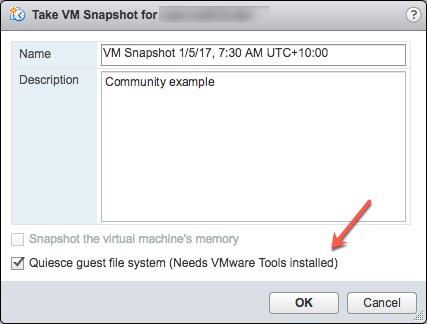
Deselect- "Snapshot the virtual machine's memory".

Select - the "Quiesce guest file system (Needs VMware Tools installed)" check box to pause running processes on the guest operating system so that file system contents are in a known consistent state when you take the snapshot.

Important! After your test, remember to delete the snapshot!!!!

If the quiesce flag is true, and the virtual machine is powered on when the snapshot is taken, VMware Tools is used to quiesce the file system in the virtual machine. Quiescing a file system is a process of bringing the on-disk data into a state suitable for backups. This process might include such operations as flushing dirty buffers from the operating system's in-memory cache to disk.

The following output shows the contents of the $SNAPSHOT log file set in the example freeze/thaw scripts above after running a backup that includes a snapshot as part of its operation.

Wed Jan  4 16:30:35 EST 2017: Pre freeze script started
Wed Jan  4 16:30:35 EST 2017: Attempting to freeze H20152
Wed Jan  4 16:30:36 EST 2017:   H20152 IS FROZEN
Wed Jan  4 16:30:36 EST 2017:   Completed freeze of H20152
Wed Jan  4 16:30:36 EST 2017: Pre freeze script finished

Wed Jan  4 16:30:41 EST 2017: Post thaw script started
Wed Jan  4 16:30:41 EST 2017: Attempting to thaw H20152
Wed Jan  4 16:30:42 EST 2017:   H20152 IS THAWED
Wed Jan  4 16:30:42 EST 2017:   Completed thaw of H20152
Wed Jan  4 16:30:42 EST 2017: Post thaw script finished

This example shows 6 seconds of elapsed time between freeze and thaw (16:30:36-16:30:42). User operations are NOT interrupted during this period. You will have to gather metrics from your own systems, but for some context, this example is from a system running an application benchmark on a VM with no IO bottlenecks and an average of more than 2 million Glorefs/sec, 170,000 Gloupds/sec, and an average 1,100 physical reads/sec and 3,000 writes per write daemon cycle.

Remember that memory is not part of the snapshot, so on restarting, the VM will reboot and recover. Database files will be consistent. You don’t want to "resume" a backup; you want the files at a known point in time. You can then roll forward journals and whatever other recovery steps are needed for the application and transactional consistency once the files are recovered.

For additional data protection, a journal switch can be done by itself, and journals can be backed up or replicated to another location, for example, hourly.

Below is the output of the $LOGFILE in the example freeze/thaw scripts above, showing journal details for the snapshot.

01/04/2017 16:30:35: Backup.General.ExternalFreeze: Suspending system

Journal file switched to:
/trak/jnl/jrnpri/h20152/H20152_20170104.011
01/04/2017 16:30:35: Backup.General.ExternalFreeze: Start a journal restore for this backup with journal file: /trak/jnl/jrnpri/h20152/H20152_20170104.011

Journal marker set at
offset 197192 of /trak/jnl/jrnpri/h20152/H20152_20170104.011
01/04/2017 16:30:36: Backup.General.ExternalFreeze: System suspended
01/04/2017 16:30:41: Backup.General.ExternalThaw: Resuming system
01/04/2017 16:30:42: Backup.General.ExternalThaw: System resumed

VM Stun Times

At the creation point of a VM snapshot and after the backup is complete and the snapshot is committed, the VM needs to be frozen for a short period. This short freeze is often referred to as stunning the VM. A good blog post on stun times is here. I summarise the details below and put them in the context of IRIS database considerations.

From the post on stun times: “To create a VM snapshot, the VM is “stunned” in order to (i) serialize device state to disk, and (ii) close the current running disk and create a snapshot point.…When consolidating, the VM is “stunned” in order to close the disks and put them in a state that is appropriate for consolidation.”

Stun time is typically a few 100 milliseconds; however, if there is a very high disk write activity during the commit phase, stun time could be several seconds.

If the VM is a Primary or Backup member participating in IRIS Database Mirroring and the stun time is longer than the mirror Quality of Service (QoS) timeout, the mirror will report the Primary VM as failed and initiate a mirror takeover.

Update March 2018: My colleague, Peter Greskoff, pointed out that a backup mirror member could initiate failover in as short a time as just over half QoS timeout during a VM stun or any other time the primary mirror member is unavailable.

For a detailed description of QoS considerations and failover scenarios, see this great post: Quality of Service Timeout Guide for Mirroring, however the short story regarding VM stun times and QoS is:

If the backup mirror does not receive any messages from the primary mirror within half of the QoS timeout, it will send a message to ensure the primary is still alive. The backup then waits an additional half QoS time for a response from the primary machine. If there is no response from the primary, it is assumed to be down, and the backup will take over.

On a busy system, journals are continuously sent from the primary to the backup mirror, and the backup would not need to check if the primary is still alive. However, during a quiet time — when backups are more likely to happen — if the application is idle, there may be no messages between the primary and backup mirror for more than half the QoS time.

Here is Peter’s example; Think about this time frame for an idle system with a QoS timeout of:08 seconds and a VM stun time of:07 seconds:

  • :00 Primary pings the arbiter with a keepalive, arbiter responds immediately
  • :01 backup member sends keepalive to the primary, primary responds immediately
  • :02
  • :03 VM stun begins
  • :04 primary tries to send keepalive to the arbiter, but it doesn’t get through until stun is complete
  • :05 backup member sends a ping to primary, as half of QoS has expired
  • :06
  • :07
  • :08 arbiter hasn’t heard from the primary in a full QoS timeout, so it closes the connection
  • :09 The backup hasn’t gotten a response from the primary and confirms with the arbiter that it also lost connection, so it takes over
  • :10 VM stun ends, too late!!

Please also read the section, Pitfalls and Concerns when Configuring your Quality of Service Timeout, in the linked post above to understand the balance to have QoS only as long as necessary. Having QoS too long, especially more than 30 seconds, can also cause problems.

End update March 2018:

For more information on Mirroring QoS, also see the documentation.

Strategies to keep stun time to a minimum include running backups when database activity is low and having well-set-up storage.

As noted above, when creating a snapshot, there are several options you can specify; one of the options is to include the memory state in the snapshot - Remember, memory state is NOT needed for IRIS database backups. If the memory flag is set, a dump of the internal state of the virtual machine is included in the snapshot. Memory snapshots take much longer to create. Memory snapshots are used to allow reversion to a running virtual machine state as it was when the snapshot was taken. This is NOT required for a database file backup.

When taking a memory snapshot, the entire state of the virtual machine will be stunned, stun time is variable.

As noted previously, for backups, the quiesce flag must be set to true for manual snapshots or by the backup software to guarantee a consistent and usable backup.

Reviewing VMware logs for stun times

Starting from ESXi 5.0, snapshot stun times are logged in each virtual machine's log file (vmware.log) with messages similar to:

2017-01-04T22:15:58.846Z| vcpu-0| I125: Checkpoint_Unstun: vm stopped for 38123 us

Stun times are in microseconds, so in the above example, 38123 us is 38123/1,000,000 seconds or 0.038 seconds.

To be sure that stun times are within acceptable limits or to troubleshoot if you suspect long stun times are causing problems, you can download and review the vmware.log files from the folder of the VM that you are interested in. Once downloaded, you can extract and sort the log using the example Linux commands below.

Example downloading vmware.log files

There are several ways to download support logs, including creating a VMware support bundle through the vSphere management console or from the ESXi host command line. Consult the VMware documentation for all the details, but below is a simple method to create and gather a much smaller support bundle that includes the vmware.log file so you can review stun times.

You will need the long name of the directory where the VM files are located. Log on to the ESXi host where the database VM is running using ssh and use the command: vim-cmd vmsvc/getallvms  to list vmx files and the long names unique associated with them.

For example, the long name for the example database VM used in this post is output as: 26 vsan-tc2016-db1 [vsanDatastore] e2fe4e58-dbd1-5e79-e3e2-246e9613a6f0/vsan-tc2016-db1.vmx rhel7_64Guest vmx-11

Next, run the command to gather and bundle only log files:
vm-support -a VirtualMachines:logs.

The command will echo the location of the support bundle, for example: To see the files collected, check '/vmfs/volumes/datastore1 (3)/esx-esxvsan4.iscinternal.com-2016-12-30--07.19-9235879.tgz'.

You can now use sftp to transfer the file off the host for further processing and review.

In this example, after uncompressing the support bundle navigate to the path corresponding to the database VMs long name. For example, in this case: <bundle name>/vmfs/volumes/<host long name>/e2fe4e58-dbd1-5e79-e3e2-246e9613a6f0.

You will see several numbered log files; the most recent log file has no number, i.e. vmware.log. The log may be only a few 100 KB, but there is a lot of information; however, we care about the stun/unstun times, which are easy enough to find with grep. For example:

$ grep Unstun vmware.log
2017-01-04T21:30:19.662Z| vcpu-0| I125: Checkpoint_Unstun: vm stopped for 1091706 us
--- 
2017-01-04T22:15:58.846Z| vcpu-0| I125: Checkpoint_Unstun: vm stopped for 38123 us
2017-01-04T22:15:59.573Z| vcpu-0| I125: Checkpoint_Unstun: vm stopped for 298346 us
2017-01-04T22:16:03.672Z| vcpu-0| I125: Checkpoint_Unstun: vm stopped for 301099 us
2017-01-04T22:16:06.471Z| vcpu-0| I125: Checkpoint_Unstun: vm stopped for 341616 us
2017-01-04T22:16:24.813Z| vcpu-0| I125: Checkpoint_Unstun: vm stopped for 264392 us
2017-01-04T22:16:30.921Z| vcpu-0| I125: Checkpoint_Unstun: vm stopped for 221633 us

We can see two groups of stun times in the example, one from snapshot creation and a second set 45 minutes later for each disk when the snapshot is deleted/consolidated (e.g. after the backup software has completed copying the read-only vmx file). The above example shows that most stun times are sub-second, although the initial stun time is just over one second.

Short stun times are not noticeable to an end user. However, system processes such as IRIS Database Mirroring continuously monitor whether an instance is ‘alive’. If the stun time exceeds the mirroring QoS timeout, the node may be considered uncontactable and ‘dead’, and a failover will be triggered.

Tip: To review all the logs or for trouble-shooting, a handy command is to grep all the vmware*.log files and look for any outliers or instances where stun time is approaching QoS timeout. The following command pipes the output to awk for formatting:

grep Unstun vmware* | awk '{ printf ("%'"'"'d", $8)} {print " ---" $0}' | sort -nr


Summary

You should monitor your system regularly during normal operations to understand stun times and how they may impact QoS timeout for HA, such as mirroring. As noted, strategies to keep stun/unstun time to a minimum include running backups when database and storage activity is low and having well-set-up storage. For constant monitoring, logs may be processed by using VMware Log Insight or other tools.

In future posts, I will revisit backup and restore operations for InterSystems Data Platforms. But for now, if you have any comments or suggestions based on the workflows of your systems, please share them via the comments sections below.

29
9 11884
Article Sylvain Guilbaud · Jan 31, 2025 1m read

In a containerized environment, you can manage your container time via the TZ variable or via the /etc/timezone and /etc/localtime directories:

environment:
      - TZ=Europe/Paris
volumes:
    - "/etc/timezone:/etc/timezone:ro"
    - "/etc/localtime:/etc/localtime:ro"

You can find complete examples here:

IRIS Community

IRISHealth_Community

IRIS production

IRISHealth production

0
0 101
Question Alastair Maxwell · Dec 17, 2024

Hi,

I recently had a company-enforced OS upgrade, and ever since going from mac OS 14.x to 15.x, I am currently having issues with SSL in IRIS.

An ARM (M3 pro) machine running OS 15.2, with the latest Docker Desktop (at the time of writing, 4.37.0). The Docker container runs IRIS for UNIX (Ubuntu Server LTS for x86-64 Containers) 2022.1.2 (Build 574_0_22161U). This container has not changed.

3
0 246
Article Eduard Lebedyuk · May 24, 2024 15m read

If you're running IRIS in a mirrored configuration for HA in GCP, the question of providing a Mirror VIP (Virtual IP) becomes relevant. Virtual IP offers a way for downstream systems to interact with IRIS using one IP address. Even when a failover happens, downstream systems can reconnect to the same IP address and continue working.

The main issue, when deploying to GCP, is that an IRIS VIP has a requirement of IRIS being essentially a network admin, per the docs.

To get HA, IRIS mirror members must be deployed to different availability zones in one subnet (which is possible in GCP as subnets always span the entire region). One of the solutions might be load balancers, but they, of course, cost extra, and you need to administrate them.

In this article, I would like to provide a way to configure a Mirror VIP without using Load Balancers suggested in most other GCP reference architectures.

Architecture

GCP VIP

We have a subnet running across the region (I simplify here - of course, you'll probably have public subnets, arbiter in another az, and so on, but this is an absolute minimum enough to demonstrate this approach). Subnet's CIRD is 10.0.0.0/24, which means it is allocated IPs 10.0.0.1 to 10.0.0.255. As GCP reserves the first and last two addresses, we can use 10.0.0.2 to 10.0.0.253.

We will implement both public and private VIPs at the same time. If you want, you can implement only the private VIP.

Idea

Virtual Machines in GCP have Network Interfaces. These Network Interfaces have Alias IP Ranges which are private IP addresses. Public IP Addresses can be added by specifying Access Config

Network Interfaces configuration is a combination of Public and/or Private IPs, and it's routed automatically to the Virtual Machine associated with the Network interface. So there is no need to update the routes. What we'll do is, during a mirror failover event, delete the VIP IP configuration from the old primary and create it for a new primary. All operations to do that take 5-20 seconds for Private VIP only, from 5 seconds and up to a minute for a Public/Private VIP IP combination.

Implementing VIP

  1. Allocate IP address to use as a public VIP. Skip this step if you want private VIP only.
  2. Decide on a private VIP value. I will use 10.0.0.250.
  3. Provision your IRIS Instances with a service account
  • compute.instances.get
  • compute.addresses.use
  • compute.addresses.useInternal
  • compute.instances.updateNetworkInterface
  • compute.subnetworks.use

For External VIP you'll also need:

  • compute.instances.addAccessConfig
  • compute.instances.deleteAccessConfig
  • compute.networks.useExternalIp
  • compute.subnetworks.useExternalIp
  • compute.addresses.list
  1. When a current mirror member becomes primary, we'll use a ZMIRROR callback to delete a VIP IP configuration on another mirror member's network interface and create a VIP IP configuration pointing at itself.

That's it.

ROUTINE ZMIRROR

NotifyBecomePrimary() PUBLIC {
    #include %occMessages
    set sc = ##class(%SYS.System).WriteToConsoleLog("Setting Alias IP instead of Mirror VIP"_$random(100))
    set sc = ##class(%SYS.Python).Import("set_alias_ip")
    quit sc
}

And here's set_alias_ip.py which must be placed into mgr\python directory:

"""
This script adds Alias IP (https://cloud.google.com/vpc/docs/alias-ip) to the VM Network Interface.

You can allocate alias IP ranges from the primary subnet range, or you can add a secondary range to the subnet
and allocate alias IP ranges from the secondary range.
For simplicity, we use the primary subnet range.

Using google cli, gcloud, this action could be performed in this way:
$ gcloud compute instances network-interfaces update <instance_name> --zone=<subnet_zone> --aliases="10.0.0.250/32"

Note that the command for alias removal looks similar - just provide an empty `aliases`:
$ gcloud compute instances network-interfaces update <instance_name> --zone=<subnet_zone> --aliases=""

We leverage Google Compute Engine Metadata API to retrieve <instance_name> as well as <subnet_zone>.

Also note https://cloud.google.com/vpc/docs/subnets#unusable-ip-addresses-in-every-subnet.

Google Cloud uses the first two and last two IPv4 addresses in each subnet primary IPv4 address range to host the subnet.
Google Cloud lets you use all addresses in secondary IPv4 ranges, i.e.:
- 10.0.0.0 - Network address
- 10.0.0.1 - Default gateway address
- 10.0.0.254 - Second-to-last address. Reserved for potential future use
- 10.0.0.255 - Broadcast address

After adding Alias IP, you can check its existence using 'ip' utility:
$ ip route ls table local type local dev eth0 scope host proto 66
local 10.0.0.250
"""

import subprocess
import requests
import re
import time
from google.cloud import compute_v1

ALIAS_IP = "10.0.0.250/32"
METADATA_URL = "http://metadata.google.internal/computeMetadata/v1/"
METADATA_HEADERS = {"Metadata-Flavor": "Google"}
project_path = "project/project-id"
instance_path = "instance/name"
zone_path = "instance/zone"
network_interface = "nic0"
mirror_public_ip_name = "isc-mirror"
access_config_name = "isc-mirror"
mirror_instances = ["isc-primary-001", "isc-backup-001"]


def get_metadata(path: str) -> str:
    return requests.get(METADATA_URL + path, headers=METADATA_HEADERS).text


def get_zone() -> str:
    return get_metadata(zone_path).split('/')[3]


client = compute_v1.InstancesClient()
project = get_metadata(project_path)
availability_zone = get_zone()


def get_ip_address_by_name():
    ip_address = ""
    client = compute_v1.AddressesClient()
    request = compute_v1.ListAddressesRequest(
        project=project,
        region='-'.join(get_zone().split('-')[0:2]),
        filter="name=" + mirror_public_ip_name,
    )
    response = client.list(request=request)
    for item in response:
        ip_address = item.address
    return ip_address


def get_zone_by_instance_name(instance_name: str) -> str:
    request = compute_v1.AggregatedListInstancesRequest()
    request.project = project
    instance_zone = ""
    for zone, response in client.aggregated_list(request=request):
        if response.instances:
            if re.search(f"{availability_zone}*", zone):
                for instance in response.instances:
                    if instance.name == instance_name:
                        return zone.split('/')[1]
    return instance_zone


def update_network_interface(action: str, instance_name: str, zone: str) -> None:
    if action == "create":
        alias_ip_range = compute_v1.AliasIpRange(
            ip_cidr_range=ALIAS_IP,
        )
    nic = compute_v1.NetworkInterface(
        alias_ip_ranges=[] if action == "delete" else [alias_ip_range],
        fingerprint=client.get(
            instance=instance_name,
            project=project,
            zone=zone
        ).network_interfaces[0].fingerprint,
    )
    request = compute_v1.UpdateNetworkInterfaceInstanceRequest(
        project=project,
        zone=zone,
        instance=instance_name,
        network_interface_resource=nic,
        network_interface=network_interface,
    )
    response = client.update_network_interface(request=request)
    print(instance_name + ": " + str(response.status))


def get_remote_instance_name() -> str:
    local_instance = get_metadata(instance_path)
    mirror_instances.remove(local_instance)
    return ''.join(mirror_instances)


def delete_remote_access_config(remote_instance: str) -> None:
    request = compute_v1.DeleteAccessConfigInstanceRequest(
        access_config=access_config_name,
        instance=remote_instance,
        network_interface="nic0",
        project=project,
        zone=get_zone_by_instance_name(remote_instance),
    )
    response = client.delete_access_config(request=request)
    print(response)


def add_access_config(public_ip_address: str) -> None:
    access_config = compute_v1.AccessConfig(
        name = access_config_name,
        nat_i_p=public_ip_address,
    )
    request = compute_v1.AddAccessConfigInstanceRequest(
        access_config_resource=access_config,
        instance=get_metadata(instance_path),
        network_interface="nic0",
        project=project,
        zone=get_zone_by_instance_name(get_metadata(instance_path)),
    )
    response = client.add_access_config(request=request)
    print(response)


# Get another failover member's instance name and zone
remote_instance = get_remote_instance_name()
print(f"Alias IP is going to be deleted at [{remote_instance}]")

# Remove Alias IP from a remote failover member's Network Interface
#
# TODO: Perform the next steps when an issue https://github.com/googleapis/google-cloud-python/issues/11931 will be closed:
# - update google-cloud-compute pip package to a version containing fix (>1.15.0)
# - remove a below line calling gcloud with subprocess.run()
# - uncomment update_network_interface() function
subprocess.run([
    "gcloud",
    "compute",
    "instances",
    "network-interfaces",
    "update",
    remote_instance,
    "--zone=" + get_zone_by_instance_name(remote_instance),
    "--aliases="
])
# update_network_interface("delete",
#                          remote_instance,
#                          get_zone_by_instance_name(remote_instance)


# Add Alias IP to a local failover member's Network Interface
update_network_interface("create",
                         get_metadata(instance_path),
                         availability_zone)


# Handle public IP switching
public_ip_address = get_ip_address_by_name()
if public_ip_address:
    print(f"Public IP [{public_ip_address}] is going to be switched to [{get_metadata(instance_path)}]")
    delete_remote_access_config(remote_instance)
    time.sleep(10)
    add_access_config(public_ip_address)

Demo

Now let's deploy this IRIS architecture into GCP using Terraform and Ansible. If you already running IRIS in GCP or using a different tool, the ZMIRROR script is available here.

Tools

We'll need the following tools. As Ansible is Linux only I highly recommend running it on Linux, althrough I confirmed that it works on Windows in WSL2 too.

gcloud:

$ gcloud version
Google Cloud SDK 459.0.0
...

terraform:

$ terraform version
Terraform v1.6.3

python:

$ python3 --version
Python 3.10.12

ansible:

$ ansible --version
ansible [core 2.12.5]
...

ansible-playbook:

$ ansible-playbook --version
ansible-playbook [core 2.12.5]
...

WSL2

If you're running in WSL2 on Windows, you'll need to restart ssh agent by running:

eval `ssh-agent -s`

Also sometimes (when Windows goes to sleep/hibernate and back) the WSL clock is not synced, you might need to sync it explicitly:

sudo hwclock -s

Headless servers

If you're runnning a headless server, use gcloud auth login --no-browser to authenticate against GCP.

IaC

We leverage Terraform and store its state in a Cloud Storage. See details below about how this storage is created.

Define required variables

$ export PROJECT_ID=<project_id>
$ export REGION=<region> # For instance, us-west1
$ export TF_VAR_project_id=${PROJECT_ID}
$ export TF_VAR_region=${REGION}
$ export ROLE_NAME=MyTerraformRole
$ export SA_NAME=isc-mirror

Note: If you'd like to add Public VIP which exposes IRIS Mirror ports publicly (it's not recommended) you could enable it with:

$ export TF_VAR_enable_mirror_public_ip=true

Prepare Artifact Registry

It's recommended to leverage Google Artifact Registry instead of Container Registry. So let's create registry first:

$ cd <root_repo_dir>/terraform
$ cat ${SA_NAME}.json | docker login -u _json_key --password-stdin https://${REGION}-docker.pkg.dev
$ gcloud artifacts repositories create --repository-format=docker --location=${REGION} intersystems

Prepare Docker images

Let's assume that VM instances don't have an access to ISC container repository. But you personally do have and at the same do not want to put your personal credentials on VMs.

In that case you can pull IRIS Docker images from ISC container registry and push them to Google container registry where VMs have an access to:

$ docker login containers.intersystems.com
$ <Put your credentials here>

$ export IRIS_VERSION=2023.2.0.221.0

$ cd docker-compose/iris
$ docker build -t ${REGION}-docker.pkg.dev/${PROJECT_ID}/intersystems/iris:${IRIS_VERSION} .

$ for IMAGE in webgateway arbiter; do \
    docker pull containers.intersystems.com/intersystems/${IMAGE}:${IRIS_VERSION} \
    && docker tag containers.intersystems.com/intersystems/${IMAGE}:${IRIS_VERSION} ${REGION}-docker.pkg.dev/${PROJECT_ID}/intersystems/${IMAGE}:${IRIS_VERSION} \
    && docker push ${REGION}-docker.pkg.dev/${PROJECT_ID}/intersystems/${IMAGE}:${IRIS_VERSION}; \
done

$ docker push ${REGION}-docker.pkg.dev/${PROJECT_ID}/intersystems/iris:${IRIS_VERSION}

Put IRIS license

Put IRIS license key file, iris.key to <root_repo_dir>/docker-compose/iris/iris.key. Note that a license has to support Mirroring.

Create Terraform Role

This role will be used by Terraform for managing needed GCP resources:

$ cd <root_repo_dir>/terraform/
$ gcloud iam roles create ${ROLE_NAME} --project ${PROJECT_ID} --file=terraform-permissions.yaml

Note: use update for later usage:

$ gcloud iam roles update ${ROLE_NAME} --project ${PROJECT_ID} --file=terraform-permissions.yaml

Create Service Account with Terraform role

$ gcloud iam service-accounts create ${SA_NAME} \
    --description="Terraform Service Account for ISC Mirroring" \
    --display-name="Terraform Service Account for ISC Mirroring"

$ gcloud projects add-iam-policy-binding ${PROJECT_ID} \
    --member="serviceAccount:${SA_NAME}@${PROJECT_ID}.iam.gserviceaccount.com" \
    --role=projects/${PROJECT_ID}/roles/${ROLE_NAME}

Generate Service Account key

Generate Service Account key and store its value in a certain environment variable:

$ gcloud iam service-accounts keys create ${SA_NAME}.json \
    --iam-account=${SA_NAME}@${PROJECT_ID}.iam.gserviceaccount.com

$ export GOOGLE_APPLICATION_CREDENTIALS=<absolute_path_to_root_repo_dir>/terraform/${SA_NAME}.json

Generate SSH keypair

Store a private part locally as .ssh/isc_mirror and make it visible for ssh-agent. Put a public part to a file isc_mirror.pub:

$ ssh-keygen -b 4096 -C "isc" -f ~/.ssh/isc_mirror
$ ssh-add  ~/.ssh/isc_mirror
$ ssh-add -l # Check if 'isc' key is present
$ cp ~/.ssh/isc_mirror.pub <root_repo_dir>/terraform/templates/

Create Cloud Storage

Cloud Storage is used for storing Terraform state remotely. You could take a look at Store Terraform state in a Cloud Storage bucket as an example.

Note: created Cloud Storage will have a name like isc-mirror-demo-terraform-<project_id>:

$ cd <root_repo_dir>/terraform-storage/
$ terraform init
$ terraform plan
$ terraform apply

Create resources with Terraform

$ cd <root_repo_dir>/terraform/
$ terraform init -backend-config="bucket=isc-mirror-demo-terraform-${PROJECT_ID}"
$ terraform plan
$ terraform apply

Note 1: Four virtual machines will be created. Only one of them has a public IP address and plays a role of bastion host. This machine is called isc-client-001. You can find a public IP of isc-client-001 instance by running the following command:

$ export ISC_CLIENT_PUBLIC_IP=$(gcloud compute instances describe isc-client-001 --zone=${REGION}-c --format=json | jq -r '.networkInterfaces[].accessConfigs[].natIP')

Note 2: Sometimes Terraform fails with errors like:

Failed to connect to the host via ssh: kex_exchange_identification: Connection closed by remote host...

In that case try to clean a local ~/.ssh/known_hosts file:

$ for IP in ${ISC_CLIENT_PUBLIC_IP} 10.0.0.{3..6}; do ssh-keygen -R "[${IP}]:2180"; done

and then repeat terraform apply.

Quick test

Access to IRIS mirror instances with SSH

All instances, except isc-client-001, are created in a private network to increase a security level. But you can access them using SSH ProxyJump feature. Get the isc-client-001 public IP first:

$ export ISC_CLIENT_PUBLIC_IP=$(gcloud compute instances describe isc-client-001 --zone=${REGION}-c --format=json | jq -r '.networkInterfaces[].accessConfigs[].natIP')

Then connect to, for example, isc-primary-001 with a private SSH key. Note that we use a custom SSH port, 2180:

$ ssh -i ~/.ssh/isc_mirror -p 2180 isc@10.0.0.3 -o ProxyJump=isc@${ISC_CLIENT_PUBLIC_IP}:2180

After connection, let's check that Primary mirror member has Alias IP:

[isc@isc-primary-001 ~]$ ip route ls table local type local dev eth0 scope host proto 66
local 10.0.0.250

[isc@isc-primary-001 ~]$ ping -c 1 10.0.0.250
PING 10.0.0.250 (10.0.0.250) 56(84) bytes of data.
64 bytes from 10.0.0.250: icmp_seq=1 ttl=64 time=0.049 ms

Access to IRIS mirror instances Management Portals

To open mirror instances Management Portals located in a private network, we leverage SSH Socks Tunneling.

Let's connect to isc-primary-001 instance. Note that a tunnel will live in a background after the next command:

$ ssh -f -N  -i ~/.ssh/isc_mirror -p 2180 isc@10.0.0.3 -o ProxyJump=isc@${ISC_CLIENT_PUBLIC_IP}:2180 -L 8080:10.0.0.3:8080

Port 8080, instead of a familiar 52773, is used because we start IRIS with a dedicated WebGateway running on port 8080.

After successful connection, open http://127.0.0.1:8080/csp/sys/UtilHome.csp in a browser. You should see a Management Portal. Credentials are typical: _system/SYS.

The same approach works for all instances: primary (10.0.0.3), backup (10.0.0.4) and arbiter (10.0.0.5). Just make an SSH connection to them first.

Test

Let's connect to isc-client-001:

$ ssh -i ~/.ssh/isc_mirror -p 2180 isc@${ISC_CLIENT_PUBLIC_IP}

Check Primary mirror member's Management Portal availability on Alias IP address:

$ curl -s -o /dev/null -w "%{http_code}\n" http://10.0.0.250:8080/csp/sys/UtilHome.csp
200

Let's connect to isc-primary-001 on another console:

$ ssh -i ~/.ssh/isc_mirror -p 2180 isc@10.0.0.3 -o ProxyJump=isc@${ISC_CLIENT_PUBLIC_IP}:2180

And switch the current Primary instance off. Note that IRIS as well as its WebGateway is running in Docker:

[isc@isc-primary-001 ~]$ docker-compose -f /isc-mirror/docker-compose.yml down

Let's check mirror member's Management Portal availability on Alias IP address again from isc-client-001:

[isc@isc-client-001 ~]$ curl -s -o /dev/null -w "%{http_code}\n" http://10.0.0.250:8080/csp/sys/UtilHome.csp
200

It should work as Alias IP was moved to isc-backup-001 instance:

$ ssh -i ~/.ssh/isc_mirror -p 2180 isc@10.0.0.4 -o ProxyJump=isc@${ISC_CLIENT_PUBLIC_IP}:2180
[isc@isc-backup-001 ~]$ ip route ls table local type local dev eth0 scope host proto 66
local 10.0.0.250

Cleanup

Remove infrastructure

$ cd <root_repo_dir>/terraform/
$ terraform init -backend-config="bucket=isc-mirror-demo-terraform-${PROJECT_ID}"
$ terraform destroy

Remove Artifact Registry

$ cd <root_repo_dir>/terraform
$ cat ${SA_NAME}.json | docker login -u _json_key --password-stdin https://${REGION}-docker.pkg.dev

$ for IMAGE in iris webgateway arbiter; do \
    gcloud artifacts docker images delete ${REGION}-docker.pkg.dev/${PROJECT_ID}/intersystems/${IMAGE}
done
$ gcloud artifacts repositories delete intersystems --location=${REGION}

Remove Cloud Storage

Remove Cloud Storage where Terraform stores its state. In our case, it's a isc-mirror-demo-terraform-<project_id>.

Remove Terraform Role

Remove Terraform Role created in Create Terraform Role.

Conclusion

And that's it! We change networking configuration pointing to a current mirror Primary when the NotifyBecomePrimary event happens.

Author would like to thank @Mikhail Khomenko, @Vadim Aniskin, and @Evgeny Shvarov for the Community Ideas Program which made this article possible.

3
1 585
Question James Hipp · Jan 6, 2025

Hello,

I was just trying to get to the bottom of a TLS config - we have an interface with a TLS config that has had 'Server certificate verification' set to 'On', however the cert file specified either did not exist or contained a cert that was expired.

Does anyone know what the behavior is for this typically? I would expect this to not allow traffic on the interface, however this has been working fine for a few years now with an invalid cert specified for 'Server certificate verification' and set to 'On'.

0
0 120
Question Theo Stolker · Dec 18, 2024

Hi,

In a customer project we started enforcing the "Inactivity Limit" as defined in System-Wide Security Parameters. The customer would expect accounts to become Disabled after they have been inactive for the specified amount of days. However, that doesn't happen; it seems the Inactivity Limit is only established after logging in.

Furthermore, the account inactivity only starts being applied after the first login. Can you confirm that?

Lastly, for accounts that have been manually Disabled, and have an expired password, we see the following weird behavior:

0
0 130
Question Dmitrii Baranov · Dec 10, 2024

I am developing locally on my IRIS instance using VSCode and client-side editing approach. How can I automatically export a single .cls file/a whole package to a remote TEST/PREPROD server using a script or command line and recompile the unit remotely? Are there any more simple and straightforward ways than CI/CD explained in the series of articles by Eduard?

3
0 166
Article Megumi Kakechi · Nov 7, 2024 1m read

InterSystems FAQ rubric

It can be obtained with a List query of the %SYS.Namespace class.

1. Create a routine like this:

getnsp
   set statement=##class(%SQL.Statement).%New()
   set status=statement.%PrepareClassQuery("%SYS.Namespace","List")
   set resultset=statement.%Execute()
   while resultset.%Next() {
       write resultset.%Get("Nsp"),!
   }
   quit

2. Run it in your terminal

USER>do ^getnsp
%SYS
DOCBOOK
SAMPLES
USER

The method of executing class queries introduced in this article can be applied in a variety of cases.

4
1 488
InterSystems Official RB Omo · Sep 24, 2018

September 24, 2018 – Advisory: VMWare vSAN and Data Integrity

Clients running vSAN 6.6 or later should review a very important article that VMware published on September 21, 2018.  The article describes the possibility of file system and database corruption, which can lead to outages and possible data loss, and we believe that some of our clients have encountered this issue.  Therefore, we encourage you to act on this as soon as possible.

The VMWare knowledge base article is titled:

Virtual Machines running on VMware vSAN 6.6 and later report guest data consistency concerns following a disk extend operation (58715)

2
0 686
Article Tomoko Furuzono · Oct 24, 2024 1m read

InterSystems FAQ rubric

The maximum number of namespaces that can be created in one instance is 2047. However, to use a large number of namespaces, you will need to configure memory accordingly.

The maximum number of databases (including remote databases) that can be created in one instance is 15998. Depending on the type of license, there may be restrictions on the number that can be created. For details, please refer to the following document.
Database Configuration [IRIS]
Database Configuration
 

0
0 179
Question Roma Bunga · Sep 25, 2018

Hi,

We see a lot of TCPIP connection error for few of the components not sure if it is a network glitch at the source/target or is it with us. And most of the times these errors are very transient and vanish on their own and the connection gets re established and the messages get processed. Here is the error we mostly see

ERROR <Ens>ErrTCPTerminatedReadTimeoutExpired: TCP Read timeout (30) expired waiting for terminator SegTerminatorAscii=13, on |TCP|50007|10620, data received =''

or

3
1 1699
Question Scott Roth · Sep 25, 2024

I am trying to track down a problem we saw this morning with our TEST environment. We had a momentary issue where InterSystems HealthShare Health Connect could not connect correctly to LDAP. When we tried to login and could not connect to LDAP, the system would Delete our users.

the Test LDAP function would return a "Can't contact LDAP server". I went through the Certificates, made sure they had the correct permissions and were not expired.

2
0 213
Article Vic Sun · Feb 28, 2024 27m read

What is Journaling?

Journaling is a critical IRIS feature and a part of what makes IRIS a reliable database. While journaling is fundamental to IRIS, there are nuances, so I wrote this article to summarize (more briefly than our documentation which has all the details) what you need to know. I realize the irony of saying the 27 minute read is brief.

3
9 1433
Question Scott Roth · Sep 2, 2024

Currently we are exploring how we can allocate additional disk space to our current environment as we have seen a significant increase in growth of our Database files. Currently we have 3 namespaces, all with 1 IRIS.dat each that contains both the Global and Routines.

Since we have started down the route of everything within a single IRIS.dat file for each namespace, is it logical as we see growth to be able to split the current IRIS.dat for each namespace into a separate IRIS.dat for global and a IRIS.dat with for routines for each namespace in a Mirror environment?

4
0 260
Article Sylvain Guilbaud · Jul 8, 2024 2m read

For practical reasons, it may be desirable that after a Linux server restart, the IRIS instance is automatically started. 

Below you will find the steps to follow to automate the startup of IRIS during a reboot of the Linux server, via systemd :

1. Create an iris.service file in /etc/systemd/system/iris.service containing the following information

17
5 886
Article Megumi Kakechi · Aug 15, 2024 3m read

InterSystems FAQ rubric

Temporary globals stored in the IRISTEMP/CACHETEMP databases are used when a process does not need to store data indefinitely, but requires the powerful performance of globals. The IRISTEMP/CACHETEMP databases are not journaled, so using temporary globals does not create journal files.

The system uses the IRISTEMP/CACHETEMP databases for temporary storage and are available to users for the same.

For more information about temporary globals and the IRISTEMP database, see the following document:
Temporary Globals and the IRISTEMP Database

The globals used as temporary are:

0
6 393
Article Ray Fucillo · Dec 1, 2023 13m read

When there's a performance issue, whether for all users on the system or a single process, the shortest path to understanding the root cause is usually to understand what the processes in question are spending their time doing.  Are they mostly using CPU to dutifully march through their algorithm (for better or worse); or are they mostly reading database blocks from disk; or mostly waiting for something else, like LOCKs, ECP or database block collisions?

1
4 518
Article Murray Oldfield · Jun 19, 2024 14m read

I have created some example Ansible modules that add functionality above and beyond simply using the Ansible builtin Command or Shell modules to manage IRIS. You can use these as an inspiration for creating your own modules. My hope is that this will be the start of creating an IRIS community Ansible collection.

I expect some editing and changes during the few weeks after the Global Summit (June 2024) so check GitHub.


Ansible modules

To give you an idea of where I am going with this, consider the following: There are many (~100) collections containing many 1,000s of Ansible modules. A full list is here: https://docs.ansible.com/ansible/latest/collections/index.html

By design, modules are very granular and do one job well. For example, the built-in module ansible.builtin.file can create or delete a folder. There are multiple parameters for setting owner and permissions, etc., but the module focuses on this one task. The philosophy is that you should not create complex logic in your Ansible playbooks. You want to make your scripts simple to read and maintain.

You can write your own modules, and this post illustrates that. Modules can be written in nearly any language, and they can even be binaries. Ansible is written in Python, so I will use Python to handle the complex logic in the module. However, the logic is hidden within a few lines of YAML that the user interacts with.


How to stop and start IRIS using the Ansible built-in command module

You can start or stop IRIS using the built-in command module in an Ansible task or play. The command module runs command line commands with optional parameters on the target hosts. For example:

- name: Start IRIS using built-in command  
  ansible.builtin.command: iris start "{{ iris_instance }}"
  register: iris_output  # Capture the output from the module  
  
- name: Display IRIS Start Output test 1  
  ansible.builtin.debug:  
    msg: "IRIS Start Output test 1: {{ iris_output.stdout }}"  
  when: iris_output.stdout is defined  # Ensures stdout is displayed only if defined

"{{ iris_instance }}" is variable. In this case, "iris_instance" is the instance name set sometime earlier. For example, it could be "IRIS" or "PRODUCTION", or anything else. Variables are a way to make your scripts reusable. Using register: iris_output will capture stdout from the command into the variable "iris_output"; we can display or use the output later.

If successful, the output "msg" is the same as if you had run the command on the command line. For example, it will be like this:

TASK [db_server : Display IRIS Start Output test 1] ***********************************************************
ok: [dbserver1] => {
    "msg": "IRIS Start Output test 1: Using 'iris.cpf' configuration file\n\nStarting Control Process\nAllocated 4129MB shared memory\n2457MB global buffers, 512MB routine buffers\nThis copy of InterSystems IRIS has been licensed for use exclusively by:\nISC TrakCare Development\nCopyright (c) 1986-2024 by InterSystems Corporation\nAny other use is a violation of your license agreement\nStarting IRIS"
}

If there is an error, for example, IRIS is already started, the instance name is wrong, or for some other reason, the return code is not 0, the playbook will fail, and no additional tasks will run, which is not ideal. There are ways to manage failure in Ansible scripts, but that will get messy and more complicated to manage. For example, your playbook will come to a halt with this error message if IRIS is already started. Note failed=1 in the PLAY RECAP below.

TASK [db_server : Start IRIS using built-in command] **********************************************************
fatal: [dbserver1]: FAILED! => {"changed": true, "cmd": ["iris", "start", "IRIS"], "delta": "0:00:00.014049", "end": "2024-05-09 03:47:05.027348", "msg": "non-zero return code", "rc": 1, "start": "2024-05-09 03:47:05.013299", "stderr": "", "stderr_lines": [], "stdout": "IRIS is already up!", "stdout_lines": ["IRIS is already up!"]}

PLAY RECAP ****************************************************************************************************
dbserver1                  : ok=2    changed=0    unreachable=0    failed=1    skipped=0    rescued=0    ignored=0

Sidebar: If you have used IRIS for a while, you may ask: Why do you not recommend Running IRIS as a systemd service on Unix? I recommend that, but that will get in the way of my current story! But, as you will see, there are reasons to start and stop IRIS manually. Read on :) I have an example playbook and templates for setting up IRIS as a service in the demo examples that accompany this post.

How to use a custom module to start and stop IRIS

The custom Ansible module to start and stop IRIS gracefully handles errors and output. Apart from having cleaner and easier-to-maintain playbooks, here is some background on why you might do this.

Sidebar: Hugepages

Linux systems use pages for memory allocation. The default page size is 4KB. Hugepages are larger memory pages, typically 2MB by default, but can be more. By reducing memory management overhead, hugepages can significantly improve database performance. Hugepages are large, contiguous blocks of physical memory that a process must explicitly use. Using hugepages is good practice for IRIS databases that keep frequently accessed data in memory.

So, hugepages are good for IRIS database servers. The best practice for IRIS is to put RIS shared memory in hugepages, including Global buffers, routine buffers, and GMHEAP (add link). A common rule of thumb for a database server is to use 70-80% of memory for IRIS shared memory in hugepages. Your requirements will vary depending on how much free memory you need for other processes.

Estimating the exact size of IRIS shared memory is complex and can change depending on your IRIS configuration and between IRIS versions.

You want to be as close as possible to the shared memory size IRIS uses when configuring the number of huge pages on your system.

  • If you allocate too few hugepages for all IRIS shared memory, by default IRIS will start up using standard pages in whatever memory is left, wasting the memory set aside for hugepages!
    • This is a common cause of application performance issues. By default, IRIS keeps downsizing buffers until it can start using the available memory (not hugepages). For example, starting with smaller global buffers increases IO requirements. In the worst case, over time, if not enough memory is available, the system will need to page process memory to the swap file, which will severely impact performance.
  • If you allocate more hugepages than IRIS shared memory, the remainder is wasted!

The recommended process after installing IRIS or making configuration changes that affect shared memory is:

  • Calculate the memory that is required for IRIS and other processes. If in doubt, start with the common 30% other memory / 70% for shared memory rule mentioned above.
  • Calculate the major structures that will use shared memory from the remainder of memory: Global buffers (8K, 64K, etc.), Routine buffers, and GMHeap.
    • See this link for more details.
  • Update the settings in your IRIS configuration file.
  • Stop and start IRIS and review the startup output, either at the command line or in messages.log.
  • Make the OS kernel hugepages size change based on the actual shared memory used.
  • Finally, restart IRIS and make sure everything is as you expect it to be.

An Ansible workflow to right-size hugepages

You may be sizing hugepages and shared memory because you have just installed IRIS, upgraded, or increased or decreased the host memory size for capacity planning reasons. In the example above we saw that if the start command is successful there is some useful information returned, for example, the amount of shared memory:

Allocated 2673MB shared memory
1228MB global buffers, 512MB routine buffers

Ansible playbooks and plays are more like Linux commands than a programming language, although they can be used like a language. In addition to monitoring and handling errors, you could capture the output of the iris start command inline in your playbook and process it to make decisions based on it. But that all gets messy and breaks the DRY principle we should be aiming for when building our automation.

The DRY principle stands for "Don't Repeat Yourself." It is a fundamental concept in software development aimed at reducing the repetition of software patterns, for example, by replacing them with abstractions, which we will now do.

I have created several custom Ansible modules. The Ansible term is a collection. This is the start of an open-source IRIS collection. The source and examples are here: GitHub.

  • The IRIS modules collection for these demos is in the /library folder.

Example playbooks

The module iris_start_stop is used like any other Ansible module. The stanzas in the following playbook extract:

  • Run the customiris_start_stop module. In this case, stop if already running and restart.
    • Register (or store) output in a JSON object in a variable named iris_output.
  • As a demo display the stdout part as a message.
  • As a demo display the stderr part as a message.
  • Display an additional part named memory_info as a message.
- name: Stop IRIS instance test 1  
  iris_start_stop:  
    instance_name: 'IRIS'  
    action: 'stop'  
    quietly: true  
    restart: true  
  register: iris_output  # Capture the output from the stop command  
  
- name: Display IRIS Stop Output test 1  
  ansible.builtin.debug:  
    msg: "IRIS Stop Output test 1: {{ iris_output.stdout }}"  
  when: iris_output.stdout is defined  # Display stdout from stop command  
  
- name: Display IRIS Stop Error test 1  
  ansible.builtin.debug:  
    msg: "IRIS Stop Error test 1: {{ iris_output.stderr }}"  
  when: iris_output.stderr is defined  # Display stderr from stop command  
  
- name: Display IRIS Stop memory facts test 1  
  ansible.builtin.debug:  
    msg: "IRIS Stop memory facts test 1: {{ iris_output.memory_info }}"  
  when: iris_output.memory_info is defined

Example output shows memory_info is returned as a Python dictionary (key: value pairs).

TASK [db_server : Stop IRIS instance test 1] ************************************************************************************************************
changed: [monitor1]

TASK [db_server : Display IRIS Stop Output test 1] ******************************************************************************************************
ok: [monitor1] => {
    "msg": "IRIS Stop Output test 1: Starting Control Process\nAllocated 4129MB shared memory\n2457MB global buffers, 512MB routine buffers\nThis copy of InterSystems IRIS has been licensed for use exclusively by:\nISC TrakCare Development\nCopyright (c) 1986-2024 by InterSystems Corporation\nAny other use is a violation of your license agreement\nStarting IRIS"
}

TASK [db_server : Display IRIS Stop Error test 1] *******************************************************************************************************
ok: [monitor1] => {
    "msg": "IRIS Stop Error test 1: "
}

TASK [db_server : Display IRIS Stop memory facts test 1] ************************************************************************************************
ok: [monitor1] => {
    "msg": "IRIS Stop memory facts test 1: {'shared_memory': 4129, 'global_buffers': 2457, 'routine_buffers': 512, 'hugepages_2MB': 2106}"
}

As you can see, stdout displays the startup message.

However, if you look closely at the memory_info output you can see that the information has been put in a dictionary, which will be useful soon. It also contains the key: value pair 'hugepages_2MB': 2106

Starting and stopping IRIS using an Ansible IRIS module means that a system administrator using Ansible doesn't need to create complex playbooks to handle error checking and calculations or even have a deep understanding of IRIS. The details of how that information was extracted during startup are hidden, as is the calculation of the number of hugepages required for the actual shared memory used by IRIS.

Now that we know the hugepages requirements, we can go on and:

Create a playbook to configure hugepages.

The complete playbook is below.

  • Stop IRIS if its running and restart to capture shared memory.
  • Loop over the memory_info dictionary and create variables from key: value pairs.
  • Stop IRIS.
  • Set hugepages using sysctl to set hugepages passing the hugepages variable. Note: this step is in its own playbook (DRY principles again).
  • Start IRIS.
---  
- name: IRIS hugepages demo  
  ansible.builtin.debug:  
    msg: "IRIS Set hugepages based on IRIS shared memory"  
  
# Stop iris, in Ansible context "quietly" is required, else the command hangs  
# iris stop has output if there is a restart, use that to display changed status  
  
- name: Stop IRIS instance and restart  
  iris_start_stop:  
    instance_name: 'IRIS'  
    action: 'stop'  
    quietly: true  
    restart: true  
  register: iris_output  # Capture the output from the stop command  
  
- name: Set dynamic variables using IRIS start output  
  ansible.builtin.set_fact:  
    "{{ item.key }}": "{{ item.value }}"  
  loop: "{{ iris_output.memory_info | ansible.builtin.dict2items }}"  
  
# Stop IRIS  
  
- name: Stop IRIS instance  
  iris_start_stop:  
    instance_name: 'IRIS'  
    action: 'stop'  
    quietly: true  
  
# Set hugepages  
  
- name: Set hugepages  
  ansible.builtin.include_tasks: set_hugepages.yml  
  vars:  
    hugepages: "{{ hugepages_2MB }}"  
  
# Start, quietly. 
  
- name: Start IRIS instance again  
  iris_start_stop:  
    instance_name: 'IRIS'  
    action: 'start'  
    quietly: true  
  register: iris_output  # Capture the output from the module

The following is the output from the playbook.

TASK [db_server : IRIS hugepages demo] **********************************************************************
ok: [dbserver1] => {
    "msg": "IRIS Set hugepages based on IRIS shared memory"
}

TASK [db_server : Stop IRIS instance and restart] ***********************************************************
changed: [dbserver1]

TASK [db_server : Set dynamic variables using IRIS start output] ********************************************
ok: [dbserver1] => (item={'key': 'iris_start_shared_memory', 'value': 4129})
ok: [dbserver1] => (item={'key': 'iris_start_global_buffers', 'value': 2457})
ok: [dbserver1] => (item={'key': 'iris_start_routine_buffers', 'value': 512})
ok: [dbserver1] => (item={'key': 'iris_start_hugepages_2MB', 'value': 2106})

TASK [db_server : Stop IRIS instance] ***********************************************************************
changed: [dbserver1]

TASK [db_server : Set hugepages] ****************************************************************************
included: /.../roles/db_server/tasks/set_hugepages.yml for dbserver1

TASK [db_server : Set hugepages] ****************************************************************************
ok: [dbserver1] => {
    "msg": "Set hugepages to 2106"
}

:
:
:

TASK [db_server : Start IRIS instance again] ****************************************************************
changed: [dbserver1]

PLAY RECAP **************************************************************************************************
dbserver1                  : ok=13   changed=4    unreachable=0    failed=0    skipped=2    rescued=0    ignored=0

Note that I have edited out the "set hugepages" playbook output. The short story is that the playbook sets hugepages depending on the OS type. Suppose contiguous memory is unavailable, and the required number of huge pages cannot be set. In that case, the server is rebooted (you might defer this if this process is part of an initial build). The reboot and wait for the server to be available before continuing. The reboot steps are skipped if memory is available.


Running IRIS as a systemd service

Managing an InterSystems IRIS database instance as a systemd service on systems that use systemd (like most modern Linux distributions: Red Hat, Ubuntu, etc.) offers several advantages regarding consistency, automation, monitoring, and system integration. The main reason I recommend using systemd is that systemd allows you to configure services to start automatically at boot, which is crucial for production environments to ensure that your database is always available unless deliberately stopped. Likewise, it ensures the database shuts down gracefully when the system is rebooting or shutting down.

An example is at this link: iris_start_stop_systemd.yml

You can also manually start and stop IRIS while running as a service.


Running qlist

Many of the iris commands could benefit from being made their own modules. I have created iris_qlist.py as another example. The value of using a custom module is that the output is in a dictionary that can easily be turned into variables for use in your Ansible scripts. For example:

- name: Execute IRIS qlist  
  iris_qlist:  
    instance_name: 'IRIS'  
  register: qlist_output  
  
- name: Debug qlist_output  
  ansible.builtin.debug:  
    var: qlist_output  
  
- name: Display qlist  
  ansible.builtin.debug:  
    msg: "qlist {{ qlist_output.fields }}"  
  
- name: Create variables from dictionary  
  ansible.builtin.set_fact:  
    "{{ item.key }}": "{{ item.value }}"  
  loop: "{{ lookup('dict', qlist_output.fields) }}"

And the output. Populates variables with IRIS details.

TASK [db_server : IRIS iris_qlist module demo] **************************************************************
ok: [dbserver1] => {
    "msg": "IRIS iris_qlist module demo"
}

TASK [db_server : Execute IRIS qlist] ***********************************************************************
ok: [dbserver1]

:
:
:

TASK [db_server : Create variables from dictionary] *********************************************************
ok: [dbserver1] => (item={'key': 'iris_qlist_instance_name', 'value': 'IRIS'})
ok: [dbserver1] => (item={'key': 'iris_qlist_instance_install_directory', 'value': '/iris'})
ok: [dbserver1] => (item={'key': 'iris_qlist_version_identifier', 'value': '2024.1.0.263.0'})
ok: [dbserver1] => (item={'key': 'iris_qlist_current_status_for_the_instance', 'value': 'running, since Thu May  9 06:50:55 2024'})
ok: [dbserver1] => (item={'key': 'iris_qlist_configuration_file_name_last_used', 'value': 'iris.cpf'})
ok: [dbserver1] => (item={'key': 'iris_qlist_SuperServer_port_number', 'value': '1972'})
ok: [dbserver1] => (item={'key': 'iris_qlist_WebServer_port_number', 'value': '0'})
ok: [dbserver1] => (item={'key': 'iris_qlist_JDBC_Gateway_port_number', 'value': '0'})
ok: [dbserver1] => (item={'key': 'iris_qlist_Instance_status', 'value': 'ok'})
ok: [dbserver1] => (item={'key': 'iris_qlist_Product_name_of_the_instance', 'value': 'IRISHealth'})
ok: [dbserver1] => (item={'key': 'iris_qlist_Mirror_member_type', 'value': ''})
ok: [dbserver1] => (item={'key': 'iris_qlist_Mirror_Status', 'value': ''})
ok: [dbserver1] => (item={'key': 'iris_qlist_Instance_data_directory', 'value': '/iris'})

I will expand the use of Ansible IRIS modules in the future and create more community posts as I progress.

1
2 624
Article Jeffrey Drumm · Jul 17, 2024 2m read

I found myself in the not-so-comfortable situation of working with a Linux system on which someone had accidentally disabled user access to the Linux shell. HealthConnect was running, servicing hundreds of interfaces. To resolve the access issue, though, we needed to bring the host down for the application of a fix.

Without the shell, the iris command is not available to control the instance, so we were faced with the potential of shutting down the server ungracefully. We wanted to avoid that if possible ...

7
3 628
Question Anna Golitsyna · Jul 16, 2024

I have a few routines in ^rINDEX that are missing in ^ROUTINE. At least some of those routines lack a timestamp, probably Date and Time Modified in ^rINDEX. It causes D %RO crash when such a routine is referenced by a routine range, since "" is an illegal $ZDTH value.

Healthy entry (note the timestamp): ^rINDEX("ABC,"INT")    =    $lb("2021-06-15 15:08:38.846885",)   ;The second argument is sometimes present and sometimes not, likely the routine size.

Unhealthy entry (note an empty timestamp): ^rINDEX("DEF,"INT")    =    $lb("",21) 

3
0 161
Question Scott Roth · Jul 11, 2024

Could someone explain how and why a HL7 ACK be showing up as a Orphaned message when I run the following SQL...
 

SELECT HL7.ID,HL7.DocType,HL7.Envelope,HL7.Identifier,HL7.MessageTypeCategory,HL7.Name,HL7.OriginalDocId,HL7.ParentId, HL7.TimeCreated
FROM EnsLib_HL7.Message HL7
LEFTJOIN Ens.MessageHeader hdr
ON HL7.Id=hdr.MessageBodyId
WHERE hdr.MessageBodyId ISNULL

I am trying to find the problem code that is causing the Orphaned messages, and an ACK showing up seems kind of Odd. While we do have Archive IO/Trace on, and Index NOT OK's set why would they show up as Orphaned messages?

1
0 140
Question Scott Roth · Oct 2, 2019

We are constantly running into issues where there are billions of Orphaned messages in our system that cause problems, and we have to manually run a cleanup to fix performance issues.

 In the following article about orphaned messages... https://community.intersystems.com/post/ensemble-orphaned-messages it mentions either programmatically eliminating the Orphaned messages or using a Utility like Demo.Util.CleanupSet in ENSDEMO.

I have had it explained to me is basically all messages have to go somewhere, if they aren't then it creates orphaned messages. 

7
2 939
Question Scott Roth · Dec 4, 2023

We recently moved from using the Private Web Server, to using an Apache/Web Gateway setup and moved towards using the built in LDAP functionality within IRIS. Since then, we have 1 user that uses VSCode (/api/atelier) heavily that continues to have issues signing into IRIS through VS Code and the /api/atelier extension.

I am trying to troubleshoot two issues..

  • User having login failures with correct password. 
8
0 1572
Question Ben Spead · Mar 17, 2023

We're looking to create a quick and simple test to see if all firewalls are open on 1972 between a linux based web server VM and a VM running InterSystems IRIS.  Does anyone have any ideas for a quick command that can be run from UNIX console that will provide confirmation that traffic is able to get to 1972 on an IRIS machine?

BTW - I don't think it makes any difference but the IRIS machine is running Windows

19
0 646