Article Sergei Sarkisian · Jul 18, 2022 12m read

Hi! Today I would like to talk about one of the most important architectural patterns in Angular.

The pattern itself is not related to Angular directly, but as Angular is component-driven framework, this pattern is one of the most essential for building modern Angular applications.

Container-Presentation pattern

It is believed that good components should be small, focused, independent, testable and most important - reusable.

If your component is making server calls, contains business logic, tightly coupled to other components, knows too much about other component’s or services’ internals, then it become bigger, harder to test, harder to extend, harder to reuse and harder to modify. To solve these problems the pattern “Container-Presentation” exists.

Generally, all the components can be divided in two groups: Container (smart) and Presentational (dumb) components.

Container components can get data from services (but should not call server APIs directly), contain some business-logic and serve data to services or children components. Usually, container components are those we specify as routed components in our routing configuration (but not always, of course).

Presentational components must only take data as input and display it on the screen in some way. They can react on user inputs, but only by changing its local isolated state. All the communications with the rest of the app should be done by emitting custom events. These components should be highly reusable.

For better context I will name some examples of container and presentational components:

Container: AboutPage, UserPage, AdminPanel, OrderPage, etc.

Presentational: Button, Calendar, Table, ModalDialog, TabView, etc.

Example of a crazy button

Let’s look at extremely bad example of misusing the components approach I faced myself in one of the real projects.

@Component({
  selector: 'app-button',
  template: `<button class="className" (click)=onClick()>{{label}}</button>`
})
export class ButtonComponent {
  @Input() action = '';
  @Input() className = '';
  @Input() label = '';

  constructor(
    private router: Router,
    private orderService: OrderService,
    private scanService: ScanService,
    private userService: UserService
  ) {}

  onClick() {
    if (this.action === 'registerUser') {
      const userFormData = this.userService.form.value;
      // some validation of user data
      // ...
      this.userService.registerUser(userFormData);
    } else if (this.action === 'scanDocument') {
      this.scanService.scanDocuments();
    } else if (this.action === 'placeOrder') {
      const orderForm = this.orderService.form.values;
      // some validation and business logic related to order form
      // ...
      this.orderService.placeOrder(orderForm);
    } else if (this.action === 'gotoUserAccount') {
      this.router.navigate('user-account');
    } // else if ...
  }
}

I simplified it for better readability, but in reality things was much worse. This is a button component which contains all of the possible actions user can invoke by clicking button – making API calls, validating forms, retrieving information from the services and more. You can imagine how fast such component can become a hell in even relatively small application. The code of such button component I found (and then refactored) was more than 2000 lines long. Insane!

When I asked the developer who wrote it, why he decided to put all of this logic in the single component, he said that this is “encapsulation” 🙀

Let’s remember what qualities good components should have:

Small - this button with 2000+ lines of code isn’t small. And it will become bigger every time someone will need another button for different action.

Focused - this button do a lot of absolutely unrelated things and can’t be called focused.

Independent - this button is tightly coupled with several services and forms, and changing any of them will affect the button.

Testable - no comments.

Reusable - it is not reusable at all. You need to modify component’s code every time you want to use it for action it doesn’t have, and you will get all the unneeded actions and dependencies this button has.

Moreover, this button component hides native HTML button under the hood, blocking access to its properties for developer. This is a good example of how component should not be written.

Let’s put some very simple example of component which uses this button component and then will try to refactor them with Container-Presentation pattern.

@Component({
  selector: 'app-registration-form',
  template: `<form [formGroup]="userService.form">
  <input type="text" [formControl]="userService.form.get('username')" placeholder="Nickname">
  <input type="password" [formControl]="userService.form.get('password')" placeholder="Password">
  <input type="password" [formControl]="userService.form.get('passwordConfirm')" placeholder="Confirm password">
  <app-button className="button accent" label="Register" action="registerUser"></app-button>
</form>
`
})
export class RegistrationFormComponent {
  constructor(public userService: UserService) {}
}

You can see that there is no logic inside this component – the form stored in a service, and the button contains all the logic invoking by click on it. So our button now have all the logic unrelated to its behavior, and smarter than its parent component which is directly related to the actions processed by button.

Refactor button component with Container-Presentation pattern

Let’s separate the functions of these two components. Button should be presentational component – small and reusable. Registration form which contains the button can be container component which will hold business logic and communications with services layer.

We will not cover the part with unhiding the native button (I will probably cover this in some future article), but will focus mainly on architectural aspect of relation between these two components.

Refactored button component (presentational)

@Component({
  selector: 'app-button',
  template: `<button class="className" (click)=onClick()>{{label}}</button>`
})
export class ButtonComponent {
  @Input() className = '';
  @Input() label = '';

  @Output() click: EventEmitter = new EventEmitter();

  onClick() {
     this.click.emit();
  }
}

As you see, our refactored button is very simple. It has only two Inputs and one Output. Inputs are used for taking data from parent component and display it to user (modify button look with classes and display button label). Output is used for custom event which will be fired every time user click our button.

This component is small, focused, independent, testable and reusable. It does not contain any logic unrelated to behavior of the component itself. It has no idea of internals of rest of the application and can be safely imported and used in any part of the application or even in the other applications.

Refactored registration form component (container)

@Component({
  selector: 'app-registration-form',
  template: `<form [formGroup]="userService.form">
  <input type="text" [formControl]="userService.form.get('username')" placeholder="Nickname">
  <input type="password" [formControl]="userService.form.get('password')" placeholder="Password">
  <input type="password" [formControl]="userService.form.get('passwordConfirm')" placeholder="Confirm password">
  <app-button className="button accent" label="Register" (click)="registerUser()"></app-button>
</form>
`
})
export class RegistrationFormComponent {
  constructor(public userService: UserService) {}

  registerUser() {
    const userFormData = this.userService.form.value;
    // some validation of user data
    // ...
    this.userService.registerUser(userFormData);
  }
}

You can see that our registration form now uses button and reacts on its click event with calling registerUser method. The logic of this method is tightly related to this form, so it is good place to put it here.

This was pretty simple example and we have only two levels in the component tree. There are some pitfalls with this pattern when you have more levels in your component tree.

More sophisticated example

This is not a real world example, but I hope it will help to understand possible issues with this pattern.

Imagine we have such component tree (from top to bottom):

user-orders - top-level component. It is container component which talks to services layer, receives data about user and their orders, passes it further the tree and renders the list of the orders.

user-orders-summary - middle level component. It is presentational component which renders the bar above the user orders list with total number of orders.

cashback - bottom level (leaf) component. It is presentational component which displays the total amount of user’s cashback and has a button to withdraw it to bank account.

Top-level container component

Let’s look on our top-level user-orders container component.

@Component({
  selector: 'user-orders',
  templateUrl: './user-orders.component.html'
})
export class UserOrdersComponent implements OnInit {
  user$: Observable<User>;
  orders$: Observable<Order[]>;

  constructor(
    private ordersService: OrdersService,
    private userService: UserService
  ) {}

  ngOnInit() {
      this.user$ = this.userService.user$;
      this.orders$ = this.ordersService.getUserOrders();
  }

onRequestCashbackWithdrawal() {
    this.ordersService.requestCashbackWithdrawal()
      .subscribe(() => /* notification to user that cashback withdrawal has been requested */);
    }
}
<div class="orders-container">
    <user-orders-summary
        [orders]="orders$ | async"
        [cashbackBalanace]="(user$  | async).cashBackBalance"
        (requestCashbackWithdrawal)="onRequestCashbackWithdrawal($event)"
    >
    </user-orders-summary>

    <div class="orders-list">
      <div class="order" *ngFor="let order of (orders$ | async)"></div>
    </div>
</div>

As you can see, user-orders component defines two observables: user$ and orders$, using async pipe in template to subscribe to them. It passes the data to presentational component user-orders-summary and also renders a list of orders. Also it talks to service layer reacting on custom event requestCashbackWithdrawal emitted from user-orders-summary.

Middle level presentational component

@Component({
  selector: 'user-orders-summary',
  template: `
    <div class="total-orders">Total orders: {{orders?.length}}</div>
    <cashback [balance]="cashbackBalanace" (requestCashbackWithdrawal)="onRequestCashbackWithdrawal($event)"></cashback>
	`, 
  changeDetection: ChangeDetectionStrategy.OnPush
})
export class UserOrdersSummaryComponent {
    @Input() orders: Order[];
    @Input() cashbackBalanace: string;

    @Output() requestCashbackWithdrawal = new EventEmitter();

    onRequestCashbackWithdrawal() {
        this.requestCashbackWithdrawal.emit();
    }
}

This component is designed very similarly to our refactored button component. It renders the data received through its inputs and emits custom event on some user action. It does not call any services and does not contain any business logic. So this is the pure presentational component which uses another presentational cashback component.

Bottom level presentational component

@Component({
    selector: 'cashback',
    template: `
<div class="cashback">
  <span class="balance">Your cashback balance: {{balance}}</span>
  <button class="button button-primary" (click)="onRequestCashbackWithdrawal()">Withdraw to Bank Account</button>
</div>
`,
    styleUrls: ['./cashback.component.css']
})
export class CashackComponent {
    @Input() balance: string;

    @Output() requestCashbackWithdrawal = new EventEmitter();

    onRequestCashbackWithdrawal() {
        this.requestCashbackWithdrawal.emit();
    }
}

This is another presentational component which only receives the data through input and throw events with output. Pretty simple and reusable, but we have some problems in our component tree.

You probably noticed that user-orders-summary component and cashback component have similar Inputs (cashbackBalanace and balance) and same Output (requestCashbackWithdrawal). That’s because our container component is too far from deepest presentational component. And the more tree levels we will have with this design, the worse the problem will become. Let’s look at this problems closer.

Issue 1 - Extraneous properties in middle level presentational components

Our user-orders-summary receives cashbackBalanace Input just to pass it further down the tree but not even use it by itself. If you face such situation, this is one of the markers that you probably may have component tree design flaw. Real life components may have a lot of inputs and outputs, and with this design you will have a lot of “proxy” inputs which will make your middle level components less reusable (as you tight them to children components) and a lot of repeatable code.

Issue 2 - Custom event bubbling from down to top-level components

This issue is very similar to previous one, but related to component’s outputs. As you can see, requestCashbackWithdrawal custom event is repeated in cashback and user-orders-summary components. That again happens because our container component is too far in the tree from the deepest presentational component. And it also makes our middle component non-reusable by itself.

There are at least two possible solutions to this problems.

1st – make your middle level components more content agnostic using ngTemplateOutlet and expose your deeper components to container components directly. We will pass this for today as it deserves separate article.

2nd – redesign your component tree.

Refactoring our component tree

Let’s refactor our code to see how we can solve the problems with extraneous properties and event bubbling in middle level component.

Refactored top-level component

@Component({
  selector: 'user-orders',
  templateUrl: './user-orders.component.html'
})
export class UserOrdersComponent implements OnInit {
  orders$: Observable<Order[]>;

  constructor(
    private ordersService: OrdersService,
  ) {}

  ngOnInit() {
      this.orders$ = this.ordersService.getUserOrders();
  }
}
<div class="orders-container">
    <user-orders-summary [orders]="orders$ | async"></user-orders-summary>

    <div class="orders-list">
      <div class="order" *ngFor="let order of (orders$ | async)"></div>
    </div>
</div>

We removed the user$ observable and onRequestCashbackWithdrawal() method from our top-level container component. It is much simpler now and passes only the data needed to render user-orders-summary component itself, but not its child cashback component.

Middle level refactored component

@Component({
  selector: 'user-orders-summary',
  template: `
    <div class="total-orders">Total orders: {{orders?.length}}</div>
    <cashback></cashback>
	`, 
  changeDetection: ChangeDetectionStrategy.OnPush
})
export class UserOrdersSummaryComponent {
    @Input() orders: Order[];
}

It is also simplified a lot. Now it only has one Input and renders the total number of orders.

Bottom level refactored component

@Component({
    selector: 'cashback',
    template: `
<div class="cashback">
  <span class="balance">Your cashback balance: {{ (user$ | async).cashbackBalance }}</span>
  <button class="button button-primary" (click)="onRequestCashbackWithdrawal()">Withdraw to Bank Account</button>
</div>
`,
    styleUrls: ['./cashback.component.css']
})
export class CashackComponent implements OnInit {
  user$: Observable<User>;

  constructor(
     private ordersService: OrdersService,
     private userService: UserService
  ) {}

  ngOnInit() {
    this.user$ = this.userService.user$;
  }

  onRequestCashbackWithdrawal() {
    this.ordersService.requestCashbackWithdrawal()
      .subscribe(() => /* notification to user that cashback withdrawal has been requested */);
    }
  }
}

Wow. As you can see, it is not presentational anymore. Now it looks very similar to our top-level component, so it is container component down the component tree. This refactoring allowed us to simplify the whole component tree design and APIs and logic of our two components up the component tree.

What about reusability of our new cashback component? It is still reusable, as it contains only the logic related to the component itself, so it is still independent.

The new design of our component tree seems to be more maintainable, more streamlined and more atomized. We have no bubbling events now, we have no repeatable inputs through the component tree and overall design is much simpler. We achieved this by putting additional container component down the component tree. This method can be used to simplify your component tree design, but you should have good understanding which components in your tree are suitable for being containers without big loss in reusability, and which should be pure presentational components. That’s always a subject of balance and design choices when you create your app’s architecture.

It’s very easy to misunderstand the Container-Presentation pattern and think that container components can only be top-level components (intuitively, they contain all the other components in the local component tree). But this is not the case, container components can be on any level of the component tree, and as you saw, even on the leaf level. I like to call them smart components because for me it’s much clear that these components will contain some business logic and can be presented anywhere in the component tree.

Afterword

I hope at this moment you have better overview on Container-Presentation pattern and possible issues with its implementation.

I tried to keep it as simple as possible, but there is a ton of information available related to this pattern.

If you have any questions or notes, feel free to reach me in the comments.

The next article will be about changeDetectionStrategy in Angular (which is highly related to this post).

See you!

0
0 1218
Article Sergei Sarkisian · Jul 1, 2022 8m read

Before we start with some intermediate and advanced topics, I would like to sum up some more general points. They are subjective, of course, so I will be happy to discuss them if you have other opinion or better arguments for any of them.

The list is not comprehensive and this is intended, cause I will cover some topics in future articles.

Tip 1. Follow official styleguide

Angular is quite strict in terms of limiting the possible architecture of an application, but there are still many places in it that allow you to do things your own way. The imagination of the developers is limitless, but sometimes it makes the job difficult for those who work on the project with you or after you.

The Angular team does a good job by maintaining the Angular architecture itself and it’s libraries, so they definitely know how create stable and supportable codebase.

I recommend follow their official styleguide and deviate from it only if things don't work that way. This will make things easier when you will come to new project or if anyone will come into your project.

Remember, supportable, stable and easy to understand code and app architecture is more important than clever but cryptic solutions than nobody will able to catch up (possibly even you in the future).

Official Angular styleguide: https://angular.io/guide/styleguide

Tip 2. Consider to buy Angular Ninja book

You may think that this is ad, but here is the thing: that’s really good book with all the main concepts of Angular covered and the price is up to you. You can also choose how much money will go to writers and how much will go to charity.

One of the authors of this book is a member of Angular teem, so this is definitely the most reliable source of information about Angular after the official documentation. You can see the chapters of the book on the book’s page and read sample chapters to decide if it’s worth your buck.

Moreover, the book is updated with the release of a new version of Angular and you get all updates to the book for free.

The Ninja Squad blog itself is very good source of information about Angular, with articles and news about new versions, best practices, experimental features and more.

Angular Ninja book: https://books.ninja-squad.com/angular

Tip 3. Read official documentation

Before you dive in into the writing of some code of your app it’s a good idea to read through official documentation and guides, especially if you start your project on a version of Angular you hadn’t use before. Things keep getting deprecated all the time, tutorials and guides in the Internet could be outdated and you may end up with growing your technical debt instead of using new best practices and functionality.

That’s a good habit also to check for which version the guide was written for. If it’s 2+ version behind the one you are using then it’s better to check if things have changed since then.

Official documentation: https://angular.io

Tip 4. Consider of using Angular CDK even if you don’t use Angular Material

I will cover it better in future articles, but I know that many Angular Developers don’t even know about Angular CDK.

Angular CDK is a library of useful directives and base classes that can help you with developing better applications. For example, it has such things as FocusTrap, Drag & Drop, VirtualScroll and more which can be easily added to your components

Angular CDK: https://material.angular.io/cdk/categories

Tip 5. Fix your dependencies in package.json

It’s not particularly related to Angular and it might be important in any project. When you make npm install --save <something> , it will be added to your package.json with ^ or ~ in the beginning of package version. It means that your project will be able to use any minor/patch version of the same major version of the dependency. This will go wrong in the future with almost 100% probability. I faced this issue in different projects so many times. Time passing by and new minor version of some dependency coming out and your app won’t build anymore. Because an author of this dependency updated it’s dependencies in minor (or even patch) version and now they are in conflict with your build. Or may be there is a new bug presented in new minor version of your dependency and you have no problems in your code (cause you installed your dependencies before the new version came up) but anyone else trying to install and build your project from repository will face the bug you even don’t aware of (and you will not be able to reproduce it on your machine).

package-lock.json exists to solve this problem and to help developers have the same set of dependencies across the project. Ideally it should be committed to repository, but many developers are deciding to add this file to .gitignore. And id it’s gone, you may end up with problems above. So better do not blindly trust your dependencies resolution and fix it on the specific version, regularly scan it for vulnerabilities (with npm audit) and then update and test it manually.

Tip 6. Try to upgrade your app to the new Angular version as soon as you can

Angular is evolving continuously and new versions are releasing every 6 months or so. Keeping your app updated will allow you to use all the new features, including faster builds and other optimisations. Also, upgrading to the next major version of Angular should not be a big problem in this case. But if you are 5 versions behind and your application is mid or large size, the process of updating to last version can be tough as Angular has no schematics for upgrading apps skipping intermediate Angular versions. You will need to upgrade through all the intermediate versions one-by-one, checking that the application works on each version. The direct update without Angular CLI schematics is possible, but could also be tricky, so I’m suggesting keeping your app fresh and updated.

Tip 7. Try to reduce your dependency list

It’s easy to fall in habit of bringing new dependency in your app as you need new functionality. But with each dependency the complexity of your app is growing and the risk of sudden technical debt avalanche is increasing.

If you decided to add new dependency in your app think about this:

  • How well supported the dependency is?
  • How many people using it?
  • How big the development team?
  • How quickly they are closing GitHub issues?
  • How well documentation of the dependency is written?
  • How quickly it is updated after new major of Angular came out?
  • How big an impact of this dependency to performance and bundle size of your application?
  • How difficult will be to replace this dependency if it will be abandoned or deprecated in the future?

If some of this questions have negative tone answer, consider to get rid of it or at least to replace it for something more mature and well-supported.

Tip 8. Do not use <any> as your “temporary” type

Again, it’s easy to start using any as you write your business logic, cause writing proper types could be time-demanding, and you need finish your task in this sprint. Types can be added later, of course. But it is slippery slope to ramp up technical debt.

An architecture of your app and types should be defined before your write any business logic. You should clearly understand what objects you will have and where they will be used. Specification before the code, right? (Tom Demarco wrote a book about it before it went mainstream: https://www.amazon.com/Deadline-Novel-About-Project-Management/dp/0932633390).

If you are writing the code without pre-defined types, you might end up with worse app architecture and functions which use very similar but different objects. So you will need either create different types for each function (which will do things even worse) or spend your time for writing specification, types AND refactoring which is a waste of time compared to if it had been done before.

Tip 9. Spend your time to understand the build process

Angular does a great job to facilitate the work of the developer regarding the building of the project. But the default options not always best for every case.

Spend your time to understand how build process works in Angular, what the differences between Development and Production builds, which options Angular has for builds (like optimisations, source maps, bundling and more).

Tip 10. Investigate what’s inside your bundle

Not all libraries provide tree-shaking and not always we do imports right way, so there is always a chance that something redundant get bundled with our app.

So it’s good habit to investigate the content of your bundle from time to time.

There are good articles describing the process using webpack-bundle-analyzer , so I won’t cover it here, but here is a link for one of them: https://www.digitalocean.com/community/tutorials/angular-angular-webpack-bundle-analyzer

I will cover this topic more detailed later in the series.

Tip 11. Use services providedIn property instead of importing the service in the module

Many Angular code examples on the Internet use importing the services in the modules. But it is not preferred way of declaring services since Angular 6 or 7. We should use @Injectable decorator property providedIn for enabling tree-shaking and better bundling of our applications. Angular is smart enough to understand in which bundle the service should be included in, when it should be initialized and how many instances of the service should be created.

There are three values which providedIn accepts. Most of the time root is enough, but there are two more:

  • root: the service will be singleton in scope of application
  • any: one instance of the service will e created for all the eagerly loaded modules along, with different instance created for every lazy module
  • platform: the service will be singleton for all the applications running on the same page

Tip 12. Do not forget main performance rules

  • Use trackBy for collections to reduce redrawing operations and JavaScript execution
  • Use onPush change detection strategy in every place you can (I will cover it in the dedicated article)
  • Perform heavy calculations outside of ngZone
  • Use throttle and debounce patterns with your events to prevent unnecessary server calls and event flooding
  • Use Virtual Scrolling for displaying big data sets
  • Use pure pipes for data transformation in your templates
  • Use AoT compilation
  • Lazy load the parts of your app which not necessary for application to start
  • Avoid computations and conditional function calls in your templates (function calls should be used only for events)

Thanks for reading! Hope that some of this tips were useful for you. If you have any comments and remarks, please, let me know in the comments, I will be glad to discuss 😃

See you!

2
3 533
Article Sergei Sarkisian · Jun 30, 2022 8m read

Hi! My name is Sergei Sarkisian and I’m creating Angular frontend for more than 7 years working in InterSystems. As the Angular is very popular framework, our developers, customers and partners often choose it as part of the stack for their applications.

I would like to start series of articles which will cover different aspects of Angular: concepts, how-to, best practices, advanced topics and more. This series will target people who already familiar with Angular and wouldn’t cover basic concepts. As I’m in the process of building articles roadmap, I would like to begin with highlighting some important features in most recent Angular release.

Strictly typed forms

This is, probably, the most wanted feature of Angular in recent couple of years. With Angular 14 developers now able to use all the strict types checking functionality of TypeScript with Angular Reactive Forms.

FormControl class is now generic and takes the type of the value it holds.

/* Before Angular 14 */
const untypedControl = new FormControl(true);
untypedControl.setValue(100); // value is set, no errors

// Now
const strictlyTypedControl = new FormControl<boolean>(true);
strictlyTypedControl.setValue(100); // you will receive the type checking error message here

// Also in Angular 14
const strictlyTypedControl = new FormControl(true);
strictlyTypedControl.setValue(100); // you will receive the type checking error message here

As you see, the first and the last examples are almost the same but have different results. This happens because in Angular 14 new FormControl class infer types from initial value developer provided. So if value true was provided, Angular sets type boolean | null for this FormControl. Nullable value needed for .reset() method which nulls the values if no value provided.

An old, untyped FormControl class was converted to UntypedFormControl (the same is for UntypedFormGroup, UntypedFormArray and UntypedFormBuilder) which is practically an alias for FormControl<any>. If you are upgrading from previous version of Angular, all of your FormControl class mentions will be replaced with UntypedFormControl class by Angular CLI.

Untyped* classes are used with specific goals:

  1. Make your app work absolutely the same as it was before the transition from previous version (remember that new FormControl will infer the type from initial value).
  2. Make sure that all of FormControl<any> uses are intended. So you will need to change any UntypedFormControl to FormControl<any> by yourself.
  3. To provide developers more flexibility (we will cover this below)

Remember that if your initial value is null then you will need explicitly specify the FormControl type. Also, there is a bug in TypeScript which requires of doing the same if your initial value is false.

For the form Group you can also define the interface and just pass this interface as type for the FormGroup. In this case TypeScript will infer all the types inside the FormGroup.

interface LoginForm {
    email: FormControl<string>;
    password?: FormControl<string>;
}

const login = new FormGroup<LoginForm>({
    email: new FormControl('', {nonNullable: true}),
    password: new FormControl('', {nonNullable: true}),
});

FormBuilder’s method .group() now has generic attribute which can accept your predefined interface as in example above where we manually created FormGroup:

interface LoginForm {
    email: FormControl<string>;
    password?: FormControl<string>;
}

const fb = new FormBuilder();
const login = fb.group<LoginForm>({
    email: '',
    password: '',
});

As our interface has only primitive nonnullable types, it can be simplified with new nonNullable FormBuilder property (which contains NonNullableFormBuilder class instance which can also be created directly):

const fb = new FormBuilder();
const login = fb.nonNullable.group({
    email: '',
    password: '',
});

❗ Note that if you use nonNullable FormBuilder or if you set nonNullable option in FormControl, then when you call .reset() method it will use initial FormControl value as a reset value.

Also, it’s very important to note that all the properties in this.form.value will be marked as optional. Like this:

const fb = new FormBuilder();
const login = fb.nonNullable.group({
    email: '',
    password: '',
});

// login.value
// {
//   email?: string;
//   password?: string;
// }

This happens because when you disable any FormControl inside the FormGroup, the value of this FormControl will be deleted from form.value

const fb = new FormBuilder();
const login = fb.nonNullable.group({
    email: '',
    password: '',
});

login.get('email').disable();
console.log(login.value);

// {
//   password: ''
// }

To get the whole form object you should use .getRawValue() method:

const fb = new FormBuilder();
const login = fb.nonNullable.group({
    email: '',
    password: '',
});

login.get('email').disable();
console.log(login.getRawValue());

// {
//   email: '',
//   password: ''
// }

Advantages of strictly typed forms:

  1. Any property and method returning the FormControl / FormGroup values is now strictly typed. E.g. value, getRawValue(), valueChanges.
  2. Any method of changing FormControl value is now type safe: setValue(), patchValue(), updateValue()
  3. FormControls are now strictly typed. It also applies to .get() method of FormGroup. This will also prevent you from accessing the FormControls that don’t exist at compile time.

New FormRecord class

The downside of a new FormGroup class is that it lost it’s dynamic nature. Ones defined, you won’t be able to add or remove FormControls from it on the fly.

To address this problem Angular presents new class – FormRecord. FormRecord is practically the same as FormGroup, but it’s dynamic and all of it’s FormControls should have the same type.

folders: new FormRecord({
  home: new FormControl(true, { nonNullable: true }),
  music: new FormControl(false, { nonNullable: true })
});

// Add new FormContol to the group 
this.foldersForm.get('folders').addControl('videos', new FormControl(false, { nonNullable: true }));

// This will throw compilation error as control has different type
this.foldersForm.get('folders').addControl('books', new FormControl('Some string', { nonNullable: true }));

And as you see, this has another limitation – all the FormControls must be of the same type. If you really need both dynamic and heterogenous FormGroup, you should use UntypedFormGroup class to define your form.

Moduleless (standalone) components

This feature still marked as experimental, but it is interesting one. It allows you to define components, directives and pipes without including them in any module.

The concept isn’t fully ready yet, but we are already able to build an application without ngModules.

To define a standalone component you need to use new standalone property in Component/Pipe/Directive decorator:

@Component({
  selector: 'app-table',
  standalone: true,
  templateUrl: './table.component.html'
})
export class TableComponent {
}

In this case this component can’t be declared in any NgModule. But it can be imported in NgModules and in other standalone components.

Each standalone component/pipe/directive now have mechanism to import it’s dependencies directly in the decorator:

@Component({
  standalone: true,
  selector: 'photo-gallery',
  // an existing module is imported directly into a standalone component
  // CommonModule imported directly to use standard Angular directives like *ngIf
  // the standalone component declared above also imported directly
  imports: [CommonModule, MatButtonModule, TableComponent],
  template: `
    ...
    <button mat-button>Next Page</button>
    <app-table *ngIf="expression"></app-table>
  `,
})
export class PhotoGalleryComponent {
}

As I mentioned above, you can import standalone components in any existing ngModule. No more imports of entire sharedModule, we can import only things we really need. This is also a good strategy to start using new standalone components:

@NgModule({
  declarations: [AppComponent],
  imports: [BrowserModule, HttpClientModule, TableComponent], // import our standalone TableComponent
  bootstrap: [AppComponent]
})
export class AppModule {}

You can create standalone component with Angular CLI by typing:

ng g component --standalone user

Bootstrap moduleless application

If you want to get rid of all the ngModules in your application, you will need to bootstrap your app differently. Angular has new function for that which you need to call in main.ts file:

bootstrapApplication(AppComponent);

The second parameter of this function will allow you to define the providers you need across your app. As most of the providers are usually exist in the modules, Angular (for now) requires to use a new importProvidersFrom extraction function for them:

bootstrapApplication(AppComponent, { providers: [importProvidersFrom(HttpClientModule)] });

Lazy load standalone component route:

Angular has new lazy-loading route function loadComponent which exists exactly for loading standalone components:

{ 
  path: 'home',
  loadComponent: () => import('./home/home.component').then(m => m.HomeComponent)
}

loadChildren now doesn’t only allow you to lazy load ngModule, but also to load children routes directly from the routes file:

{ 
  path: 'home',
  loadChildren: () => import('./home/home.routes').then(c => c.HomeRoutes)
}

Some notes at the moment of article writing

  • The standalone components feature is still in experimental stage. It will get much better in the future with moving to Vite builder instead of Webpack, better tooling, faster build times, more robust app architecture, easier testing and more. But now many of this things are missing, so we didn’t receive the whole package, but at least we can start to develop our Apps with new Angular paradigm in mind.
  • IDEs and Angular tools are not fully ready yet to statically analyze new standalone entities. As you need to import all the dependencies in each standalone entity, in case if you miss something, the compiler can miss it also and fail you in the runtime. This will improve with time, but now it requires more attention to imports from developers.
  • There are no global imports presented in Angular at the moment (as it done in Vue, for example), so you need to import absolutely each dependency in every standalone entity. I hope that it will be solved in future version as the main goal of this feature as I see is to reduce the boilerplate and make things easier.

That’s all for today. See you!

1
0 1493
Article Sergei Sarkisian · Jun 29, 2022 12m read

Hi! As a developer who was forced to move from Mac to Windows (temporary) I found some things a bit confusing. In this article I would like to talk about some tweaks I made to make my experience smoother. I think it can help not only Mac users who need to use Windows environment (for ex. in VMs), but also can help some Windows users to make some things more convenient. Of course, all the points are subjective, the best setup is one that works for you.

All the tweaks are related to Windows 10 as I don’t have an access to Windows 11 at the moment.

Getting rid of excess

Streamline start menu

The initial look of start menu is a bit overwhelming. With all these big tiles moving and taking place.

image

I’m not a fan of this, so I just moved all the apps I really need to taskbar and removed all the tiles by right-clicking each one and choosing “Unpin from start”. As the last gone, I was able to resize the menu to look more like the start menu from older version of Windows.

image

Now it looks much cleaner and streamlined.

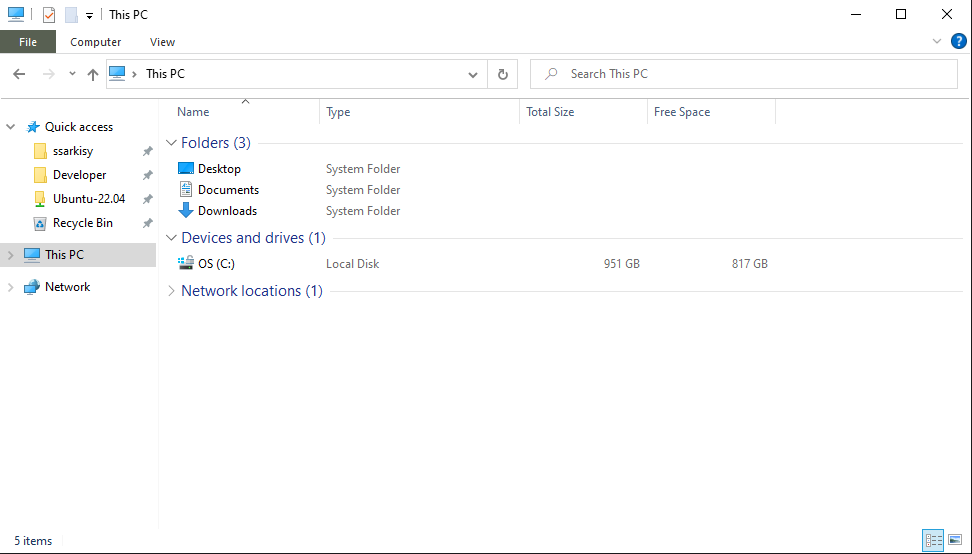
Also, there are Documents and Pictures folders on the left side, pinned by default. As a developer, I don’t need these folders, but I would like to see my main user’s folder there (I’m not frequently accessing it from start menu, but it would be handy anyway).

This could be easily done by going to Settings → Personalization → Start → Choose which folders appear on Start

image

Here you can easily switch off/on the folders you really need.

Streamline taskbar

image

Remove Cortana from taskbar

Right click on taskbar → uncheck “Show Cortana button”

Remove News and Interests (ad)

Right click on taskbar → News and Interests → Turn off

My suggestion is disable it system-wide through Group policy: https://thesysadminchannel.com/how-to-remove-news-and-interests-windows-10/#GroupPolicy

Remove People suggestion

Right click on taskbar → uncheck “Show People on the taskbar”

Fold Search bar to Search icon

Right click on taskbar → Search → Show search icon.

The search icon works the same as the search input field, also, you can access search with Win + S shortcut. There is also the other way, I will talk about it later.

I also removed all the icons from my desktop (as I have Explorer icon in tasksbar) and placed the Recycle Bin in taskbar.

Here’s detailed guide how to do it: https://allthings.how/how-to-pin-recycle-bin-to-taskbar-on-windows-11/

Getting rid of system-wide ad and “suggestions”

Disable lockscreen ad

Go Settings → Personalization → Lock Screen and uncheck “Get fun facts, tips, and more from Windows and Cortana on your lockscreen”

Disable app suggesting in start menu

Go Settings → Personalization → Start and uncheck “Occasionally show suggestions in Start”

Disable taskbar ad

Go Settings > System > Notifications & Actions and uncheck “Get tips, tricks and suggestions as you use Windows”

Disable ad in notifications

Go Settings > System > Notifications & Actions and uncheck “Show me the Windows welcome experience after updates and occasionally when I sign in to highlight what’s new and suggested”

Disable OneDrive and Office 365 ad

Go to Explorer → File → Change folder and search options and uncheck “Show sync provider notifications”

Disable ad in Settings panel

Click on search icon in taskbar, then 3 dots → Search Settings → Windows Privacy options [at the bottom] and uncheck “Show me suggested content in the Settings app”

Streamline Explorer.exe

Remove anything you don’t need in Quick Access [and add what you really need].

This is pretty straightforward.

To remove something: right-click on item in Quick Access → Unpin from Quick Access

To add something: right-click on item in Explorer → Pin to Quick Access

Disable Recent files (optionally)

I didn’t find recent files useful for me. Usually I ending up going to file directory as it wasn’t found in recent files.

Go to Explorer → File → Change Folder and Search options and uncheck “Show recently used files in Quick Access” and “Show frequently used folders in Quick Access”.

image

Disable unneeded folders in user directory

Windows creates a ton of default folders in user directory which not everyone ever need. They produce visual noise, so I disabled most of them.

It is done by Registry tweaks. Feel free to disable ones you don’t really use: https://github.com/ssarkisy/HideUserFoldersWindows10

image

Now your user folder is tidy and clean!

Adding useful stuff

Package manager

If you used package managers before, you know that this is must have. The most advanced package manager for Windows is Chocolatey. The official installation guide: https://chocolatey.org/install

Short path (PowerShell with Admin rights):

Set-ExecutionPolicy Bypass -Scope Process -Force; [System.Net.ServicePointManager]::SecurityProtocol = [System.Net.ServicePointManager]::SecurityProtocol -bor 3072; iex ((New-Object System.Net.WebClient).DownloadString('https://community.chocolatey.org/install.ps1'))

Terminal

Default Windows shells are not very modern in terms of usability, customization and output. There are multiple 3rd party terminal emulators that do the job much better. I chose Fluent Terminal. It’s built with modern Microsoft Fluent design, has good customization options and supports any shells you would like to use (cmd, PowerShell, GitBash, WSL and any shell you would like to add by yourself).

Official repo: https://github.com/felixse/FluentTerminal

And you can install it with our fresh installed package manager:

PowerShell with Admin rights: choco install fluent-terminal

image

And as you can see, I’m having Ubuntu WSL, CMD and PowerShell in one place, supporting all the features Fluent Terminal provides.

Visual Studio Code

You can install Visual Studio Code with Chocolatey package manager: choco install vscode

What the point to install it through package manager? Well, it also makes it available in terminal, so you can type code . to open current directory in VS Code. Pretty handy!

WSL Ubuntu

If you come from Mac and want your familiar *nix tools back (like grep, for example) and work in *nix environment, you can use WSL which Microsoft ships with latest Windows 10 builds. I chose Ubuntu 22.04 as my main distro for WSL.

Install WSL

PowerShell with Admin rights: wsl --install

Be sure that you use Windows 10 build 2004 or later. It will install WSL2 by default. WSL2 is much better than WSL1 as it uses real Linux kernel instead of system calls mapping in 1st version.

You can check which version you are running with wsl -l -v command.

More here: https://docs.microsoft.com/en-us/windows/wsl/install

Install Ubuntu

It’s kinda crazy, but you can install Ubuntu from Microsoft Store. Go to store and type Ubuntu in search.

image

After installation, when you will open new WSL tab in Fluent Terminal it will automatically login into Ubuntu shell:

image

As you see, it also uses our Windows user folder as home folder in the shell. All the Windows drives are mounted in /mnt directory, so you will have access to all your Windows file system from Ubuntu shell. Great!

And some magic

Remember we installed VS Code with Chocolatey? code . command will also work from Ubuntu shell and will open Windows VS Code of current directory!

There is more. You can type explorer.exe . to open Explorer window in current directory. And you can use it with Ubuntu files as it’s available to Windows as network drive!

Note that you can use any directory path instead of . with commands above.

Microsoft PowerToys

There is interesting project Microsoft developed but doesn’t ship it with Windows by default. It’s called PowerToys and it provides quite interesting set of features. And each feature can be optionally enabled/disabled.

The official install guide: https://docs.microsoft.com/en-us/windows/powertoys/install

And of course you can install it with Chocolatey: choco install powertoys

image

Note: all shortcuts I will mention are default, but they can be changed by user.

Let’s run through it’s features:

Always on top

With Win + Ctrl + T shortcut you will able to pin current window to stay always on top.

Awake

With this feature on you will have a new icon in taskbar which will allow you to enable Awake mode which will prevent your computer from sleep.

Color picker

Must have feature for designers and web developers. System-wide color picker which you can activate with Win + Ctrl + C shortcut. Additionally, you can specify the color formats you want (e.g. HEX, RGB, HSL, CMYK and more).

FancyZones

Advanced windows layout manager which will allow you to build and fix specific windows layout on each monitor, changing windows in these layouts with shortcuts and more.

File Explorer Addons

Super handy feature which enables tons of useful preview types support (e.g. source code files, markdown files, pdfs). If you miss Quick Preview feature from macOS then it’s kinda replacement for that.

image

Image Resizer

This feature will allow you to resize image with right-click. It’s also customizable.

Keyboard Manager

This one will allow you to remap keys and shortcuts. I will use it later in this guide.

Mouse utilities

This feature has some useful options for screen casting. For example, it can highlight mouse clicks or spot your cursor on shortcut.

Power Rename

Tool for batch files renaming.

PowerToys Run

This is interesting one. It’s literally Spotlight for Windows. It can search files, apps, settings, opened windows, registry records, services, run shell commands, calculate expressions, show time in specified time zone, convert units, execute system commands (like sleep or restart) and the best feature — search and open Visual Studio Code workspaces. Must have.

image

If you are missing Spotlight or Alfred then this is definitely deserves a try.

Fixing some shortcuts

Disable Windows Ink (optionally)

I don’t find this Windows feature useful at all and it will collide with shortcut I will set next. If you need this, then feel free to pass the next point or use your own shortcut.

How to disable Windows Ink:

  1. Open the Local Group Policy Editor. Navigate to: Computer Configuration → Administrative Templates → Windows Components → Windows Ink Workspace.
  2. In the right pane, double-click Allow Windows Ink Workspace to open its properties.
  3. Check the Enabled option. Next, select Disabled from the drop-down menu under the Options section.
  4. Click on Apply and then OK. Restart your PC to make the changes to take effect.

Better shortcuts to close windows and apps

If you came from Mac, you know how useful and convenient to have consistent shortcuts that allow you to close the tabs, windows and apps. In macOS you can use CMD + Q to close the app and CMD + W to close the tab o particular app’s window. In Windows, I found next shortcuts for closing windows and tabs: Alt + F4, Ctrl + F4, Ctrl + W, Ctrl + Shift + W . In different apps they work differently, and it’s also not very convenient to mix Ctrl + W and Alt + F4 , especially when most of modern Windows shortcuts using Win key as modifier key.

Let’s fix it. Go to PowerToys → Keyboard Manager → Remap a shortcut

Map next shortcuts:

Win (Left) + Q to Alt + F4

Win (Left) + W to Ctrl (Left) + W

Now in most apps you will be able to close the entire app with Win + Q combination and close the specific window or tab with Win + W . Pretty much as in macOS.

Map Caps Lock to something more useful

My favorite tweak is mapping Caps Lock to Backspace key. Then you will able to delete the characters with your left little finger without reposition of the right hand.

Go to PowerToys → Keyboard Manager → Remap a key and map Caps Lock to Backspace.

Right windows minimization shortcut

Windows do it wrong. That’s pretty strange for the system which has name “Windows”. There is a shortcut Win + Arrow Down to minimize windows in Windows. But it works only for floating windows. If you have maximized window, then Win + Arrow Down will detach window from screen edges and convert it to floating windows. So you will need to repeat the shortcut to minimize the window. The main problem is if you will use Alt + Tab or Win + Tab to switch back to this window then it will restore the floating state and not initial, maximized one. The only solution I found is to use AutoHotKey software to fix this issue.

  1. Install AutoHotKey: https://www.autohotkey.com/
  2. Right click in Explorer → New → AutoHotKey script (I named mine Minimize)
  3. Put the next lines in it:
#NoEnv  ; Recommended for performance and compatibility with future AutoHotkey releases.
; #Warn  ; Enable warnings to assist with detecting common errors.
SendMode Input  ; Recommended for new scripts due to its superior speed and reliability.
SetWorkingDir %A_ScriptDir%  ; Ensures a consistent starting directory.

;=============================================================================;
; WINDOWS KEY + Alt + Down  --  Minimizies Active window
;=============================================================================;
; instead of "Restore Down" for Win+Down
#!Down::WinMinimize, A
  1. Save the script and run it

Now you can use Win + Alt + Arrow Down to minimize any windows, even maximized ones.

To run the script on startup:

  1. Create shortcut for the script
  2. Run shell:startup in Windows Run app (or you can use PowerToys run for this by hitting Alt + Space and entering >shell:startup ).
  3. Copy shortcut inside the opened directory.

Some useful shortcuts in Windows

Win + D — show Desktop (it doesn’t minimize any windows, just hiding it. Repeat the shortcut to show them back)

Win + Left Arrow and Win + Right Arrow — attach current window to left or right edge of the screen

Win + Up Arrow — maximize current window

Win + Shift + S — make screenshot of selected area or full screen (the downside is that it will only be placed in clipboard and you can’t choose the file saving location)

Win + Tab — Task View. Microsoft’s analog of Mission Control on Mac. I use it every time.

Win + A — Open Action Center

Win + P — Show external display[s] modes

Win + E — Open Explorer

Win + I — Open Settings

Win + L — Lock your computer. Do not forget to do it when you leave you workplace.

Win + R — Open Run dialog (in case you decided not to use PowerToys Run)

Win + S — Open Windows Search (again, I prefer PowerToys Run for this)

Win + ; — Emojis. Like Crtl + CMD + Space on Mac

Win + Crtl + D — Create new Virtual Desktop

Win + Crtl + Arrow Left/Right — Switch between virtual desktops

That’s all from my side. Hope that this article was useful for you!

If you know useful Windows tricks or Tweaks, let me know in comments. I will spend some time working in Windows environment, so I will appreciate your help =)

See you!

7
2 819
Article Sergei Sarkisian · Oct 1, 2018 4m read

Not everyone knows that InterSystems Caché has a built-in tool for code profiling called Caché Monitor.

Its main purpose (obviously) is the collection of statistics for programs running in Caché. It can provide statistics by program, as well as detailed Line-by-Line statistics for each program.

Using Caché Monitor

Let’s take a look at a potential use case for Caché Monitor and its key features. So, in order to start the profiler, you need to go to the terminal and switch to the namespace that you want to monitor, then launch the %SYS.MONLBL system routine:

zn "<namespace>"
do ^%SYS.MONLBL

As the result, you will see the following:

There are just two options here: the first one allows you to actually launch the profiler, the second one – to imitate the launch for assessing the amount of memory needed. Please note that simultaneous monitoring of a large number of programs may require a considerable amount of memory. If you still need it, you may want to increase the value of the gmheap parameter (this can be done in Management Portal => System Administration => Configuration => Additional Settings => Advanced Memory Settings. Caché will have to be restarted after you change this parameter).

Let’s select option one. The program will prompt you for the name of the program to be watched. You can use a mask with a "*" symbol. To view the list of programs that are already being watched, use the following command: "?L".

In this example, I will monitor all the programs in my namespace, so I’ll just type in "*".

An empty line marks the end of input. As you can see, 246 programs have been selected for monitoring.

We will now need to select monitoring metrics. Caché Monitor supports over 50 metrics, including the following ones:

  • Number of global references
  • Time spent on line execution
  • Number of Caché Object Script lines
  • Number of executed lines
  • The number of executions of a particular line
  • The number of blocking commands
  • The number of successful blocking commands, etc.

In the majority of cases, the developer will need a minimum of metrics (number of lines, number of executed lines, number of executions of a particular line, time of execution of a particular line). These stats will be collected if you select option 1 (default value). If necessary, you can collect all stats or pick particular metrics only. In my example, I will be using a minimal set of metrics:

On the next step, the system will suggest choosing processes to be monitored. You can collect statistics for particular processes (you’ll need to provide a list of their PID’s), for the current process or for all of the. Again, I will stick with the default option.

Should the start be successful, you will see a “Monitor started” message. Hit Enter to open the monitor menu:

Let’s run through the items. Stop Monitor – full termination of monitoring activities. This will also delete all statistics collected so far. Pause Monitor – suspension of monitoring activities with a possibility to resume them and preserve the collected statistics. Clear Counters – reset statistics.

The following four commands are responsible for the output of collected statistics. The first two are the most popular ones: output of detailed line-by-line information for a particular program and output of combined statistics for all executed programs. When these commands are selected, the system will prompt for a list of programs for which statistics will be shown and the name of the file the information will be saved to (if you do not do this, statistics will be shown right in the terminal). Also, you can always include the source code (if any), in addition to INT code, into the output file, but there will be no detailed statistics for it.

Everything is ready, let’s start the necessary programs and take a look at the statistics.

Attention! Using Caché Monitor may affect the system performance, which is why it’s not recommended to use it in production systems. Please use on development and debugging stages only.

A small bonus

To make the viewing of monitoring results more convenient, I have written a small web application that you can download from our GitHub repository

The application can currently do the following:

  • Start, Stop, Pause/Resume Caché Monitor.
  • Collect a minimal set of metrics for programs.
  • Show a statistics summary for programs.
  • Show detailed Line-by-Line statistics for a particular program.
  • Highlight syntax.
  • Jump from a call to a class-method or program (program label) to the code of this class-method of program (if the code is available and is being tracked by the monitor).
  • Namespace changing.

A couple of screenshots

Please note that the application is distributed under an MIT license (that is, distributed “as is”), as it uses undocumented functions of Caché and its operation is not guaranteed on different versions due to possible changes of undocumented features from version to version.

This is a translation of a Russian-language article published on the Habrahabr 12/16/2014: Профилируем код с помощью Caché Monitor

1
7 1116
Article Sergei Sarkisian · Dec 30, 2016 27m read

This article is translation of one from Habrahabr InterSystems blog (Russian).
The original post can be found here: https://habrahabr.ru/company/intersystems/blog/251611/
 

Everyone familiar with InterSystems Ensemble, an integration and application development platform, knows what the Ensemble Workflow subsystem is and how useful it can be for automating human interaction. For those who don’t know Ensemble (and/or Workflow), I will briefly describe its capabilities (others may skip this part and learn how they can use the Workflow interface in Angular.js).

InterSystems Ensemble

6
1 4649