#Interoperability

0 Followers · 536 Posts

In healthcare, interoperability is the ability of different information technology systems and software applications to communicate, exchange data, and use the information that has been exchanged.

Question Eduard Lebedyuk · Jul 28, 2021

I have a BPL Business process which always processes messages - mainly it waits for responses since downstream systems are seriously async.

I need to update this process.

Wwould the existing instances of this Business Process complete correctly after the update?

My BPL changes would result in:

  1. New S method in the Thread class
  2. New OnResponse method in the context class

Both changes are in the middle of the process, so there are S/OnResponse methods before and after my change.

What if it's only a new S method? What if it's only a new OnResponse method?

4
0 171
Announcement Ben Spead · Jul 7, 2021

Hello Developers!

Have you ever had to convert HL7v2 messages to FHIR (Fast Healthcare Interoperability Resources) and found the process complicated and confusing? InterSystems is rolling out a new cloud based SaaS offering called InterSystems FHIR Transformation Service, which makes the process easy.  We are excited to announce an Early Access Preview Program for our new offering, and we would love to have you kick the tires and let us know what you think!  All you need is a free AWS account, with an S3 bucket to drop in your HL7v2 messages, and another S3 bucket to get your FHIR output. 

5
0 897
Article Yuri Marx · Nov 18, 2020 7m read

PEX is a new InterSystems IRIS feature to allows extends IRIS with existent features from Java or .NET.

It is possible create interoperability inbound and outbound adapters, business services (integrate from external to internal) and operations (integrate internal to external).

To create a PEX component it is necessary import .NET (InterSystems.EnsLib.PEX.*) or Java (com.intersystems.enslib.pex.*) packages and extends or implements the properly class.

In this article I will use my OCR Service. It has a PEX business Operation, see the code:

2
2 524
Article Eduard Lebedyuk · Aug 12, 2020 3m read

Productions often need to receive REST requests.

Here's how to do that.

1. Create proxy Service:

/// Empty BS we would use to send Produciton requests
Class production.ProxyService Extends Ens.BusinessService
{
}

2. Add it to production as RESTService (or any other name).

3. Write your rest broker (docs, more docs)

4. In your handler method create the message and call target BP/BO like this

8
1 1106
Question Pravin Barton · Jun 14, 2021

I'm working with a REST API that will sometimes rate limit our requests by returning an HTTP 429 Too Many Requests status code. Is there a good way in a business operation to handle this by throttling our requests until we get a success response? My initial thoughts are:

  • Reduce the pool size on the business operation to 1 so all requests are first in, first out.
  • If the API returns a 429 response, set %rate = $get(%rate,1)*2, then hang %rate, then send the request to the back of the queue.
  • If the API returns a success response, kill %rate

I'm wondering if there's a better way to do this. Particularly if this is possible without limiting the business operation to run in a single process.

1
0 374
Article Eduard Lebedyuk · Aug 7, 2020 5m read

In this article, I will show how you can easily containerize  .Net/Java Gateways.

For our example, we will develop an Integration with Apache Kafka.

And to interoperate with Java/.Net code we will use PEX .

Architecture

Our solution will run completely in docker and look like this:

Java Gateway

First of all, let's develop Java Operation to send messages into Kafka. The code can be written in your IDE of choice and it can look like this.

In short:

7
1 1401
Article Alberto Fuentes · Feb 24, 2021 1m read

Hi Developers!  Let me share with you some exercises from a workshop about developing interoperability components in Java using PEX (Production EXtension).

You will find slides and step by step exercises about:

  • Understanding simple PEX components coded in Java.
  • Making some changes on them.

All built using containers, so you don't need to build a local Java environment.

You can reach the repository here: https://openexchange.intersystems.com/package/workshop-pex

6
0 426
Question Oliver Wilms · Apr 9, 2020

Hello,

I was wondering if InterSystems has support for the following standards built into IRIS or Health Connect / Ensemble:

1.        Healthcare FHIR(Fast Healthcare Interoperability Resource) Protocol

2.        Enterprise Resource Planning OAGIS (Open Applications Group Integration Specification) Protocol / Supply Chain Management GS1-EPCIS (Electronic Product Code Information Services)

3.        Education, Certification, Credentials FERPA CEDS (Common Education Data Standards) Protocol

3
0 451
Article Yuri Marx · Nov 19, 2020 6m read

According to IDC, more than 80% of information it is NoSQL, especially text into documents. When the digital services or applications not process all this information, the business lose. To face this challenge, it is possible use OCR technology. OCR uses machine learning and/or trained image patterns to transform image pixels into text. This is important, because many documents are scanned into images inside PDF, or many documents contains images with text inside. So OCR are an important step to get all possible data from a document.

3
2 615
Article Eduard Lebedyuk · May 21, 2018 10m read

Managed File Transfer (MFT) feature of InterSystems IRIS enables easy inclusion of a third-party file transfer service directly into an InterSystems IRIS production. Currently, DropBox, Box, and Kiteworks cloud disks are available.

In this article, I'd like to describe how to add more cloud storage platforms.

Here's what we're going to talk about:

  • What is MFT
  • Reference: Dropbox
    • Connection
    • Interoperability
    • Direct access
  • Interfaces you need to implement
    • Connection
    • Logic
  • Installation
5
0 716
Article Mark Bolinsky · Mar 6, 2020 7m read

Introduction

InterSystems has recently completed a performance and scalability benchmark of IRIS for Health 2020.1, focusing on HL7 version 2 interoperability. This article describes the observed throughput for various workloads, and also provides general configuration and sizing guidelines for systems where IRIS for Health is used as an interoperability engine for HL7v2 messaging.

3
4 1880
Question Kurro Lopez · Mar 10, 2021

Hi all,

I have a very weird error when I'm calling to a SOAP Webservice as client.

I've create all objects to invoke to this SOAP using the add-in "Assistant SOAP" in Eclipse, it has created all objects (Response, Request, Business operation WS class, etc...).

When I call to this service it retuns the following error message:

ERROR #6243: HTTP request to SOAP WebService returned unexpected CONTENT-TYPE response: text/html.

However, If I call the same WS using SOAP UI or Postman, the header of response has the content-type "text/xml", as expected.

4
0 4991
Article Mihoko Iijima · Mar 5, 2021 3m read

This article is a continuation of this post.

The purpose of this article is to explain how the Interoperability menu works for system integration.

image

The left side of the figure is the window for accepting information sent from external systems.

There are various ways to receive information, such as monitoring the specified directory at regular intervals to read files, periodically querying the database, waiting for input, or directly calling and having it passed from applications in other systems.

In the system integration mechanism created in the IRIS Interoperability menu, the received information is stored in an object called a message. The message is sent to the component responsible for the subsequent processing.

A message can be created using all the received information or only a part of it.

Suppose you want to send the information contained in the message to an external system. In that case, you need to send the message to the component responsible for requesting the external network to process it (the right side of the figure). The component that receives the message will request the external system to process it.

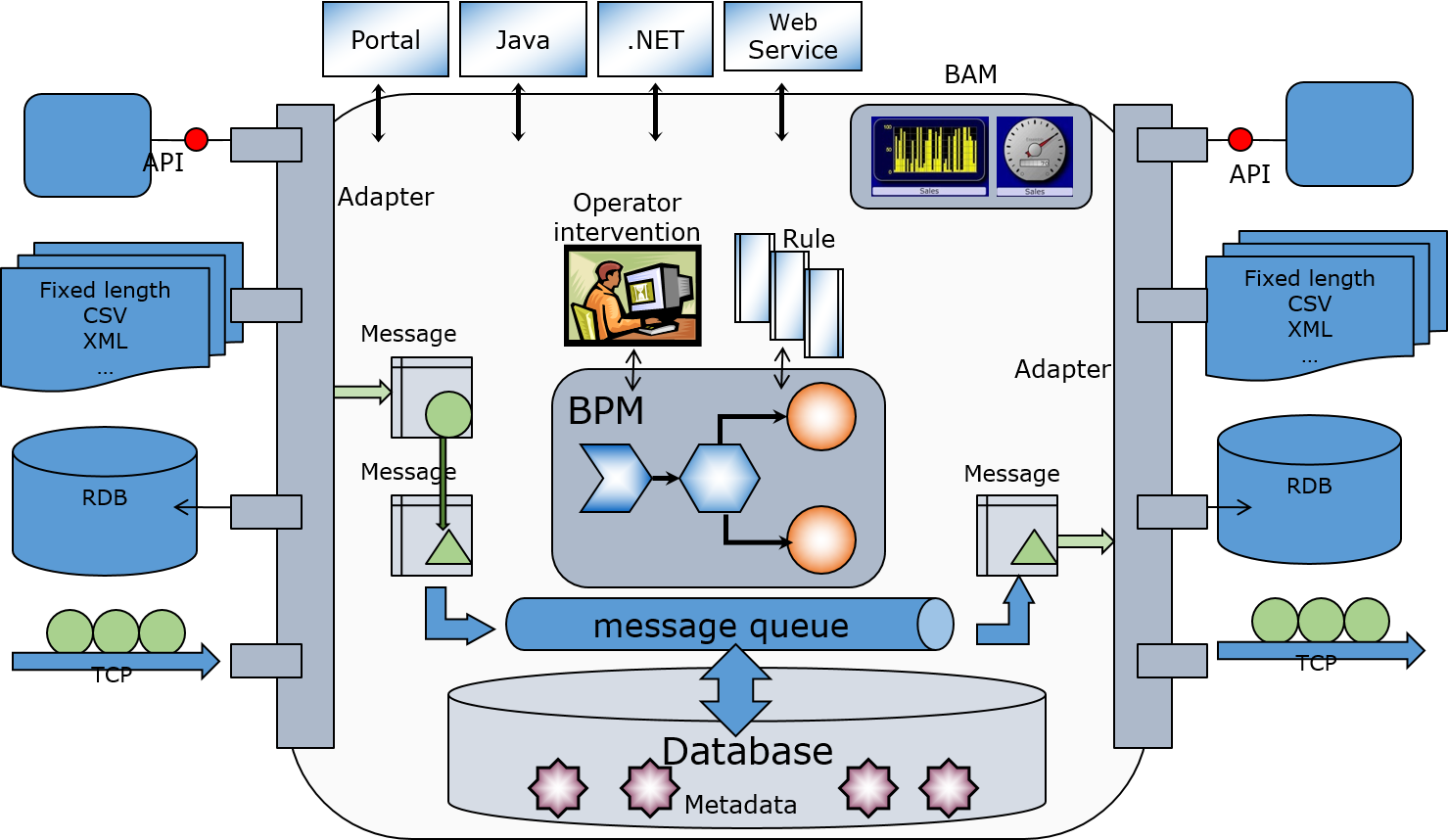
Besides, suppose a message requires human review, data conversion, or data appending. In that case, the message is sent to the component in the middle of the diagram (BPM), which is responsible for coordinating the processing flow.

Messages are used to send and receive data between each component. When a message is sent or received, the message is automatically stored in the database.

Since messages are stored in the database, it is possible to check the difference before and after the data conversion. Check the message that was the source of a problem during an operation or start over (resend) from the middle of the process. Verify the status using messages at each stage of development, testing, and operation.

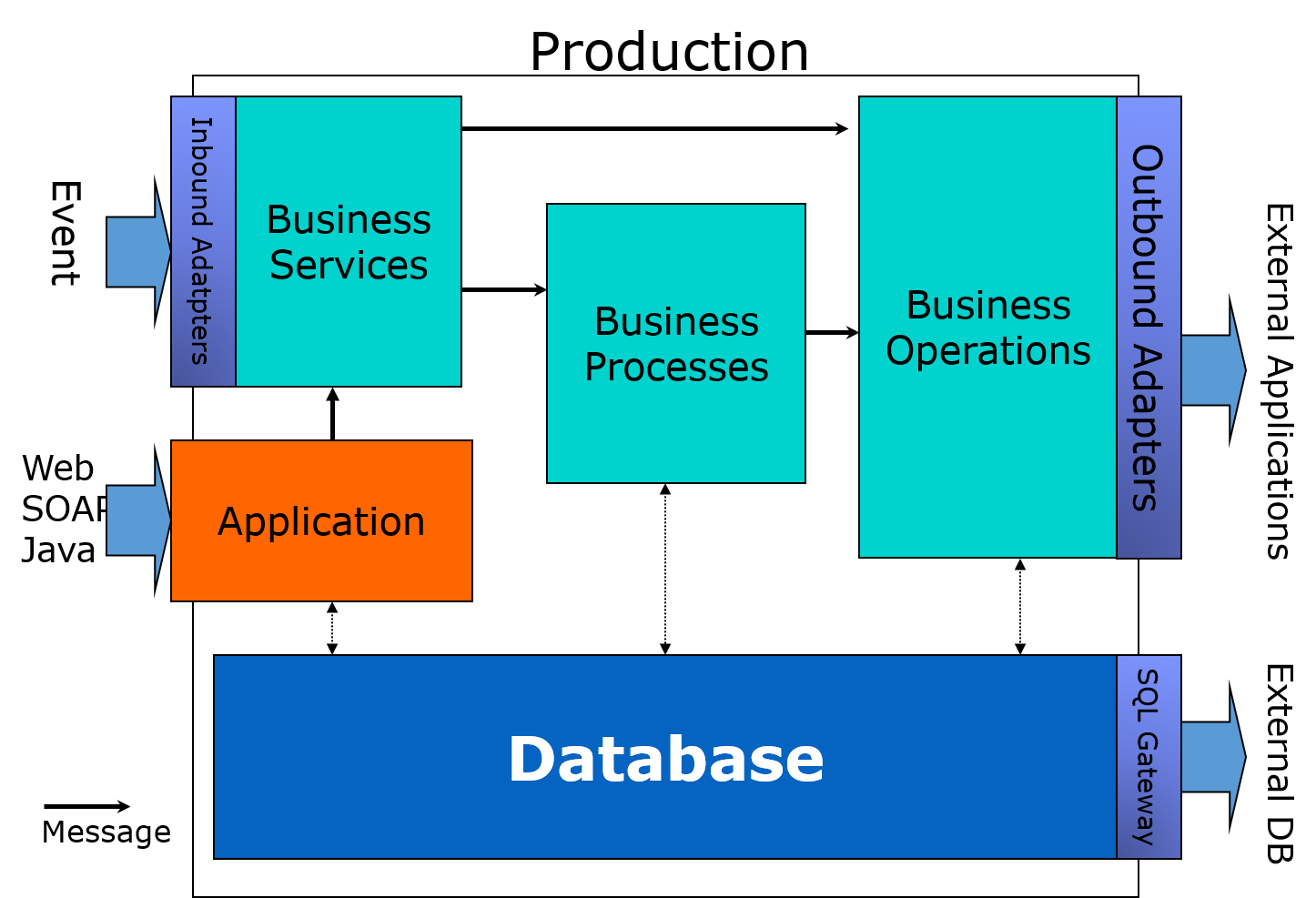
A simple picture of system integration would be divided into three components (business services, business processes, and business operations), as shown in the figure below.

There is also a definition called "production" that stores information about the components to be used (e.g., connection information).

image

The role of each component is as follows:

Business Services
Responsible for receiving information from external sources, creating messages, and sending messages to other components.

Business Processes
This role is activated when a message is received and is responsible for coordinating the process (calling components in the defined order, waiting for responses, waiting for human review results, etc.).

Business Operations This function is activated when a message is received and has a role in requesting the external system to process the message.

Messages are used to send and receive data between components.

Components other than business services initiate processing when they receive a message.

The question is, what is the purpose of creating and using this message?

Messages are created by retrieving the information you want to relay to the external system from entered data into the business service.

Since not all external systems connected to IRIS use the same type of data format for transmission, and the content to be relayed varies, the production can freely define message classes according to the information.

There are two types of messages: request (= request message) and response (= response message). The message that triggers the component's activation is called request (= request message), and the message that the component responds to after processing is called response (= response message).

These messages will be designed while considering the process of relaying them.

In the following articles, we will use a study case to outline the creation of productions, messages, and components.

1
0 1160
Article Mihoko Iijima · Mar 5, 2021 6m read

This article is a continuation of this post.

In the previous article, how the Interoperability menu works for system integration was explained.

In this article, I would like to explain how to develop a system integration using the Interoperability menu.

To begin with, what kind of process do you want to create? While thinking about this, make the following content.

  • Production
  • Message
  • Components
    • Business Services
    • Business Processes
    • Business Operations

Production is a definition used to specify the components required for system integration and to store the component settings, which are configured using the Management Portal (internally stored as a class definition for Production).

For example, suppose you are creating a business service that processes files placed in a specified directory at regular intervals. In that case, it is necessary to set up exactly which directories to monitor and which files to process. A Production is prepared to store these settings.

The settings depend on the adapter used by the component that sends and receives data.

Adapters are classes to simplify the connection to external systems, some are protocol-specific such as Mail/File/SOAP/FTP/HTTP/SQL/TCP, and some are standards specific HL7.

Please refer to the documentation (protocol-specific adapters and adapters related to EDI documentation for more information on adapters.

Since we will define the necessary components for the Production, "Start Production" will start the system integration, and "Stop Production" will stop the system integration.

The development required to complete the Production is the creation of the components necessary for system integration, specifically the following contents:

  • Message
  • Components (Business Services, Business Processes, Business Operations)
  • Data conversion, etc.

The content above will be explained slowly in the articles coming after this one.

First of all, let's start Production using the sample Production and check the message process by processing data while checking the settings.

Sample can be downloaded from https://github.com/Intersystems-jp/selflearning-interoperability.

To use a Container, download the sample code using the git clone, navigate the clone's directory, and run docker-compose up -d It's that easy!

See here for the procedure (it will take some time to create a container).

If you do not use containers, create a new namespace after downloading the sample, and import all class definition files (extension .cls) under the src folder into the created namespace. For more information on the process of creating a namespace, please refer to the video after 07:03 of this article.

Please refer to the README for more details on the sample code.

When you are ready, access the management portal (change the web server's port number to match your environment).

http://localhost:52773/csp/sys/UtilHome.csp

Go to the Management Portal > Interoperability > Configuration > Production.

If you are using a method other than containers, connect to the namespace where you imported the source code, access [Configuration] > [Production], click the [Open] button, select [Start] > [Production], and then click the [Start] button.

※ If you are using something other than a container, you will need to make some initial settings. Please set up the contents described below before trying the following contents.

image

The production page will be displayed as [Component Name] for each of the "Service", "Process", and "Operation" components.

Click on the component name to change the contents of the "Settings" tab on the right side of the screen.

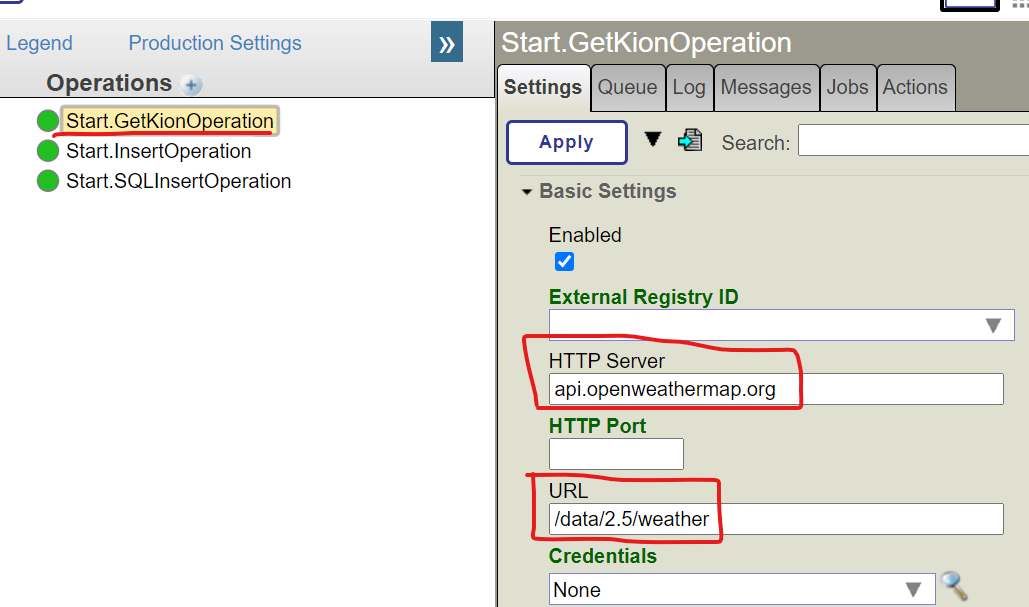
For example, when you click on Start.GetKionOperation (single click), the display is as follows.

image

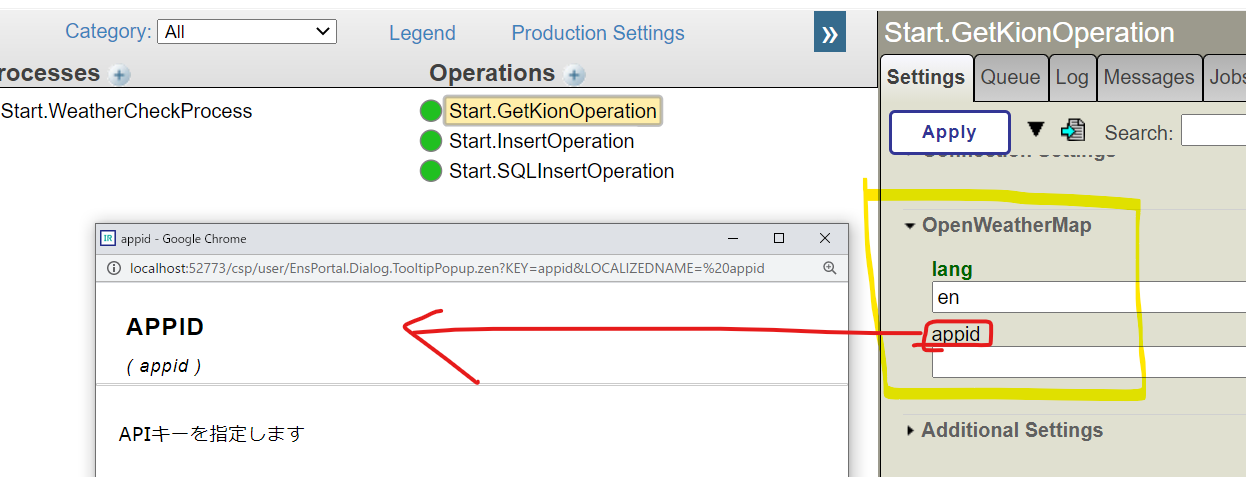
This component has the [HTTP Server] and [URL] settings for connecting to the Web API. There is a [appid] field at the bottom of the settings where you can enter the API key that you get it. There is a [lang] field near [appid] and is set "ja" ("ja" = Japanese). [lang] set language of response from OpenWeather. For English, set "en". When you finish to set these settings , click the "Apply" button.

image

If you are using a container, the setup is complete. For more information, please click here.


If you are experimenting with something other than containers

Please make the following two settings in advance:

1) Configure the SSL client.

Since the Web API to be connected to will be communicated using HTTPS, configure the SSL client on the IRIS side in advance.

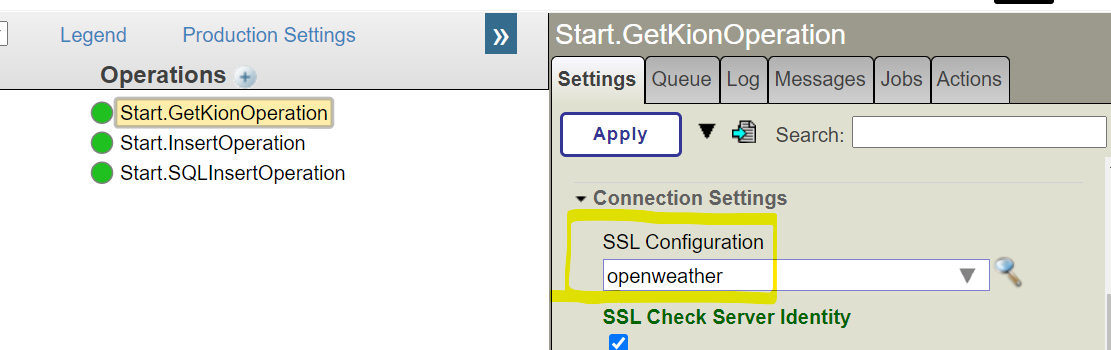
To match the settings of the sample production, we will use the name [openweather]. The settings in the Production are as follows:

image

Click the Management Portal > [System Administration] > [Security] > [SSL/TLS Configuration] > [Create New Configuration] button, enter "openweather" in the "Configuration Name" field, and then click in the "Save" button to finish.

image

2) Create a base URL for REST

In the sample production, we have configured it so that the information can be entered via REST, and the base URL for REST needs to be configured on the IRIS side.

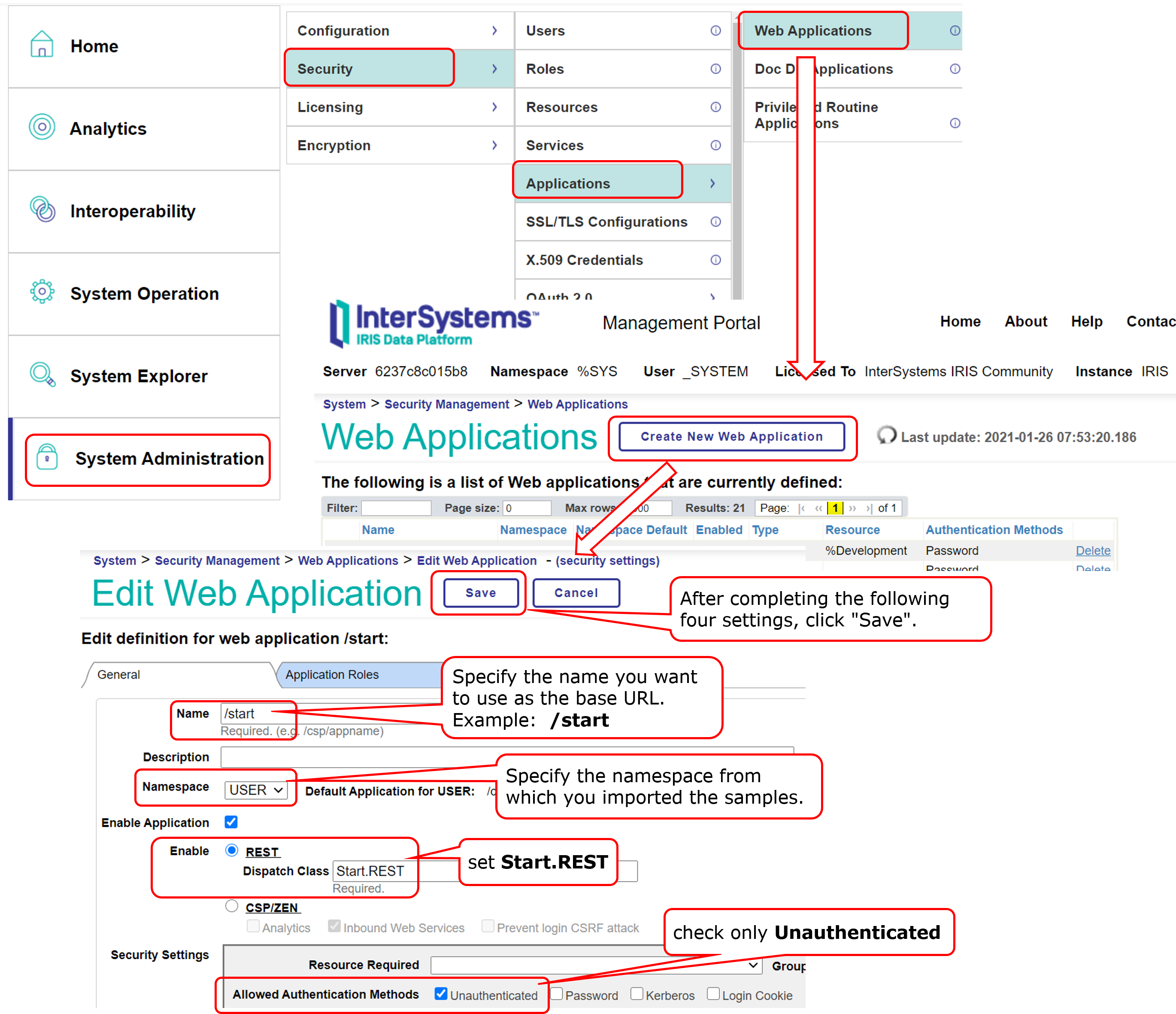
In the sample, we set /start as the base URL. Since the Start.REST class exists in the namespace where the sample was imported, we will specify this class as the dispatch class and add %All as the application role to omit authentication at the time of access.

Management Portal > System Administration > Security > Applications > Web Application Path > Click the "Create new web application" button.

In the Name field, specify /start; in the Namespace field, specify the namespace from which the sample was imported; in the Dispatch Class field, specify Start.REST; in the Allowed Authentication Method field, select "Unauthenticated", and save the file.

After saving, add the %All role to the application role on the "Application Roles" tab.

image

image


Try to send data

Once you are all set up, try to use a business service to send information via REST and let it run.

http://localhost:52773/start/weather/Takoyaki/Osaka

The above example is a URL that supposes that someone has purchased "Takoyaki" in Osaka City.

The screen after execution is as follows.

image

Check the messages that have been sent to the Production.

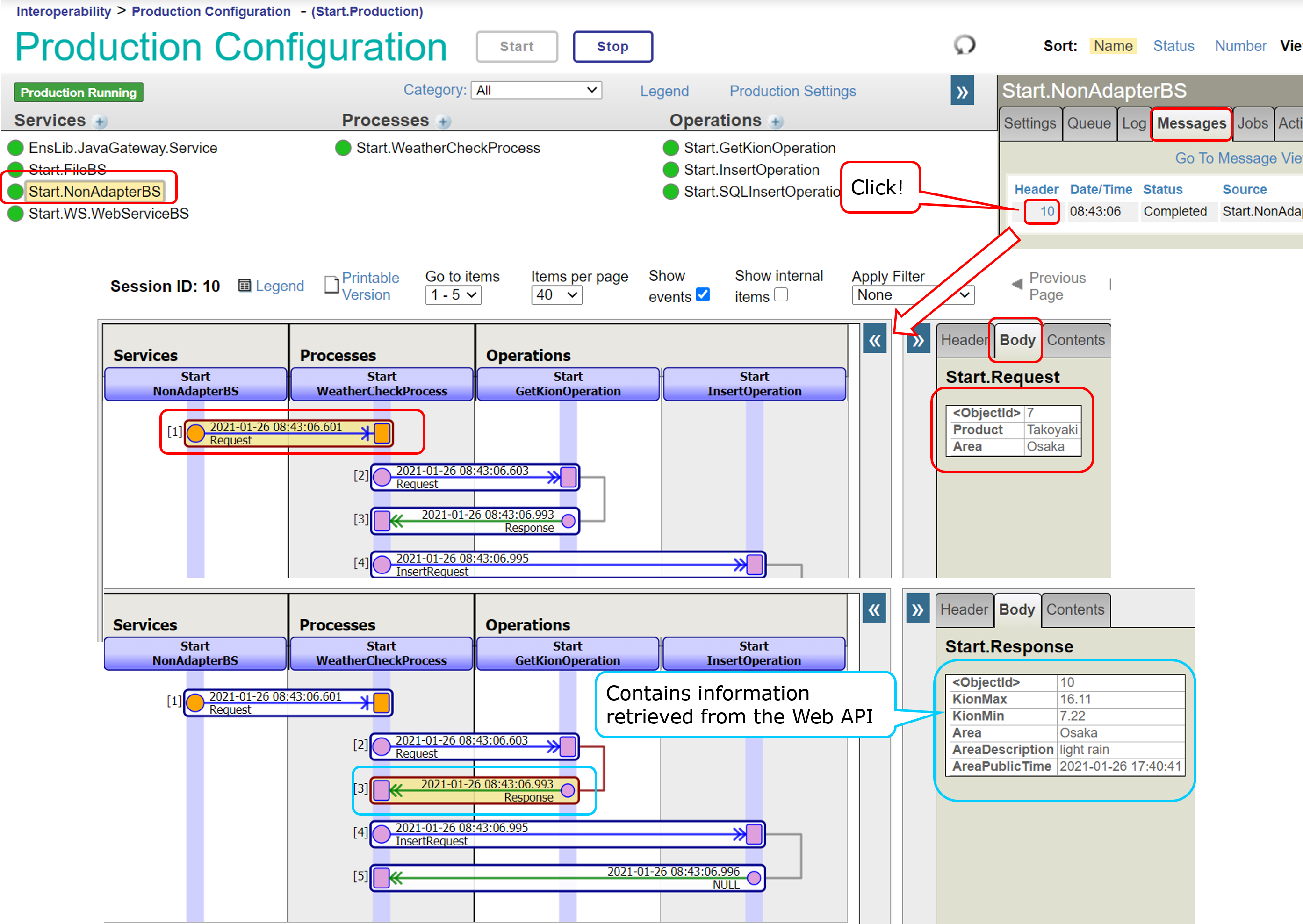
In the Management Portal > Interoperability > Configuration > Production, click on the service below:

Select the "Messages" tab on the right side of the screen and click on any number below to the header field column. If you do not see it, reload your browser.

image

Using the Visual Trace page, you can see the information of messages sent and received between components. You can see that the weather information is retrieved from the Web API and sent back in the light blue frame.

In this way, you can use tracing to see what data was being sent and received at that time and in what order.

Throughout this article, we have confirmed that Production has defined the necessary components and their settings for system integration by referring to the sample code settings.

We also confirmed that we could refer to the messages flowing through the Production in chronological order by using the Visual Trace page.

In the next articles, we will discuss the concept behind creating the "message" shown in this trace and how actually to define it.

0
0 737
Article Mihoko Iijima · Mar 5, 2021 4m read

This article is a follow-up to this post.

In the previous article, [What is a Production?], we checked the production contents. We ran the sample code and checked the flowing messages' contents into the production on the Visual Trace page.

This article will review the concept and the definition of the messages used to send and receive data between components from the required development content for system integration.

Before creating a message, let's review the case study.

A company operates a shopping site and is changing the order of displaying product information to match the seasons.
However, some items sell well regardless of the season, while others sell at unexpected times, which does not match the current display rule of changing the order.
Therefore, we looked into the possibility of changing the order of display to match the day's temperature instead of the season. It became necessary to survey the temperature of the purchased products at that time.
Since an external Web API is available for checking weather information, we plan to collect the weather information at the time of purchase and register it in the later review database.

From this case, you can see the following:

Information to be received from the outside is "purchased product name and name of the city."
The information to be sent from IRIS to an external system to request processing is the "name of the city." The result of this process will be "weather information" for the city used as an input.

image

From this case study, we will implement the components needed for system integration. But before that, to run the components, you need to send and receive messages, which are relay data, and to use the messages, you need to define the message class.

A message class is designed to consider what information (i.e., messages) should be sent and received to make the component to run.

In this process, we need the following two types of information:

A) The name of the city to send to an external Web API to obtain weather information.

B) weather information and purchased product name for recording in the DB.

The name of the city in A) and the purchased product name in B) can be included in the input information to IRIS.

The weather information in B) can be retrieved from the response information of an external Web API.

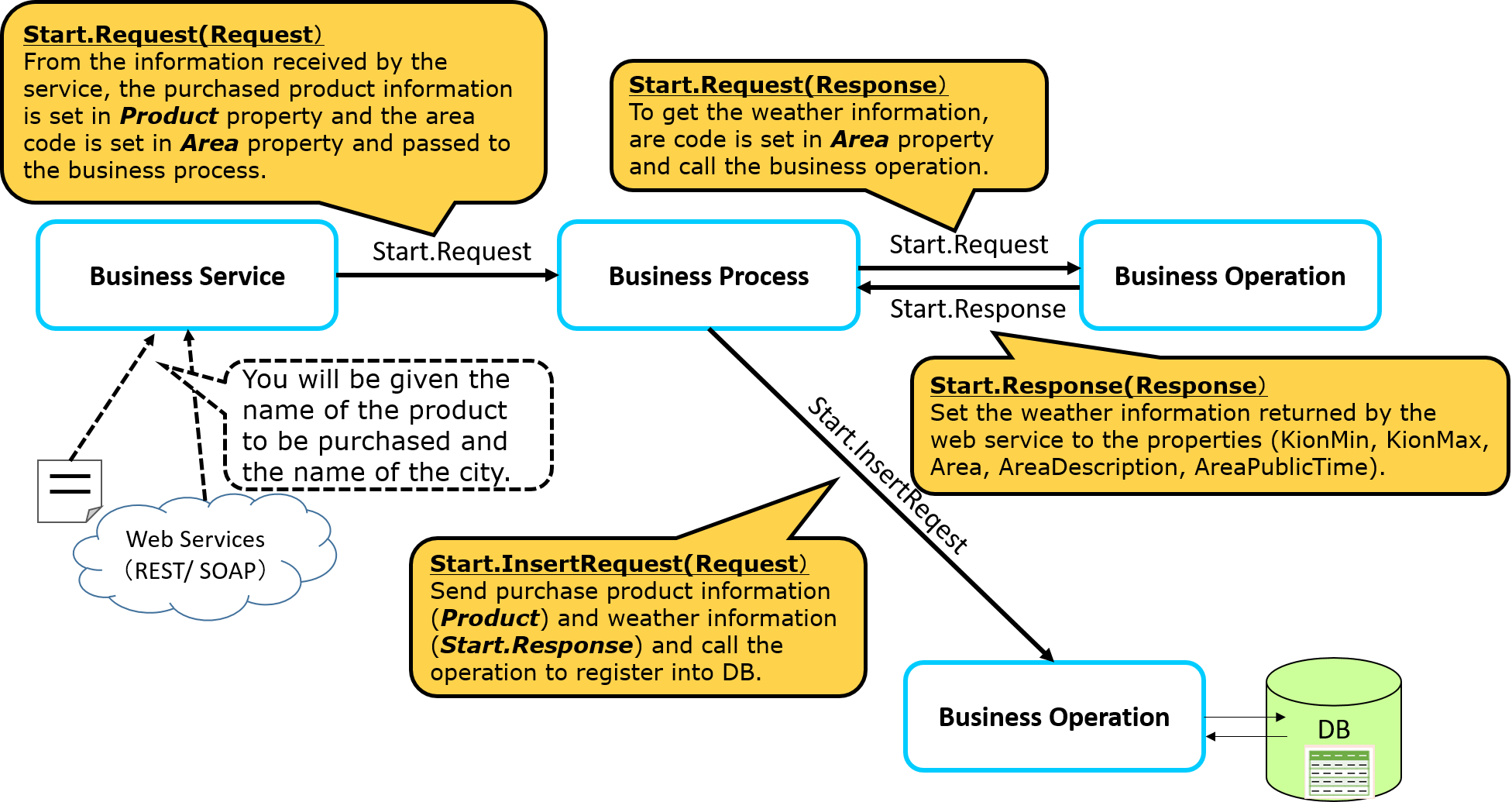
Here is a diagram that considers what information would be needed to send and receive each component from the available data.

The first line of the yellow balloons describes the message class name, and the second line onwards states what to set for the property.

image

In the sample code, we have the following three types of messages:

Start.Request(Request message)
It is used to send the name of the purchased product and the city to acquire the weather information.

Start.Response(Response message)
They are used to return the results of operations (weather information) to obtain weather information.

Start.InsertRequest(Request message)
It is used to send the weather information and the name of the purchased products for DB registration.

The messages are specified in a superclass, Request message, and Response message are derived from Ens.Request and Ens.Response, respectively.

The following is an example of the definition of the Request message Start.Request.

Below is an example of the definition of the Response message.

The Request message, Start.InsertRequest to be sent with the DB registration request is as follows:

(We plan to set the WeatherInfo property to the information in Start.Response, which will be returned after the weather information is obtained.)

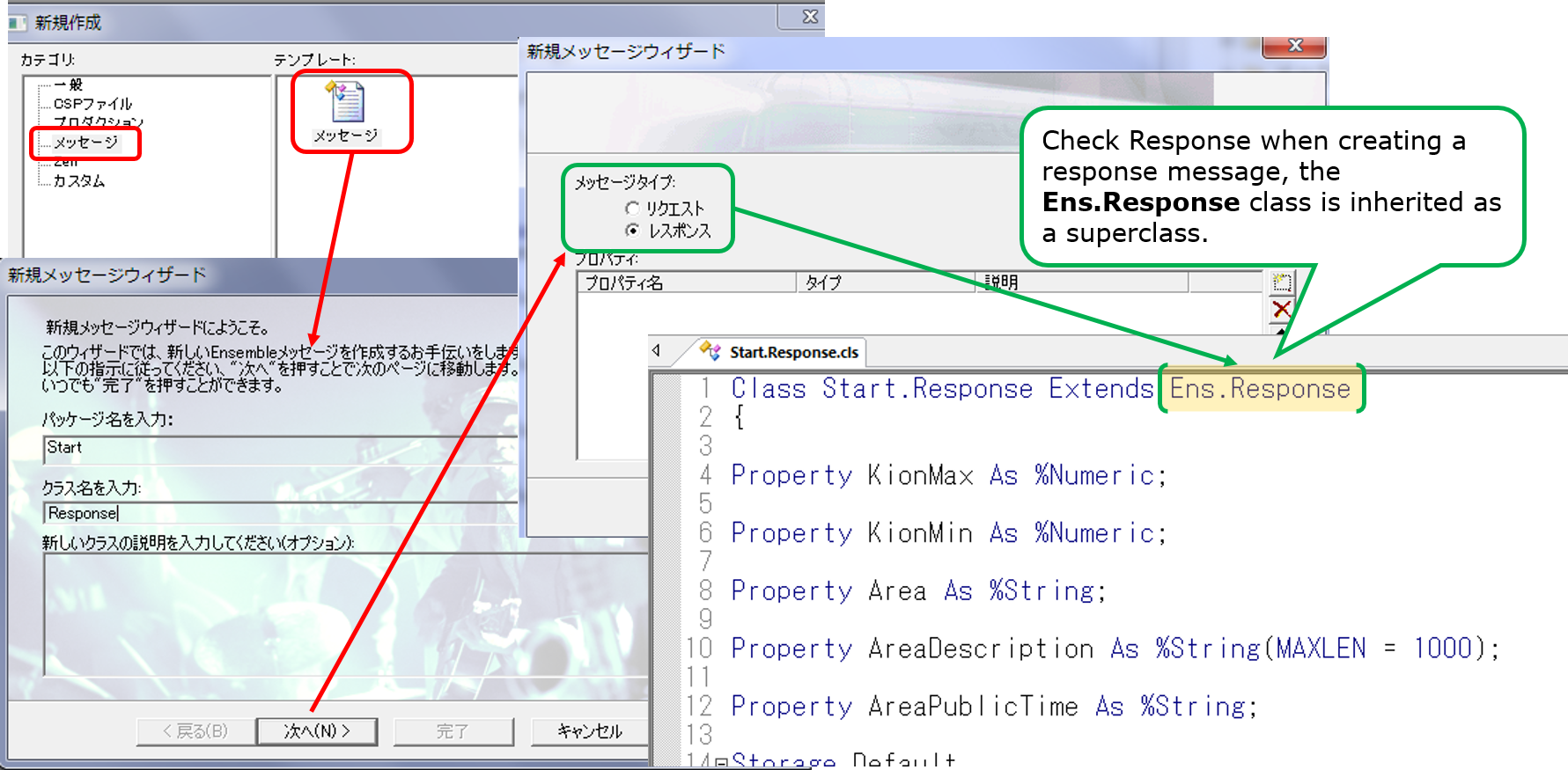
If you want to create it in Studio, you can also use the Message Creation Wizard.

Reference) Steps to create a response class in Studio

The key point so far

A message class is designed with the idea of "what information (i.e., messages) should be sent and received" to make the component RUN.

Once the message class (which is the information to drive each component) is implemented, the next step is to create a class for the component.

0
0 628
Article Mihoko Iijima · Mar 5, 2021 10m read

This article is a continuation of this post.

In the previous article, we reviewed how to create and define messages used to send and receive data between components.

In this article, I will explain how to create a business operation from the component creation methods.

We will quickly check the code by referring to the sample.。

image

Component NameRole
Start.FileBSA business service that uses file inbound adapter to read files placed in a specified directory at regular intervals.
Start.NonAdapterBSBusiness services that allow applications and users to input information directly without using an adapter.
Start.WS.WebServiceBSBusiness services that allow people to enter information using web services.
Start.WeatherCheckProcessA business process that controls the procedure for acquiring weather information and then registering it in a database.
Start.GetKionOperationBusiness operation to pass the city name to the web service that provides weather information and sent back.
Start.SQLInsertOperationBusiness operations using SQL outbound adapters to request registration of weather and purchase information into the database.
Start.InsertOperationBusiness operations that perform updates to tables in InterSystems IRIS without the use of adapters.

Note: BS stands for Business Services, BP for Business Processes, and BO for Business Operations.

You need to write ObjectScript in Business Services and Business Operations and can be created in VSCode or Studio. Business Processes can also be made in the Management Portal (see this article for more information on using VSCode).

There is no particular order of creation, but the external site to be connected to is a public site and can be used immediately in this sample. In this case, it is convenient to start with the business operation to make testing easier.

After creating the components, there are test page in the production for business processes and business operations. However, testing is disabled by default in the production definition to avoid random testing in the production environment.

For details on how to allow "Testing Enables" in Production, use the following settings (the sample Production has been set to "Testing Enabled" in advance):

image

1) Business Operations

In the sample, two types of business operations are provided.

One operation is to pass the city’s name to an external Web API via REST and request the acquisition of weather information. The other operation is to give the weather information and the name of the purchased product to the InterSystems IRIS database and ask for the update process.

1)-1 REST Business Operations

Let’s start by creating an operation that calls an external Web API via REST.

This operation starts the GetKion() method when a Start.Request message is entered, queries an external site, and returns the weather information in a Start.Response message.

See here for code details.

To create a business operation for REST, inherit from EnsLib.REST.Operation .

Class Start.GetKionOperation Extends EnsLib.REST.Operation

Inheritance of this class provides the following methods in IRIS that match the HTTP methods. Please refer to the documentation for details.

  • GetURL()— used for HTTP GET operations.
  • PostURL()— used in HTTP POST operations.
  • PutURL()— used in a HTTP PUT operations.
  • DeleteURL()— used in a HTTP DELETE operations.

For REST, use the adapter EnsLib.HTTP.OutboundAdapter. Set the adapter name to the ADAPTER parameter and the Adapter property, as shown in the example.

The INVOCATION parameter configures the Queue.

Parameter ADAPTER = "EnsLib.HTTP.OutboundAdapter";

Property Adapter As EnsLib.HTTP.OutboundAdapter;

Parameter INVOCATION = "Queue";

It is necessary to specify the OpenWeather API key to be obtained at runtime. There is a way to display settings that vary depending on the environment in the production settings.

The procedure is as follows:

  1. Define the properties
  2. Specify the name of the property you created in the SETTINGS parameter (if there are multiple properties, separate them with commas). Optionally, you can also specify a category (use “property name: category name”).

An example code is shown below.

/// APIキーを指定します
Property appid As %String;
/// specify lang option for OpenWeather API (default = ja = japanese)
Property lang As %String [ InitialExpression = "ja" ];

Parameter SETTINGS = "lang:OpenWeatherMap,appid:OpenWeatherMap";

The Production Settings page displays the following. The description in the line immediately before the property definition is also displayed in the production settings page, as shown in the figure.
image

Then, we will review the message map, which is an essential setting for business operations.

The above definition is defined so that the GetKion() method will work when the Start.Request message is sent.

In the GetKion() method, the city name can be obtained from the request message’s Area property passed as input information.

By setting the city name as a parameter of the URL published by the external Web API and calling it, you can obtain weather information.

The HTTP server and URL settings are configured in the Production page of the Management Portal. To obtain the settings, use the Adapter property provided by the HTTP outbound adapter.

Example) to specify a URL, use ..Adapter.URL

Use the GetURL() method provided by Business Operations for REST to call an external site. The first parameter is the URL to be executed (i.e., the URL specified in the required parameters such as city name). The second parameter is the HTTP response with parameters passed by reference.

Since the weather information is stored in JSON format in the HTTP response, the operation is complete when the data is registered in the response message (=pResponse).

image

The response message class’s name is specified in the second parameter of the created method by passing reference.

Method GetKion(pRequest As Start.Request, Output pResponse As Start.Response) As %Status

To return a response message to the caller, create an instance of the response message, store it in the second parameter variable (pResponse), and set the necessary information in the properties.

set pResponse.AreaDescription=weatherinfo.weather.%Get(0).description
set pResponse.KionMax=weatherinfo.main."temp_max"
set pResponse.KionMin=weatherinfo.main."temp_min"
set pResponse.Area=weatherinfo.name
// this code is fit to Japan time because weatherinfo.dt is UTC
set unixEpochFormat=weatherinfo.dt+32400
set dt=$system.SQL.Functions.DATEADD("s",unixEpochFormat,"1970-01-01 00:00:00")
set pResponse.AreaPublicTime=dt

Since HTTP responses from external sites are returned in JSON format, the stream that could be obtained from the HTTP response is used to convert it into a dynamic object that is convenient for JSON operations within IRIS.

set weatherinfo={}.%FromJSON(tHttpResponse.Data)

An example of a returned JSON string is shown below:

{
    "coord": {
        "lon": 135.5022,
        "lat": 34.6937
    },
    "weather": [
        {
            "id": 803,
            "main": "Clouds",
            "description": "broken clouds",
            "icon": "04d"
        }
    ],
    "base": "stations",
    "main": {
        "temp": 11.38,
        "feels_like": 8.33,
        "temp_min": 11,
        "temp_max": 12.22,
        "pressure": 1007,
        "humidity": 62
    },
    "visibility": 10000,
    "wind": {
        "speed": 2.57,
        "deg": 220
    },
    "clouds": {
        "all": 75
    },
    "dt": 1611820991,
    "sys": {
        "type": 1,
        "id": 8032,
        "country": "JP",
        "sunrise": 1611784750,
        "sunset": 1611822143
    },
    "timezone": 32400,
    "id": 1853909,
    "name": "Osaka",
    "cod": 200
}

The maximum temperature, minimum temperature, and weather can be obtained as follows:

set pResponse.AreaDescription=weatherinfo.weather.%Get(0).description
set pResponse.KionMax=weatherinfo.main."temp_max"
set pResponse.KionMin=weatherinfo.main."temp_min"

If you would like to learn more about JSON manipulation in IRIS, please refer to this article and documentation.

Now, let’s use the production testing tool to see if we can get the weather information properly.

Open the Production page (Management Portal> Interoperability> Configuration> Production), click Start.GetKionOperation, and then click the "Test" button on the "Action" tab.

Specify a city name (Naha, Sapporo, Nagano, Shinjuku, etc.) for Area, and click the “Run Test Service” button.

You can see the test results below, with the maximum and minimum temperatures and the weather listed.

image

Continue to learn how to use the Trace page.

image

Selecting a horizontal rectangle such as image in the left screen causes the information, in the right screen, to change.

Messages sent and received during the system integration process are automatically saved in the database. Using the message Visual Trace page, you can see in detail what messages were passed to which components in chronological order and whether there was a response or not.

Besides, if an error occurs,

“An error occurred while sending/receiving/receiving □ message to the component from ○ to △.”

a red mark will appear where the error occurred so that you can see it. Of course, in addition to tracing, we also have an event log page. (Management Portal > [Interoperability] > [View] > [Event Log])

Moving on, let’s check out the operation to request an update to the database.

1)-2 Business operations that request updates to the database

The sample provides two types of operations: Start.SQLInsertOperation and Start.InsertOperation.

Each of them is an operation to request a database update, but Start.SQLInsertOperation uses the SQL outbound adapter, while Start.InsertOperation has no adapter.

The difference between the two is,

operation using the SQL outbound adapter is assumed to be accessed via ODBC/JDBC connections so that the database connection destination can be switched in the production settings.

For operations that do not use adapters, it is assumed that the DB update target is a database within the range of visibility from the production configuration and that no connection destination switching occurs.

The IRIS database can be used to store arbitrary data during system integration. However, suppose the system configuration changes for some reason a few years later, and the need to connect to a database on a different server arises. In that case, the operation without the adapter cannot be continued.

On the other hand, operations using the SQL outbound adapter can be operated if there are no changes processing the content of the destination specification (if there is no problem with the SQL statement to be executed, it can be connected to databases of different products).

During system integration, there may be cases where connection information changes due to external system reasons. Therefore it is vital to have a design that can flexibly respond to changes. For this reason, it is recommended to create components that support external connections in a loosely coupled manner.

However, suppose there is no change in the configuration in the future. In that case, you can access the database in IRIS without using the ODBC/JDBC connection, so you can choose to use the adapter or not, depending on your usage.

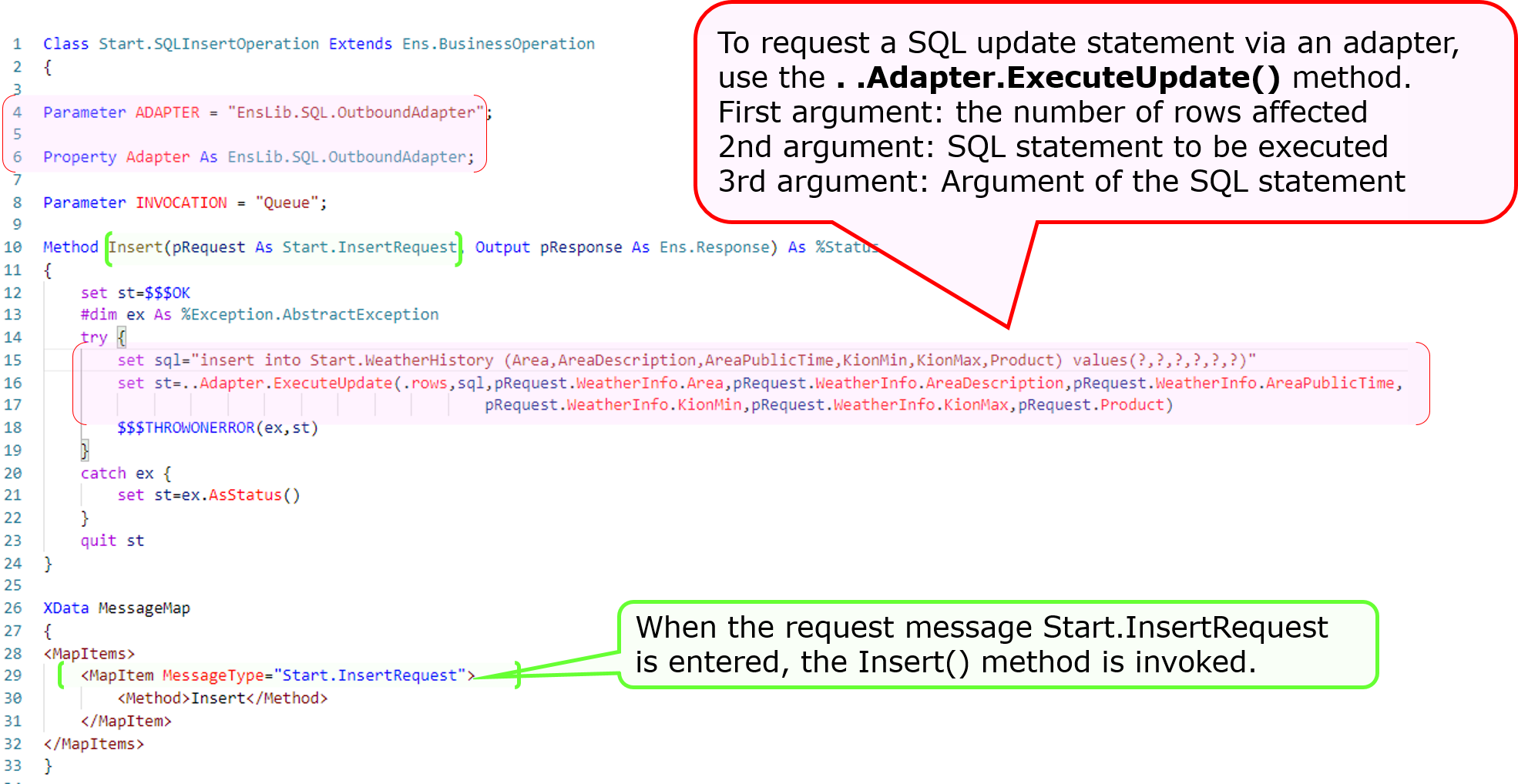
Let’s take a look at the Start.SQLInsertOperation code that uses the adapter.

The adapter used in the sample is an SQL outbound adapter, which allows you to request the database to execute SQL statements. Different adapters provide different methods. Please refer to the documentation for details on the methods provided by the adapters.
image

Then review the code for Start.InsertOperation, without using the adapter.

Whether you use an adapter or not, the message map and method definitions for the operation are required. If you do not use an adapter, you do not need to define the “Paramter” and “Property” for the adapter.

Business operations without adapters: In Start.InsertOperation, SQL is executed using ObjectScript (the comment statement is the update process in object operations).

The implementation is satisfactory if the database to be updated is not detached from IRIS.

We found out that operations using adapters provide a reliable method to request processing from the destination. We also confirmed that it is possible to create operations without using adapters and freely write code for them.

Next, I would like to explain how to create a business process that calls the operations for getting weather information and updating the database in the correct order.

0
0 1025
Article Mihoko Iijima · Mar 5, 2021 7m read

This article is a continuation of this post.

In the previous article, we discussed business operations' creation from the components required for system integration.

In this article, you will learn how to create a business process that calls the two business operations you have defined in the sequence order.

The business process acts as the coordinator (command center) of the process.

The processing adjustments you may want to implement in the sample include the following:

Step 1: Provide the city name to an external Web API and request weather information.
Step 2: Register the result of the query (weather information) from Step 1 and the name of the purchased product received at the start of the production.

In the sample business process, we will wait for the answer to step 1 and adjust step 2 to operate.

In the process of waiting for a response (i.e., synchronization), for instance, what happens if step 1) doesn't respond for a few days?

If new messages are delivered to the business process while waiting for a response for a few days, the messages will not be dismissed since they are stored in a queue. However, the business process will not process new messages, and there will be a delay in the operation.

Note: Business processes and business operations have cues.

Therefore, in production, when there is a synchronous call, there are two ways for the business process to move: A) to synchronize perfectly, and B) to save the state of the business process itself in the database and hand over the execution environment so that other processes can run while waiting for a response.

A) How to synchronize perfectly:

While a synchronous call is being made, the business process's processing is ongoing, and waiting for the next message to be processed until all processing is completed.
➡This function is used when the order of processing needs to be guaranteed in the first-in-first-out method.

B) The method of saving the state of the business process itself in the database and hand over the execution environment so that other processes can run while waiting for a response is

When a synchronous call is made, the process saves its state in the database. When a response message is received, and it is time to process the message, it opens the database and executes the next process.
(IRIS will manage the storage and re-opening of business processes in the database).
➡ Used when it is acceptable to switch the processing order of messages (i.e., when it is allowed to process more and more different messages received while waiting for a response).

In the sample, B) is used.

There are two types of editors for creating business processes: a Business Process Editor that allows you to place processing boxes (activities) and implement them while defining their execution, and a method for creating them using ObjectScript in Studio or VSCode.

If you use the Business Process Editor, you will use the call activity to invoke the component, but this activity is implemented in the B) way. Of course, you can also implement theA) method in the Business Process Editor, except that you will not use the call activity in that case (you will use the code activity).

In this section, I will explain how to create it.

If you use the Business Process Editor, you write them in the Management Portal.

You can also open the business process from the production configuration page. The figure below shows the procedure.

image

Icons like in this editor are called activities, and those marked with are activities that can invoke other components.

This symbol indicates that a response message will be returned (i.e., a synchronous call will be made). The activity defaults to the asynchronous call setting, which can be changed as needed.

Now let's look at business processes, which are components that are invoked upon receiving a request message, as well as business operations.

In the sample, the request message: It is set to start when it receives a Start.Request and does not return a response message.

image

In the business process, messages appear in various situations.

Request messages that are sent to business processes.

Request message (+ response message) to be sent when calling another component using the activity.

In the Business Process Editor, the names of the objects that store messages are clearly separated to be able to see which message was sent from which destination.

image

  • request(basic requirements)

The message that triggered the start of the business process, in our example, is Start.Request (the message to be specified in the Request settings on the Context tab in the Business Process Editor)

  • response(basic response)

Response message to return to the caller of the business process (not used in the sample) (message to be specified in the settings of the response in the context tab in the Business Process Editor)

  • callrequest(request message)

Request message to be sent when calling the component determined by the activity.

  • callresponse(response message)

Response message returned from the component specified by the activity.

callrequest and callresponse are objects that will be deleted when the call processing of the activity is completed. All other objects will not disappear until the business process is finished.

Now comes the problem when callresponse disappears.

That's because, as you can see in this sample, When calling a component, if you want to use the response result of a previously called component, the response message will be lost, and the information that was to be used in the next component will be erased.

It is a problem 😓

What should we do?・・・・・

In such a case, you can use the context object.

The context object, like request/response, is an object that survives until the end of the business process.

Moreover, since context is a generic object, it can be defined in the process editor.

In addition to the context, the response object can also be used if it has a property that matches the inherited data's saving.

Now, let's go over the steps again.

image

Response message in the light blue balloon: Start.Response is an object that will be deleted when the process is finished.

Since we want to use the response message (Start.Response) that contains the weather information as the message to be sent to the next [Business Operation for DB Update], we have to implement the context object in a way that all the property values of the response message (Start.Response) can be assigned to it.

Then what is the setting for the context property?

The properties are defined in "Context Properties" in the Context tab of the Business Process Editor.

In this case, we would like to save all the properties of the response message (Start.Response) to the context object. Therefore, the property type specification is set to Start.Response.

image

Following that, check the settings in the activity.

image

The request and response messages have a button called ○○ Builder.

Clicking on this button will launch a line-drawing editor that allows you to specify what you want to register in the properties of each message.

image

After this, the business operation for requesting a database update (Start.SQLInsertOperation or Start.InsertOperation) is called in the same way with the activity, and you are all set.

(For more information, see Configuring for Business Processes).

Once you have completed the verification, you can test it. The testing method is the same as the one used for testing business operations (see this article).

The trace after the test is as follows:

image

Since the business process is the coordinator, we could see that it invoked the defined components sequentially, keeping the synchronous execution.

Note 1: The sample only deals with the call activity, but various other activities such as data transformation.

Note 2: Business processes created by ObjectScript alone, other than the Business Process Editor, inherit from the Ens.BusinessProcess class. If it is created in the Business Process Editor, it inherits from the Ens.BusinessProcessBPL class.

The business process is the coordinator of the system integration process.
The Business Process Editor provides the following types of variables for messages (request/response/callrequest/callreponse/context).
A business process created with the Business Process Editor can work in a way that does not delay other messages, even if there is synchronization in the component's calling.

In the next section, we will finally show you how to develop the last component: business services.

0
0 575
Article Mihoko Iijima · Mar 5, 2021 9m read

This article is a continuation of this post.

In the previous article, we discussed the development of business processes, which are part of the components required for system integration and serve as a production coordinator.

This article will discuss creating a business service, which is the information input window for production.

And finally, the last component of “Let's Use Interoperability!”

The business service provides a window of input for information sent from outside IRIS, with or without using the adapter for external I/F.

There are three types of business services in the sample (links in parentheses are links to the sample code):

  1. Business services for files using inbound adaptersStart.FileBS
  2. Business services for Web services using the SOAP inbound adapterStart.WS.WebServiceBS
  3. Business service called by stored procedure or REST without using an adapterStart.NonAdapterBS

Different connection methods used for inputting information will only increase the number of business services; however, the processing done within a business service is

Create a request message to be sent
using externally inputted information and
simply call the business component

It's effortless.

Now, let's outline how to create components that use file-inbound adapters.

Business services are written in scripts, which can be created in VSCode or Studio (see this article on using VSCode).

1. Business services for files using inbound adapters(Start.FileBS

If you create a class in VSCode, you should create a class that inherits from Ens.BusinessService. As for adapters, you can use the ADAPTER parameter as ADAPTER class name (e.g., specify a file-inbound adapter class).
If you do not use the adapter, no configuration is required.

Class Start.FileBS Extends Ens.BusinessService
{
Parameter ADAPTER = "EnsLib.File.InboundAdapter";

In the file-inbound adapter, you can specify the directory to be monitored in Settings→File Path for the production's business service.

image

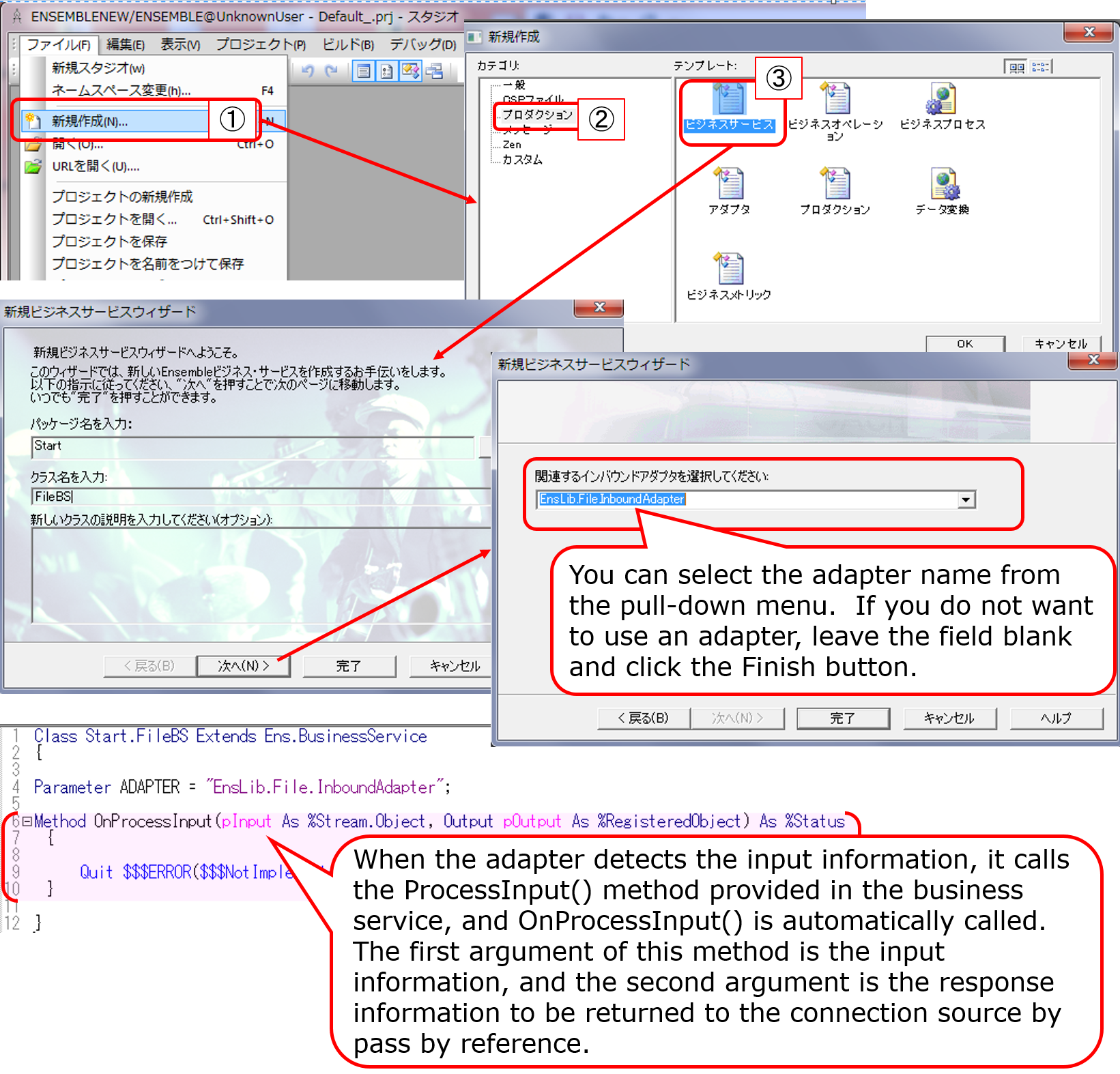
If the file located in the "File Path" matches the information specified in the "File Spec," it opens the file as a stream object. It defines it as the first variable when calling the business service ProcessInput().

When ProcessInput() is started, OnProcessInput() is automatically called. OnProcessInput() is passed directly to OnProcessInput() with the parameters passed to ProcessInput().

image

In OnProcessInput() the initial statement gets the information from the file stream object, which is passed as the first parameter, then creates a message to be given to the next component, writes the process of calling the next component, and completes the basic logic.


【Memo】
For Studio, launch the Business Services Wizard in the New Creation menu, select the adapter and press the Finish button.


The OnProcessInput() method definition is as follows:

Method OnProcessInput(pInput As %Stream.Object, Output pOutput As %RegisteredObject) As %Status

pInput is provided with an instance of the %Stream.FileCharacter class for text files or the %Stream.FileBinary class for binary files.

In the sample, a file in text format will be inputted, and we have written it to accept multi-line requests and one request per line.

AtEnd property is set to 1 when EndOfFile is deteced. You can use this property to stop loop.

In a loop, we read the lines using the ReadLine() method, which enables us to obtain information about the contents of the file one line at a time (see the documentation for file adapter details).

Compose the message, retrieving information line by line. Then, we execute the ..SendRequestAsync() method, which calls the other components.

When executing the method, the first parameter should be the name of the component you want to call as a string, and the second parameter should be the request message you have created.

Note that the ..SendRequestAsync() is an asynchronous call and does not wait for a response.

Memo:There is also SendRequestSync() for synchronous calls.。

The sample code is as follows:

image

Reference:explanation of the usage of the $piece() function in the above example text

$piece(“string”, ”delimiter mark”, ”position number”)

The function to set/get a string with a delimiter, in the sample, to get the first and second value of comma-separated data, is written with the following syntax:

set request.Product=$piece(record,",",1)
set request.Area=$piece(record,",",2)

Now, let's check the function of Start.FileBS as it appeared in the above description.

In the sample production, the "File Path" was set to /irisdev/src, and the "File Spec" was set to check.txt. Either prepare the same directory or change it to a different directory and register the sample data in the check.txt file using the following format: purchased product name, name of the city.

※If you are using the sample container, please rename [Test-check.txt] in the src directory under the directory created by the git clone.

image

image

2. Business services for Web services using the SOAP inbound adapter (Start.WS.WebServiceBS

Next, we will outline the creation of business services for Web services.

The Business Service Class for Web Services acts as a Web Service Provider = Web Service Server.

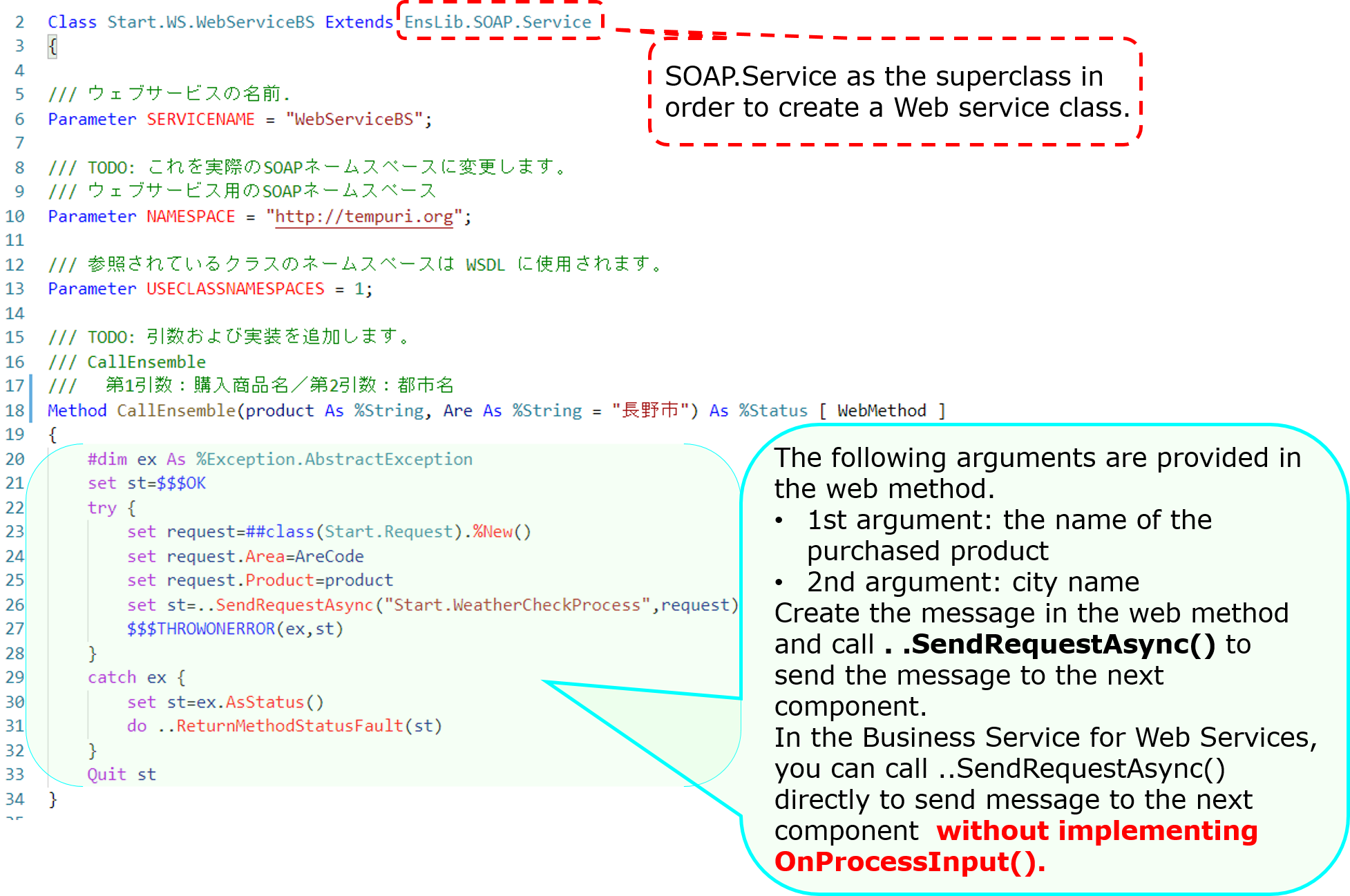
In the sample, we have two parameters in the Web service method for this sample production to have information sent from the Web service client. The web method uses the data entered in the parameters to create a message class and call other components.

image

When you define a Web service class, a test screen is created. However, it is not shown by default.

Log in to IRIS (or start a terminal), go to the namespace where the production is located and do the following:

For your reference:Access to the Catalog and Test Pages

Here is a sample code configuration in the setting where the container was started with docker-compose up -d (run in the %SYS namespace)

set $namespace="%SYS"
set ^SYS("Security","CSP","AllowClass","/csp/user/","%SOAP.WebServiceInfo")=1
set ^SYS("Security","CSP","AllowClass","/csp/user/","%SOAP.WebServiceInvoke")=1


【Attention】Please note that the sentence is case-sensitive and should be written with care. Also, depending on the namespace in which the product is used, the specified script changes. The example sentence is written on the assumption that the sample is imported into the USER namespace.
If you import the sample code into the ABC namespace, the fourth subscript should be "/csp/abc/."

Once the configuration is complete, go to the following URL:

http://localhost:52773/csp/user/Start.WS.WebServiceBS.cls

image

If you want to provide the WSDL to your Web services client, specify WSDL=1 at the end of the following URL

http://localhost:52773/csp/user/Start.WS.WebServiceBS.cls?WSDL

3. Business services called by stored procedures or REST without using adapters(Start.NonAdapterBS

Next, we will introduce the Business Service without adapters (Start.NonAdapterBS).

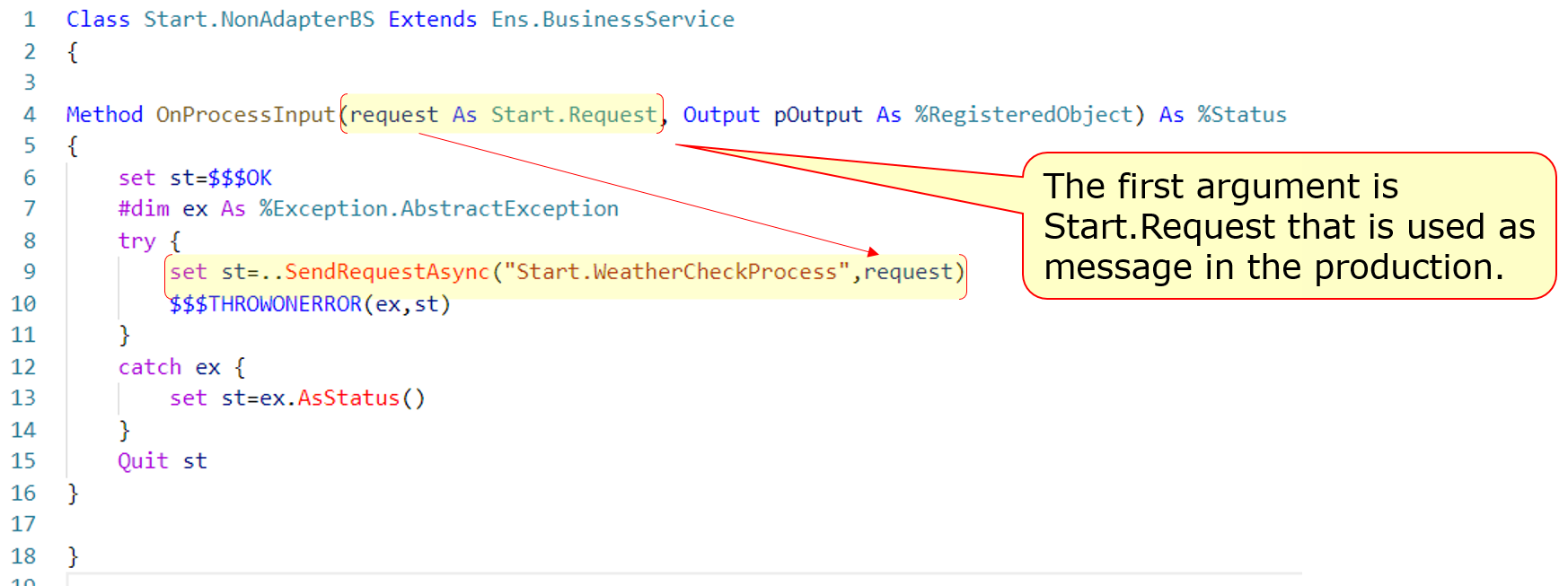
image

For business services that use adapters, the adapter calls the business service's ProcessInput() method to detect the information.

If you don't use adapters, you can still call the ProcessInput() method, but this method is not public. Therefore, if you implement a business service that does not use adapters, you will need to consider ProcessInput().

The sample utilizes the following two methods:

Now, here's an example of a stored procedure.

image

After adding a business service (Start.NonAdapterBS) that does not use adapters to the production (state added in the sample), run the following stored procedure

call Start.Utils_CallProduction('piroshki','Russia')

image

A resulting trace of the running result is as follows:

image

Next, here is an example of creating a dispatch class for REST:

image

The XML described in the XData Url Map defines which methods are called in response to the URL at the time of the REST call.
The example describes a definition that calls the WeatherCheck() method when the URL of the /weather/first parameter (purchased product name)/ second parameter (name of the city) are provided in the GET request.

<Route Url="/weather/:product/:arecode" Method="GET" Call="WeatherCheck"/>

Then, define the base URL for the above URL in the Management Portal's Web Application Path Settings screen, and it is complete.

See this article for more details on the configuration.

Once it is ready, try to run the information using a business service that allows you to send the REST information.

Example)http://localhost:52773/start/weather/Takoyaki/Osaka

image

image

If you do not use an adapter, as ProcessInput() cannot be called directly from outside, we have created an object for the business service in the logic executed through REST or stored procedures (using the CreateBusinessService() method of the Ens.Director class) and called ProcessInput()

If you use an adapter, the adapter detects the input and stores the information in a unique object and passes it to the business service. In contrast, if you don't use an adapter, the rest is pretty much the same, only the difference is in the above-mentioned part of the process.

The business service is simply designed to use the information entered outside IRIS to create request messages and call business components.

Throughout the sample production, we were able to see the following:

Different components play different roles in making a production run (business services, business processes, business operations).

To transmit information between components, use the message.

Messages are stored in the database unless deleted and thus can be traced at any time.

Some adapters simplify the process of around the connection.

These are the basic operations on how to use Interoperability in IRIS.

There are also record maps (see: FAQ TOPIC) and data conversion tools that are useful for input and output of CSV files and other format-specific files.

As well as this series, there is also an article on simple IoT applications developed with InterSystems IRIS using Interoperability. Please check it out.

Besides, IRIS for Health also supports FHIR and HL7 (including SS-MIX2) transmissions.

I would be pleased to explain it in another post. If you have something of interest to share, please leave a comment!

Finally, training courses are also available to learn how to use Interoperability.

If you'd like to take the time to try it out with an instructor, please consider joining one of our training courses!

0
0 751