#Backup

0 Followers · 76 Posts

In information technology, a backup, or the process of backing up, refers to the copying and archiving of computer data so it may be used to restore the original after a data loss event.

In InterSystems Data Platform backup means procedures for backing up data in database files and all the related procedures which assure that no any application data is being lost during backup and recovery.

Documentation.

Article Ariel Glikman · Jan 13, 2025 3m read

You may have noticed that to configure a mirror for InterSystems IRIS for Health and HealthShare® Health Connect there is a special requirement. I wanted to go through it step by step in this article.

This assumes you have already configured the second failover member and confirmed a successful failover member status in the mirror monitor:

Step 1:Enable HS_Services user (on backup and primary

Step 2: Switch to Namespace HSSYS and go to Interoperability > Configure > Credentials. Enter the Password for your predefined HS_Services user (on backup and primary)

2
6 381
Question Jorge Gea Martínez · Oct 22, 2025

Hi,

I'm trying to run some scripting in Windows. I'm using an instance of the IRISHealth community. 

I'm just trying to run a simple sequence of commands so I can run irissession in a non-interactive mode, like:

irissession.exe IRISHEALTH -U "%SYS" < "myprogram.iris"


The contents of my program.iris are, for instance, these ones, to run an online backup:

set$namespace="%SYS"set cbk = "C:\Test1.cbk"set log = "C:\Test1.log"w$$BACKUP^DBACK("","F","MyBackup",cbk,"Y",log,"NOINPUT","Y","Y", 1000, "Test1")
HALT

The execution starts, but then gets completely hung, I see infinitely:

2
0 49
Question Mark Sharman · Sep 30, 2025

At the moment, we have 10 HealthShare instance servers (5 x mirrored pairs), where we implement an External Backup approach, using the freeze/thaw commands against whichever server of the pair is the backup mirror member, to complete a VM level backup. These backups are stored to a disk within our control, to purge as required. This approach allows us to deliver a zero downtime backup approach.

2
0 65
Article Guillaume Rongier · Jul 31, 2025 4m read

img

This article will introduce you to the concept of virtual environments in Python, which are essential for managing dependencies and isolating project from the OS.

What is a Virtual Environment?

A virtual environment is a folder that contains :

  • A specific version of Python
  • At start an empty site-packages directory

Virtual environments will help you to isolate your project from the OS Python installation and from other projects.

How to use it?

To use virtual environments, you can follow these steps:

  1. Create a virtual environment: You can create a virtual environment using the venv module that comes with Python. Open your terminal and run:

    python -m venv .venv
    

    Replace .venv with your desired environment name.

  2. Activate the virtual environment: After creating the virtual environment, you need to activate it. The command varies depending on your operating system:

    • On Windows:
    .venv\Scripts\Activate.ps1
    

    If you encounter an error, you may need to run the following command in your terminal:

    Set-ExecutionPolicy -ExecutionPolicy Bypass -Scope Process -Force; .venv\Scripts\Activate.ps1
    
    • On macOS and Linux:
    source .venv/bin/activate
    

Once activated, your terminal prompt will change to indicate that you are now working within the virtual environment.

Example:

(.venv) user@machine:~/project$

Notice the (.venv) prefix in the terminal prompt, which indicates that the virtual environment is active.

Now then you can install packages using pip, and they will be installed in the virtual environment rather than the global Python installation.

Can I use Virtual Environments in IRIS?

Humm, good question!

The answer is simple : Yes and No.

  • No, because IRIS do not officially support virtual environments.
  • Yes, because going through all those articles, now we understand how Python works, how Iris works and what is a virtual environment, maybe we can simulate a virtual environment within IRIS by using the right configurations and setups.

How to simulate a virtual environment in IRIS?

A virtual environment is two things:

  • A specific version of Python
  • An site-packages directory

We have in IRIS what we call Flexible Python Runtime, which allows us to

  • use a specific version of Python.
  • update the sys.path to include a specific directory.

So, we can simulate a virtual environment in IRIS by using the Flexible Python Runtime and configuring the sys.path to include a specific directory and a specific version of Python. 🥳

Setup a Flexible Python Runtime in IRIS is easy, you can follow the steps in the IRIS documentation.

In a nutshell, you need to:

  1. Configure the PythonRuntimeLibrary to point to the lib python file of the specific Python version you want to use.

    Example:

    • Windows : C:\Program Files\Python311\python3.dll (Python 3.11 on Windows)
    • Linux : /usr/lib/x86_64-linux-gnu/libpython3.11.so.1.0 (Python 3.11 on Ubuntu 22.04 on the x86 architecture)
  2. Configure the PythonPath to point to the site-packages directory of the specific Python version you want to use.

    Example:

    • Use your virtual environment site-packages directory, which is usually located in the .venv/lib/python3.x/site-packages directory.

⚠️ This will setup your whole IRIS instance to use a specific version of Python and a specific site-packages directory.

🩼 Limitation :

  • You will not end up with exactly the same sys.path as a virtual environment, because IRIS will add some directories to the sys.path automatically, like <installation_directory>/lib/python an others we have seen in the module article.

🤫 If you want to make it automatic, you can use this awsome package: iris-embedded-python-wrapper

To use it, you need to:

Be in your venv environment, then install the package:

(.venv) user@machine:~/project$
pip install iris-embedded-python-wrapper

Then, simply bind this venv to IRIS with the following command:

(.venv) user@machine:~/project$
bind_iris

You will see the following message:

INFO:iris_utils._find_libpyton:Created backup at /opt/intersystems/iris/iris.cpf.0f4a1bebbcd4b436a7e2c83cfa44f515
INFO:iris_utils._find_libpyton:Created merge file at /opt/intersystems/iris/iris.cpf.python_merge
IRIS Merge of /opt/intersystems/iris/iris.cpf.python_merge into /opt/intersystems/iris/iris.cpf
INFO:iris_utils._find_libpyton:PythonRuntimeLibrary path set to /usr/local/Cellar/python@3.11/3.11.13/Frameworks/Python.framework/Versions/3.11/Python
INFO:iris_utils._find_libpyton:PythonPath set to /xxxx/.venv/lib/python3.11/site-packages
INFO:iris_utils._find_libpyton:PythonRuntimeLibraryVersion set to 3.11

To unbind the venv from IRIS, you can use the following command:

(.venv) user@machine:~/project$
unbind_iris

Conclusion

We have seen what are the benefits of using virtual environments in Python, how to create and use them, and how to simulate a virtual environment in IRIS using the Flexible Python Runtime.

3
2 133
Question Ganesh Jagtap · May 1, 2025

Hi all,

I'm reviewing an older Cache routine and came across this line of code: from file ^ZDBKCRON

S $ZT="^%ETSDK"

Error trap

/home/oper/script/cache_db_backup -t        # Daily CacheDB Backup

 produced the following output:

 <NOROUTINE> *%ETSDK
<ERRTRAP>

-----------

From what I understand, this is setting up an error trap, but I'm not entirely clear on how it works, especially in modern InterSystems IRIS environments.

Could someone please help explain:

2
0 99
Question Dmitrii Baranov · Mar 18, 2025

I have two instances of IRIS, one is Production and another one is Staging (both managed by Docker) and I want to set up a full daily recover of the Staging server from a full backup of the Production server. I know how to do this manually using the DBREST utility, as well as how to make a copy of the database by making a full copy of the durable directory (however this option requires a full stop of the Production-database). What is the best way to automatically restore all databases from a full backup using scripting?

1
0 76
Article Murray Oldfield · Jan 12, 2017 19m read

Hi, this post was initially written for Caché. In June 2023, I finally updated it for IRIS. If you are revisiting the post since then, the only real change is substituting Caché for IRIS! I also updated the links for IRIS documentation and fixed a few typos and grammatical errors. Enjoy :)


In this post, I show strategies for backing up InterSystems IRIS using External Backup with examples of integrating with snapshot-based solutions. Most solutions I see today are deployed on Linux on VMware, so a lot of the post shows how solutions integrate VMware snapshot technology as examples.

IRIS backup - batteries included?

IRIS online backup is included with an IRIS install for uninterrupted backup of IRIS databases. But there are more efficient backup solutions you should consider as systems scale up. External Backup integrated with snapshot technologies is the recommended solution for backing up systems, including IRIS databases.

Are there any special considerations for external backup?

Online documentation for External Backup has all the details. A key consideration is:

"To ensure the integrity of the snapshot, IRIS provides methods to freeze writes to databases while the snapshot is created. Only physical writes to the database files are frozen during the snapshot creation, allowing user processes to continue performing updates in memory uninterrupted."

It is also important to note that part of the snapshot process on virtualised systems causes a short pause on a VM being backed up, often called stun time. Usually less than a second, so not noticed by users or impacting system operation; however, in some circumstances, the stun can last longer. If the stun is longer than the quality of service (QoS) timeout for IRIS database mirroring, then the backup node will think there has been a failure on the primary and will failover. Later in this post, I explain how you can review stun times in case you need to change the mirroring QoS timeout.


[A list of other InterSystems Data Platforms and performance series posts is here.](https://community.intersystems.com/post/capacity-planning-and-performance-series-index)

You should also review IRIS online documentation Backup and Restore Guide for this post.


Backup choices

Minimal Backup Solution - IRIS Online Backup

If you have nothing else, this comes in the box with the InterSystems data platform for zero downtime backups. Remember, IRIS online backup only backs up IRIS database files, capturing all blocks in the databases that are allocated for data with the output written to a sequential file. IRIS Online Backup supports cumulative and incremental backups.

In the context of VMware, an IRIS Online Backup is an in-guest backup solution. Like other in-guest solutions, IRIS Online Backup operations are essentially the same whether the application is virtualised or runs directly on a host. IRIS Online Backup must be coordinated with a system backup to copy the IRIS online backup output file to backup media and all other file systems used by your application. At a minimum, system backup must include the installation directory, journal and alternate journal directories, application files, and any directory containing external files the application uses.

IRIS Online Backup should be considered as an entry-level approach for smaller sites wishing to implement a low-cost solution to back up only IRIS databases or ad-hoc backups; for example, it is helpful in the set-up of mirroring. However, as databases increase in size and as IRIS is typically only part of a customer's data landscape, External Backups combined with snapshot technology and third-party utilities are recommended as best practice with advantages such as including the backup of non-database files, faster restore times, enterprise-wide view of data and better catalogue and management tools.


Recommended Backup Solution - External backup

Using VMware as an example, Virtualising on VMware adds functionality and choices for protecting entire VMs. Once you have virtualised a solution, you have effectively encapsulated your system — including the operating system, the application and the data — all within .vmdk (and some other) files. When required, these files can be straightforward to manage and used to recover a whole system, which is very different from the same situation on a physical system where you must recover and configure the components separately -- operating system, drivers, third-party applications, database and database files, etc.


# VMware snapshot

VMware’s vSphere Data Protection (VDP) and other third-party backup solutions for VM backup, such as Veeam or Commvault, take advantage of the functionality of VMware virtual machine snapshots to create backups. A high-level explanation of VMware snapshots follows; see the VMware documentation for more details.

It is important to remember that snapshots are applied to the whole VM and that the operating system and any applications or the database engine are unaware that the snapshot is happening. Also, remember:

By themselves, VMware snapshots are not backups!

Snapshots enable backup software to make backups, but they are not backups by themselves.

VDP and third-party backup solutions use the VMware snapshot process in conjunction with the backup application to manage the creation and, very importantly, deletion of snapshots. At a high level, the process and sequence of events for an external backup using VMware snapshots are as follows:

  • Third-party backup software requests the ESXi host to trigger a VMware snapshot.
  • A VM's .vmdk files are put into a read-only state, and a child vmdk delta file is created for each of the VM's .vmdk files.
  • Copy on write is used with all changes to the VM written to the delta files. Any reads are from the delta file first.
  • The backup software manages copying the read-only parent .vmdk files to the backup target.
  • When the backup is complete, the snapshot is committed (VM disks resume writes and updated blocks in delta files written to parent).
  • The VMware snapshot is now removed.

Backup solutions also use other features such as Change Block Tracking (CBT) to allow incremental or cumulative backups for speed and efficiency (especially important for space saving), and typically also add other important functions such as data deduplication and compression, scheduling, mounting VMs with changed IP addresses for integrity checks etc., full VM and file level restores, and catalogue management.

VMware snapshots that are not appropriately managed or left to run for a long time can use excessive storage (as more and more data is changed, delta files continue to grow) and also slow down your VMs.

You should think carefully before running a manual snapshot on a production instance. Why are you doing this? What will happen if you revert back in time to when the snapshot was created? What happens to all the application transactions between creation and rollback?

It is OK if your backup software creates and deletes a snapshot. The snapshot should only be around for a short time. And a crucial part of your backup strategy will be to choose a time when the system has low usage to minimise any further impact on users and performance.

IRIS database considerations for snapshots

Before the snapshot is taken, the database must be quiesced so that all pending writes are committed, and the database is in a consistent state. IRIS provides methods and an API to commit and then freeze (stop) writes to databases for a short period while the snapshot is created. This way, only physical writes to the database files are frozen during the creation of the snapshot, allowing user processes to continue performing updates in memory uninterrupted. Once the snapshot has been triggered, database writes are thawed, and the backup continues copying data to backup media. The time between freeze and thaw should be quick (a few seconds).

In addition to pausing writes, the IRIS freeze also handles switching journal files and writing a backup marker to the journal. The journal file continues to be written normally while physical database writes are frozen. If the system were to crash while the physical database writes are frozen, data would be recovered from the journal as usual during start-up.

The following diagram shows freeze and thaw with VMware snapshot steps to create a backup with a consistent database image.


VMware snapshot + IRIS freeze/thaw timeline (not to scale)

image


Note the short time between Freeze and Thaw -- only the time to create the snapshot, not the time to copy the read-only parent to the backup target.


Summary - Why do I need to freeze and thaw the IRIS database when VMware is taking a snapshot?

The process of freezing and thawing the database is crucial to ensure data consistency and integrity. This is because:

Data Consistency: IRIS can be writing journals, or the WIJ or doing random writes to the database at any time. A snapshot captures the state of the VM at a specific point in time. If the database is actively being written during the snapshot, it can lead to a snapshot that contains partial or inconsistent data. Freezing the database ensures that all transactions are completed and no new transactions start during the snapshot, leading to a consistent disk state.

Quiescing the File System: VMware's snapshot technology can quiesce the file system to ensure file system consistency. However, this does not account for the application or database level consistency. Freezing the database ensures that the database is in a consistent state at the application level, complementing VMware's quiescing.

Reducing Recovery Time: Restoring from a snapshot that was taken without freezing the database might require additional steps like database repair or consistency checks, which can significantly increase recovery time. Freezing and thawing ensure the database is immediately usable upon restoration, reducing downtime.


Integrating IRIS Freeze and Thaw

vSphere allows a script to be automatically called on either side of snapshot creation; this is when IRIS Freeze and Thaw are called. Note: For this functionality to work correctly, the ESXi host requests the guest operating system to quiesce the disks via VMware Tools.

VMware tools must be installed in the guest operating system.

The scripts must adhere to strict name and location rules. File permissions must also be set. For VMware on Linux, the script names are:

# /usr/sbin/pre-freeze-script
# /usr/sbin/post-thaw-script

Below are examples of freeze and thaw scripts our team use with Veeam backup for our internal test lab instances, but these scripts should also work with other solutions. These examples have been tested and used on vSphere 6 and Red Hat 7.

While these scripts can be used as examples and illustrate the method, you must validate them for your environments!

Example pre-freeze-script:

#!/bin/sh
#
# Script called by VMWare immediately prior to snapshot for backup.
# Tested on Red Hat 7.2
#

LOGDIR=/var/log
SNAPLOG=$LOGDIR/snapshot.log

echo >> $SNAPLOG
echo "`date`: Pre freeze script started" >> $SNAPLOG
exit_code=0

# Only for running instances
for INST in `iris qall 2>/dev/null | tail -n +3 | grep '^up' | cut -c5-  | awk '{print $1}'`; do

    echo "`date`: Attempting to freeze $INST" >> $SNAPLOG
    
    # Detailed instances specific log    
    LOGFILE=$LOGDIR/$INST-pre_post.log
    
    # Freeze
    irissession $INST -U '%SYS' "##Class(Backup.General).ExternalFreeze(\"$LOGFILE\",,,,,,1800)" >> $SNAPLOG $
    status=$?

    case $status in
        5) echo "`date`:   $INST IS FROZEN" >> $SNAPLOG
           ;;
        3) echo "`date`:   $INST FREEZE FAILED" >> $SNAPLOG
           logger -p user.err "freeze of $INST failed"
           exit_code=1
           ;;
        *) echo "`date`:   ERROR: Unknown status code: $status" >> $SNAPLOG
           logger -p user.err "ERROR when freezing $INST"
           exit_code=1
           ;;
    esac
    echo "`date`:   Completed freeze of $INST" >> $SNAPLOG
done

echo "`date`: Pre freeze script finished" >> $SNAPLOG
exit $exit_code

Example thaw script:

#!/bin/sh
#
# Script called by VMWare immediately after backup snapshot has been created
# Tested on Red Hat 7.2
#

LOGDIR=/var/log
SNAPLOG=$LOGDIR/snapshot.log

echo >> $SNAPLOG
echo "`date`: Post thaw script started" >> $SNAPLOG
exit_code=0

if [ -d "$LOGDIR" ]; then

    # Only for running instances    
    for INST in `iris qall 2>/dev/null | tail -n +3 | grep '^up' | cut -c5-  | awk '{print $1}'`; do
    
        echo "`date`: Attempting to thaw $INST" >> $SNAPLOG
        
        # Detailed instances specific log
        LOGFILE=$LOGDIR/$INST-pre_post.log
        
        # Thaw
        irissession $INST -U%SYS "##Class(Backup.General).ExternalThaw(\"$LOGFILE\")" >> $SNAPLOG 2>&1
        status=$?
        
        case $status in
            5) echo "`date`:   $INST IS THAWED" >> $SNAPLOG
               irissession $INST -U%SYS "##Class(Backup.General).ExternalSetHistory(\"$LOGFILE\")" >> $SNAPLOG$
               ;;
            3) echo "`date`:   $INST THAW FAILED" >> $SNAPLOG
               logger -p user.err "thaw of $INST failed"
               exit_code=1
               ;;
            *) echo "`date`:   ERROR: Unknown status code: $status" >> $SNAPLOG
               logger -p user.err "ERROR when thawing $INST"
               exit_code=1
               ;;
        esac
        echo "`date`:   Completed thaw of $INST" >> $SNAPLOG
    done
fi

echo "`date`: Post thaw script finished" >> $SNAPLOG
exit $exit_code

Remember to set permissions:

# sudo chown root.root /usr/sbin/pre-freeze-script /usr/sbin/post-thaw-script
# sudo chmod 0700 /usr/sbin/pre-freeze-script /usr/sbin/post-thaw-script

Testing Freeze and Thaw

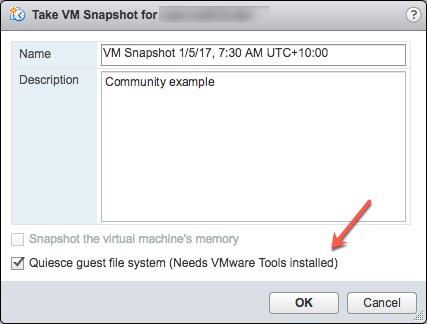
To test the scripts are running correctly, you can manually run a snapshot on a VM and check the script output. The following screenshot shows the "Take VM Snapshot" dialogue and options.

Deselect- "Snapshot the virtual machine's memory".

Select - the "Quiesce guest file system (Needs VMware Tools installed)" check box to pause running processes on the guest operating system so that file system contents are in a known consistent state when you take the snapshot.

Important! After your test, remember to delete the snapshot!!!!

If the quiesce flag is true, and the virtual machine is powered on when the snapshot is taken, VMware Tools is used to quiesce the file system in the virtual machine. Quiescing a file system is a process of bringing the on-disk data into a state suitable for backups. This process might include such operations as flushing dirty buffers from the operating system's in-memory cache to disk.

The following output shows the contents of the $SNAPSHOT log file set in the example freeze/thaw scripts above after running a backup that includes a snapshot as part of its operation.

Wed Jan  4 16:30:35 EST 2017: Pre freeze script started
Wed Jan  4 16:30:35 EST 2017: Attempting to freeze H20152
Wed Jan  4 16:30:36 EST 2017:   H20152 IS FROZEN
Wed Jan  4 16:30:36 EST 2017:   Completed freeze of H20152
Wed Jan  4 16:30:36 EST 2017: Pre freeze script finished

Wed Jan  4 16:30:41 EST 2017: Post thaw script started
Wed Jan  4 16:30:41 EST 2017: Attempting to thaw H20152
Wed Jan  4 16:30:42 EST 2017:   H20152 IS THAWED
Wed Jan  4 16:30:42 EST 2017:   Completed thaw of H20152
Wed Jan  4 16:30:42 EST 2017: Post thaw script finished

This example shows 6 seconds of elapsed time between freeze and thaw (16:30:36-16:30:42). User operations are NOT interrupted during this period. You will have to gather metrics from your own systems, but for some context, this example is from a system running an application benchmark on a VM with no IO bottlenecks and an average of more than 2 million Glorefs/sec, 170,000 Gloupds/sec, and an average 1,100 physical reads/sec and 3,000 writes per write daemon cycle.

Remember that memory is not part of the snapshot, so on restarting, the VM will reboot and recover. Database files will be consistent. You don’t want to "resume" a backup; you want the files at a known point in time. You can then roll forward journals and whatever other recovery steps are needed for the application and transactional consistency once the files are recovered.

For additional data protection, a journal switch can be done by itself, and journals can be backed up or replicated to another location, for example, hourly.

Below is the output of the $LOGFILE in the example freeze/thaw scripts above, showing journal details for the snapshot.

01/04/2017 16:30:35: Backup.General.ExternalFreeze: Suspending system

Journal file switched to:
/trak/jnl/jrnpri/h20152/H20152_20170104.011
01/04/2017 16:30:35: Backup.General.ExternalFreeze: Start a journal restore for this backup with journal file: /trak/jnl/jrnpri/h20152/H20152_20170104.011

Journal marker set at
offset 197192 of /trak/jnl/jrnpri/h20152/H20152_20170104.011
01/04/2017 16:30:36: Backup.General.ExternalFreeze: System suspended
01/04/2017 16:30:41: Backup.General.ExternalThaw: Resuming system
01/04/2017 16:30:42: Backup.General.ExternalThaw: System resumed

VM Stun Times

At the creation point of a VM snapshot and after the backup is complete and the snapshot is committed, the VM needs to be frozen for a short period. This short freeze is often referred to as stunning the VM. A good blog post on stun times is here. I summarise the details below and put them in the context of IRIS database considerations.

From the post on stun times: “To create a VM snapshot, the VM is “stunned” in order to (i) serialize device state to disk, and (ii) close the current running disk and create a snapshot point.…When consolidating, the VM is “stunned” in order to close the disks and put them in a state that is appropriate for consolidation.”

Stun time is typically a few 100 milliseconds; however, if there is a very high disk write activity during the commit phase, stun time could be several seconds.

If the VM is a Primary or Backup member participating in IRIS Database Mirroring and the stun time is longer than the mirror Quality of Service (QoS) timeout, the mirror will report the Primary VM as failed and initiate a mirror takeover.

Update March 2018: My colleague, Peter Greskoff, pointed out that a backup mirror member could initiate failover in as short a time as just over half QoS timeout during a VM stun or any other time the primary mirror member is unavailable.

For a detailed description of QoS considerations and failover scenarios, see this great post: Quality of Service Timeout Guide for Mirroring, however the short story regarding VM stun times and QoS is:

If the backup mirror does not receive any messages from the primary mirror within half of the QoS timeout, it will send a message to ensure the primary is still alive. The backup then waits an additional half QoS time for a response from the primary machine. If there is no response from the primary, it is assumed to be down, and the backup will take over.

On a busy system, journals are continuously sent from the primary to the backup mirror, and the backup would not need to check if the primary is still alive. However, during a quiet time — when backups are more likely to happen — if the application is idle, there may be no messages between the primary and backup mirror for more than half the QoS time.

Here is Peter’s example; Think about this time frame for an idle system with a QoS timeout of:08 seconds and a VM stun time of:07 seconds:

  • :00 Primary pings the arbiter with a keepalive, arbiter responds immediately
  • :01 backup member sends keepalive to the primary, primary responds immediately
  • :02
  • :03 VM stun begins
  • :04 primary tries to send keepalive to the arbiter, but it doesn’t get through until stun is complete
  • :05 backup member sends a ping to primary, as half of QoS has expired
  • :06
  • :07
  • :08 arbiter hasn’t heard from the primary in a full QoS timeout, so it closes the connection
  • :09 The backup hasn’t gotten a response from the primary and confirms with the arbiter that it also lost connection, so it takes over
  • :10 VM stun ends, too late!!

Please also read the section, Pitfalls and Concerns when Configuring your Quality of Service Timeout, in the linked post above to understand the balance to have QoS only as long as necessary. Having QoS too long, especially more than 30 seconds, can also cause problems.

End update March 2018:

For more information on Mirroring QoS, also see the documentation.

Strategies to keep stun time to a minimum include running backups when database activity is low and having well-set-up storage.

As noted above, when creating a snapshot, there are several options you can specify; one of the options is to include the memory state in the snapshot - Remember, memory state is NOT needed for IRIS database backups. If the memory flag is set, a dump of the internal state of the virtual machine is included in the snapshot. Memory snapshots take much longer to create. Memory snapshots are used to allow reversion to a running virtual machine state as it was when the snapshot was taken. This is NOT required for a database file backup.

When taking a memory snapshot, the entire state of the virtual machine will be stunned, stun time is variable.

As noted previously, for backups, the quiesce flag must be set to true for manual snapshots or by the backup software to guarantee a consistent and usable backup.

Reviewing VMware logs for stun times

Starting from ESXi 5.0, snapshot stun times are logged in each virtual machine's log file (vmware.log) with messages similar to:

2017-01-04T22:15:58.846Z| vcpu-0| I125: Checkpoint_Unstun: vm stopped for 38123 us

Stun times are in microseconds, so in the above example, 38123 us is 38123/1,000,000 seconds or 0.038 seconds.

To be sure that stun times are within acceptable limits or to troubleshoot if you suspect long stun times are causing problems, you can download and review the vmware.log files from the folder of the VM that you are interested in. Once downloaded, you can extract and sort the log using the example Linux commands below.

Example downloading vmware.log files

There are several ways to download support logs, including creating a VMware support bundle through the vSphere management console or from the ESXi host command line. Consult the VMware documentation for all the details, but below is a simple method to create and gather a much smaller support bundle that includes the vmware.log file so you can review stun times.

You will need the long name of the directory where the VM files are located. Log on to the ESXi host where the database VM is running using ssh and use the command: vim-cmd vmsvc/getallvms  to list vmx files and the long names unique associated with them.

For example, the long name for the example database VM used in this post is output as: 26 vsan-tc2016-db1 [vsanDatastore] e2fe4e58-dbd1-5e79-e3e2-246e9613a6f0/vsan-tc2016-db1.vmx rhel7_64Guest vmx-11

Next, run the command to gather and bundle only log files:
vm-support -a VirtualMachines:logs.

The command will echo the location of the support bundle, for example: To see the files collected, check '/vmfs/volumes/datastore1 (3)/esx-esxvsan4.iscinternal.com-2016-12-30--07.19-9235879.tgz'.

You can now use sftp to transfer the file off the host for further processing and review.

In this example, after uncompressing the support bundle navigate to the path corresponding to the database VMs long name. For example, in this case: <bundle name>/vmfs/volumes/<host long name>/e2fe4e58-dbd1-5e79-e3e2-246e9613a6f0.

You will see several numbered log files; the most recent log file has no number, i.e. vmware.log. The log may be only a few 100 KB, but there is a lot of information; however, we care about the stun/unstun times, which are easy enough to find with grep. For example:

$ grep Unstun vmware.log
2017-01-04T21:30:19.662Z| vcpu-0| I125: Checkpoint_Unstun: vm stopped for 1091706 us
--- 
2017-01-04T22:15:58.846Z| vcpu-0| I125: Checkpoint_Unstun: vm stopped for 38123 us
2017-01-04T22:15:59.573Z| vcpu-0| I125: Checkpoint_Unstun: vm stopped for 298346 us
2017-01-04T22:16:03.672Z| vcpu-0| I125: Checkpoint_Unstun: vm stopped for 301099 us
2017-01-04T22:16:06.471Z| vcpu-0| I125: Checkpoint_Unstun: vm stopped for 341616 us
2017-01-04T22:16:24.813Z| vcpu-0| I125: Checkpoint_Unstun: vm stopped for 264392 us
2017-01-04T22:16:30.921Z| vcpu-0| I125: Checkpoint_Unstun: vm stopped for 221633 us

We can see two groups of stun times in the example, one from snapshot creation and a second set 45 minutes later for each disk when the snapshot is deleted/consolidated (e.g. after the backup software has completed copying the read-only vmx file). The above example shows that most stun times are sub-second, although the initial stun time is just over one second.

Short stun times are not noticeable to an end user. However, system processes such as IRIS Database Mirroring continuously monitor whether an instance is ‘alive’. If the stun time exceeds the mirroring QoS timeout, the node may be considered uncontactable and ‘dead’, and a failover will be triggered.

Tip: To review all the logs or for trouble-shooting, a handy command is to grep all the vmware*.log files and look for any outliers or instances where stun time is approaching QoS timeout. The following command pipes the output to awk for formatting:

grep Unstun vmware* | awk '{ printf ("%'"'"'d", $8)} {print " ---" $0}' | sort -nr


Summary

You should monitor your system regularly during normal operations to understand stun times and how they may impact QoS timeout for HA, such as mirroring. As noted, strategies to keep stun/unstun time to a minimum include running backups when database and storage activity is low and having well-set-up storage. For constant monitoring, logs may be processed by using VMware Log Insight or other tools.

In future posts, I will revisit backup and restore operations for InterSystems Data Platforms. But for now, if you have any comments or suggestions based on the workflows of your systems, please share them via the comments sections below.

29
9 11884
Article Julian Matthews · Apr 14, 2021 3m read

Hey everyone.

I came across some issues when setting up Freeze and Thaw batch scripts for use with VMWare in a Windows ecosystem, and I wanted to share what I found in the hopes it can help others. This was undertaken in an environment using Healthconnect 2019.1.x.

IRIS not up (2)

It seems that the sample script from the documentation in my my case would tell me that the environment was not running (despite it running). To correct this, I provided the filepath to the Mgr location as so:

3
0 1356
Question Marc Mundt · Jun 21, 2016

A customer is using Caché online backups and needs to automatically purge the cbk files with a scheduled task.

This is a wheel has been reinvented uncountable times already and I know somebody out there has a well written, extremely robust version that has already stood the test of time.

Does anyone have a nice routine/class/task for purging old Caché backup files? 

11
1 1759
Question Vincent Dheilly · Nov 20, 2024

Hello,

While doing research on the upgrade to InterSystems IRIS 2024.1.2 version, I was wondering if it would be possible to rollback the installation and return to the previous version in case something went wrong ?

I didn't see anything talking about this in the documentation and when I tried to re-install an older kit over an upgraded instance, I couldn't use it.

Thank you in advance for your reponse

5
0 228
Question Lucas Galdino · Apr 28, 2024

Dear experts,

I'm using a test enviroment to test freeze & thaw scripts on windows. I executed command:

..\bin\cache -s. -U%%SYS ##Class(Backup.General).ExternalFreeze()

then was saved log in cconsole:

1
0 151
Announcement Eduard Lebedyuk · Mar 28, 2024

Hello Community,

I'd like to share with you our article with @Regilo.Souzaon AWS Amazon blog Automating application-consistent Amazon EBS Snapshots for InterSystems IRIS databasesOur team has created this step-by-step instruction to create application-consistent snapshots for InterSystems IRIS databases. In this article, we outline how to automate pre-scripts to pause I/O and flush buffer to disk and post-scripts to thaw I/O, as shown in the following figure:

Architecture diagram for automating application-consistent EBS Snapshots for InterSystems IRIS databases.

0
0 246
Question Eyal Levin · Jan 28, 2024

Hi, I was wondering if anyone already dealt with this issue:
"System has been suspended for over X seconds, exceeding the maximum duration specified. Allowing system activity to resume. Any ongoing backup has presumably failed. Next InterSystems IRIS backup must be a full one"

our backup system "Commvault" is automatic, how do you tell it once you get this message that the next backup should be full?

thanks,

Eyal

11
0 295
Question Kurro Lopez · Jan 31, 2024

Hi community,

We have a developed a new version of a production, all the code is new and has changed BP. This application load information for some brands and stored in database.

The customer wants to implement the changes only for some brands because he wants to check for small brands before to implement for all brands.

My proposal is create a new namespace, with the new code, and disabled all load of brands except the brand that he wants to check.

I'm wondering what is the best way to clone the namespace.

2
0 390
Question Logan Kitchen · Dec 22, 2023

I am trying to get data out of a cache backup. I am completely new to Intersystems Cache.
I got a docker image of Cache from this post: 
I want to get the data from my backup into this docker image. First, I need access to a gui and a cli, then I need some instructions or documentation for actually pulling in the backup data.
Thanks! This is all new, so pardon my lack of knowledge here. If I can provide any more information let me know.

3
0 288
Question Mark Runyan · Jun 27, 2023

We are retiring a hosted application for an electronic health care records (EHR) system which stored the data on Cache for UNIX (Red Hat Enterprise Linux for x86-64) 2017.2.2 (Build 867_4_20245) Thu Oct 8 2020 16:58:40 EDT.  The hosting company is providing me with a single CBK file.  I need to install a database system to restore the database and provide occasional SQL access for reports when necessary.  I'll need to maintain access to the data for an approximately 10 year retention period.  Not sure how to approach restoring this old of a database and eventually upgrading it to a newer

36
1 1232
Question Sandeep K C · Sep 7, 2023

Hello Everyone,

We currently have CSP application that runs under 2 servers(usually primary), and every month the server reboots for patching SERVER1(primary) in the morning and SERVER2(backup) at night.

Whenever the SERVER1 reboots SERVER2 behaves as primary and when SERVER1 comes back up it will act as backup server.

First Patching:

So, when SERVER1 is down, I need to start httpd service for SERVER2 and stop httpd service for SERVER1 (which is now backup server).

I tried using the code below in terminal to start httpd service for SERVER2 with no success.

5
0 330
Question Stefan Pichel · Sep 3, 2023

Hello,

I have set up a Docker image with IrisHealth Community Edition and created a backup of all databases with the Management Portal. Obviously, the restore requires a different way, i.e. a terminal or session needs to be started to use a "Do ^DBREST".

Due to the manual first a session (which is probably same as iristerm terminal) needs to be started:

docker exec -it iris iris session iris

If I enter "DO ^DBREST", I get the answer:

<NOROUTINE> *DBREST.

4
0 256
Question Clarissa John · May 31, 2023

I have been trying to do a backup from tape using the D ^DBREST command.  I am not able to connect to the tape drive, that recently got replaced.  It is configured and I can see it with IBM's ITDT.  I did a test and it came back with the error below:

Are there any suggestions on how to fix this or what commands to use to get this opened and connected?  I do appreciate it.

0
0 156
Article Anton Umnikov · Jan 21, 2021 26m read

In this article, we’ll build a highly available IRIS configuration using Kubernetes Deployments with distributed persistent storage instead of the “traditional” IRIS mirror pair. This deployment would be able to tolerate infrastructure-related failures, such as node, storage and Availability Zone failures. The described approach greatly reduces the complexity of the deployment at the expense of slightly extended RTO.
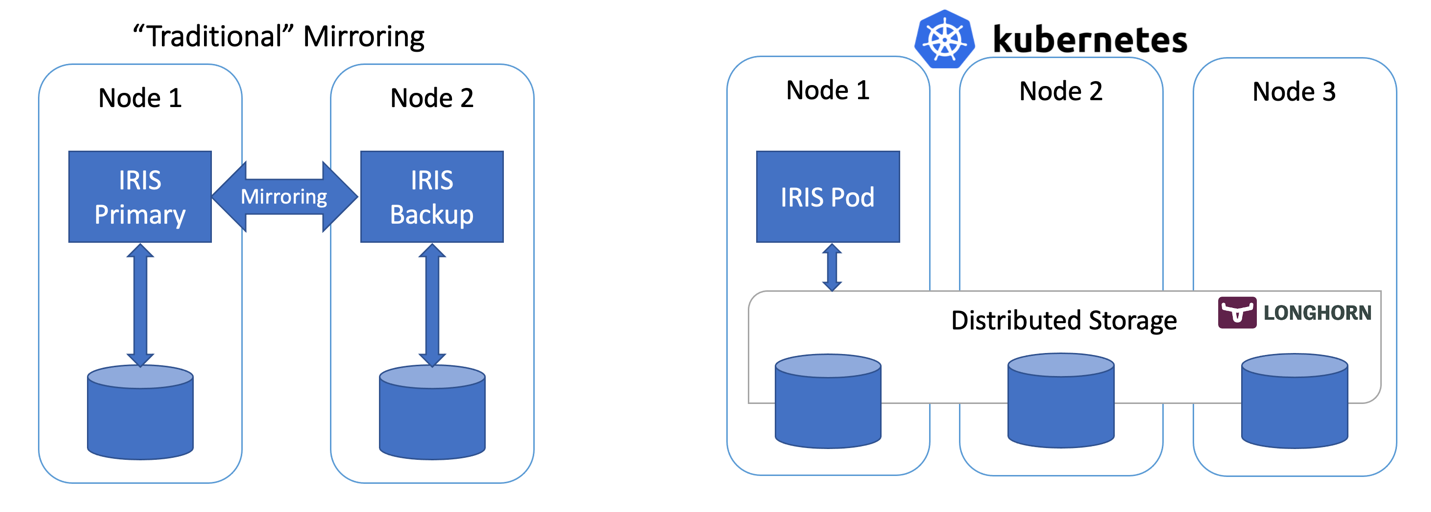
Figure 1 - Traditional Mirroring vs Kubernetes with Distributed Storage

All the source code for this article is available at https://github.com/antonum/ha-iris-k8s
TL;DR

Assuming you have a running 3 node cluster and have some familiarity with Kubernetes – go right ahead:

kubectl apply -f https://raw.githubusercontent.com/longhorn/longhorn/master/deploy/longhorn.yaml
kubectl apply -f https://github.com/antonum/ha-iris-k8s/raw/main/tldr.yaml

If you are not sure what the two lines above are about or don’t have the system to execute these on – skip to the “High Availability Requirements” section. We’ll explain things in the details as we go.

The first line installs Longhorn - open-source distributed Kubernetes storage. The second one installs InterSystems IRIS deployment, using Longhorn-based volume for Durable SYS.

Wait for all the pods to come up to the running state. kubectl get pods -A

You now should be able to access the IRIS management portal at http://<IRIS Service Public IP>:52773/csp/sys/%25CSP.Portal.Home.zen  (default password is 'SYS') and IRIS command line via:

kubectl exec -it iris-podName-xxxx -- iris session iris

Simulate the Failure

Now start messing around. But before you do it, try to add some data into the database and make sure it's there when IRIS is back online.

kubectl exec -it iris-6d8896d584-8lzn5 -- iris session iris
USER>set ^k8stest($i(^k8stest))=$zdt($h)_" running on "_$system.INetInfo.LocalHostName()
USER>zw ^k8stest
^k8stest=1
^k8stest(1)="01/14/2021 14:13:19 running on iris-6d8896d584-8lzn5"

Our "chaos engineering" starts here:

# Stop IRIS - Container will be restarted automatically
kubectl exec -it iris-6d8896d584-8lzn5 -- iris stop iris quietly
 
# Delete the pod - Pod will be recreated
kubectl delete pod iris-6d8896d584-8lzn5
 
# "Force drain" the node, serving the iris pod - Pod would be recreated on another node
kubectl drain aks-agentpool-29845772-vmss000001 --delete-local-data --ignore-daemonsets --force
 
# Delete the node - Pod would be recreated on another node
# well... you can't really do it with kubectl. Find that instance or VM and KILL it.
# if you have access to the machine - turn off the power or disconnect the network cable. Seriously!

High Availability Requirements


We are building a system that can tolerate a failure of the following:

  • IRIS instance within container/VM. IRIS – level failure.
  • Pod/Container failure.
  • Temporary unavailability of the individual cluster node. A good example would be the Availability Zone temporary goes off-line.
  • Permanent failure of individual cluster node or disk.

Basically, the scenarios we just tried in the “Simulate the failure” section.

If any of these failures occur, the system should get online without any human involvement and without data loss. Technically there are limits on what data persistence guarantees. IRIS itself can provide based on the Journal Cycle and transaction usage within an application: https://docs.intersystems.com/irisforhealthlatest/csp/docbook/Doc.View.cls?KEY=GCDI_journal#GCDI_journal_writecycle In any case, we are talking under two seconds for RPO (Recovery Point Objective).

Other components of the system (Kubernetes API Service, etcd database, LoadBalancer service, DNS and others) are outside of the scope and typically managed by the Managed Kubernetes Service such as Azure AKS or AWS EKS so we assume that they are highly available already.

Another way of looking at it – we are responsible for handling individual compute and storage component failures and assuming that the rest is taken care of by the infrastructure/cloud provider.

Architecture

When it comes to high availability for InterSystems IRIS, the traditional recommendation is to use mirroring. With mirroring you have two always-on IRIS instances synchronously replicating data. Each node maintains a full copy of the database and if the Primary node goes down, users reconnect to the Backup node. Essentially, with the mirroring approach, IRIS is responsible for the redundancy of both compute and storage.

With mirrors deployed in different availability zones, mirroring provides required redundancy for both compute and storage failure and allows for the excellent RTO (Recovery Time Objective or the time it takes for a system to get back online after a failure) of just a few seconds. You can find the deployment template for Mirrored IRIS on AWS Cloud here: https://community.intersystems.com/post/intersystems-iris-deployment%C2%A0guide-aws%C2%A0using-cloudformation-template

The less pretty side of mirroring is the complexity of setting it up, performing backup/restore procedures and the lack of replication for security settings and local non-database files.

Container orchestrators such as Kubernetes (wait, it’s 2021… are there any other left?!) provide compute redundancy via Deployment objectsautomatically restarting the failed IRIS Pod/Container in case of failure. That’s why you see only one IRIS node running on the Kubernetes architecture diagram. Instead of keeping a second IRIS node always running we outsource the compute availability to Kubernetes. Kubernetes will make sure that the IRIS pod be recreated in case the original pod fails for whatever reason.
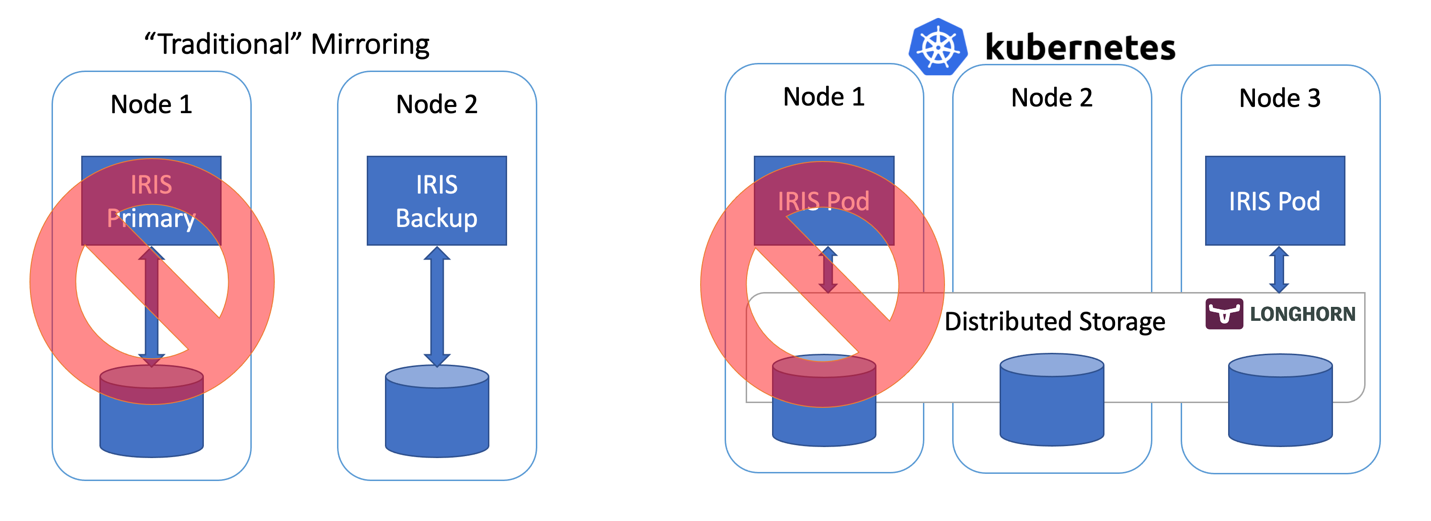
Figure 2 Failover Scenario

So far so good… If IRIS node fails, Kubernetes just creates a new one. Depending on your cluster it takes anywhere between 10 and 90 seconds to get IRIS back online after the compute failure. It is a step down compared with just a couple of seconds for mirroring, but if it’s something you can tolerate in the unlikely event of the outage, the reward is the greatly reduced complexity. No mirroring to configure. No security setting and file replication to worry about.

Frankly, if you login inside the container, running IRIS in Kubernetes, you’ll not even notice that you are running inside the highly available environment. Everything looks and feels just like a single instance IRIS deployment.

Wait, what about storage? We are dealing with a database nevertheless … Whatever failover scenario we can imagine, our system should take care of the data persistence too. Mirroring relies on the compute, local to the IRIS node. If the node dies or just becomes temporarily unavailable – so does the storage for that node. That’s why in mirroring configuration IRIS takes care of replicating databases on the IRIS level.

We need storage that can not only preserve the state of the database upon container restart but also can provide redundancy for the event like node or entire segment of the network (Availability Zone) going down. Just a few years ago there was no easy answer to this. As you can guess from the diagram above – we have such an answer now. It is called distributed container storage.

Distributed storage abstracts underlying host volumes and presents them as one joint storage available to every node of the k8s cluster. We use Longhorn https://longhorn.io in this article; it’s free, open-source and fairly easy to install. But you can also take a look at others, such as OpenEBS, Portworx and StorageOS that would provide the same functionality. Rook Ceph is another CNCF Incubating project to consider. On the high end of the spectrum – there are enterprise-grade storage solutions such as NetApp, PureStorage and others.

Step by step guide

In TL;DR section we just installed the whole thing in one shot. Appendix B would guide you through step- by step installation and validation procedures.

Kubernetes Storage

Let’s step back for a second and talk about containers and storage in general and how IRIS fits into the picture.

By default all data inside the container is ephemeral. When the container dies, data disappears. In Docker, you can use the concept of volumes. Essentially it allows you to expose the directory on the host OS to the container.

docker run --detach
  --publish 52773:52773
  --volume /data/dur:/dur
  --env ISC_DATA_DIRECTORY=/dur/iconfig
  --name iris21 --init intersystems/iris:2020.3.0.221.0

In the example above we are starting the IRIS container and making the host-local ‘/data/dur’ directory accessible to the container at the ‘/dur’ mount point. So, if the container is storing anything inside this directory, it would be preserved and available to use on the next container start.

On the IRIS side of things, we can instruct IRIS to store all the data that needs to survive container restart in the specific directory by specifying ISC_DATA_DIRECTORY. Durable SYS is the name of the IRIS feature you might need to look for in the documentation https://docs.intersystems.com/irisforhealthlatest/csp/docbook/Doc.View.cls?KEY=ADOCK#ADOCK_iris_durable_running

In Kubernetes the syntax is different, but the concepts are the same.

Here is the basic Kubernetes Deployment for IRIS.

apiVersion: apps/v1
kind: Deployment
metadata:
  name: iris
spec:
  selector:
    matchLabels:
      app: iris
  strategy:
    type: Recreate
  replicas: 1
  template:
    metadata:
      labels:
        app: iris
    spec:
      containers:
      - image: store/intersystems/iris-community:2020.4.0.524.0
        name: iris
        env:
        - name: ISC_DATA_DIRECTORY
          value: /external/iris
        ports:
        - containerPort: 52773
          name: smp-http
        volumeMounts:
        - name: iris-external-sys
          mountPath: /external
      volumes:
      - name: iris-external-sys
        persistentVolumeClaim:
          claimName: iris-pvc


In the deployment specification above, ‘volumes’ part lists storage volumes. They can be available outside of the container, via persistentVolumeClaim such as ‘iris-pvc’. volumeMounts expose this volume inside the container. ‘iris-external-sys’ is the identifier that ties volume mount to the specific volume. In reality, we might have multiple volumes and this name is used just to distinguish one from another. You can call it ‘steve’ if you want.

Already familiar environment variable ISC_DATA_DIRECTORY directs IRIS to use a specific mount point to store all the data that needs to survive container restart.

Now let’s take a look at the Persistent Volume Claim iris-pvc.

apiVersion: v1
kind: PersistentVolumeClaim
metadata:
  name: iris-pvc
spec:
  storageClassName: longhorn
  accessModes:
    - ReadWriteOnce
  resources:
    requests:
      storage: 10Gi


Fairly straightforward. Requesting 10 gigabytes, mountable as Read/Write on one node only, using storage class of ‘longhorn’.

That storageClassName: longhorn is actually critical here.

Let’s look at what storage classes are available on my AKS cluster:

kubectl get StorageClass
NAME                             PROVISIONER                     RECLAIMPOLICY   VOLUMEBINDINGMODE   ALLOWVOLUMEEXPANSION   AGE
azurefile                        kubernetes.io/azure-file        Delete          Immediate           true                   10d
azurefile-premium                kubernetes.io/azure-file        Delete          Immediate           true                   10d
default (default)                kubernetes.io/azure-disk        Delete          Immediate           true                   10d
longhorn                         driver.longhorn.io              Delete          Immediate           true                   10d
managed-premium                  kubernetes.io/azure-disk        Delete          Immediate           true                   10d

There are few storage classes from Azure, installed by default and one from Longhorn that we installed as part of the very first command:

kubectl apply -f https://raw.githubusercontent.com/longhorn/longhorn/master/deploy/longhorn.yaml

If you comment out #storageClassName: longhorn in the Persistent Volume Claim definition, it will use storage class, currently marked as “default” which is a regular Azure Disk.

To illustrate why we need Distributed storage let’s repeat the “chaos engineering” experiments we described at the beginning of the article without longhorn storage. The first two scenarios (stop IRIS and delete the Pod) would successfully complete and systems would recover to the operational state. Attempting to either drain or kill the node would bring the system into a failed state.

#forcefully drain the node
kubectl drain aks-agentpool-71521505-vmss000001 --delete-local-data --ignore-daemonsets

kubectl describe pods ...   Type     Reason            Age                  From               Message   ----     ------            ----                 ----               -------   Warning  FailedScheduling  57s (x9 over 2m41s)  default-scheduler  0/3 nodes are available: 1 node(s) were unschedulable, 2 node(s) had volume node affinity conflict.

Essentially, Kubernetes would try to restart the IRIS pod on the cluster, but the node where it was originally started is not available and the other two nodes have “volume node affinity conflict”. With this storage type, the volume is available only on the node it was originally created since it is basically tied to the disk available on the node host.

With longhorn as a storage class, both “force drain” and “node kill” experiments succeed, and the IRIS pod is back into operation shortly. To achieve it Longhorn takes control over the available storage on the 3 nodes of the cluster and replicates the data across all three nodes. Longhorn promptly repairs cluster storage if one of the nodes becomes permanently unavailable. In our “node kill” scenario, the IRIS pod is restarted on another node right away using two remaining volume replicas.  Then, AKS provisions a new node to replace the lost one and as soon as it is ready, Longhorn kicks in and rebuilds required data on the new node. Everything is automatic, without your involvement.
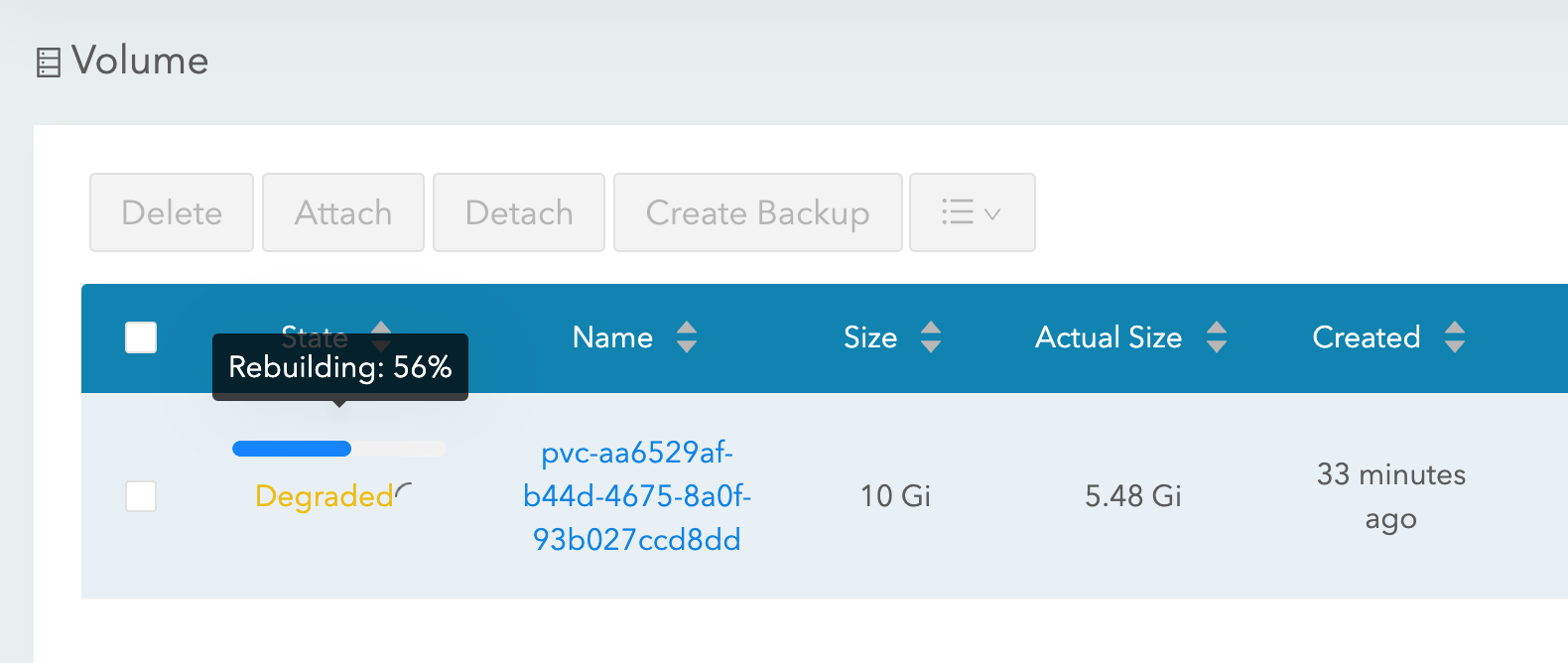
Figure 3 Longhorn rebuilding volume replica on the replaced node

More about k8s deployment

Let’s take a look at some other aspects of our deployment:

apiVersion: apps/v1
kind: Deployment
metadata:
  name: iris
spec:
  selector:
    matchLabels:
      app: iris
  strategy:
    type: Recreate
  replicas: 1
  template:
    metadata:
      labels:
        app: iris
    spec:
      containers:
      - image: store/intersystems/iris-community:2020.4.0.524.0
        name: iris
        env:
        - name: ISC_DATA_DIRECTORY
          value: /external/iris
        - name: ISC_CPF_MERGE_FILE
          value: /external/merge/merge.cpf
        ports:
        - containerPort: 52773
          name: smp-http
        volumeMounts:
        - name: iris-external-sys
          mountPath: /external
        - name: cpf-merge
          mountPath: /external/merge
        livenessProbe:
          initialDelaySeconds: 25
          periodSeconds: 10
          exec:
            command:
            - /bin/sh
            - -c
            - "iris qlist iris | grep running"
      volumes:
      - name: iris-external-sys
        persistentVolumeClaim:
          claimName: iris-pvc
      - name: cpf-merge
        configMap:
          name: iris-cpf-merge


strategy: Recreate, replicas: 1 tells Kubernetes that at any given time it should maintain one and exactly one instance of IRIS pod running. This is what takes care of our “delete pod” scenario.

livenessProbe section makes sure that IRIS is always up inside the container and handles “IRIS is down” scenario. initialDelaySeconds allows for some grace period for IRIS to start. You might want to increase it if IRIS is taking a considerable time to start your deployment.

CPF MERGE feature of IRIS allows you to modify the content of the configuration file iris.cpf upon container start. See https://docs.intersystems.com/irisforhealthlatest/csp/docbook/DocBook.UI.Page.cls?KEY=RACS_cpf#RACS_cpf_edit_merge for relevant documentation. In this example I’m using Kubernetes Config Map to manage the content of the merge file: https://github.com/antonum/ha-iris-k8s/blob/main/iris-cpf-merge.yaml Here we adjust global buffers and gmheap values, used by IRIS instance, but everything you can find in iris.cpf file is a fair game. You can even change the default IRIS password using `PasswordHash` field in the CPF Merge file. Read more at: https://docs.intersystems.com/irisforhealthlatest/csp/docbook/Doc.View.cls?KEY=ADOCK#ADOCK_iris_images_password_auth

Besides Persistent Volume Claim https://github.com/antonum/ha-iris-k8s/blob/main/iris-pvc.yaml deployment https://github.com/antonum/ha-iris-k8s/blob/main/iris-deployment.yaml and ConfigMap with CPF Merge content https://github.com/antonum/ha-iris-k8s/blob/main/iris-cpf-merge.yaml our deployment needs a service that exposes IRIS deployment to the public internet: https://github.com/antonum/ha-iris-k8s/blob/main/iris-svc.yaml

kubectl get svc
NAME         TYPE           CLUSTER-IP    EXTERNAL-IP     PORT(S)           AGE
iris-svc     LoadBalancer   10.0.18.169   40.88.123.45   52773:31589/TCP   3d1h
kubernetes   ClusterIP      10.0.0.1      <none>          443/TCP           10d

External IP of the iris-svc can be used to access the IRIS management portal via http://40.88.123.45:52773/csp/sys/%25CSP.Portal.Home.zen. The default password is 'SYS'.

Backup/Restore and Storage Scaling

Longhorn provides web-based UI for configuring and managing volumes.

Identify the pod, running longhorn-ui component and establish port forwarding with kubectl:

kubectl -n longhorn-system get pods
# note the longhorn-ui pod id.

kubectl port-forward longhorn-ui-df95bdf85-gpnjv 9000:8000 -n longhorn-system

Longhorn UI will become available at http://localhost:9000
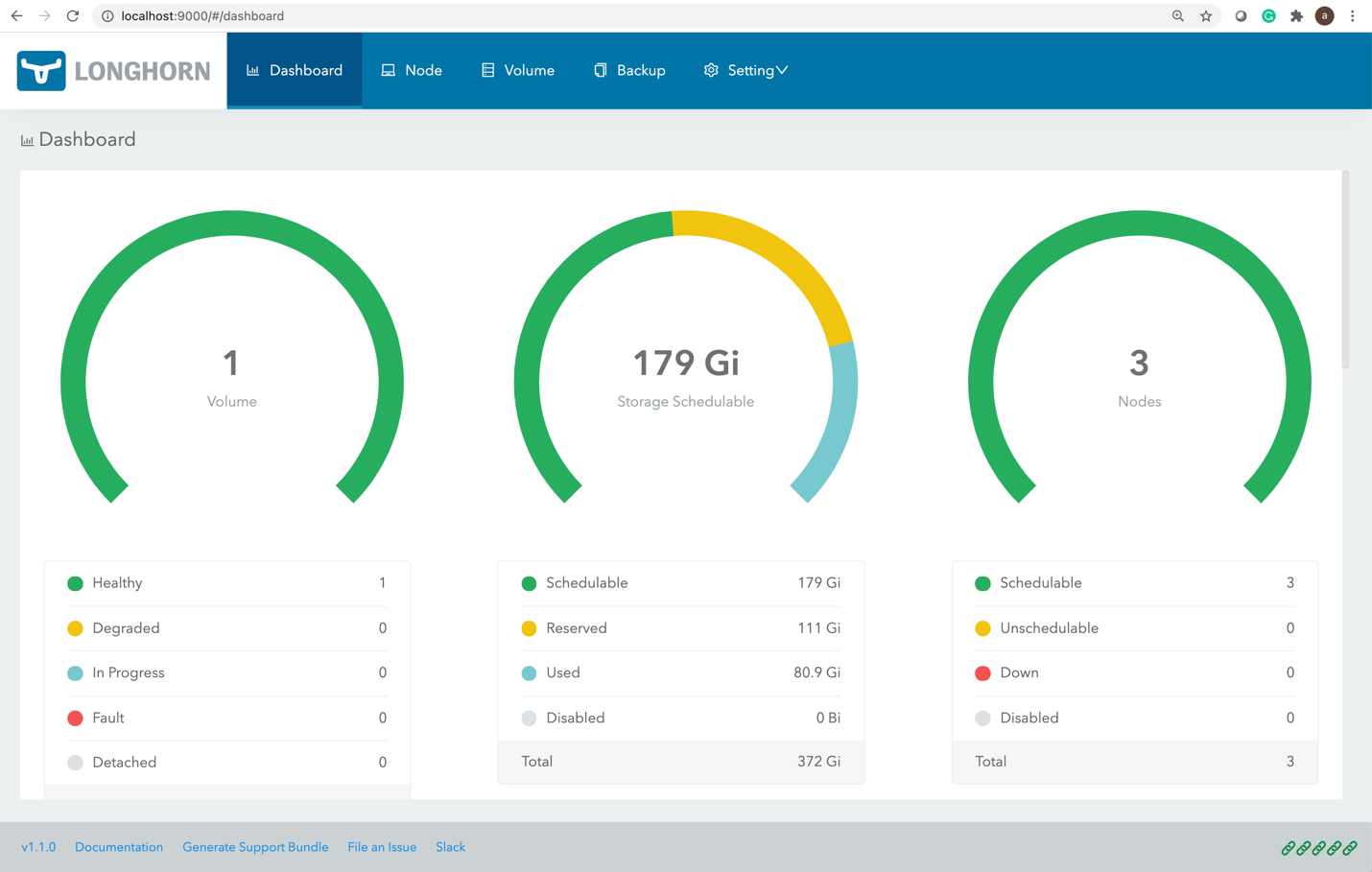
Figure 4 Longhorn UI

Besides high availability, most of the Kubernetes container storage solutions provide convenient options for backup, snapshots and restore. Details are implementation-specific, but the common convention is that backup is associated with the VolumeSnapshot. It is so for Longhorn. Depending on your Kubernetes version and provider you might also need to install volume snapshotter https://github.com/kubernetes-csi/external-snapshotter

`iris-volume-snapshot.yaml` is an example of such a volume snapshot. Before using it, you need to configure backups to either the S3 bucket or NFS volume in Longhorn. https://longhorn.io/docs/1.0.1/snapshots-and-backups/backup-and-restore/set-backup-target/

# Take crash-consistent backup of the iris volume
kubectl apply -f iris-volume-snapshot.yaml

For IRIS it is recommended that you execute External Freeze before taking the backup/snapshot and Thaw after. See details here: https://docs.intersystems.com/irisforhealthlatest/csp/documatic/%25CSP.Documatic.cls?LIBRARY=%25SYS&CLASSNAME=Backup.General#ExternalFreeze  

To increase the size of the IRIS volume - adjust storage request in persistent volume claim (file `iris-pvc.yaml`), used by IRIS.

...
  resources:
    requests:
      storage: 10Gi #change this value to required

Then, re-apply the pvc specification. Longhorn cannot actually apply this change while the volume is connected to the running Pod. Temporarily change replicas count to zero in the deployment so volume size can be increased.

High Availability – Overview

At the beginning of the article, we set some criteria for High Availability. Here is how we achieve it with this architecture:

Failure Domain

Automatically mitigated by

IRIS instance within container/VM. IRIS – level failure.

Deployment Liveness probe restarts container in case IRIS is down

Pod/Container failure.

Deployment recreates Pod

Temporary unavailability of the individual cluster node. A good example would be Availability Zone going off-line.

Deployment recreates pod on another node. Longhorn makes data available on another node.

Permanent failure of individual cluster node or disk.

Same as above + k8s cluster autoscaler replaces a damaged node with a new one. Longhorn rebuilds data on the new node.

Zombies and other things to consider

If you are familiar with running IRIS in the Docker containers, you might have used the `--init` flag.

docker run --rm -p 52773:52773 --init store/intersystems/iris-community:2020.4.0.524.0

The goal of this flag is to prevent the formation of the "zombie processes". In Kubernetes, you can either use ‘shareProcessNamespace: true’ (security considerations apply) or in your own containers utilize `tini`. Example Dockerfile with tini:

FROM iris-community:2020.4.0.524.0
...
# Add Tini
USER root
ENV TINI_VERSION v0.19.0
ADD https://github.com/krallin/tini/releases/download/${TINI_VERSION}/tini /tini
RUN chmod +x /tini
USER irisowner
ENTRYPOINT ["/tini", "--", "/iris-main"]

Starting 2021, all InterSystems provided container images would include tini by default.

You can further decrease the failover time for “force drain node/kill node” scenarios by adjusting few parameters:

Longhorn Pod Deletion Policy https://longhorn.io/docs/1.1.0/references/settings/#pod-deletion-policy-when-node-is-down and kubernetes taint-based eviction: https://kubernetes.io/docs/concepts/scheduling-eviction/taint-and-toleration/#taint-based-evictions

Disclaimer

As the InterSystems employee, I kinda have to put this in here: Longhorn is used in this article as an example of distributed Kubernetes Block Storage. InterSystems does not validate or issue an official support statement for individual storage solutions or products. You need to test and validate if any specific storage solution fits your needs.

Distributed storage might also have substantially different performance characteristics, comparing to node-local storage. Especially for write operations, where data must be written to multiple locations before it is considered to be in the persisted state. Make sure to test your workloads and understand the specific behaviour and options your CSI driver offers..

Basically, InterSystems does not validate and/or endorse specific storage solutions like Longhorn in the same way as we don’t validate individual HDD brands or server hardware manufacturers. I personally found Longhorn easy to work with and their development team extremely responsive and helpful at the project’s GitHub page. https://github.com/longhorn/longhorn 

Conclusion

Kubernetes ecosystem evolved significantly in the past few years and with the use of distributed block storage solutions, you now can build a Highly Available configuration that can sustain IRIS instance, cluster node and even Availability Zone failure.

You can outsource compute and storage high availability to Kubernetes components, resulting in a significantly simpler system to configure and maintain, comparing to the traditional IRIS mirroring. At the same time, this configuration might not provide the same RTO and storage – level performance as mirrored configuration.

In this article, we build a highly available IRIS configuration using Azure AKS as a managed Kubernetes and Longhorn distributed storage system. You can explore multiple alternatives such as AWS EKS, Google Kubernetes Engine for managed K8s, StorageOS, Portworx and OpenEBS as distributed container storage or even enterprise-level storage solutions such as NetApp, PureStorage, Dell EMC and others.

Appendix A. Creating Kubernetes Cluster in the cloud

Managed Kubernetes service from one of the public cloud providers is an easy way to create k8s cluster required for this setup. Azure’s AKS default configuration is ready out of the box to be used for the deployment described in this article.

Create a new AKS cluster with 3 nodes. Leave everything else default.
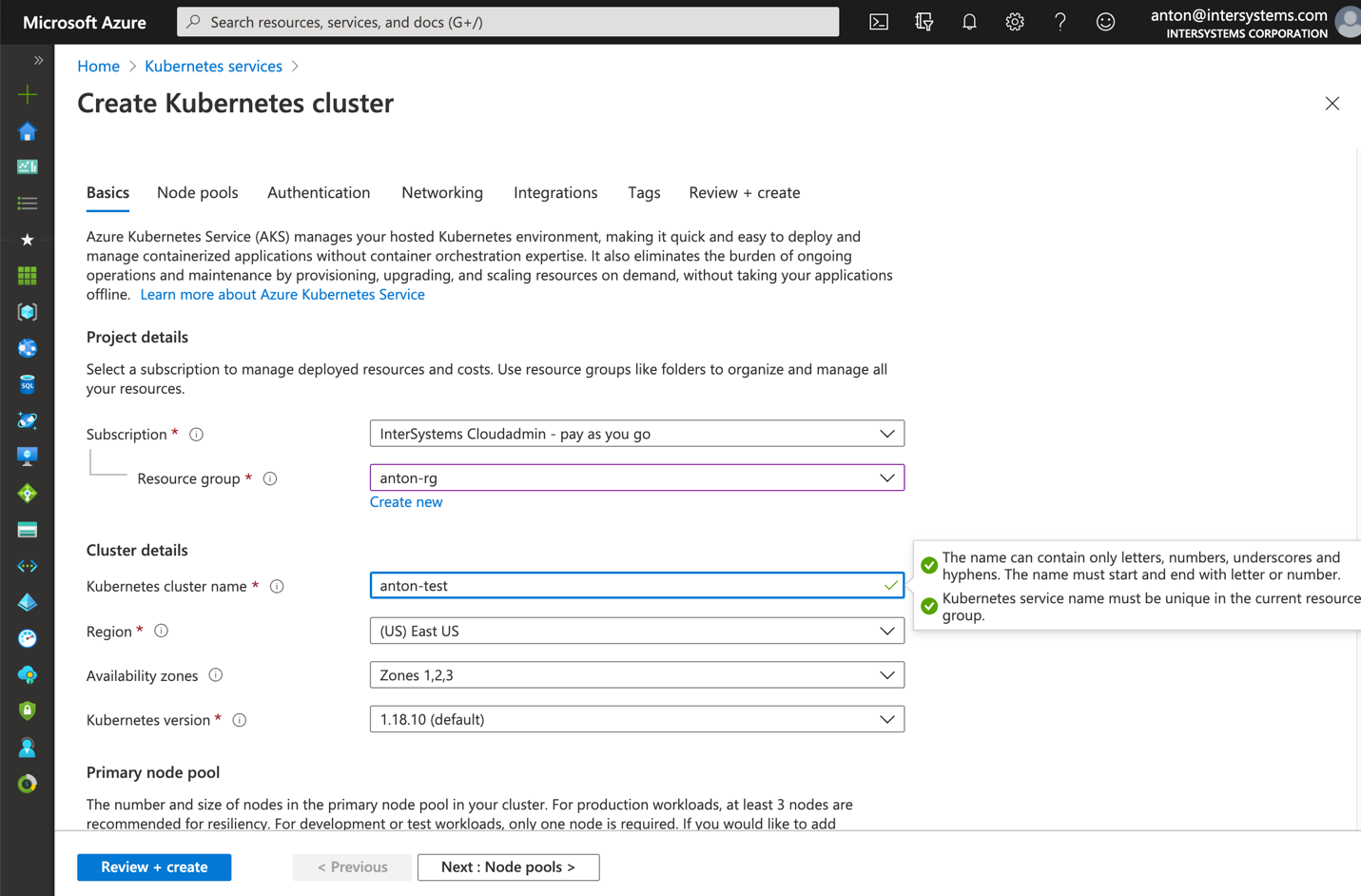
Figure 5 Create AKS cluster

Install kubectl on your computer locally: https://kubernetes.io/docs/tasks/tools/install-kubectl/

Register your AKS cluster with local kubectl
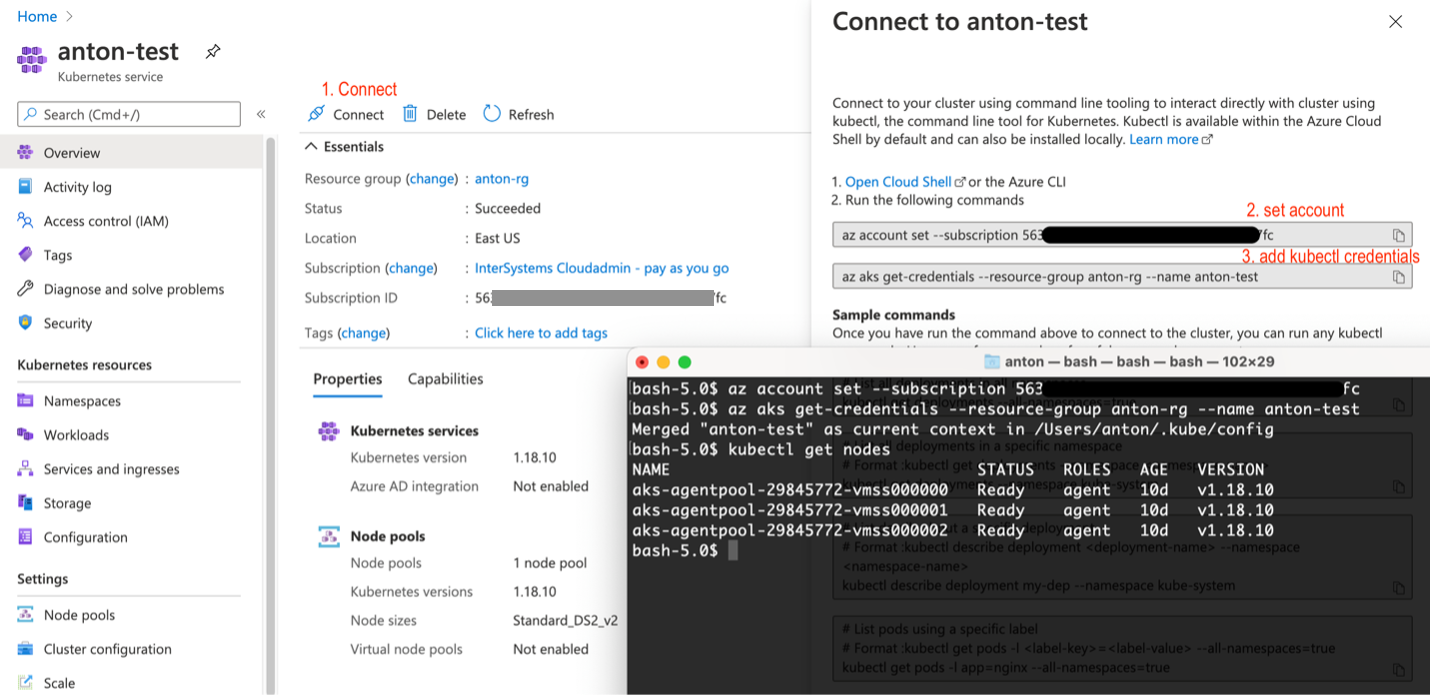
 

Figure 6 Register AKS cluster with kubectl

After that, you can get right back to the beginning of the article and install longhorn and IRIS deployment.

Installation on AWS EKS is a little bit more complicated. You need to make sure every instance in your node group has open-iscsi installed.

sudo yum install iscsi-initiator-utils -y

Installing Longhorn on GKE requires extra step, described here: https://longhorn.io/docs/1.0.1/advanced-resources/os-distro-specific/csi-on-gke/

Appendix B. Step by step installation

Step 1 – Kubernetes Cluster and kubectl

You need 3 nodes k8s cluster. Appendix A describes how to get one on Azure.

$ kubectl get nodes
NAME                                STATUS   ROLES   AGE   VERSION
aks-agentpool-29845772-vmss000000   Ready    agent   10d   v1.18.10
aks-agentpool-29845772-vmss000001   Ready    agent   10d   v1.18.10
aks-agentpool-29845772-vmss000002   Ready    agent   10d   v1.18.10

Step 2 – Install Longhorn

kubectl apply -f https://raw.githubusercontent.com/longhorn/longhorn/master/deploy/longhorn.yaml

Make sure all the pods in the ‘longhorn-system’ namespace are in the running state. It might take few minutes.

$ kubectl get pods -n longhorn-system
NAME                                       READY   STATUS    RESTARTS   AGE
csi-attacher-74db7cf6d9-jgdxq              1/1     Running   0          10d
csi-attacher-74db7cf6d9-l99fs              1/1     Running   1          11d
...
longhorn-manager-flljf                     1/1     Running   2          11d
longhorn-manager-x76n2                     1/1     Running   1          11d
longhorn-ui-df95bdf85-gpnjv                1/1     Running   0          11d

Refer to the Longhorn installation guide for details and troubleshooting https://longhorn.io/docs/1.1.0/deploy/install/install-with-kubectl

Step 3 – Clone the GitHub repo

$ git clone https://github.com/antonum/ha-iris-k8s.git
$ cd ha-iris-k8s
$ ls
LICENSE                   iris-deployment.yaml      iris-volume-snapshot.yaml
README.md                 iris-pvc.yaml             longhorn-aws-secret.yaml
iris-cpf-merge.yaml       iris-svc.yaml             tldr.yaml

Step 4 – deploy and validate components one by one

tldr.yaml file contains all the components needed for the deployment in one bundle. Here we’ll install them one by one and validate the setup of every one of them individually.

# If you have previously applied tldr.yaml - delete it.
$ kubectl delete -f https://github.com/antonum/ha-iris-k8s/raw/main/tldr.yaml

Create Persistent Volume Claim

$ kubectl apply -f iris-pvc.yaml persistentvolumeclaim/iris-pvc created

$ kubectl get pvc NAME       STATUS   VOLUME                                     CAPACITY   ACCESS MODES   STORAGECLASS   AGE iris-pvc   Bound    pvc-fbfaf5cf-7a75-4073-862e-09f8fd190e49   10Gi       RWO            longhorn       10s

Create Config Map

$ kubectl apply -f iris-cpf-merge.yaml

$ kubectl describe cm iris-cpf-merge Name:         iris-cpf-merge Namespace:    default Labels:       <none> Annotations:  <none>

Data

merge.cpf:

[config] globals=0,0,800,0,0,0 gmheap=256000 Events:  <none>

create iris deployment

$  kubectl apply -f iris-deployment.yaml deployment.apps/iris created

$ kubectl get pods                     NAME                    READY   STATUS              RESTARTS   AGE iris-65dcfd9f97-v2rwn   0/1     ContainerCreating   0          11s

note the pod name. You’ll use it to connect to the pod in the next command

$ kubectl exec -it iris-65dcfd9f97-v2rwn   -- bash

irisowner@iris-65dcfd9f97-v2rwn:~$ iris session iris Node: iris-65dcfd9f97-v2rwn, Instance: IRIS

USER>w $zv IRIS for UNIX (Ubuntu Server LTS for x86-64 Containers) 2020.4 (Build 524U) Thu Oct 22 2020 13:04:25 EDT

h<enter> to exit IRIS shell

exit<enter> to exit pod

access the logs of the IRIS container

$ kubectl logs iris-65dcfd9f97-v2rwn ... [INFO] ...started InterSystems IRIS instance IRIS 01/18/21-23:09:11:312 (1173) 0 [Utility.Event] Private webserver started on 52773 01/18/21-23:09:11:312 (1173) 0 [Utility.Event] Processing Shadows section (this system as shadow) 01/18/21-23:09:11:321 (1173) 0 [Utility.Event] Processing Monitor section 01/18/21-23:09:11:381 (1323) 0 [Utility.Event] Starting TASKMGR 01/18/21-23:09:11:392 (1324) 0 [Utility.Event] [SYSTEM MONITOR] System Monitor started in %SYS 01/18/21-23:09:11:399 (1173) 0 [Utility.Event] Shard license: 0 01/18/21-23:09:11:778 (1162) 0 [Database.SparseDBExpansion] Expanding capacity of sparse database /external/iris/mgr/iristemp/ by 10 MB.

create iris service

$ kubectl apply -f iris-svc.yaml    service/iris-svc created

$ kubectl get svc NAME         TYPE           CLUSTER-IP     EXTERNAL-IP    PORT(S)           AGE iris-svc     LoadBalancer   10.0.214.236   20.62.241.89   52773:30128/TCP   15s

Step 5 – Access management portal

Finally – connect to the management portal of the IRIS, using the external IP of the service: http://20.62.241.89:52773/csp/sys/%25CSP.Portal.Home.zen username _SYSTEM, Password SYS. You’ll be asked to change it on your first login.
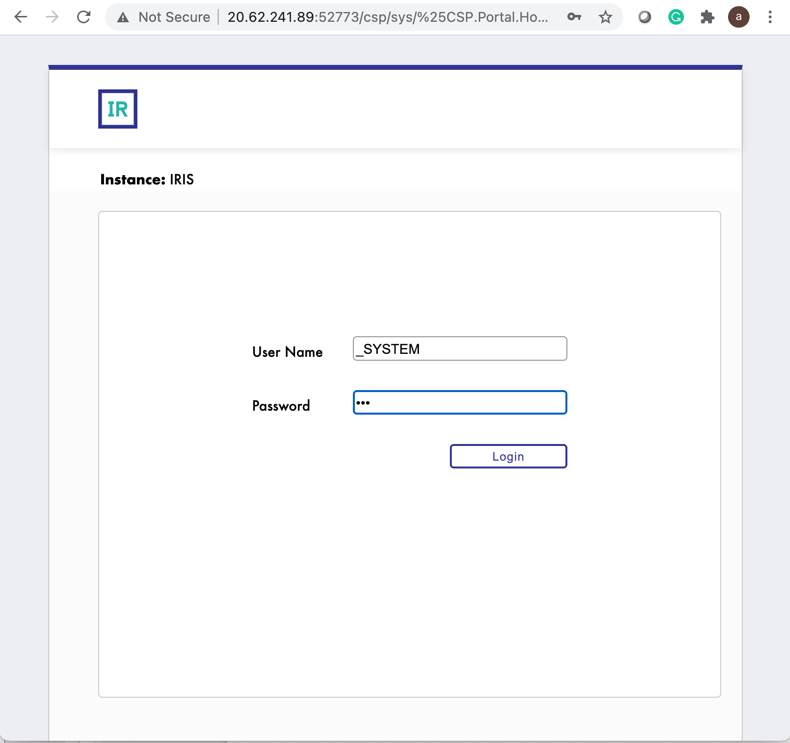
 

16
8 3897
Question Mark OReilly · Apr 14, 2023

After any installs upgrades we get the following 

04/13/23-18:00:00:978 (18668) 0 [Utility.Event] d:\intersystems\healthshare\mgr\enslib\ (Database is readonly)
04/13/23-18:00:00:979 (18668) 0 [Utility.Event] d:\intersystems\healthshare\mgr\hslib\ (Database is readonly)

I think we must have before altered these to not read-only. 

Not sure if the isssue is by default 

-Running task as user with %ALL rather than SYS user

- Should the dbs be as default in the all backup list 

- Should these be not ro so it backs up without error? 

2
0 316
Article Mihoko Iijima · May 11, 2023 2m read

InterSystems FAQ rubric

You can use the system routine ^DBSIZE to estimate the backup file size (see also Note 1).

^DBSIZE estimates the file size of full, cumulative, and differential backups of the databases selected in the database backup list.

The database backup list is created from [System Administration] > [Configuration] > [Database Backup] > [Database Backup List] in the Management Portal.

For more information, please refer to the document below.

Estimate backup size with ^DBSIZE [IRIS]

Estimate backup size with ^DBSIZE

An execution example is as follows.

0
0 360
Question William Caldwell · Apr 21, 2023

I have a client who' recently acquired a business that was running software that uses InterSystems IRIS as the database back end.  In the process of preparing to have my company's software installed the client formatted the hard drive of his server, wiping out his data.  I can't convert the data to MS SQL without a functioning database.  He had a backup on an external drive, which I have copied down to my local machine.  I loaded up  a virtual machine with Windows 10 Pro, I installed Docker and IRIS.  I started searching for explicit instructions for restoring the .CBK file, but I'm not having

7
0 958