Atelier terminal
How can I get a terminal connection to Caché server from Atelier?
Is it possible?
Comments
It is. I have used it some time ago.
You need a suitable plug in and connect to port 23 of your server
(provided it is not blocked by Win* firewall.
plugin from the following update repository: http://download.eclipse.org/tm/terminal/marketplace/.
- From your Eclipse/Atelier workspace, navigate to
 Help > Install New Software from the main menu.
 - Enter the URL for the Terminal plugin update site in the Work with field. Ensure that the Group items by category check box is selected.
- Once the groups are displayed, select the check box by the newest version.
- Click Next to open the Install Details page. Review your installation choices.
- Click Next to open the Review Licenses page. Accept the license terms and click Finish.
- To open the Terminal view, select Window > Show View > Other on the main menu and type "terminal" in the filter box. Select Terminal and OK.
and keep quiet when it installs.
this is not Caché and it takes it's time 
(I just spent 25 min for an Update/Upgrade)
Right: if you don't establish TELNET connection it's just bash or MS-DOS depending on your local OS.
Also for local localhost access !
so from Help:
-
Enable %Service_Telnet from the Management Portal (http://
/csp/sys/sec/%25CSP.UI.Portal.Services.zen) -
In the main menu, select Show View > Other > Terminal > Terminal, or click this link to open the
 Terminal View.
 -
Select the Open a Terminal button on the Terminal view toolbar.
-
Select Telnet Terminal from the Choose terminal drop down menu.
-
Complete the Telnet session configuration and click "OK"
-
If csession isn't in your PATH, navigate to your instance's bin directory. For example, cd C:\InterSystems\Cache\bin.
-
Launch a Caché terminal session. For example, csession Cache.
Setup Connection

And you get your Caché Terminal

HTH
Got "Connection refused". Shouldn't I specify 1972 port? Tried both 'telnet' and 1972 ports, still 'connection refused'.
is Enable %Service_Telnet set ?
in the Management Portal (http:///csp/sys/sec/%25CSP.UI.Portal.Services.zen)
My Caché runs on Win .(I'm not sure if this works also for Caché on Unix )
It does NOT work for Unix:
| %Service_Telnet | Yes | Yes | Unauthenticated | Unrestricted | Controls Telnet sessions on a Windows server |
So on UNIX you go to bash and have to start via csession....
Thank you, turns out Telnet was disabled.
I can have only one telnet terminal per windows server or is there an option to specify port?
For testing with Terminal I typically use PuTTY. http://www.putty.org/
There I can have multiple terminals with separated Sessions/$JOB in parallel without problem.(pls. don't ask how )
Terminal driver changes to a free set of ports ( 51133|10088) as you see by $IO
so it's no problem to have multiple terminal sessions connected
USER>w $io
|TNT|127.0.0.1:51133|10088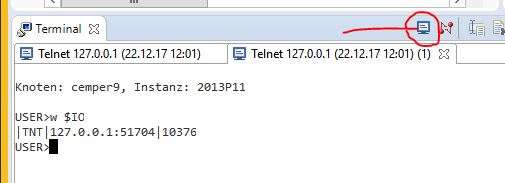
Each Cache instance on your PC can run its Telnet service on a different port. Set it here:

Kind of. Turns out it's just bash.
Robert is correct that you need to install the terminal plugin. I would recommend using the most recent version which is available from the Eclipse release update site associated with the version of Eclipse you have installed.
If you are using Oxygen, then go to http://download.eclipse.org/releases/oxygen.

You can find product documentation on the topic from Atelier as well. Go to Help > Help Contents > InterSystems Atelier User Guide > Tasks > Installing the Eclipse Terminal Plug-in.
¿ did the answers solve the issue ?